

Creating a Purchase Order
Last updated:
The Purchasing Department establishes preliminary agreements with suppliers, which are recorded in Edara as purchase orders (these can either be automatically executed or postponed until approval).
These orders contain details about the supplies required from the supplier and the payment method for the supplier’s dues.
Creating a Purchase Order
- Go to the Purchase module.
- Select “Purchase Order”.
- Specify the warehouse or Store.
- Click on “New”.
- Search for the supplier by name or part of the name.
- Choose the “Purchase Person” (if applicable).
- Click on "
 ".
". - Activate the “Tax liable” setting.
Note: Ensure the tax rate for the item is entered, which will display for each line in the purchase order. Then follow these steps:
- Search for part of the item name, code, or part number to select the desired item, then click 🔎, or press (*) to search for all items.
- Click on “⁝”.
- Click on “Columns”.
- Show “Tax Rate”.
- Click on “Save”.
The tax rate associated with this item will display automatically, and the tax value will be added to the purchase order total. You can change this rate by clicking "▼".
- Add the quantity and the price (and item or order discount if needed).
- Select the Payment Method by clicking on “
 ”.
”.
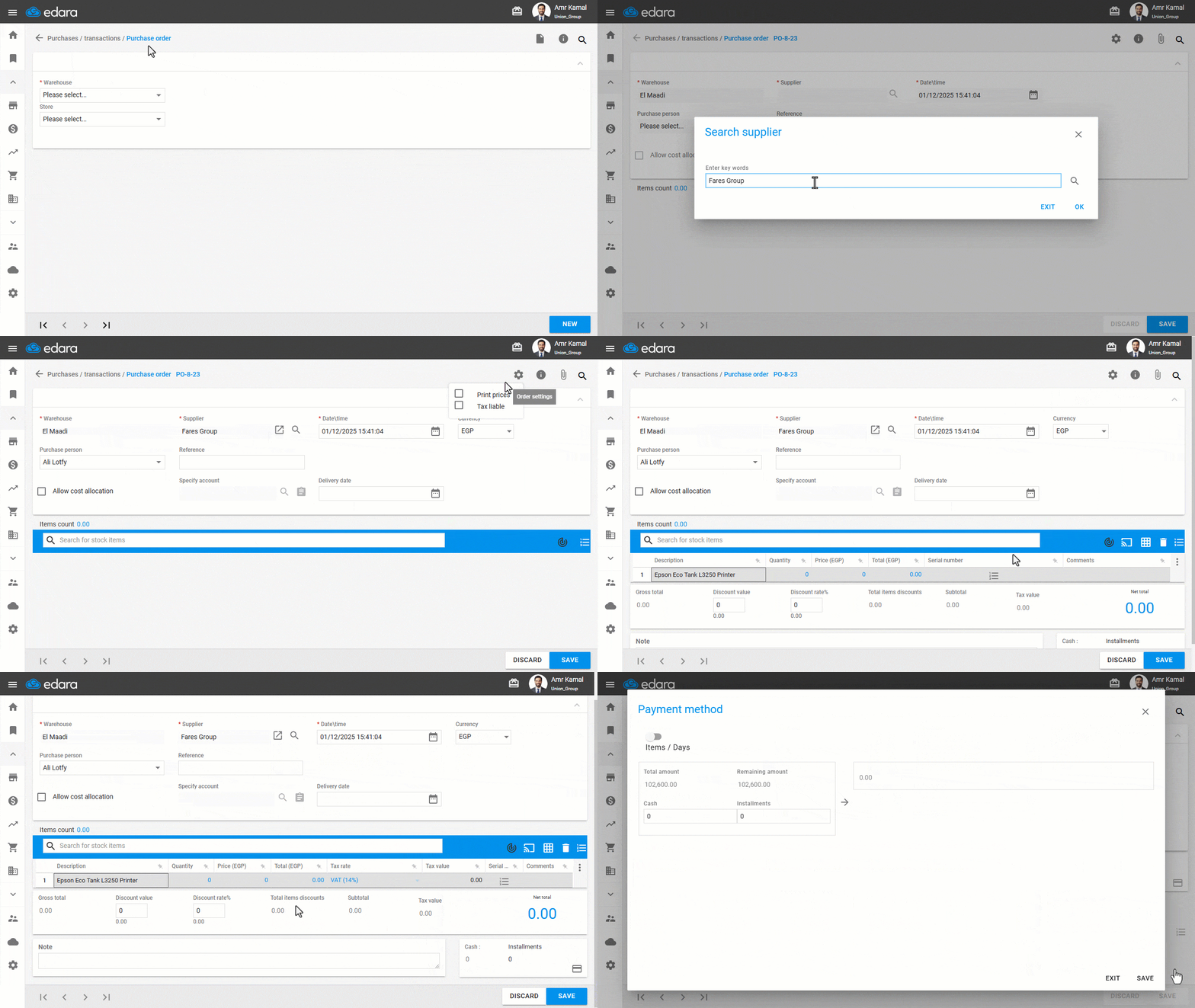
Here, you will find 3 different cases:
1- Cash Payment
- Enter the full amount in the “Cash” field.
- Click on “Save”.
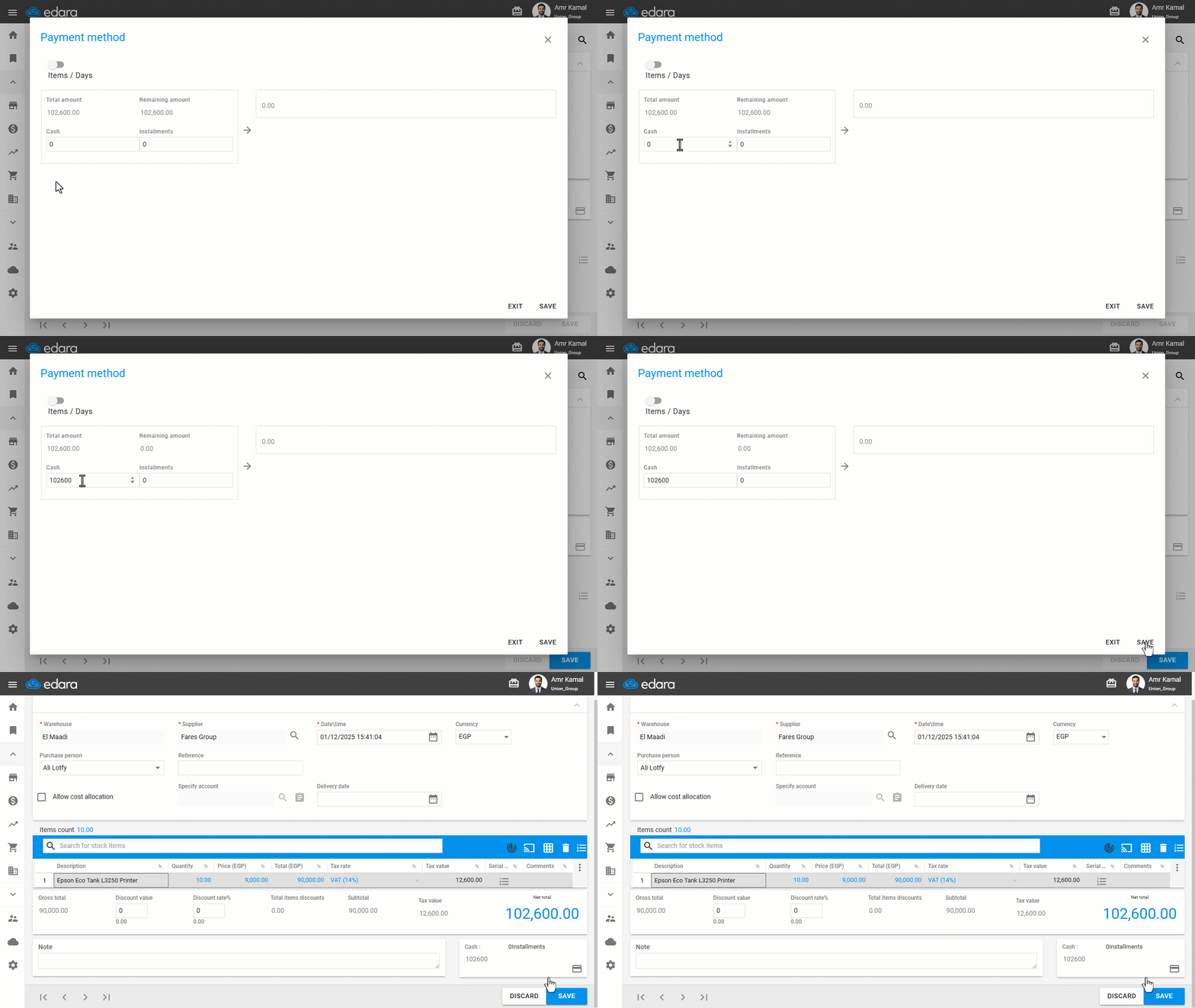
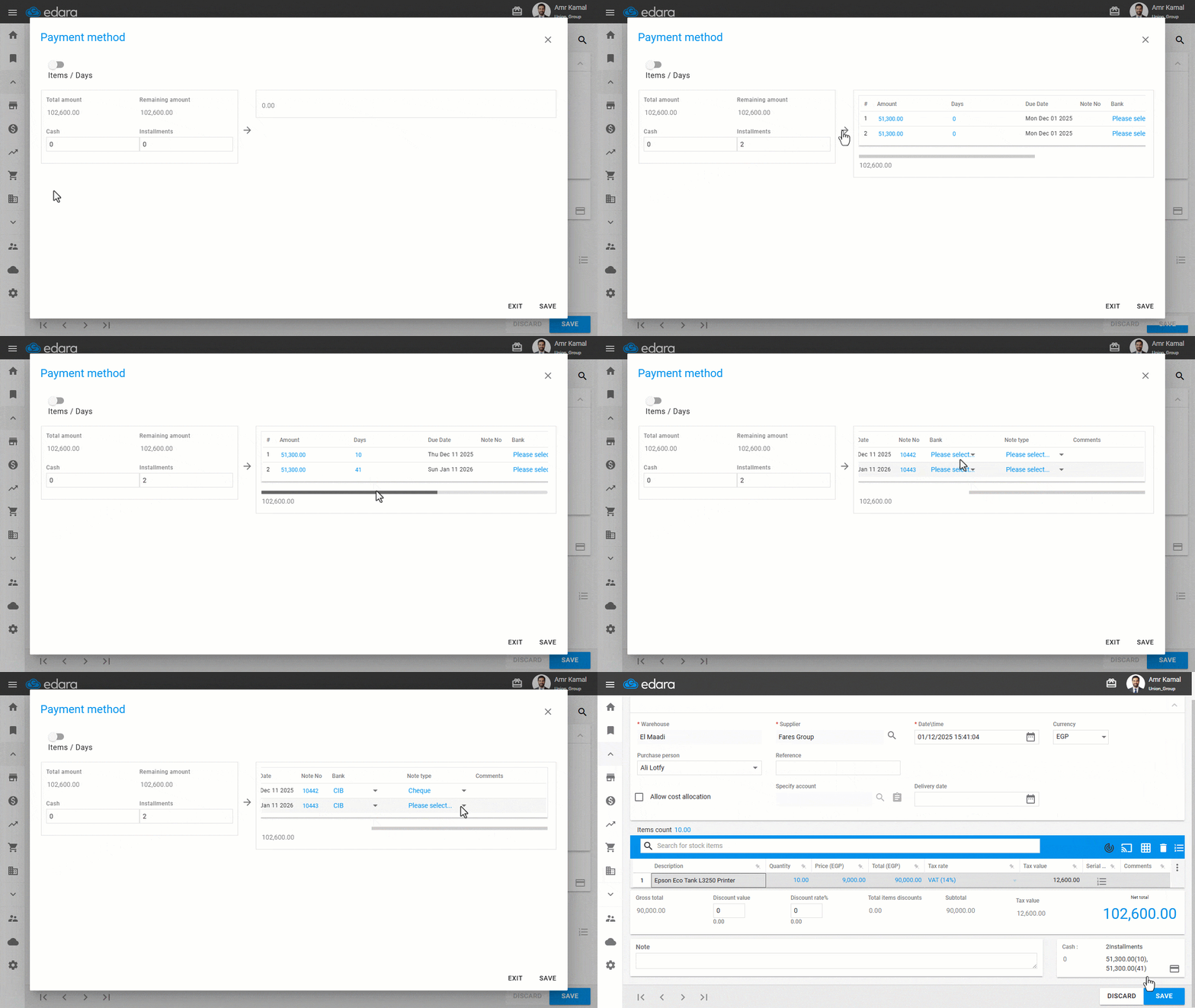
2- Installment Payment
- Enter the number of installments.
- Click on “→”.
Edara will suggest installment amounts, which you can adjust as needed.
- Specify the maturity date in days for each installment (the difference between the purchase order date and the maturity date).
- Enter the “Note No” or any available check or payment reference numbers.
- Choose the “Bank”
- Select the “Note Type”.
- Click on “Save”.
3- Partial Cash and Partial Installment
- Enter the amount to be paid in cash in the “Cash” field
- Specify the number of installments for the Remaining amount, then continue as per the installment payment steps above.
- Click on “Save”.
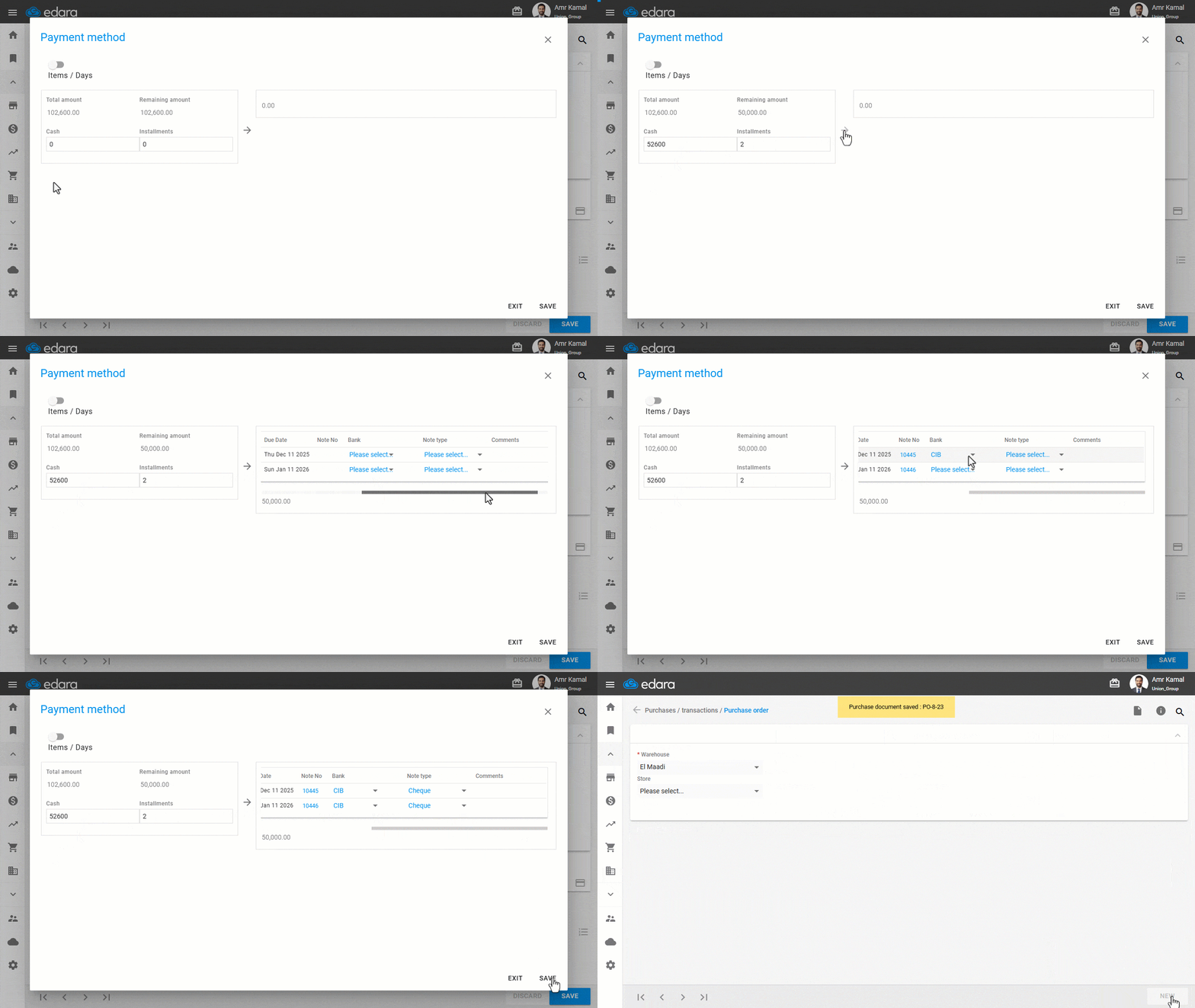
Note: For orders executed automatically, before saving, you must choose the “Treasury” for full cash payments, and select “Notes payable” for fully installment-based payments, or both for combined cash and installment payments.
Frequently asked questions
How do I show the tax rate on each line of the purchase order?
Ensure the tax rate for the item is entered, which will display for each line in the purchase order. Then follow these steps: Search for part of the item name, code, or part number to select the desired item, then click 🔎, or press (*) to search for all items, Click on “⁝”, Click on “Columns”, Show “Tax Rate”, Click on “Save”.
If you encounter any challenges or have questions during these processes, you can contact our technical support team, who are ready to assist you at any time.