

Creating a Multi-Warehouse Purchase Order
Last updated:
If you want to purchase Supplies for multiple warehouses, there’s no need to create separate purchase orders for each warehouse. "Edara" allows you to create a multi-warehouse purchase order.
Follow these steps to get started.
Creating a Multi-Warehouse Purchase Order
Before creating the purchase order, ensure that the required permissions are granted for the Purchases Store, and then follow the steps below:
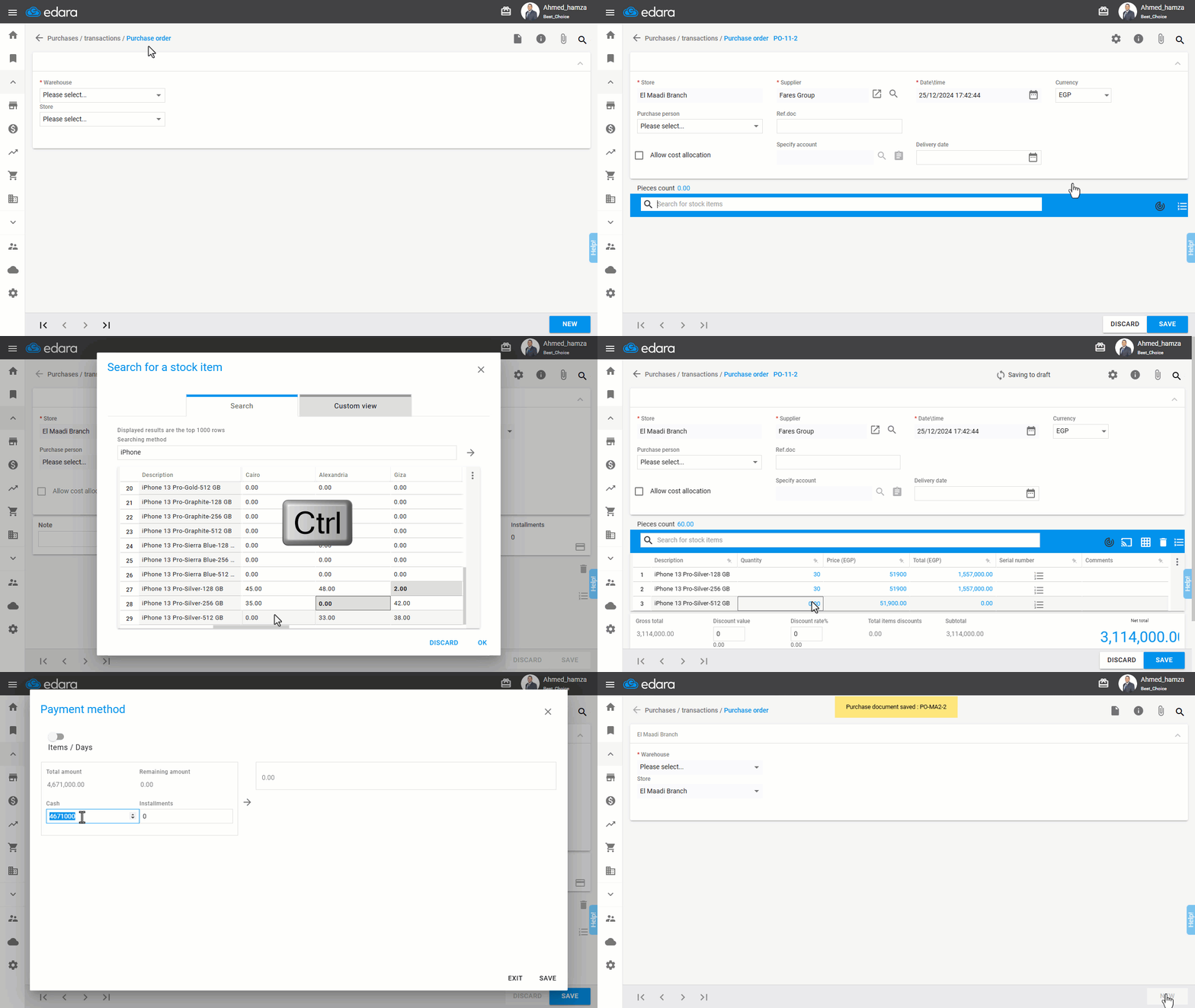
- Go to the Purchase module.
- Select “Purchase Order”.
- Choose the Store.
- Click “New”.
- Search for the Supplier using the 🔎 icon.
- Search for the Stock Item.
- Click on the cell opposite the stock item and the warehouse to assign the stock items to that warehouse.
Note: Make sure the Warehouse Column is displayed in the purchase order details by clicking on the “፧” icon.
- Enter the quantity and price of the item.
- Specify the Payment Method by selecting 💳.
- Click “Save”.
If you encounter any challenges or have questions during these processes, you can contact our technical support team, who are ready to assist you at any time.
Did this answer your question?