

Editing a Purchase Order Linked to a Receive Supplies
Last updated:
You may need to edit a purchase order after it has been approved and the goods have been received, either due to an error in the purchase order or a need to modify the quantity of items requested.
Editing a Purchase Order Linked to a Receive Supplies
To edit a purchase order that is linked to a goods receipt order under the approval system, follow these steps:
1- Deleting the Receive Supplies Document
- Go to the Warehouse module.
- Open the “Receive Supplies” page.
- Click 🔎 and enter the receive supplies document code to search for it.
- Choose the required receive supplies document.
- Click on “More Actions”.
- Click on “Delete”.
- Click “Yes” to confirm deletion.
Note: You can skip the above steps by clicking on the RS document from the related documents in the required purchase order, provided you have the necessary permissions for the purchase order.
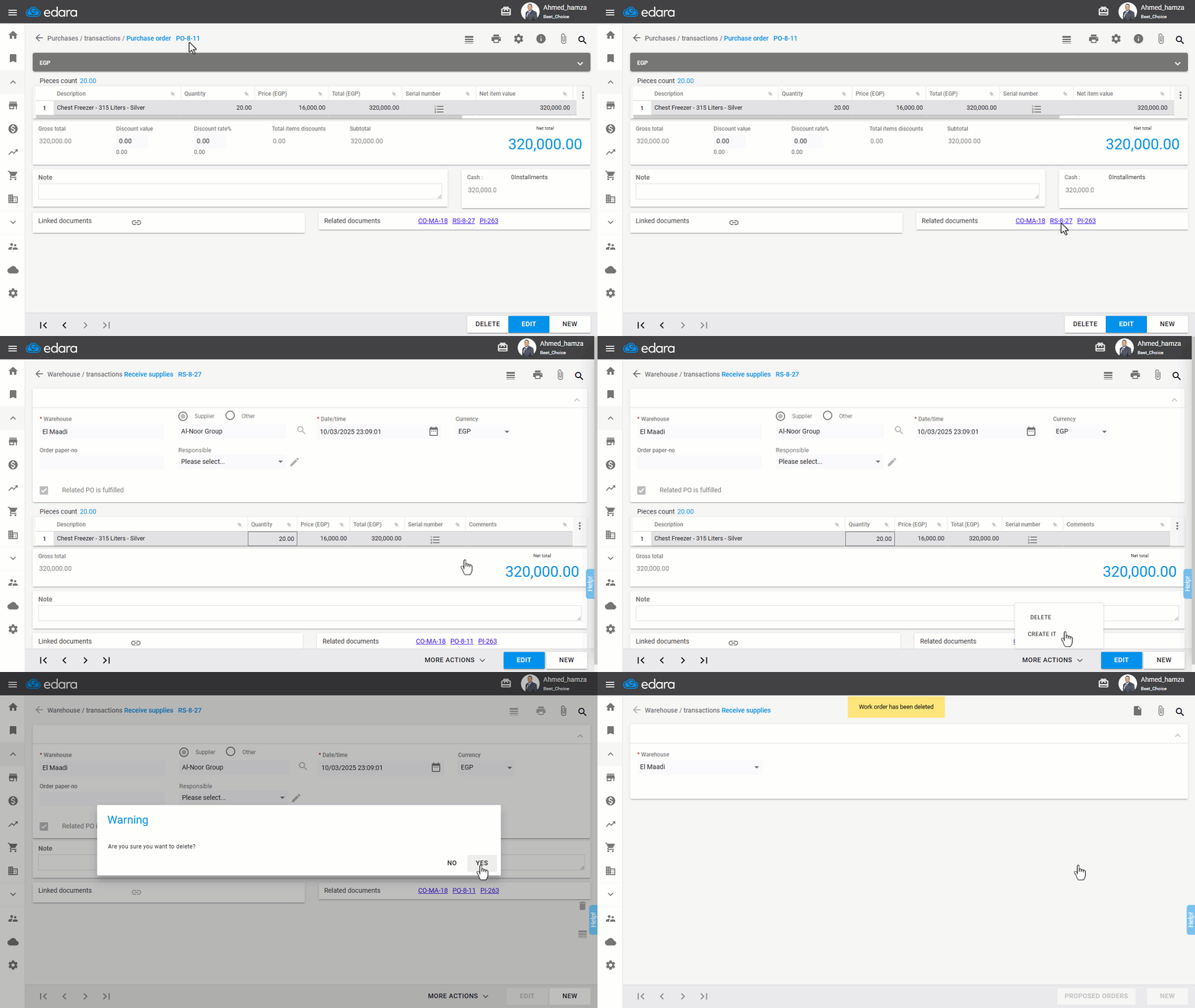
2- Deleting Related Orders
Make sure to delete any related orders associated with the purchase order, such as: (Cash Out - Note Payable).
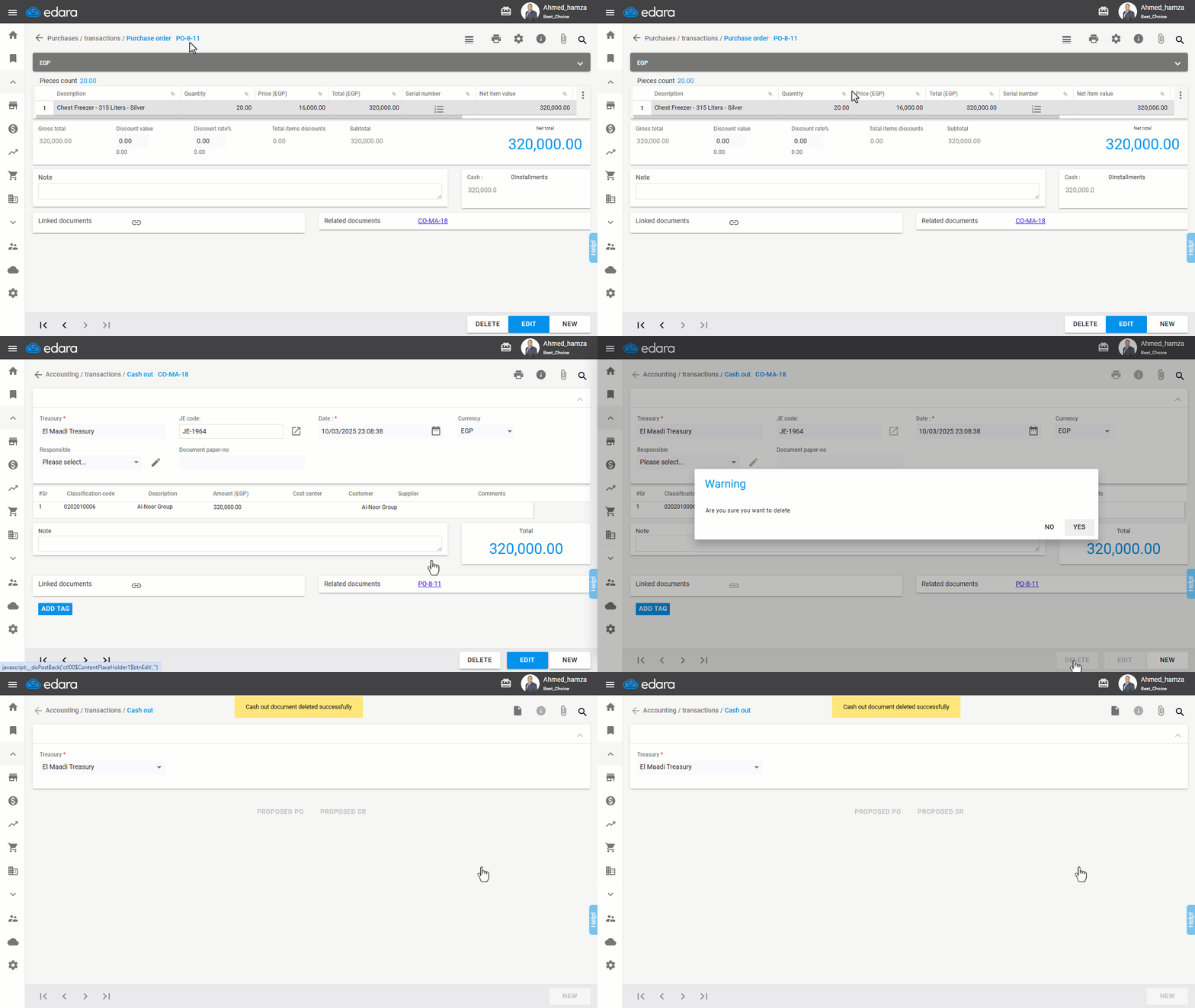
3- Canceling the Purchase Order Approval
- Go to the Purchase module.
- Open the “Purchase Approvals” page.
- Click on ✔️ to change it to 🚫 to cancel the approval (after ensuring you have the necessary permissions).
- Hover over the purchase order code and click 📋 to open the purchase order.
- Click on “Edit”.
- Make the required modifications.
- Click on “Update”.
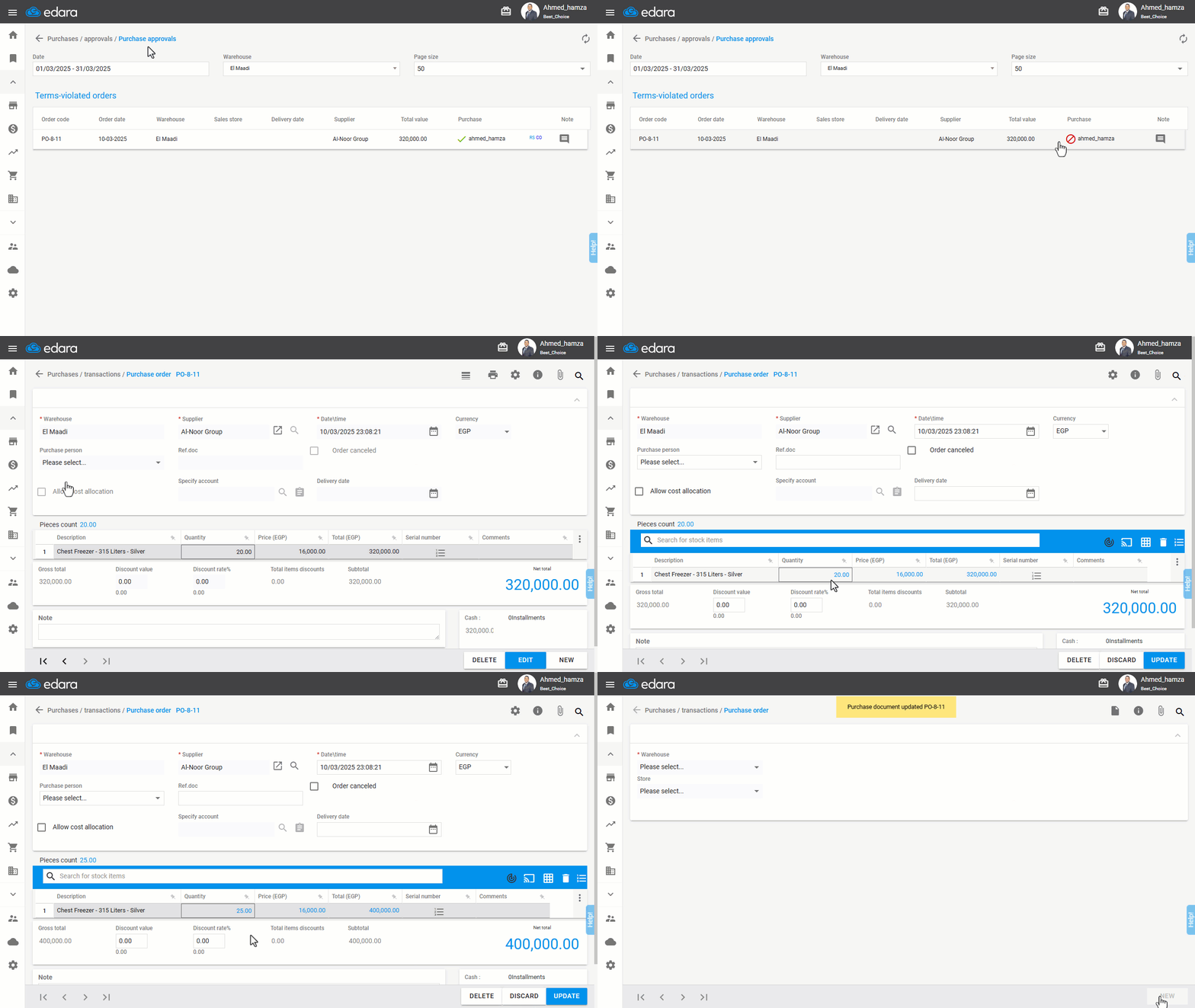
After making the necessary changes, you will need to re-approve the order and save the related documents for the receive supplies document.
If you encounter any challenges or have questions during these processes, you can contact our technical support team, who are ready to assist you at any time.