

Approving a Purchase Order and Saving Related Documents
Last updated:
To complete the documentation cycle for purchase orders, you can approve the purchase order and save the associated documents, as well as receive the supplies from the approval screen in the Purchases module.
Approving a Purchase Order
- Go to the Purchase Module.
- Open the “Purchase Approvals” page.
- Select the required date.
- Choose the “warehouse”.
- Click on 🚫 to turn it into ✔️ for approval (after confirming you have the necessary permissions).
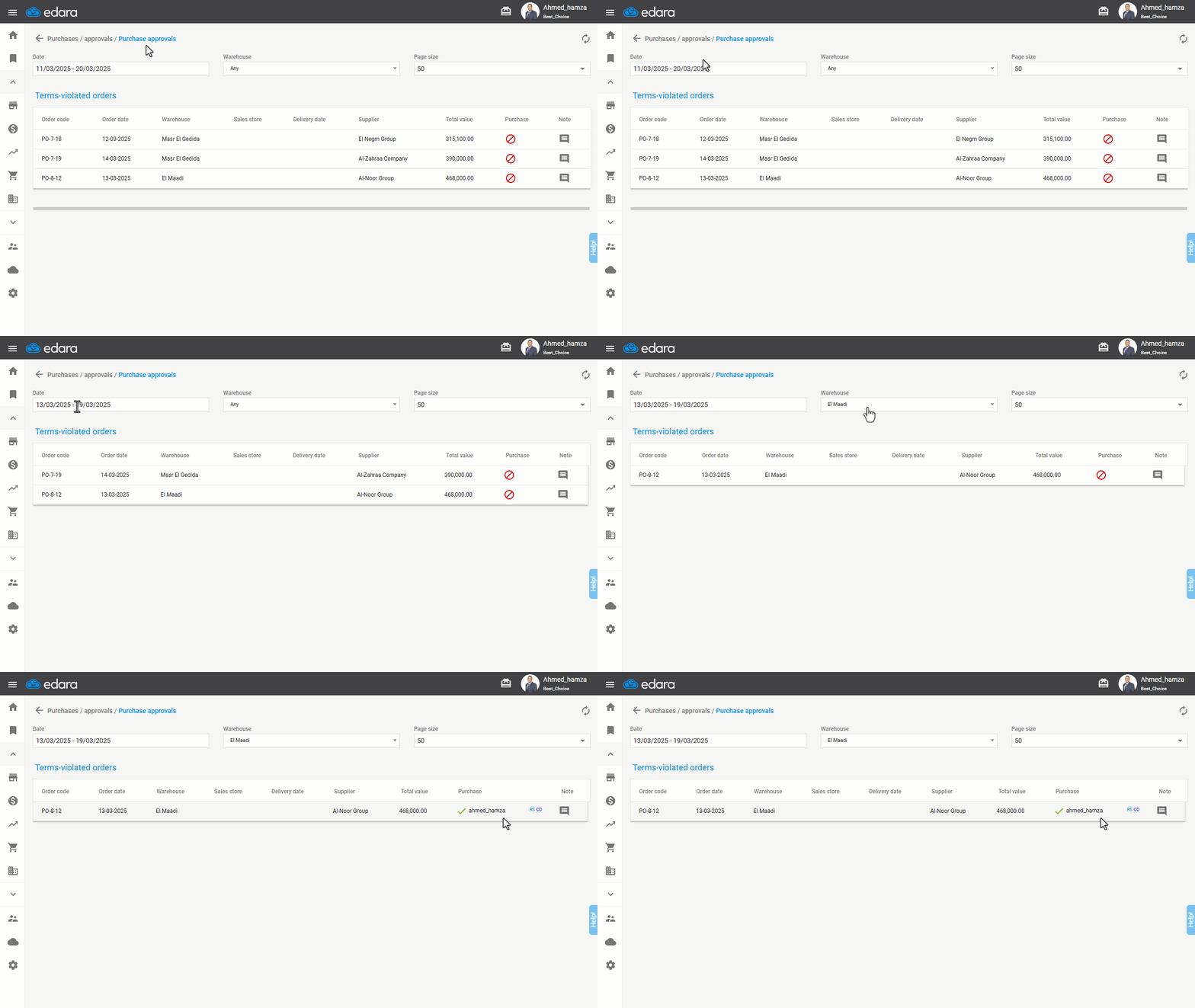
Note: After approval, the related documents will appear, such as: Receive Supplies Document (RS) - Cash Out Document (CO) (in case of a cash purchase).
Saving Related Documents for the Purchase Order
To save the related documents, follow these steps:
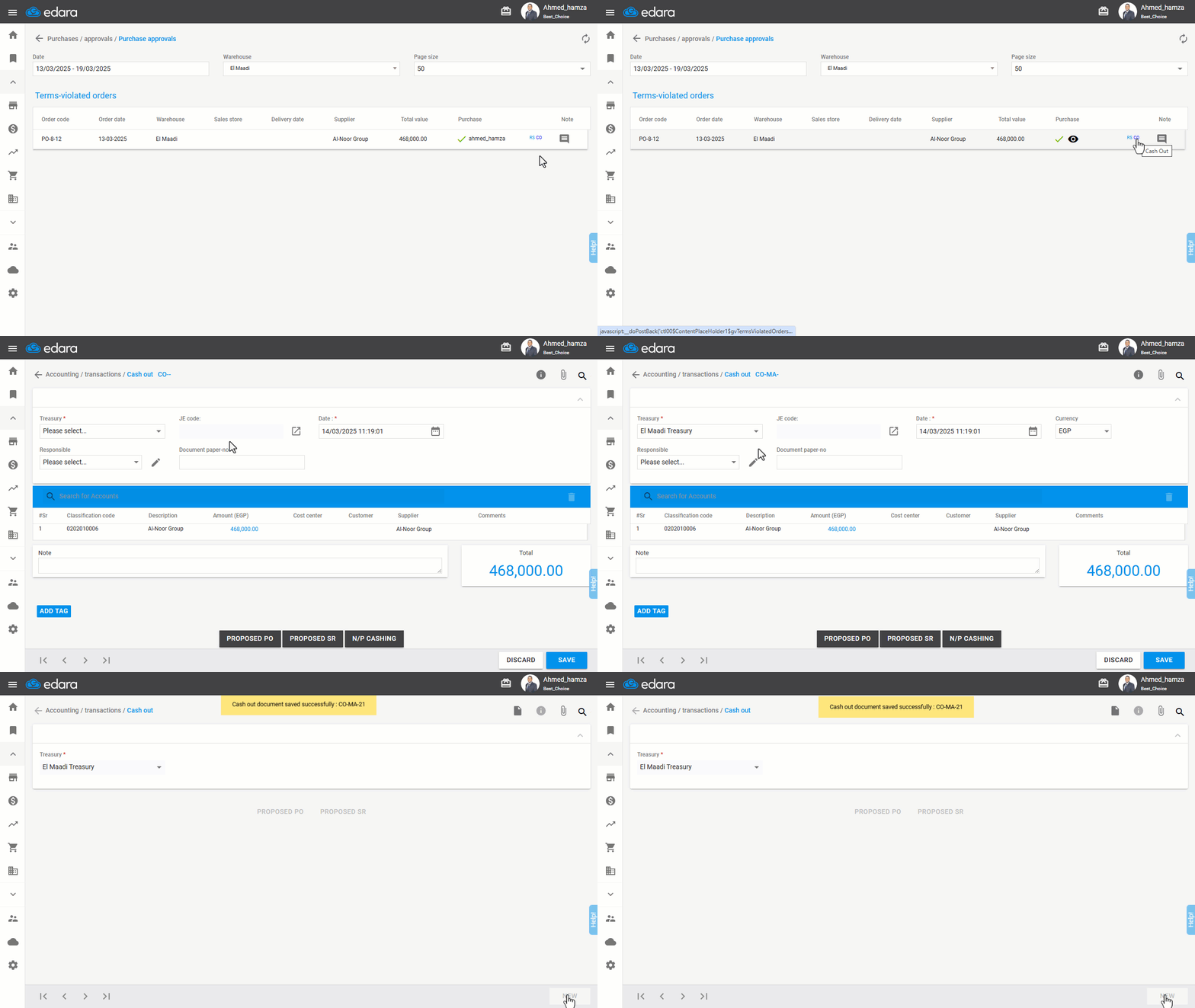
Saving the Cash Out Document
- Click on the CO document link to open the cash payment page on a separate tab.
- Ensure you select the “Treasury”.
- Click on “Save”.
Saving the Receive Supplies Document
- Click on the "RS document" link to open the receive supplies page on a separate tab.
- Click on “Save”.
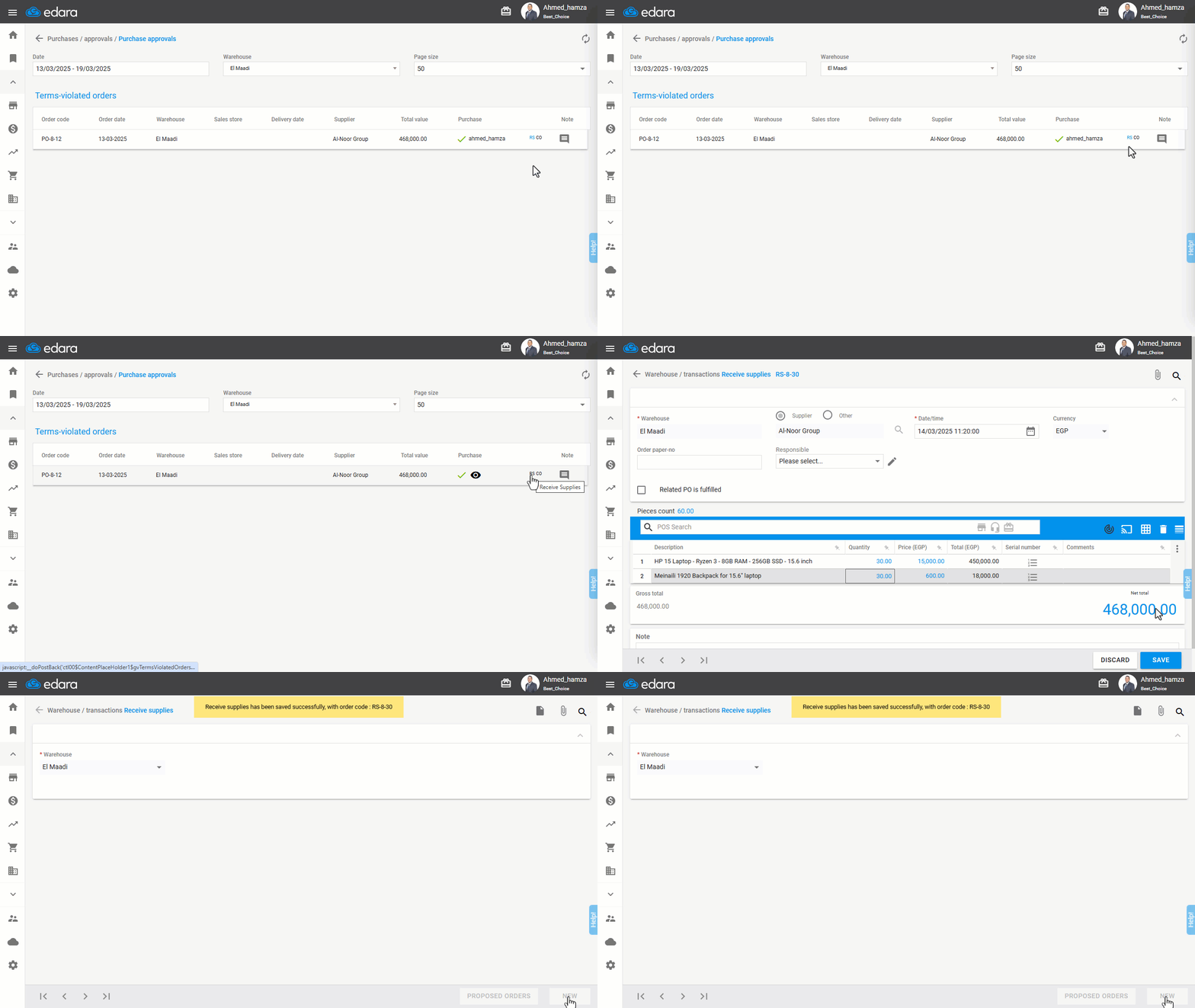
Note: Once the receiving supplies process is complete, the purchase order will disappear from the approvals page.
Frequently asked questions
When does the purchase order disappear from the approvals page?
Once the receiving supplies process is complete, the purchase order will disappear from the approvals page.
If you encounter any challenges or have questions during these processes, you can contact our technical support team, who are ready to assist you at any time.