

Viewing Pending Purchase Orders and Approving Them
Last updated:
If your business needs to review and approve pending purchase orders, "Edara" allows you to easily manage and control which orders appear for approval.
You can filter by date, warehouse, or both, and adjust the number of orders displayed per page.
Steps to View and Approve Pending Purchase Orders
- Go to the Purchase module.
- Select Purchase Approvals.
- Choose the desired “Date” from the dropdown list or manually enter it.
By default, orders from all warehouses with your permission will be shown.
- Select the “Warehouse” to view the purchase orders specific to that warehouse.
- Click the 🚫 icon next to a purchase order to approve it.
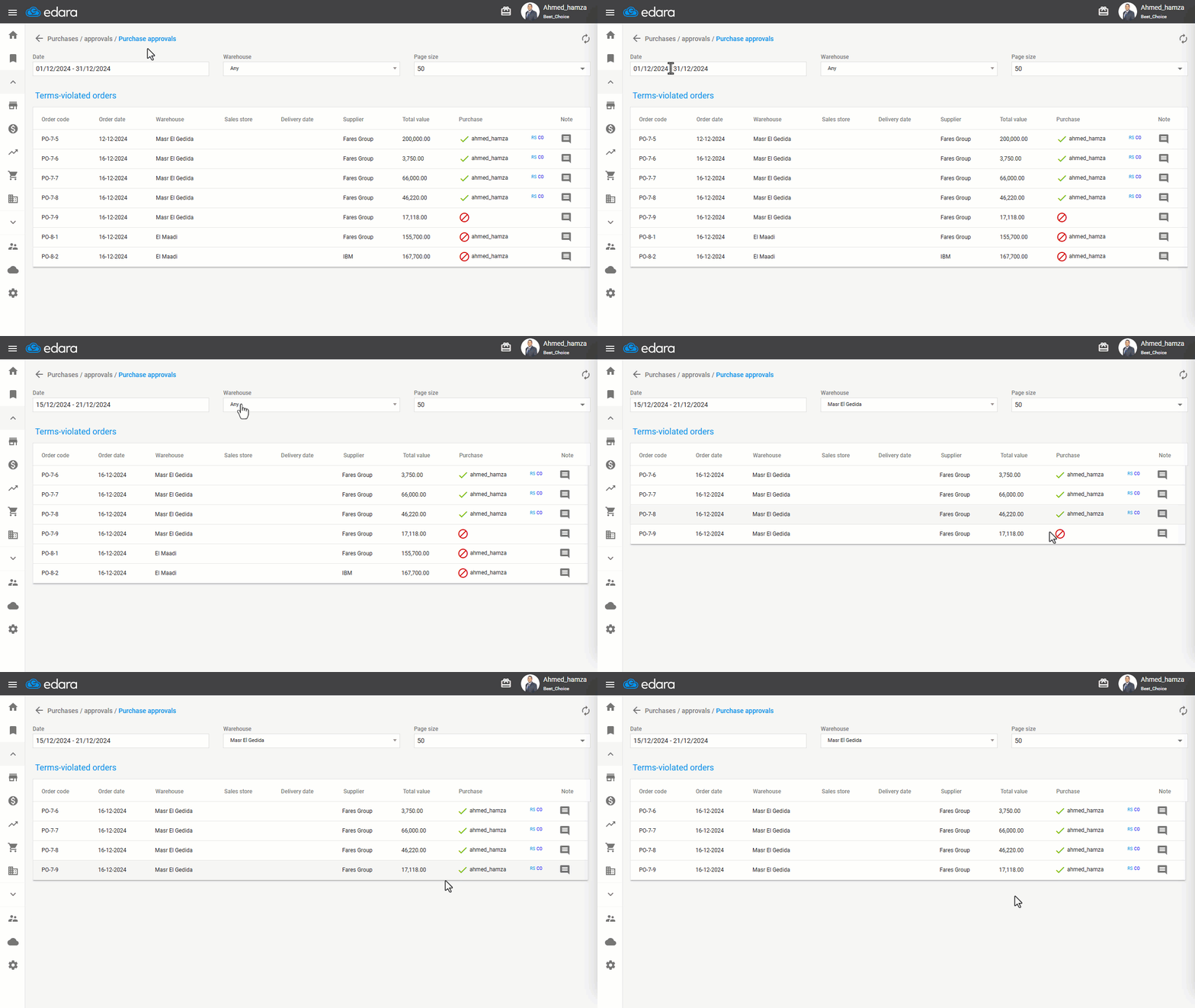
Note: You can adjust the number of orders displayed per page using the “Page Size” option. Your selections for date, warehouse, and page size will be saved and displayed by default the next time you access the page.
If you encounter any challenges or have questions during these processes, you can contact our technical support team, who are ready to assist you at any time.
Did this answer your question?