

Viewing the Net Item Value After Discount and Tax
Last updated:
When creating a purchase order and applying a discount and tax to an item, you can calculate the net value of the item.
This is done by subtracting the discount from the item's total price and adding the tax amount. The Net Item Value column displays the net value for each item line separately.
Viewing the Net Item Value After Discount and Tax
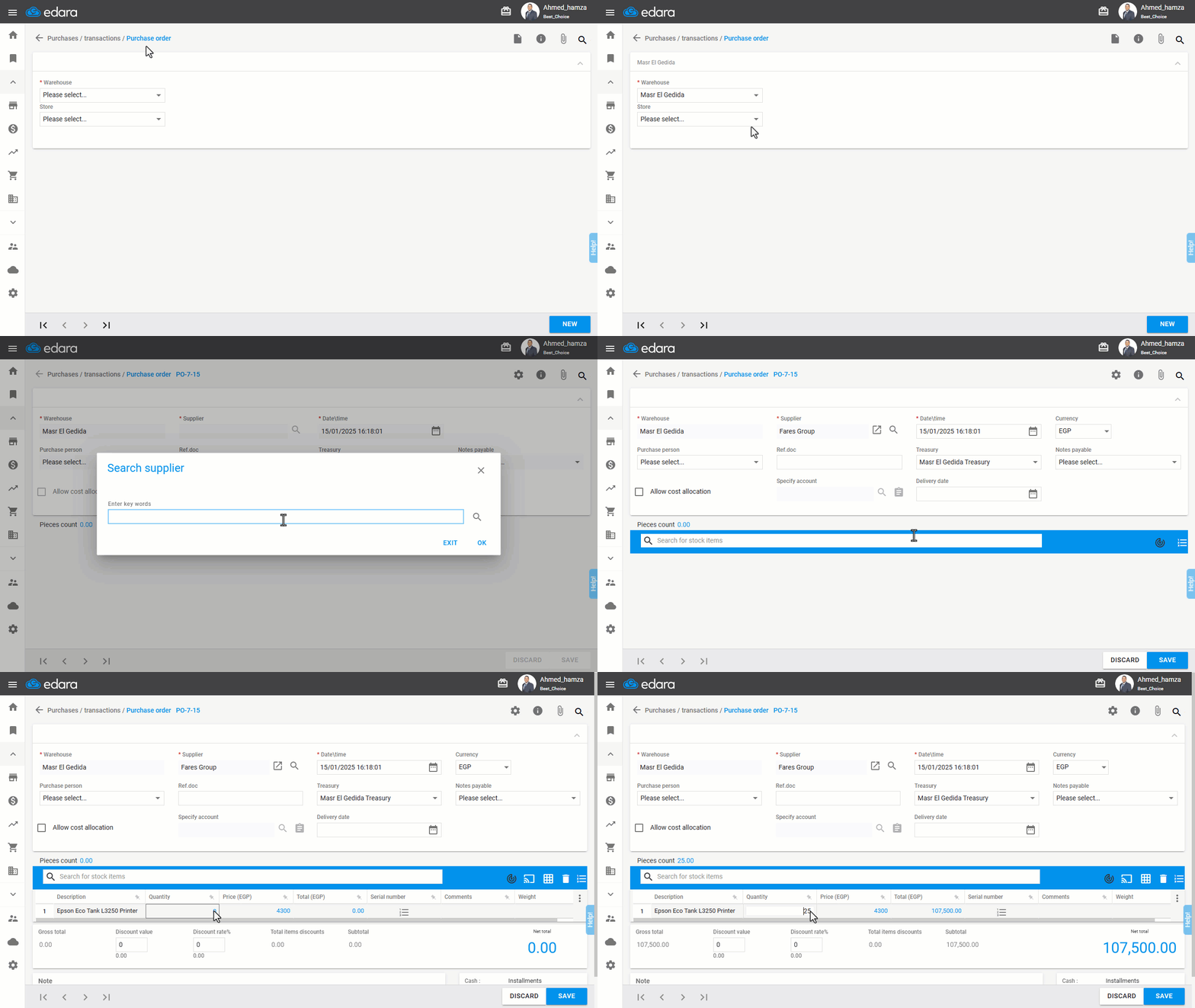
- Go to the Purchase module.
- Select “Purchase Order”.
- Select the desired store/warehouse.
- Click “New”.
- Search for items on the Purchase Order page.
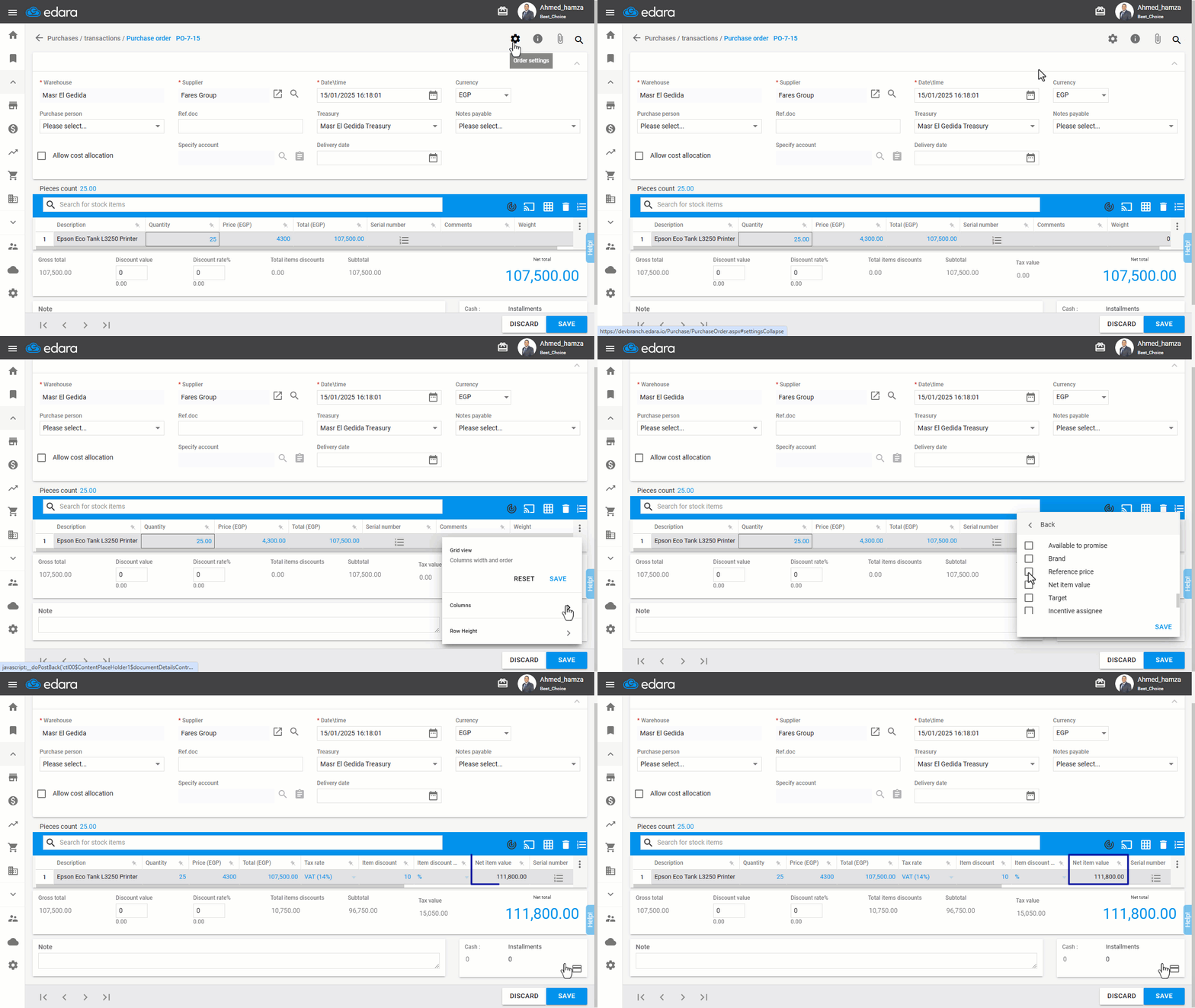
- Mark the purchase order as “tax liable” by clicking on ⚙️ as shown in the image.
- Display the columns for Tax Rate, Item Discount, and Net Item Value by clicking “⋮”.
The net value for each item will appear in the Net Item Value column.
If you encounter any challenges or have questions during these processes, you can contact our technical support team, who are ready to assist you at any time.
Did this answer your question?