

Canceling a Purchase Order
Last updated:
"Edara" allows you to cancel a purchase order to maintain the sequence of the purchase order code without deleting it, thus enabling future reference and review of its details.
Canceling a Purchase Order
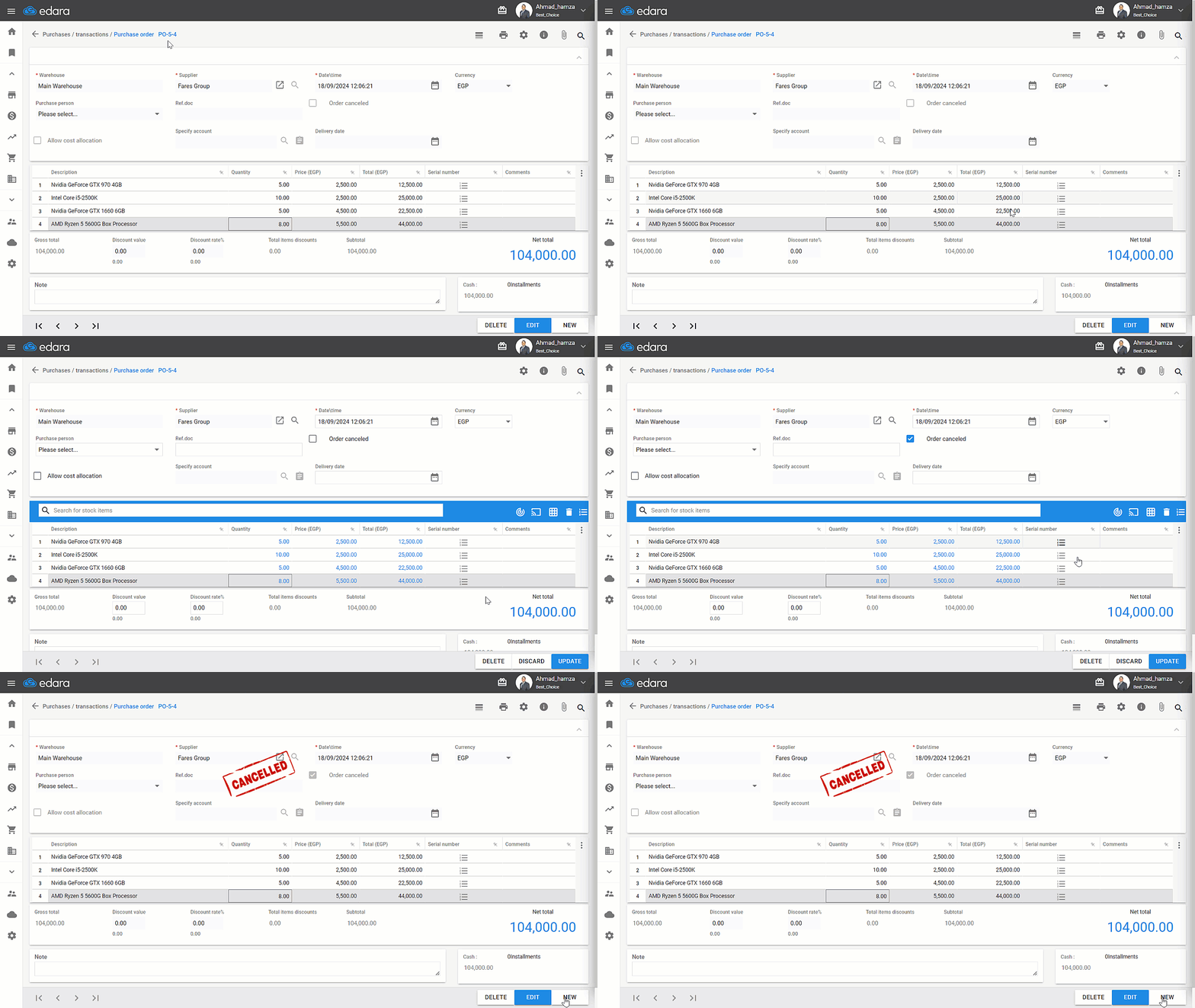
First, ensure that the "Cancel Purchase Order" feature is activated, and verify that it is not linked to any documents and has not been approved. If it has already been approved, it must be canceled first, then:
- Go to the Purchase Module.
- Open the Purchase Order page.
- Search for the desired purchase order using the purchase order code "🔍" at the top of the page or using the arrows.
- Click on “Edit.”
- Click on ◻ behind “Order Canceled”.
- Click “Update.”
Note: "Edara" only allows the cancellation of approved purchase orders, not automatic ones.
Frequently asked questions
Can I cancel any purchase order?
"Edara" only allows the cancellation of approved purchase orders, not automatic ones.
If you encounter any challenges or have questions during these processes, you can contact our technical support team, who are ready to assist you at any time.
Did this answer your question?