

Editing a Purchase Order with Cost Allocation
Last updated:
You may need to modify a Purchase Order that already has cost allocation applied to update stock items, quantities, or other information. Since the allocated costs are linked to the Purchase Order data, you must first disable cost allocation, make the required changes, and then enable it.
Editing a Purchase Order with Cost Allocation
Disabling Cost Allocation
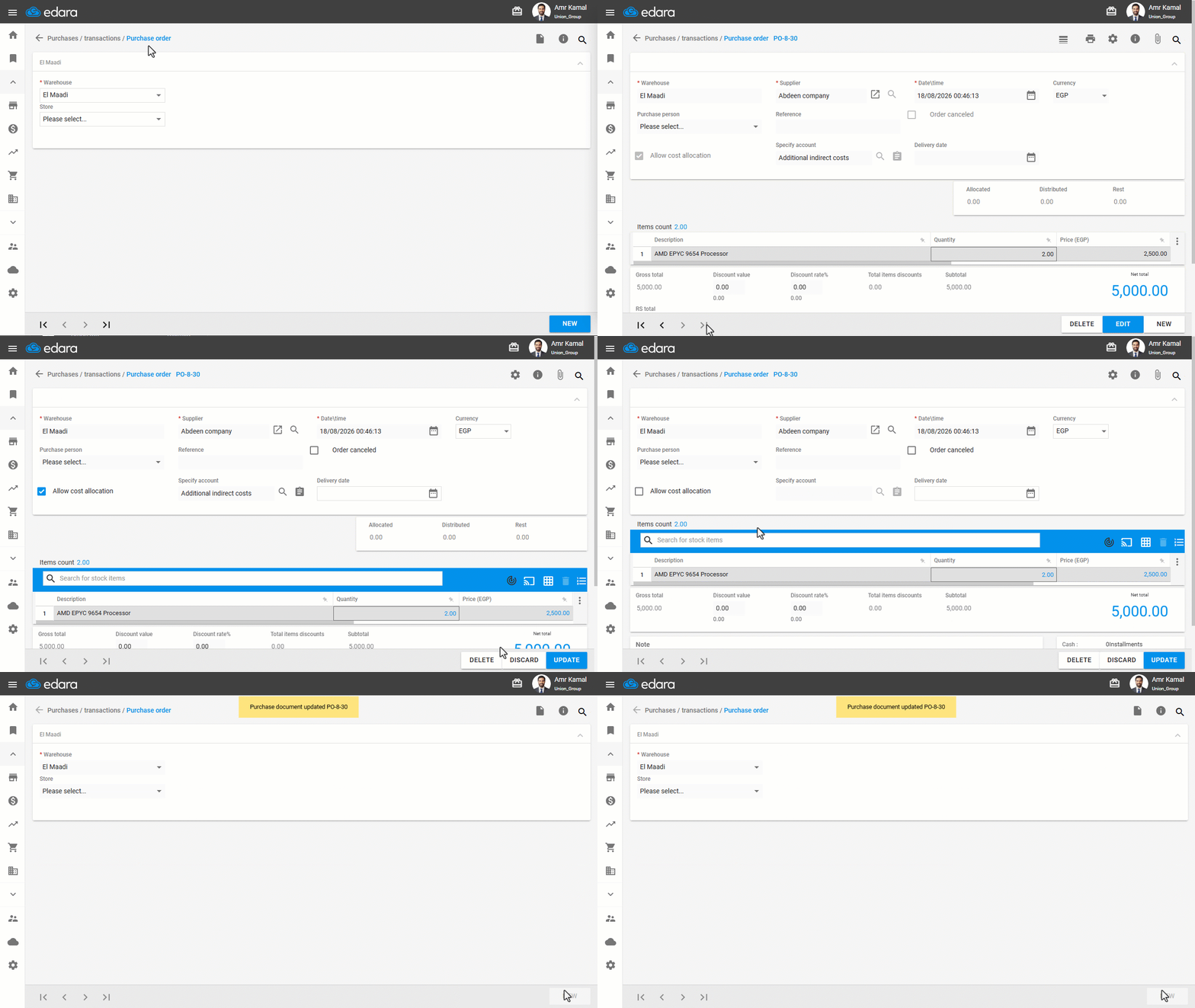
- Go to the "Purchase" Module.
- Open the "Purchase Order" page.
- Search for the required Purchase Order using the "🔍" icon or the navigation arrows at the bottom of the page.
- Click on "Edit".
Note: If the purchase order is linked to other documents or has approvals, you must unlink the documents and cancel the approvals first before you can edit it.
- Disable the "Allow cost allocation" setting.
- Click on "Update".
After disabling cost allocation, you can make the required changes to the Purchase Order and save them.
Making the Required Changes
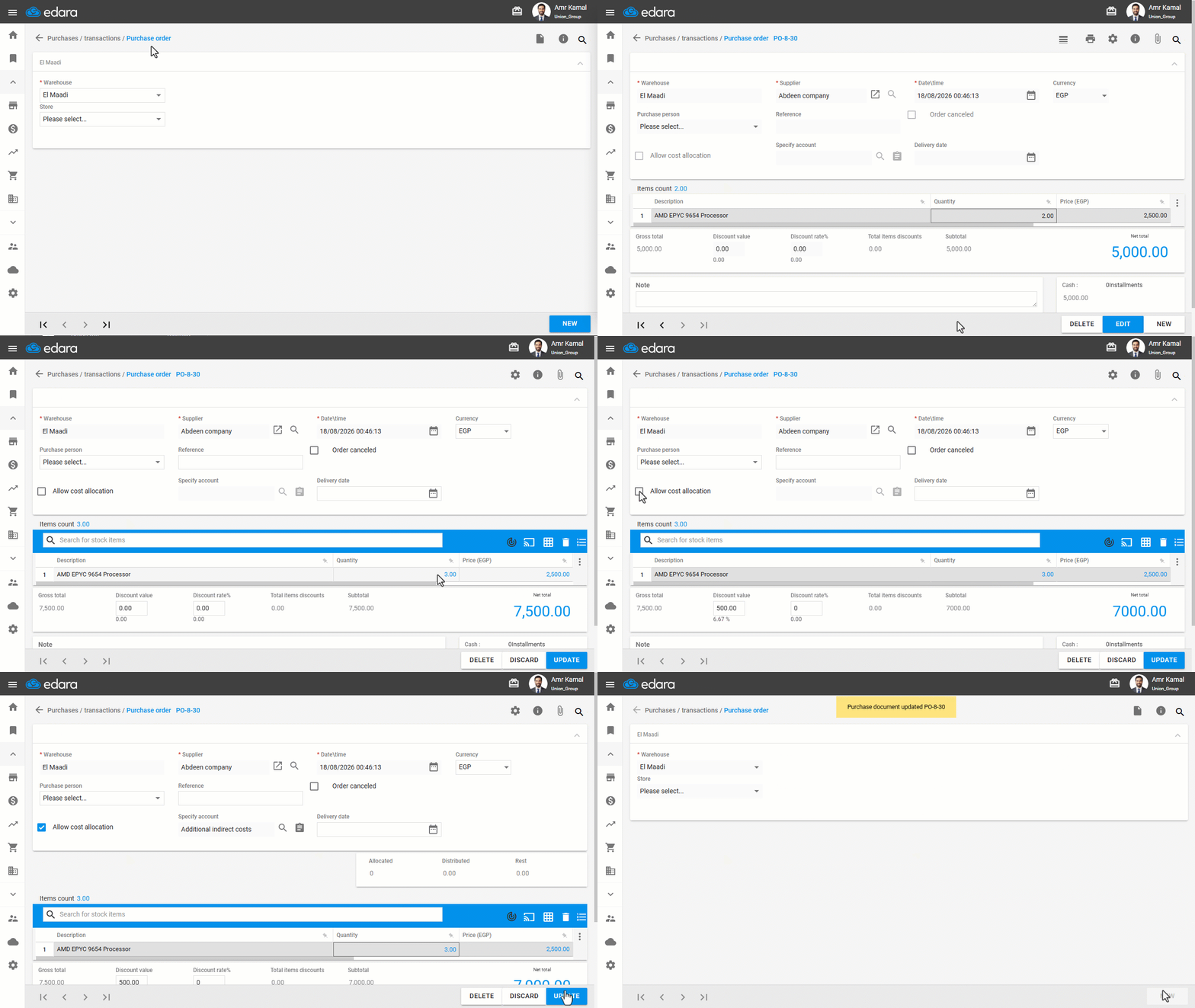
- Open the Purchase Order again.
- Click on "Edit".
- Make the required changes.
- Enable the "Allow cost allocation" setting.
- Select the account.
- Click on "Update".
If you encounter any challenges or have questions during these processes, you can contact our technical support team, who are ready to assist you at any time.
Did this answer your question?