

Granting/Revoking a Sales Store Access Permission
Last updated:
Granting appropriate permissions to users is essential to ensure data organization and security within the system. Controlling which stores users can access ensures that each user works only on the stores they are authorized to access.
Granting/Revoking a Sales Store Access Permission
- Go to “Users”.
- Open the "Data Permissions" page.
- Select the user or group you want to grant permission to.
- Select data entities “Sales” then “Sales stores”.
- Click on “⮞”.
- Click on “▢” next to the sales store for which you want to grant the user permission.
- Click on "Save".
After granting or modifying permissions, you will need to log out of the system and then log back in for the changes to take effect for the user.
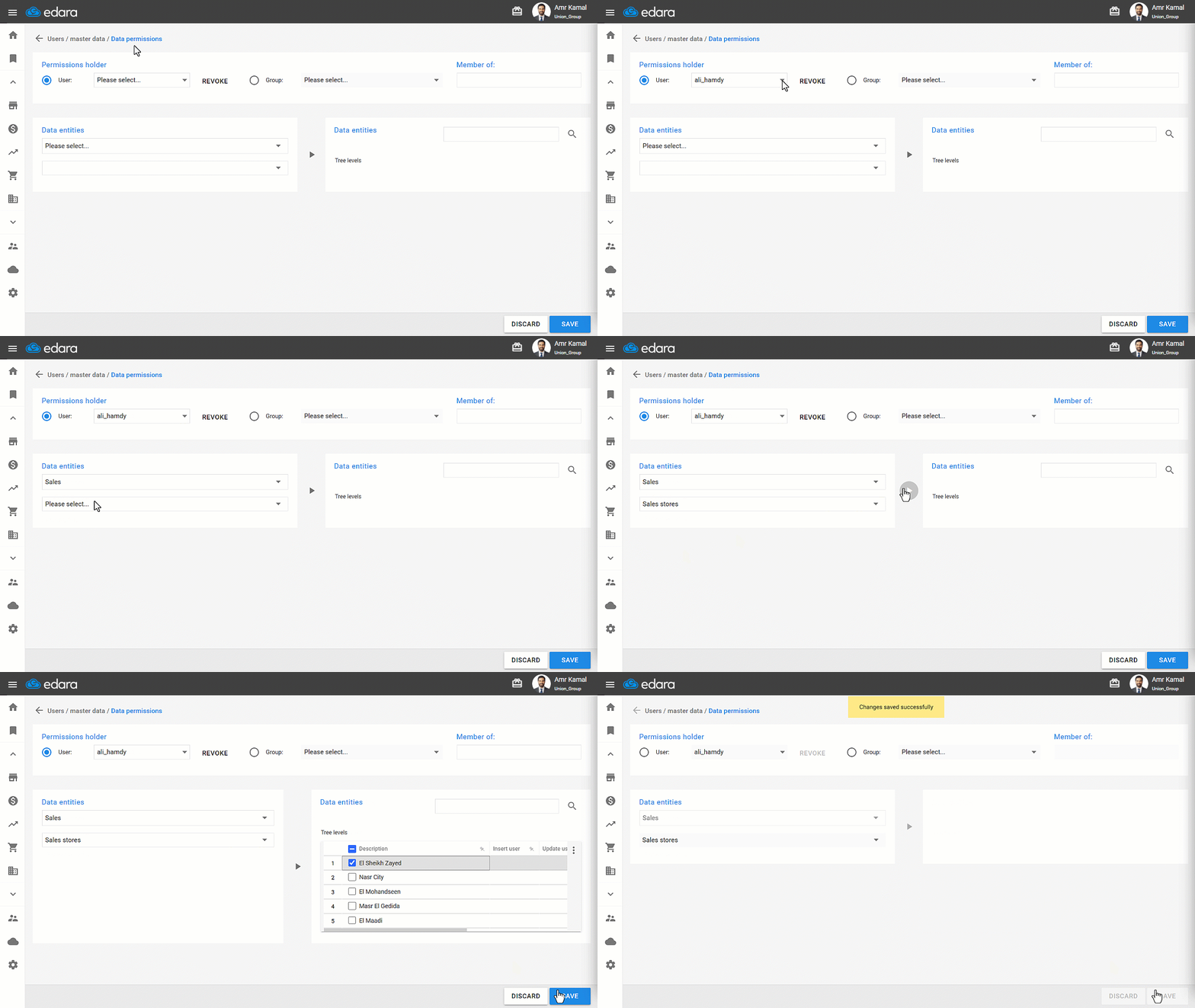
Note: If you want to revoke a user's access to a specific sales store, you can follow the same steps above and simply uncheck "☑" next to the sales store name.
Frequently asked questions
When does the new permission take effect for the user?
After granting or modifying permissions, you will need to log out of the system and then log back in for the changes to take effect for the user.
How do I revoke this permission?
If you want to revoke a user's access to a specific sales store, you can follow the same steps above and simply uncheck "☑" next to the sales store name.
If you encounter any challenges or have questions during these processes, you can contact our technical support team, who are ready to assist you at any time.