

Granting Users Conditional Permissions for Specific Accounts
Last updated:
Sometimes, companies need to grant users limited permissions on accounts. For instance, a cashier might need to access certain accounts—such as partner current accounts—when processing cash documents.
However, they should not be able to view transaction details or account balances in any reports.
To address this, Edara now enables granting conditional permissions to allow account searches in documents without allowing access to these accounts in reports.
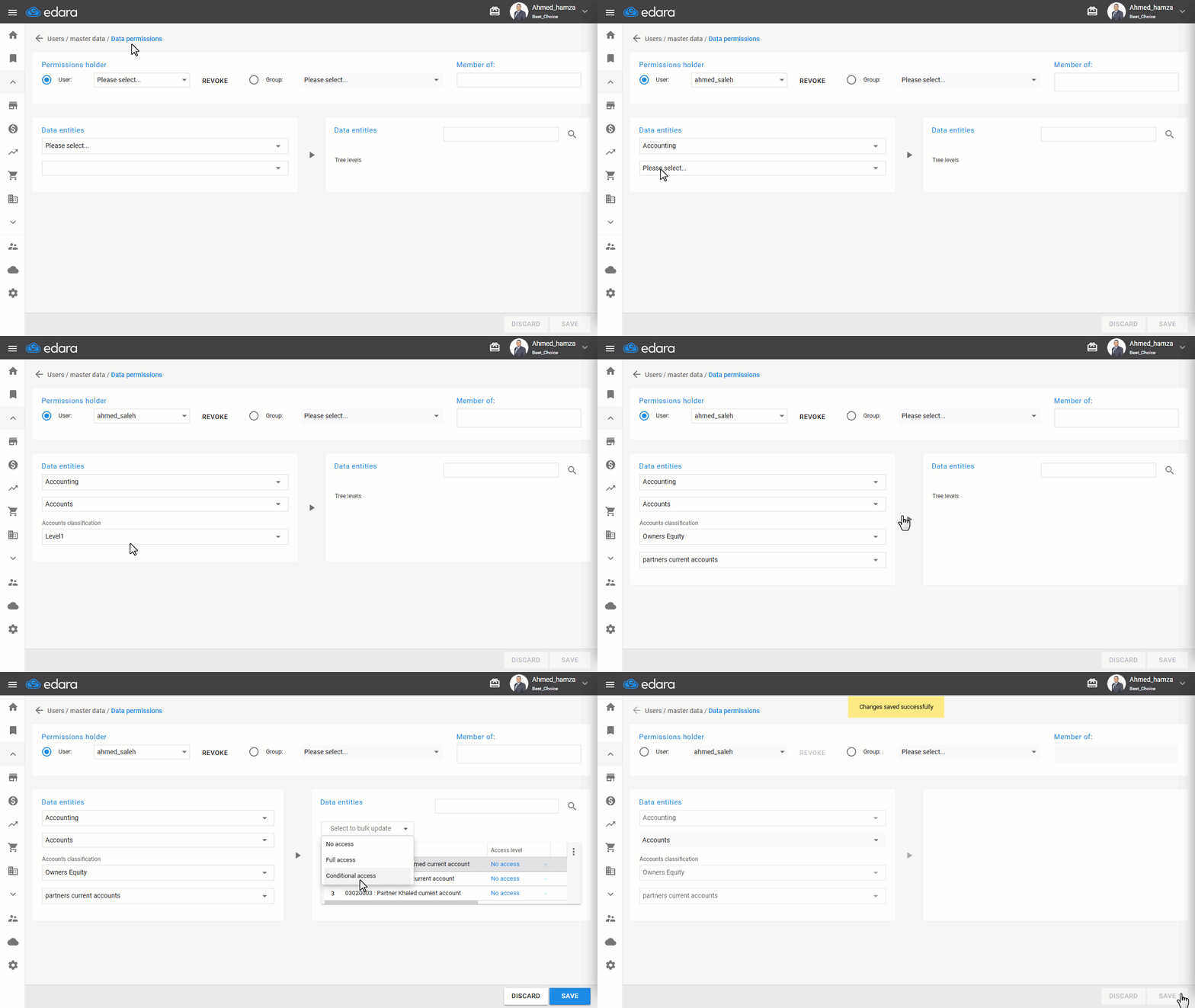
Steps to Grant Conditional Permissions to Users

- Go to Users.
- Open Data Permissions.
- Select the user to whom you wish to grant permission.
- Select Accounts from the data components under Accounts.
A notification will appear about adding a new type of permission, with an option to stop displaying this message again.
- Specify the Account Classification.
- choose Conditional Permission for the relevant account(s) from the dropdown menu in the access level column.
- Click “Save.”
Note: If you want to change all the user's permissions to a single type (Full access - No access - conditional access), you can use the dropdown menu in the Bulk Edit field. Select the desired permission type, and it will be applied to all rows.
Frequently asked questions
Can I change all of a user’s permissions to one type at once?
If you want to change all the user's permissions to a single type (Full access - No access - conditional access), you can use the dropdown menu in the Bulk Edit field. Select the desired permission type, and it will be applied to all rows.
If you encounter any challenges or have questions during these processes, you can contact our technical support team, who are ready to assist you at any time.