

Creating an Order in POS
Last updated:
Creating orders in Edara helps you keep a complete record of all sales activities, making it easier to track orders, analyze sales performance, and automatically update the available stock for each product.
Here’s how to create a sales order step-by-step:
Creating an Order in POS
- Go to the POS module
- Open the “Sales Orders” page.
- Click on “New” to create a new order.
If the “Allow open/close register” feature is enabled for this Cash register, Edara will first prompt you to enter the opening cash balance at the start of the shift.
- Add products by typing part of the product name, part number, using the SKU or scanning the barcode.
Note: If you add the same product multiple times, "Edara" will record each repetition in a separate row. Instead, you can click on  so the system increases the quantity in the same row without duplication. It’s recommended to unify the way this feature is used — either keep it enabled at all times or keep it disabled at all times.
- Add the delivery fees and any discounts, if applicable.
Taxes are calculated automatically for the entire order according to your tax settings.
- Click on “Pay”
- Select the payment method. (The default method will be the one set during the POS register setup.)
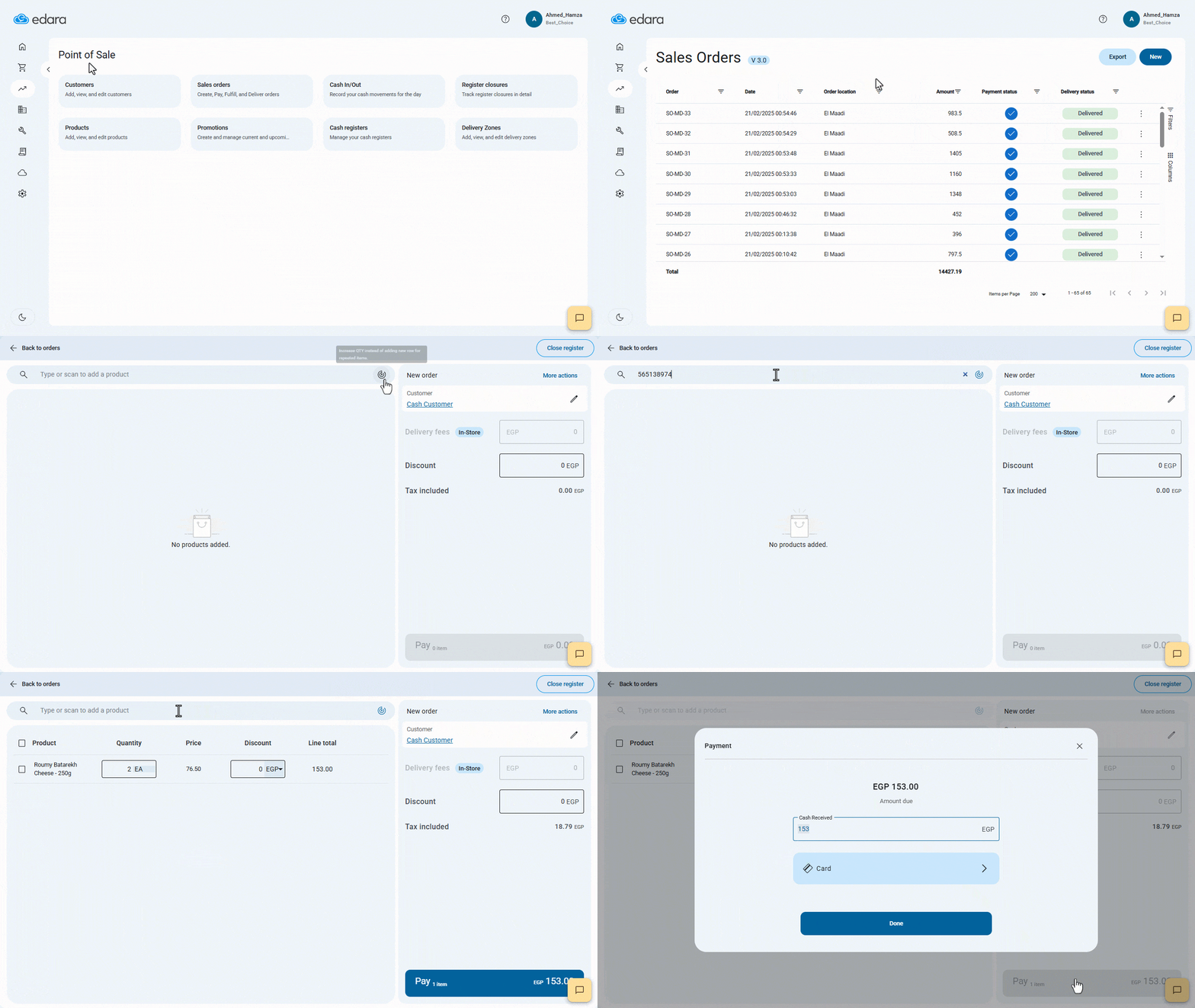
There are three possible payment scenarios:
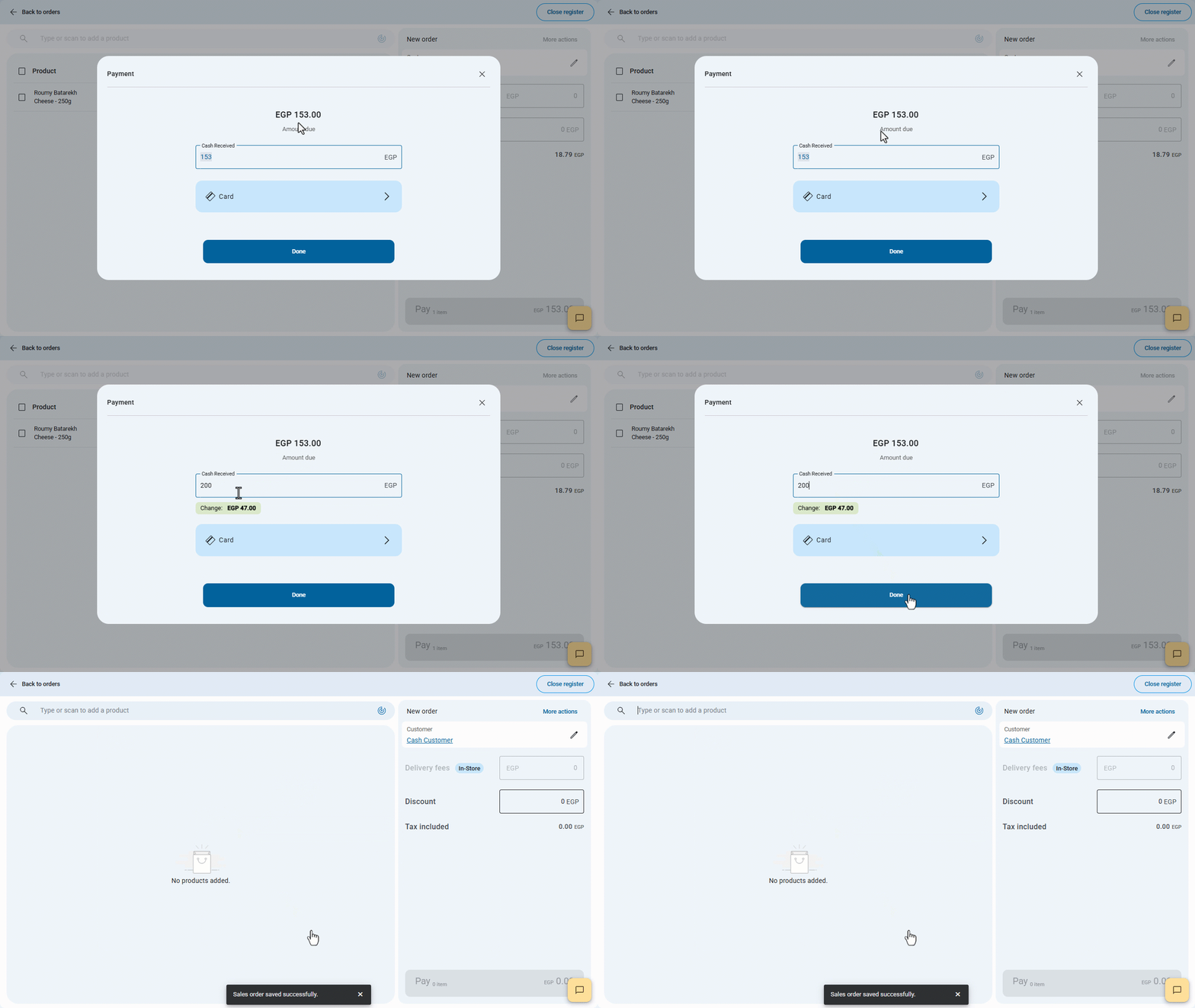
1- Full cash payment
- Enter the total amount received in the ”Cash Received” field.
If the entered amount exceeds the order total, Edara will automatically calculate the change due to the customer.
- Click on “Done”.
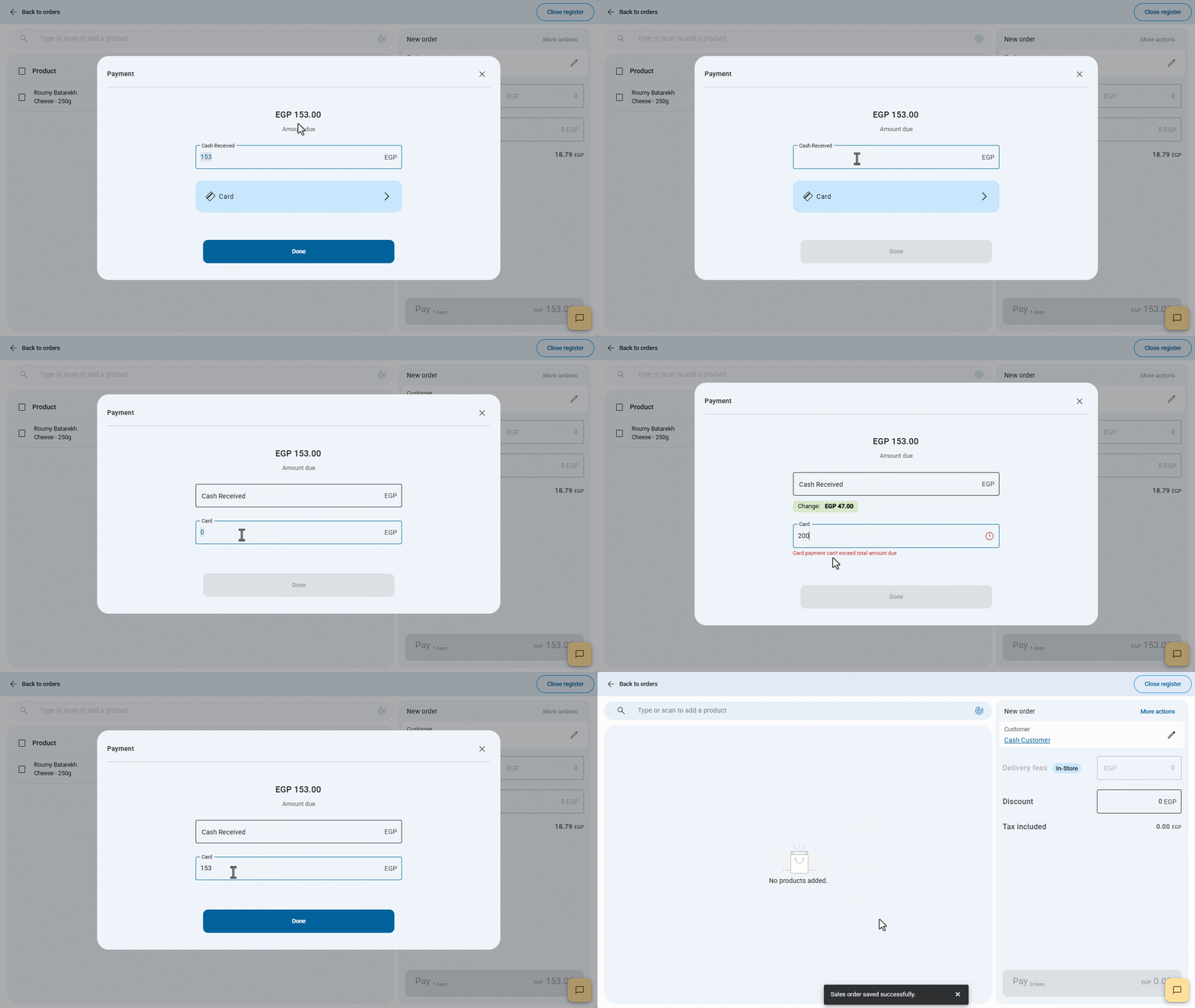
2- Full card payment
- Enter the total due amount in “the Card field”.
In this case, “Edara” will not allow entering an amount greater than the outstanding total, and an error message will appear to notify you.
- Click on “Done”.
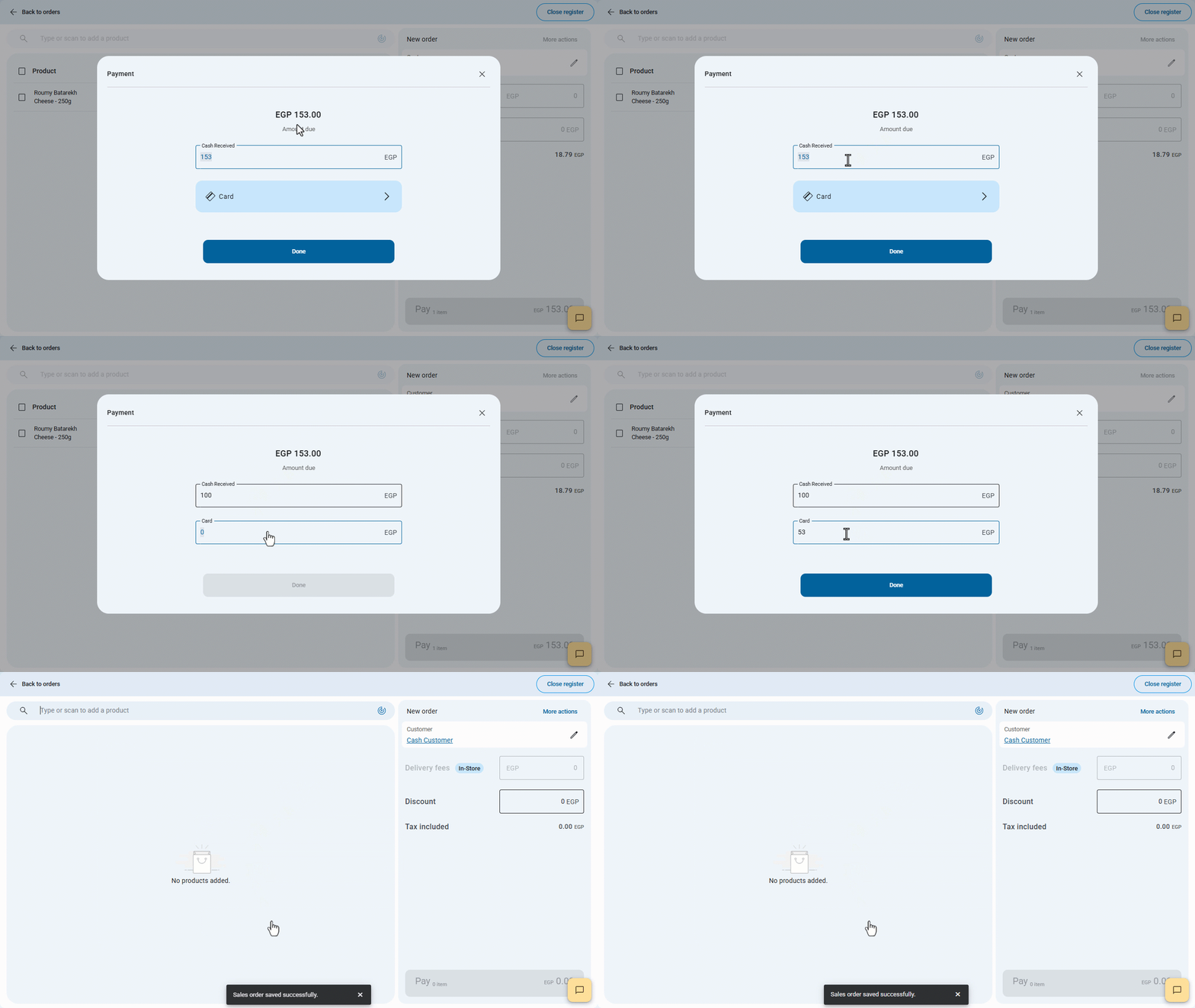
3- Split payment (cash + card)
- Enter the amount to be paid by card.
- Enter the remaining amount to be paid in cash.
In this case, “Edara” will sum the amounts from both fields and determine the “remaining balance” for the customer.
- Click on “Done”.
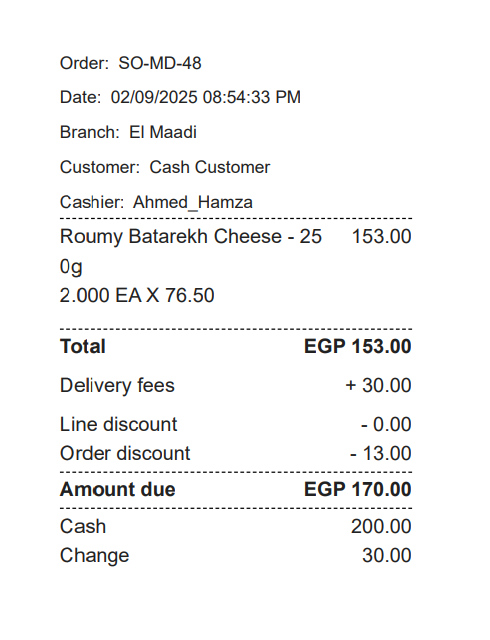
Finally, the print template will appear if you selected it when creating the cash record, as shown in the following figure:
If you encounter any challenges or have questions during these processes, you can contact our technical support team, who are ready to assist you at any time.