

Syncing Sales Orders Between “Edara” and “Shopify”
Last updated:
The sales orders synchronization between Edara and Shopify allows sales orders to be transferred and updated automatically between both systems, ensuring data consistency and reducing manual errors.
Syncing Sales Orders Between “Edara” and “Shopify”

When a sales order is created in Shopify, a corresponding sales order is automatically created in Edara. Likewise, when a sales order is updated in Shopify, it is updated in Edara as well.
The synchronization and update of sales orders in Edara depend on field mapping between both systems, as shown in the table below:
| Shopify | Edara | |
|---|---|---|
| Order Header | Customer | Customer |
| Currency | Currency | |
| Order Name | Reference | |
| Note | Note | |
| Shopify (Static Value) | Sales Channel | |
| Created Date | Document Date | |
| Status | Status | |
| Discount | Discount | |
| Line Item Details | Product | Stock Item |
| Shipping Fees | Select a Service Item | |
| Custom Charge | Select a Service Item | |
| Comments | ||
| Quantity | Quantity | |
| Price | Price | |
| Discount | Discount | |
| Payments | Payment Amount | Proposed Payment Amount |
| Unknown (unspecified payments) | Select Cash or Bank account (Required) |
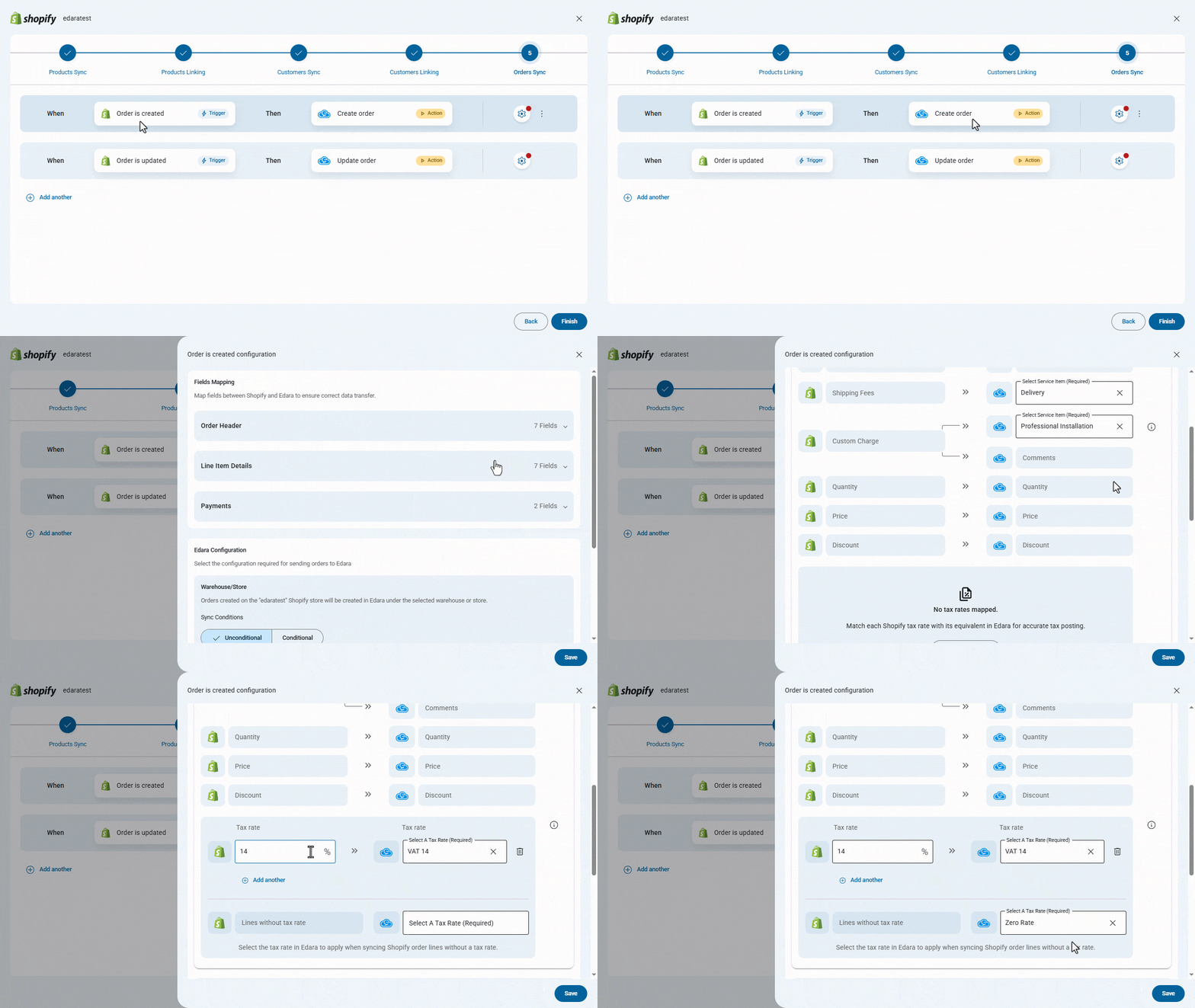
To manage the creation settings:
- Click on the “
 ” icon.
 - From the “Line Item Details” section:
- Select the service item corresponding to shipping fees.
- Select the service item corresponding to the custom charge in “Shopify”.
- Click on “Add a Tax Rate”.
- Enter the tax rate in “Shopify”.
- Select the corresponding tax rate in “Edara”.
- Select the tax rate in “Edara” to apply when syncing “Shopify” order lines without a tax rate.
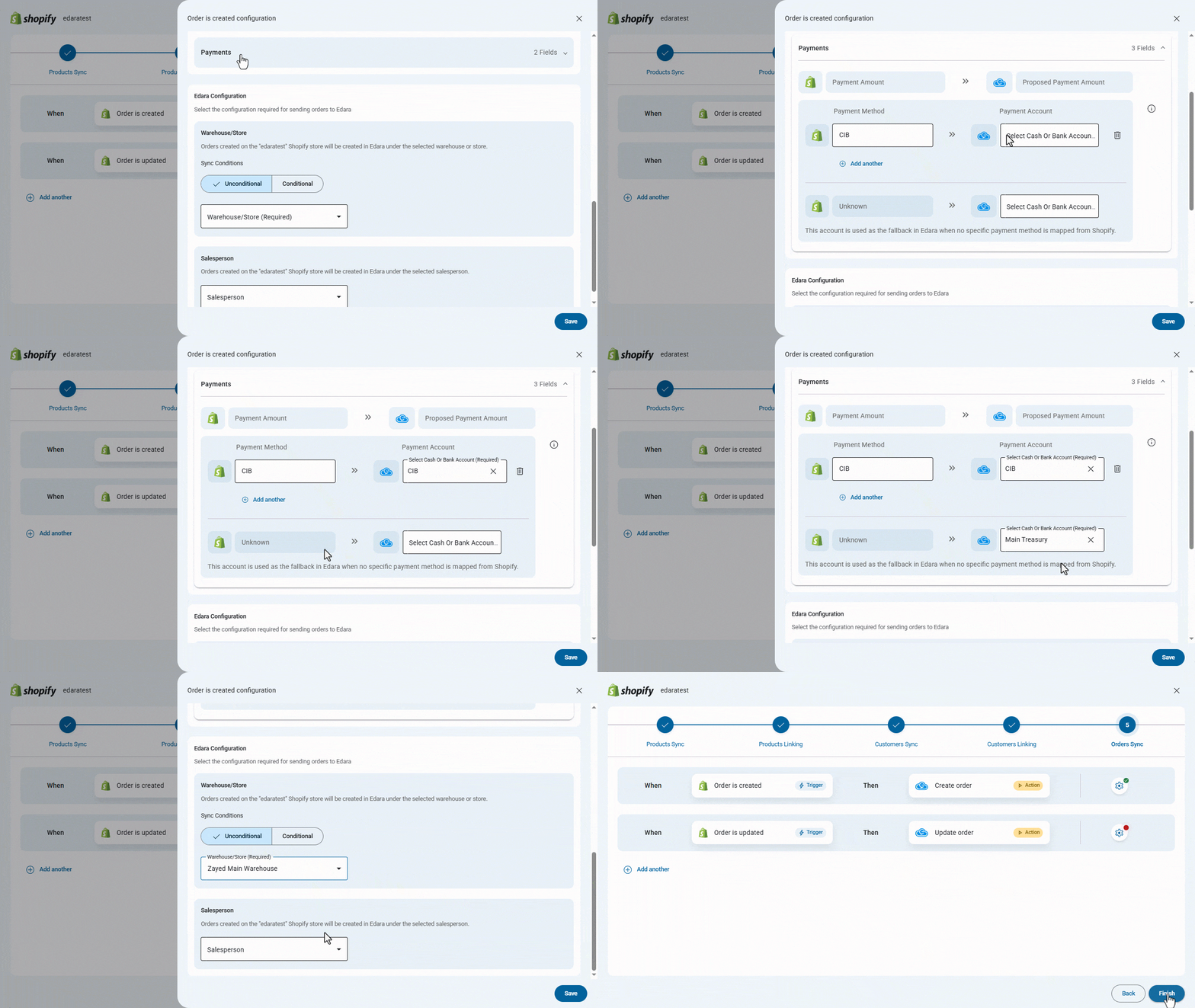
- From the “Payments” section:
- Click on “Add a Payment Method”.
- Enter the payment method in “Shopify”.
- Select the corresponding cash or bank account in “Edara”.
- Select the default cash or bank account in Edara to be used when no payment method is specified in “Shopify”.
- From the “Edara Configuration” section:
- Choose the Sync Conditions (Conditional / Unconditional).
- Select the warehouse/store.
- Select the salesperson.
- Click on “Save”.
When a sales order is updated in “Shopify”, the corresponding sales order is automatically updated in “Edara”.
To manage the updating settings:
- Click on the “
 ” icon.
 - Follow the same steps used in the creation settings under “Line Item Details” and “Payments” section.
- Click on “Save”.
Finally, click on “Finish” to complete the integration settings.
If you encounter any challenges or have questions during these processes, you can contact our technical support team, who are ready to assist you at any time.