

Integration Between Edara and Shopify
Last updated:
“Edara” allows you to integrate with “Shopify”, which helps simplify e-commerce operations by synchronizing data between both systems, such as products, customers, and sales orders.
Integration Between Edara and Shopify

- Go to “System”.
- Open the “Integrations” page.
- Click on “Get started” under the “Shopify” section.
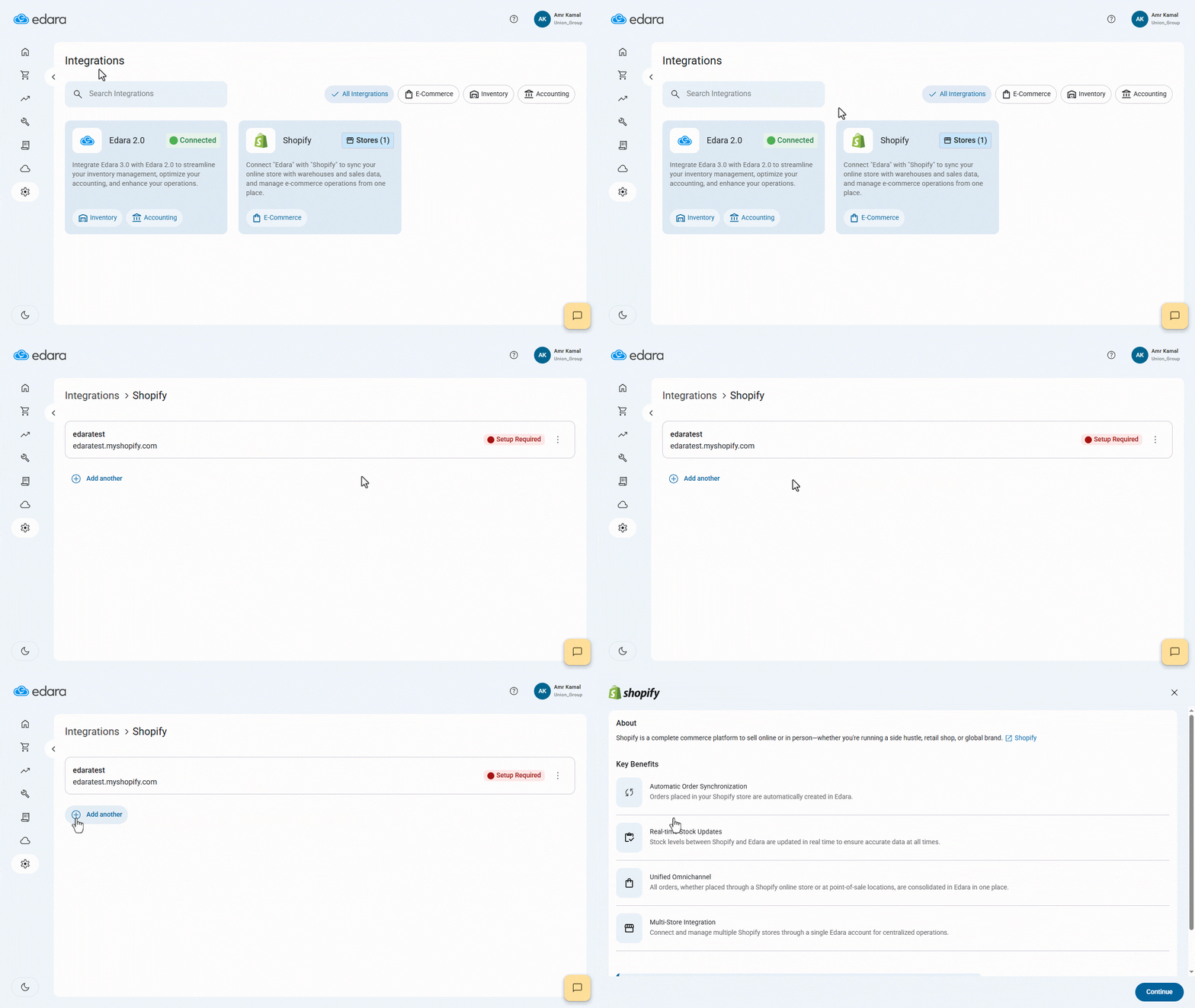
A window will appear showing the main benefits of the integration. You can also view Help Center articles by clicking on “Show Instructions” at the bottom of the window.
- Click on “Continue”.
- Select the “Edara” version you want to connect with “Shopify”.
Note: The integration is currently available for “Edara 2.0”, and support for “Edara 3.0” is coming soon.
- Click on “Next”.
- Enter your Shopify store name.
- Wait until the system verifies the store name, then click on “Connect”.
You will be automatically redirected to your Shopify store.
- Click on “Install” to install the “Edara Connect” app required to complete the integration.
After installation, you will be automatically redirected back to the integration settings page in Edara, as shown below.
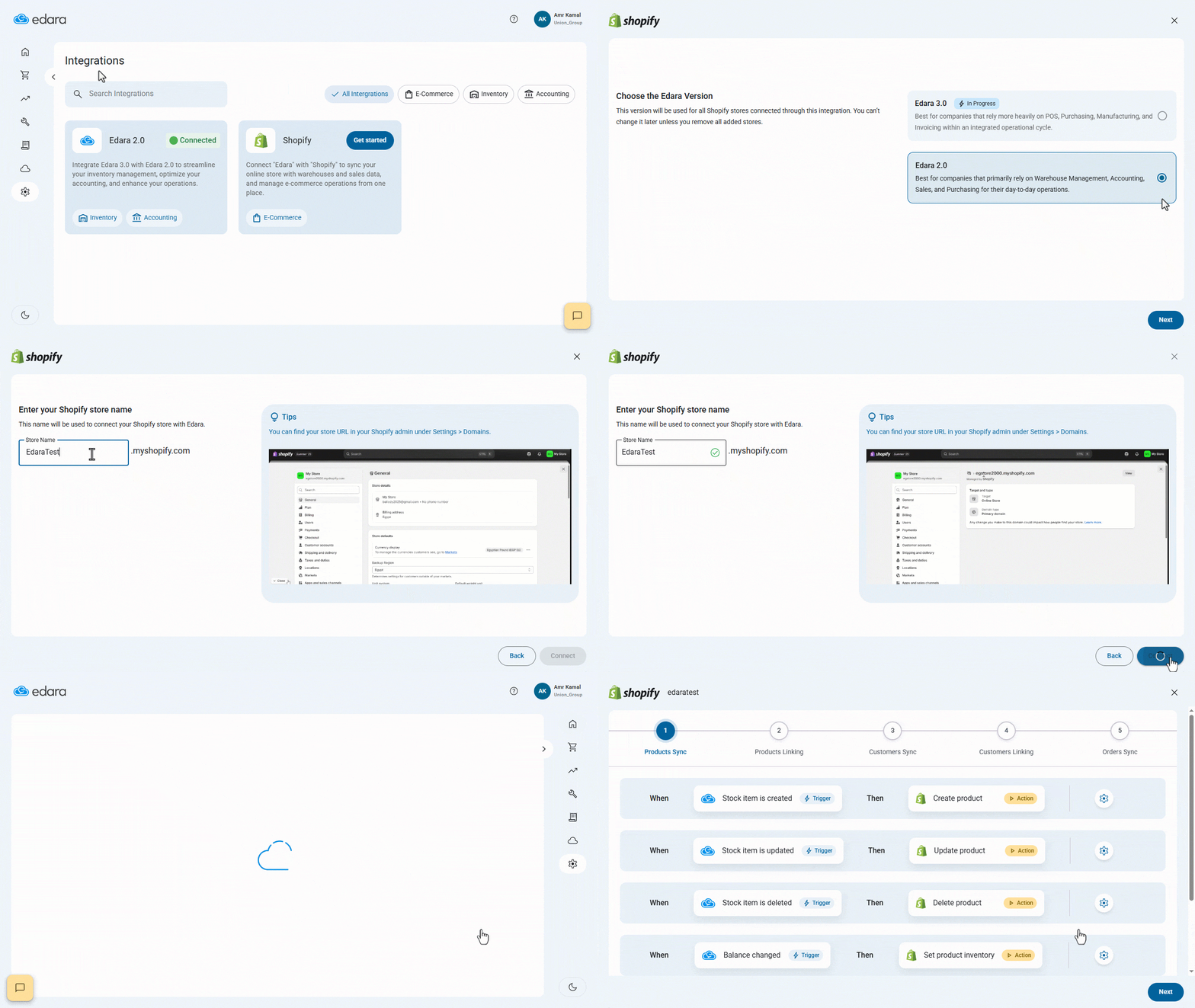
Here, you will need to configure the following settings:
You can connect more than one store to Edara by going to the Shopify stores page and clicking on “add another”.
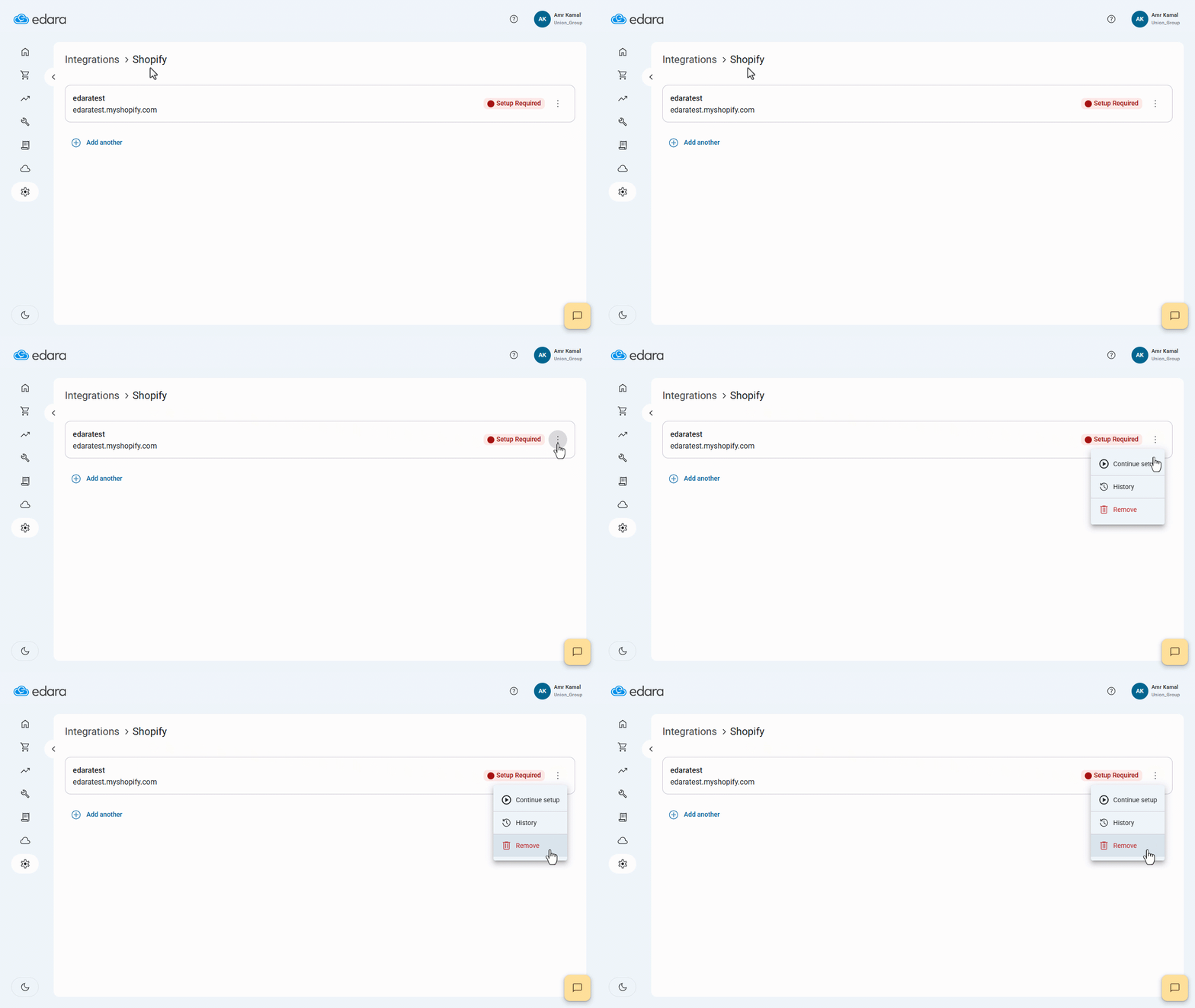
If you want to revoke the Integration Edara for a store, go to the Shopify stores page, click on the “⁝” icon next to the store, then click on “Remove”.
If you encounter any challenges or have questions during these processes, you can contact our technical support team, who are ready to assist you at any time.