

Adding a New Shopify Store
Last updated:
You may need to connect multiple “Shopify” stores to your “Edara” account to manage and sync each store’s data independently through the system.
Adding a New Shopify Store

- Go to “System”.
- Open the “Integrations” page.
- Click on “Shopify”.
- Click on “Add another”
A window will appear showing the main benefits of the integration. You can also view Help Center articles by clicking on “Open Help Center” at the bottom of the window.
- Click on “Continue”.
- Select the “Edara” version you want to connect with “Shopify”.
Note: The integration is currently available for “Edara 2.0”, and support for “Edara 3.0” is coming soon.
- Click on “Next”.
- Enter your Shopify store name.
- Wait until the system verifies the store name, then click on “Connect”.
You will be automatically redirected to your Shopify store.
- Click on “Install” to install the “Edara Connect” app required to complete the integration.
After installation, you will be automatically redirected back to the integration settings page in Edara, as shown below.
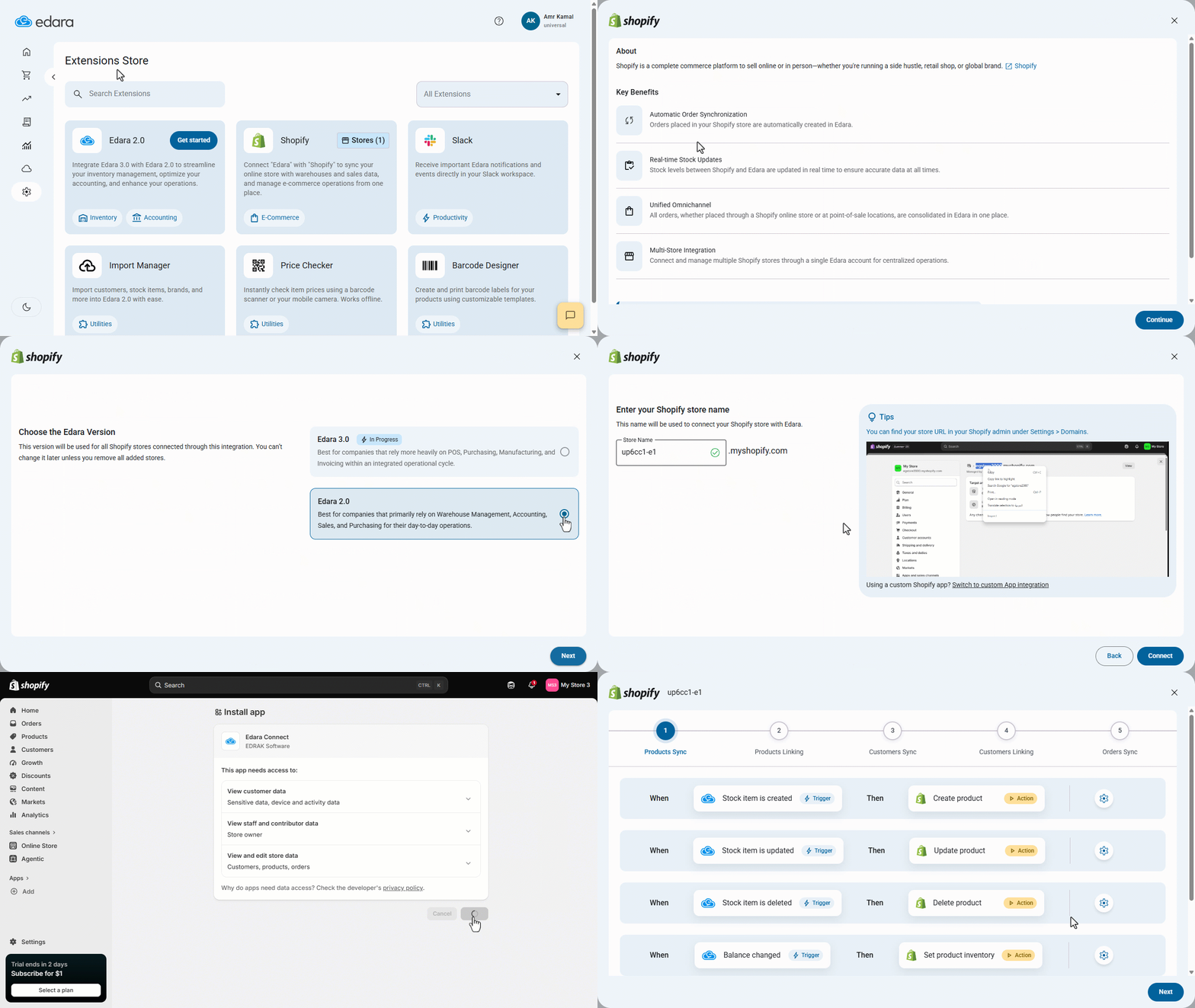
Here, you will need to configure the following settings:
If you want to revoke the Edara integration for a store, go to the Shopify stores page, click on the “⁝” icon next to the store, then click on “Remove”.
If you encounter any challenges or have questions during these processes, you can contact our technical support team, who are ready to assist you at any time.