

Syncing Products Between “Edara” and “Shopify”
Last updated:
The integration process between “Edara” and “Shopify” starts with syncing and linking products to ensure data consistency between both systems, with full control over each sync action and its settings.
Syncing Products Between “Edara” and “Shopify”

By default, the system creates 5 product sync rules as follows:
1. When a stock item is created in Edara, a product is created in Shopify
When you create a new stock item in “Edara”, the system automatically creates a corresponding product in “Shopify”, transferring the basic data according to the predefined integration settings.
The product creation in “Shopify” depends on linking fields between both systems, as shown below:
| Edara | Shopify |
|---|---|
| Description | Title |
| SKU | SKU |
| Part Number | Barcode |
| You can select: (Sales Price - Dealer Price - Super Dealer Price) | Price |
| Classification | Product Type |
| Weight | Weight |
| Tags | Tags |
To manage the settings:
- Click on the “
 ” icon.
 - Select the price that will be sent to “Shopify”.
- Choose the default status of newly created products in “Shopify” (Draft or Active).
Note: If the product status is set to “Draft”, the products created in “Shopify” will be hidden from customers and sales channels. When the status is set to “Active”, the products will be visible to customers and available across all connected sales channels.
You can also add conditions so that products are created in “Shopify” only if they belong to a specific classification in “Edara”:
- Click on “Add Condition”.
- Click the “+” icon.
- Select the required classification.
- Click on “Save”.
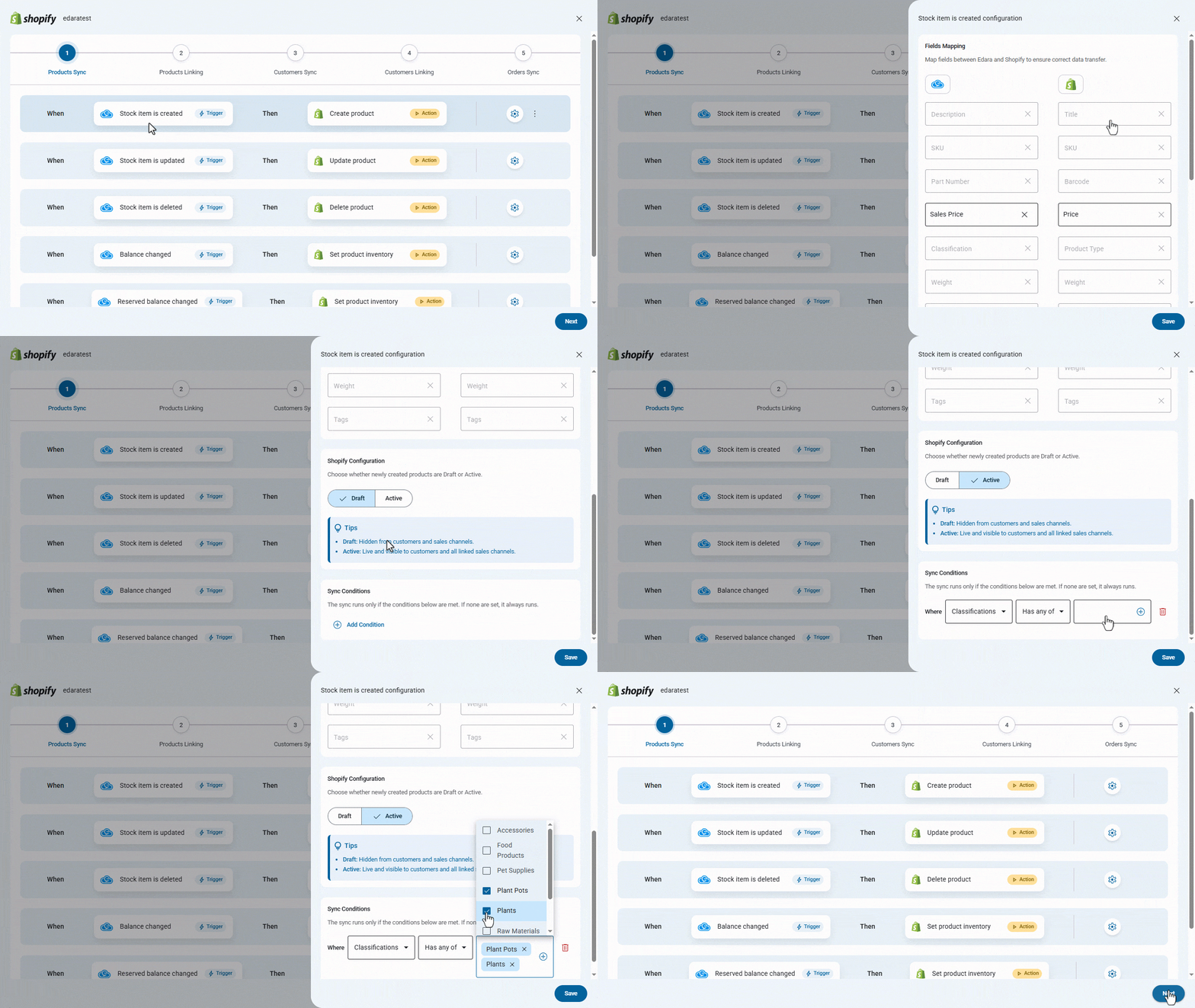
2. When the stock item is updated in “Edara”, the product is updated in “Shopify”
When you update an existing stock item in “Edara”, the system automatically updates the corresponding product in “Shopify”, with the option to specify the price that will be sent to “Shopify”.
To manage the settings:
- Click on the “
 ” icon.
 - Select the price that will be sent to “Shopify”.
You can also add conditions so that products are updated in “Shopify” only if they belong to a specific classification in “Edara”:
- Click on “Add Condition”.
- Click the “+” icon.
- Select the required classification.
- Click on “Save”.
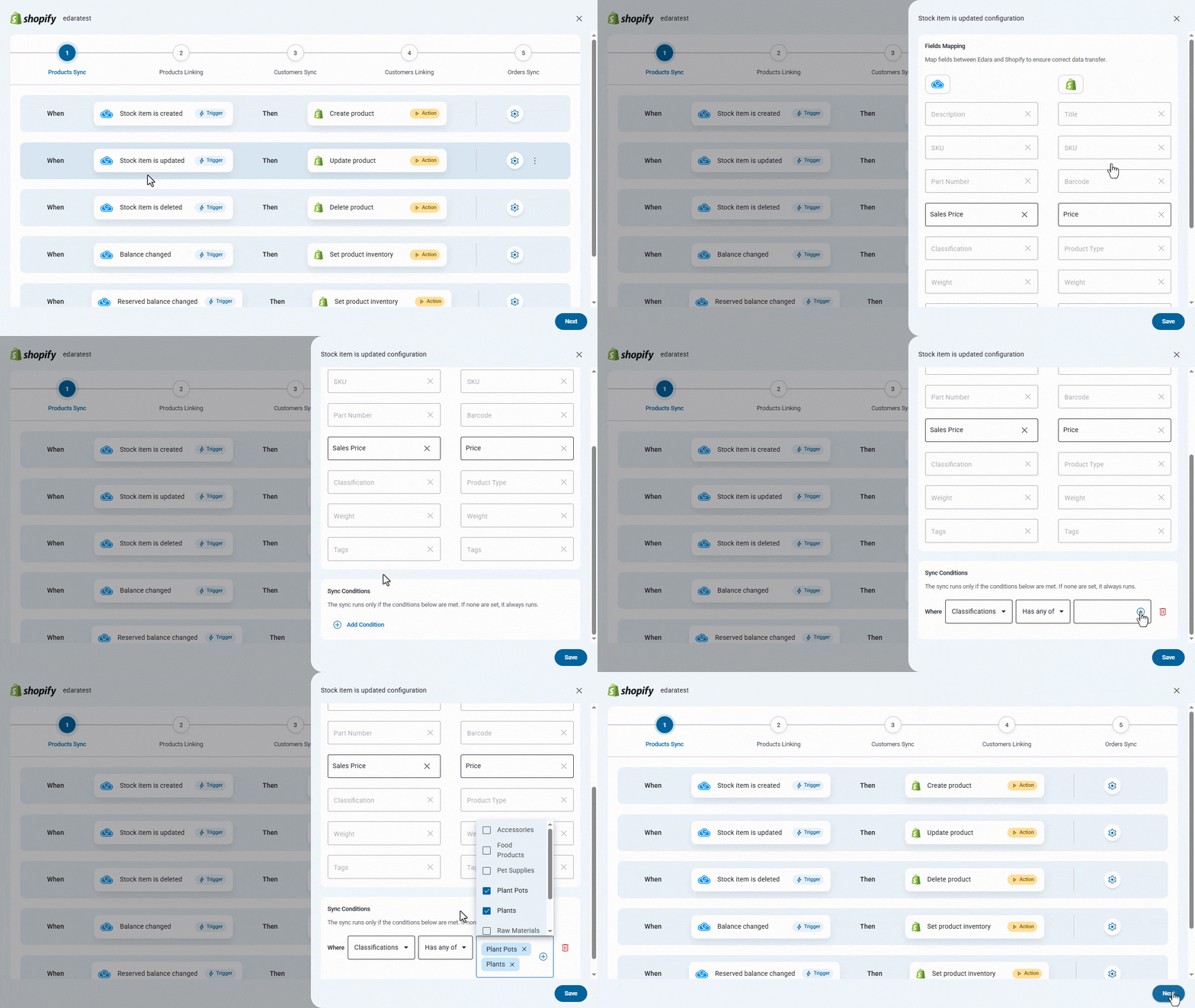
3. When the stock item is deleted in “Edara”, the product is deleted in “Shopify”
If you delete a stock item in “Edara”, the corresponding product will be deleted in “Shopify” automatically. And you can also add conditions so that products are deleted in “Shopify” only if they belong to a specific classification in “Edara”:
- Click on “Add Condition”.
- Click the “+” icon.
- Select the required classification.
- Click on “Save”.
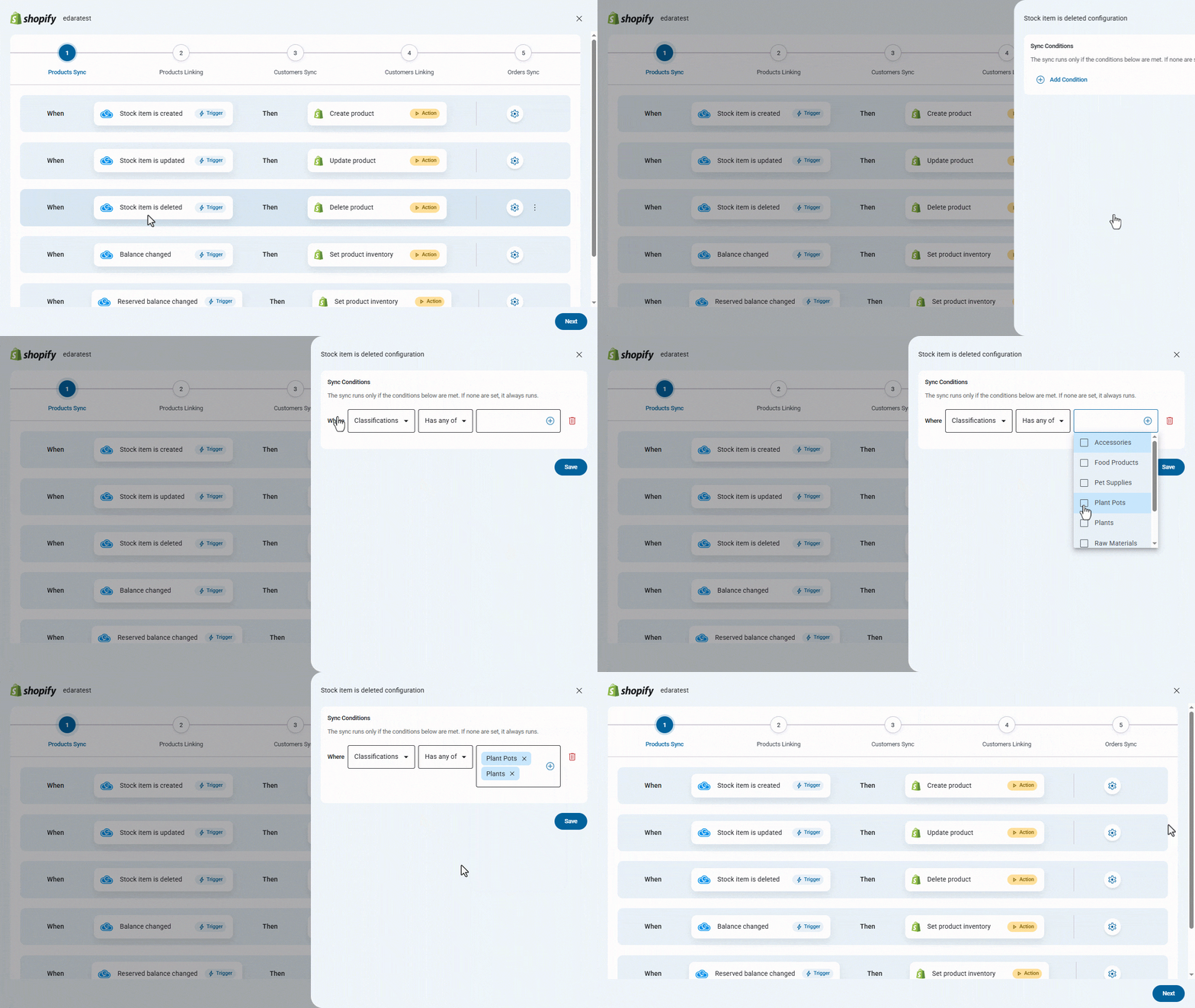
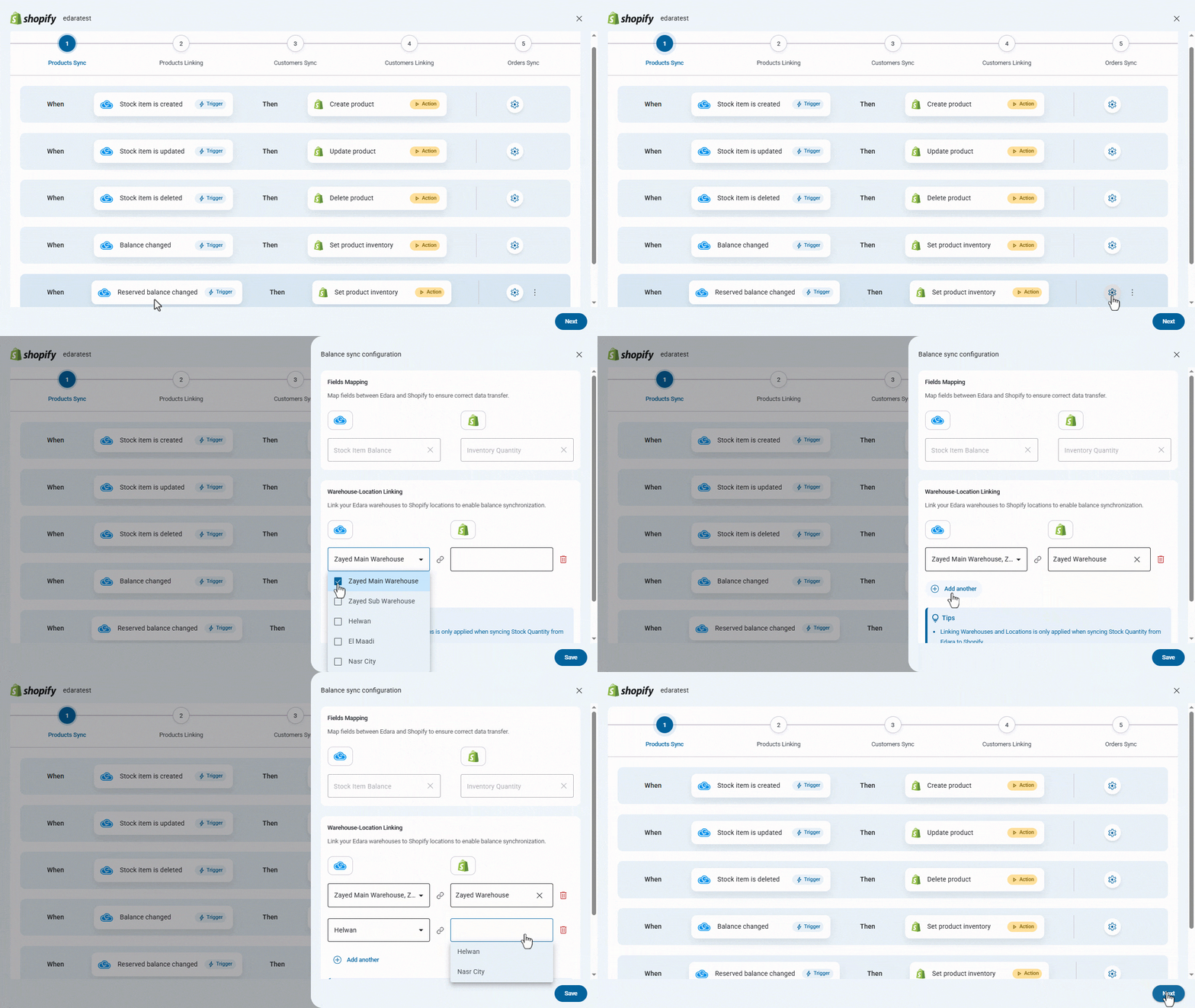
4- When changing the balance of a stock item in “Edara,” the product inventory is adjusted in “Shopify.”
Any change in stock item quantity in “Edara” will automatically update the inventory quantity of the corresponding product in “Shopify”.
You can also link “Edara” warehouses to “Shopify” Locations to enable balance synchronization:
- Click on the “
 ” icon.
 - Click on “Link Location”.
- Select the warehouse in “Edara”.
- Select the location in “Shopify”.
- Click on “Save”.
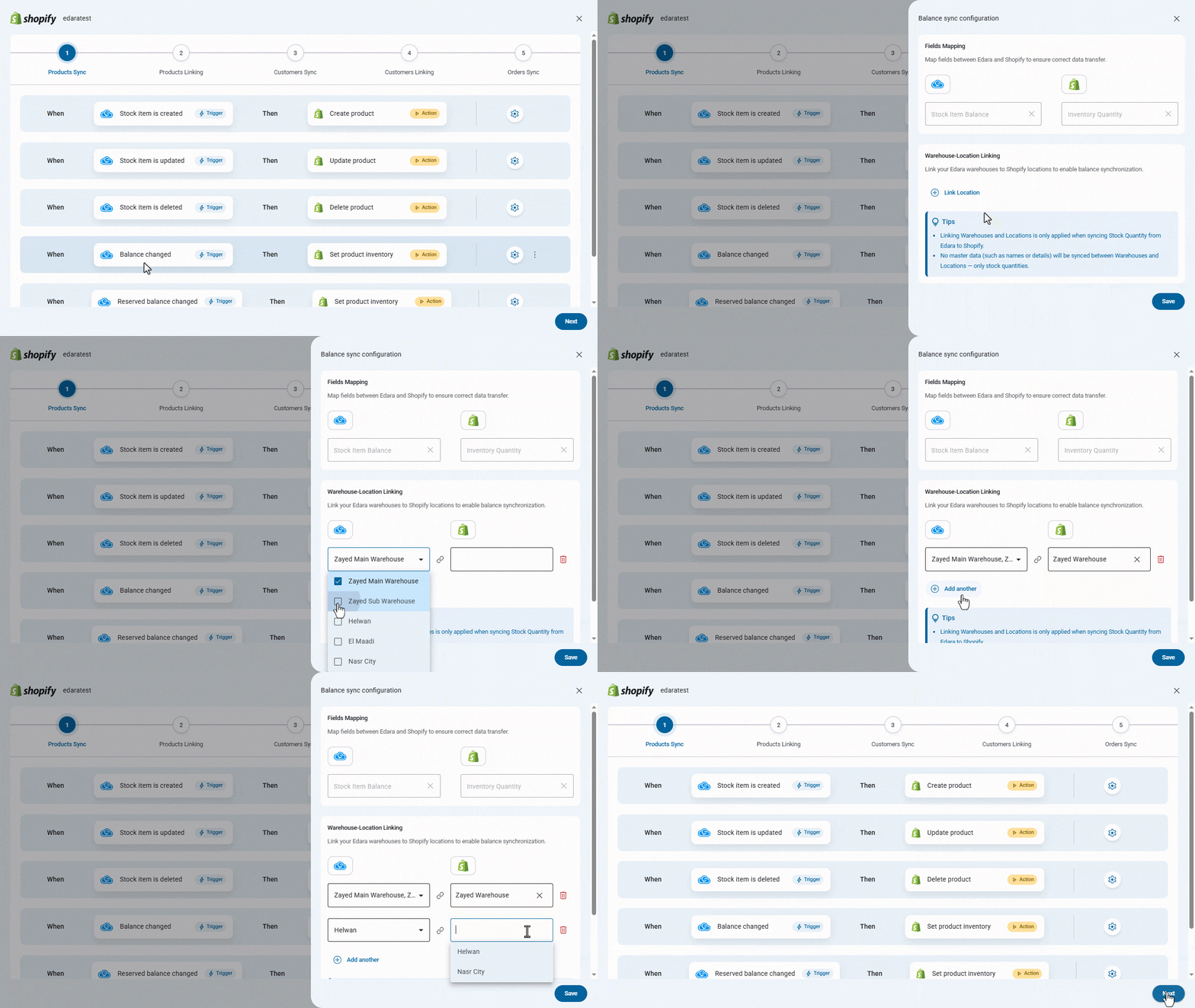
Notes:
- Each condition allows linking multiple “Edara” warehouses to one “Shopify” location only, and you can add any number of conditions.
- Linking warehouses and locations is only applied when synchronizing inventory quantities from “Edara” to Shopify.
- Basic data (such as names or details) will not be synchronized between warehouses and locations — only inventory quantities.
5. When the reserved balance changes in “Edara”, the product inventory is updated in “Shopify”
When the reserved balance of a stock item changes in “Edara”, the system automatically updates the product inventory in “Shopify”, accurately reflecting the reserved quantities and preventing the display of unavailable stock.
You can also link “Edara” warehouses to “Shopify” locations, as in the previous condition.
- Click on the “
 ” icon.
 - Click on “Link Location”.
- Select the warehouse in “Edara”.
- Select the location in “Shopify”.
- Click on “Save”.
In addition to syncing data from “Edara” to “Shopify”, the integration also supports reverse synchronization, allowing products created or updated in “Shopify” to be synced into “Edara”.
- Click on “Add another”.
- Select the conditions you want.
- Click on “Add”.
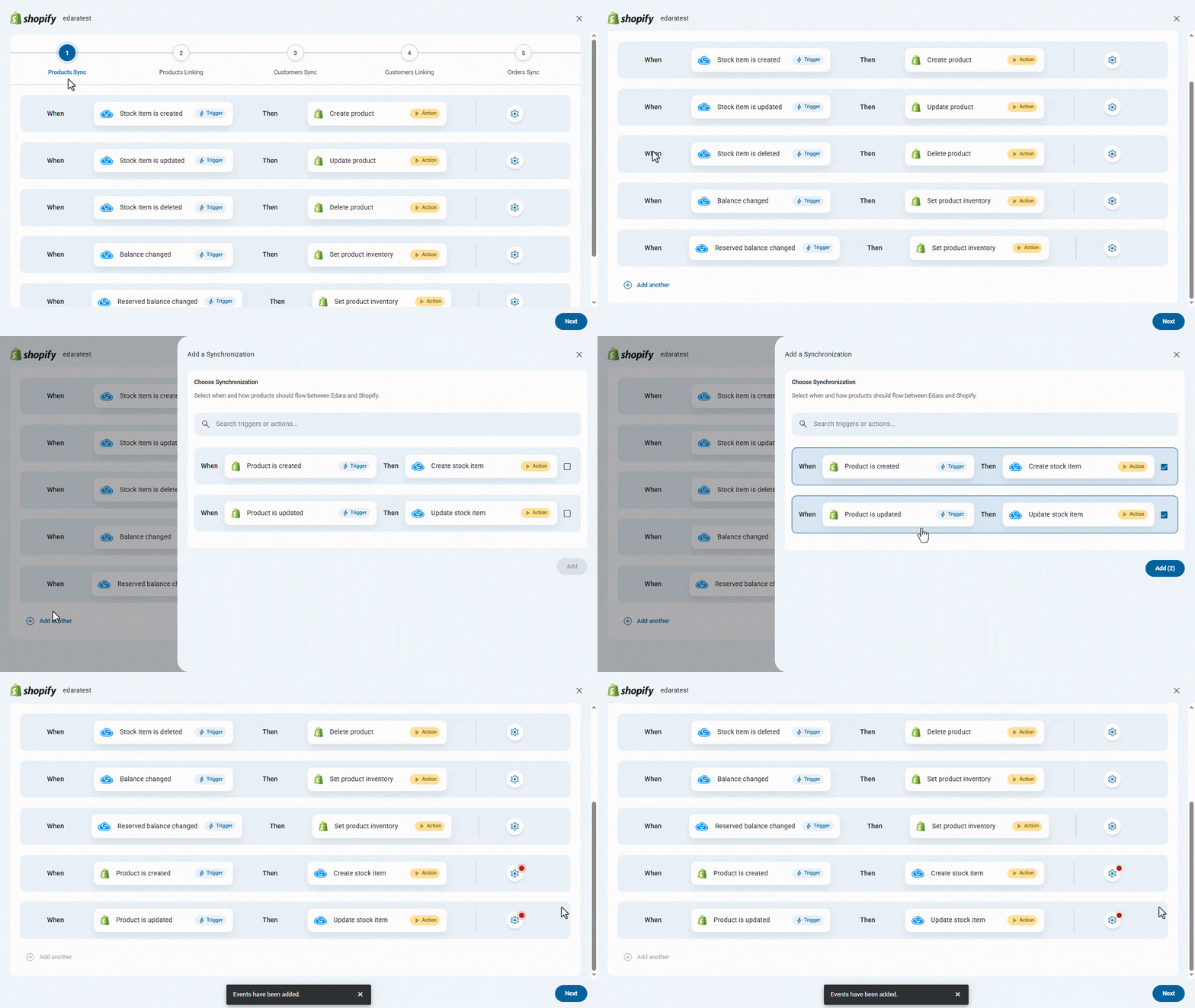
The system supports two reverse sync conditions:
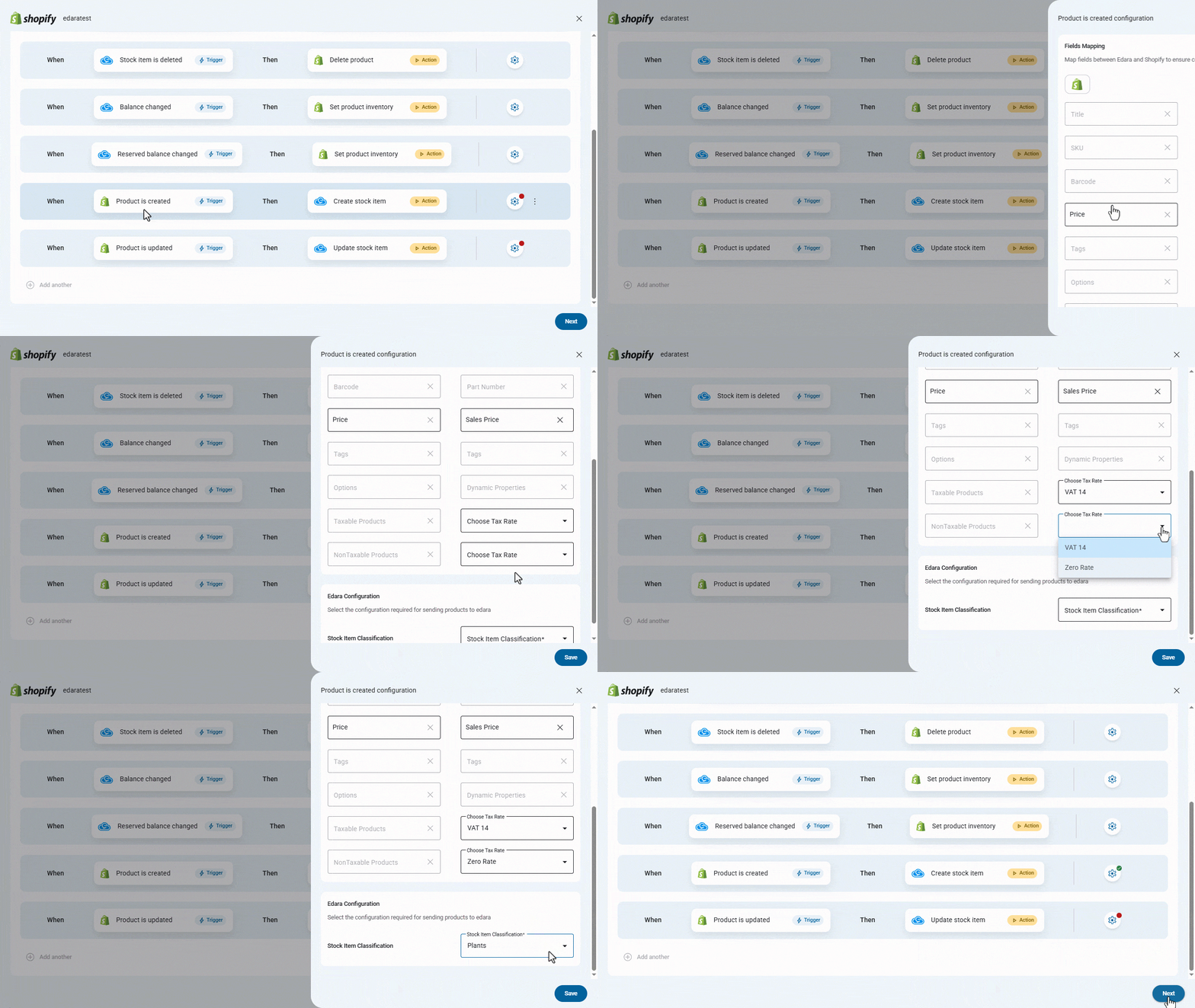
1. When a product is created in “Shopify”, a stock item is created in “Edara”
When a new product is created in “Shopify”, the system automatically creates a corresponding stock item in “Edara”.
To manage the settings:
- Click the “
 ” icon.
 - Select the price type to be saved in “Edara”.
- Choose the tax rate for taxable products.
- Choose the tax rate for nontaxable products.
- Select the stock item classification.
- Click on “Save”.
2. When a product is updated in “Shopify”, the stock item is updated in “Edara”
When a product is updated in “Shopify”, the system automatically updates the corresponding stock item in “Edara” according to the predefined integration settings.
To manage the settings:
- Click the “
 ” icon.
 - Select the price type to be saved in “Edara”.
- Choose the tax rate for taxable products.
- Choose the tax rate for nontaxable products.
- Select the stock item classification.
- Click on “Save”.
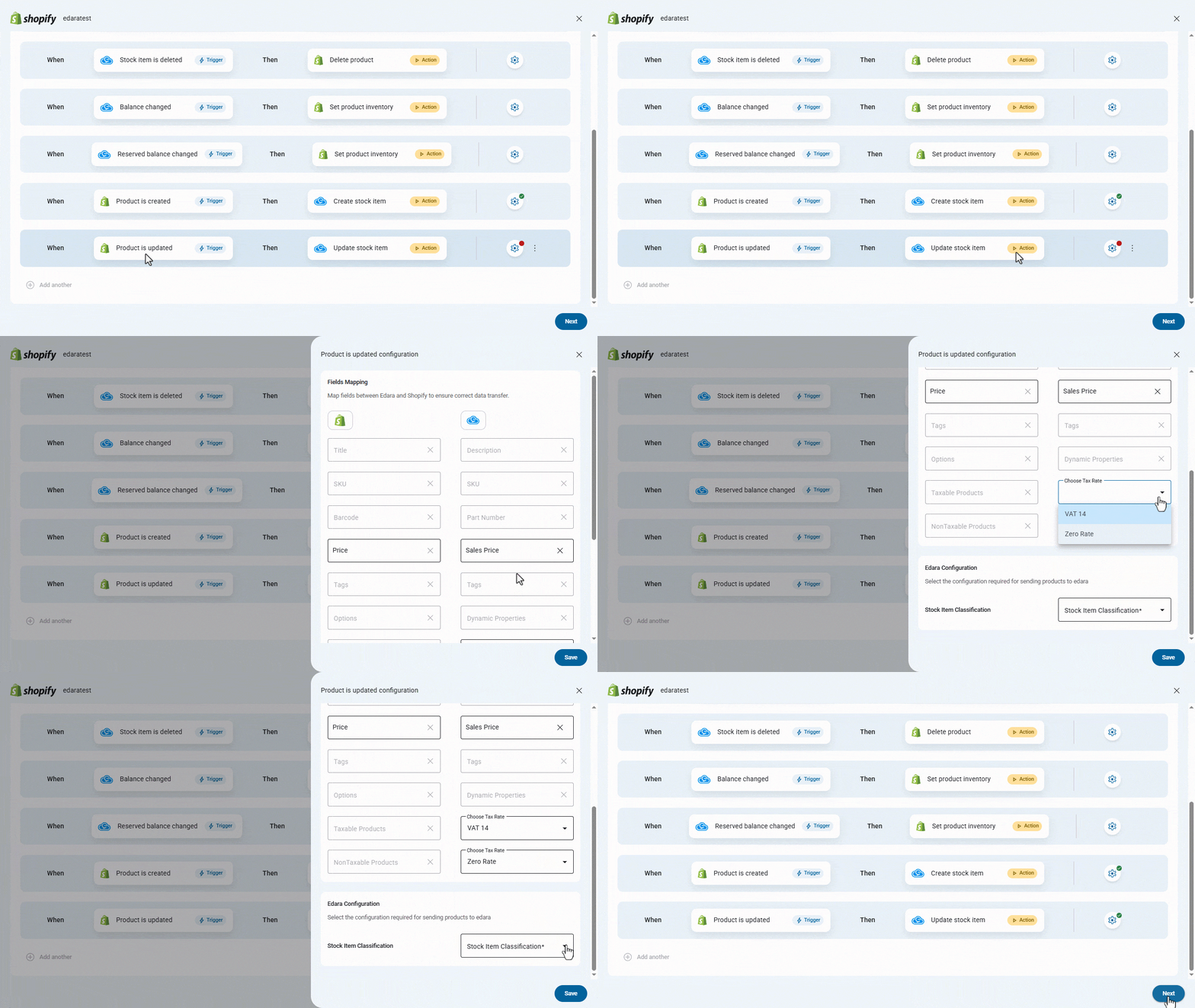
Note: You can delete any sync condition by clicking on the “⁝” icon, then clicking on “Remove”.
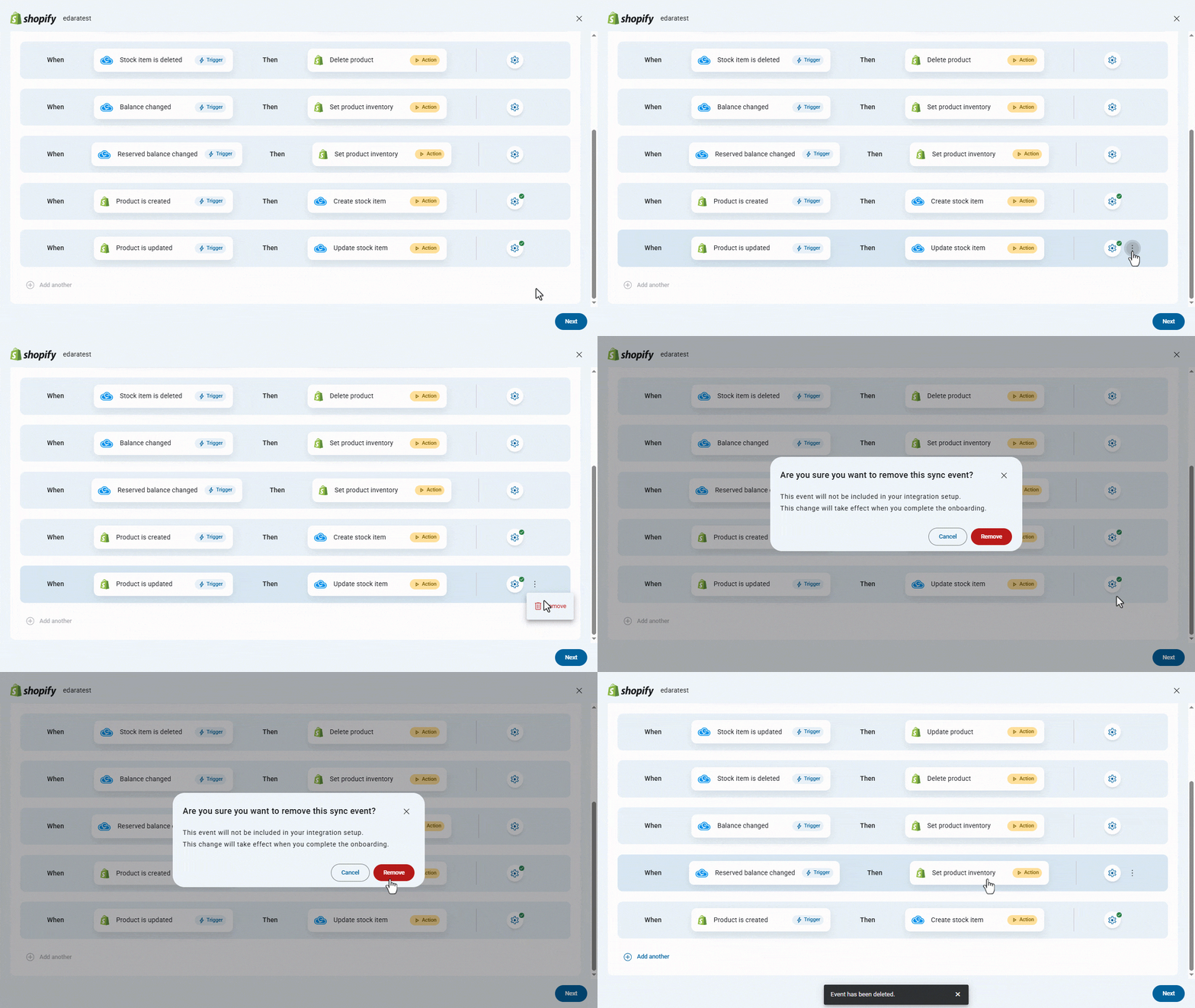
After completing product synchronization, click on “Next” to proceed to the next step: Linking Products Between “Edara” and “Shopify”.
Frequently asked questions
What is the difference between the “Draft” and “Active” status for new products?
If the product status is set to “Draft”, the products created in “Shopify” will be hidden from customers and sales channels. When the status is set to “Active”, the products will be visible to customers and available across all connected sales channels.
Are warehouse and location names synced?
Basic data (such as names or details) will not be synchronized between warehouses and locations — only inventory quantities.
If you encounter any challenges or have questions during these processes, you can contact our technical support team, who are ready to assist you at any time.