

Integration Between "Edara" and “Salla” Platform
Last updated:
“Edara” allows you to integrate your store with “Salla” to enable automatic data synchronization between the two systems, including stock items, balances, customers, and sales orders, ensuring unified, real-time updates.
Integration Between "Edara" and “Salla” Platform
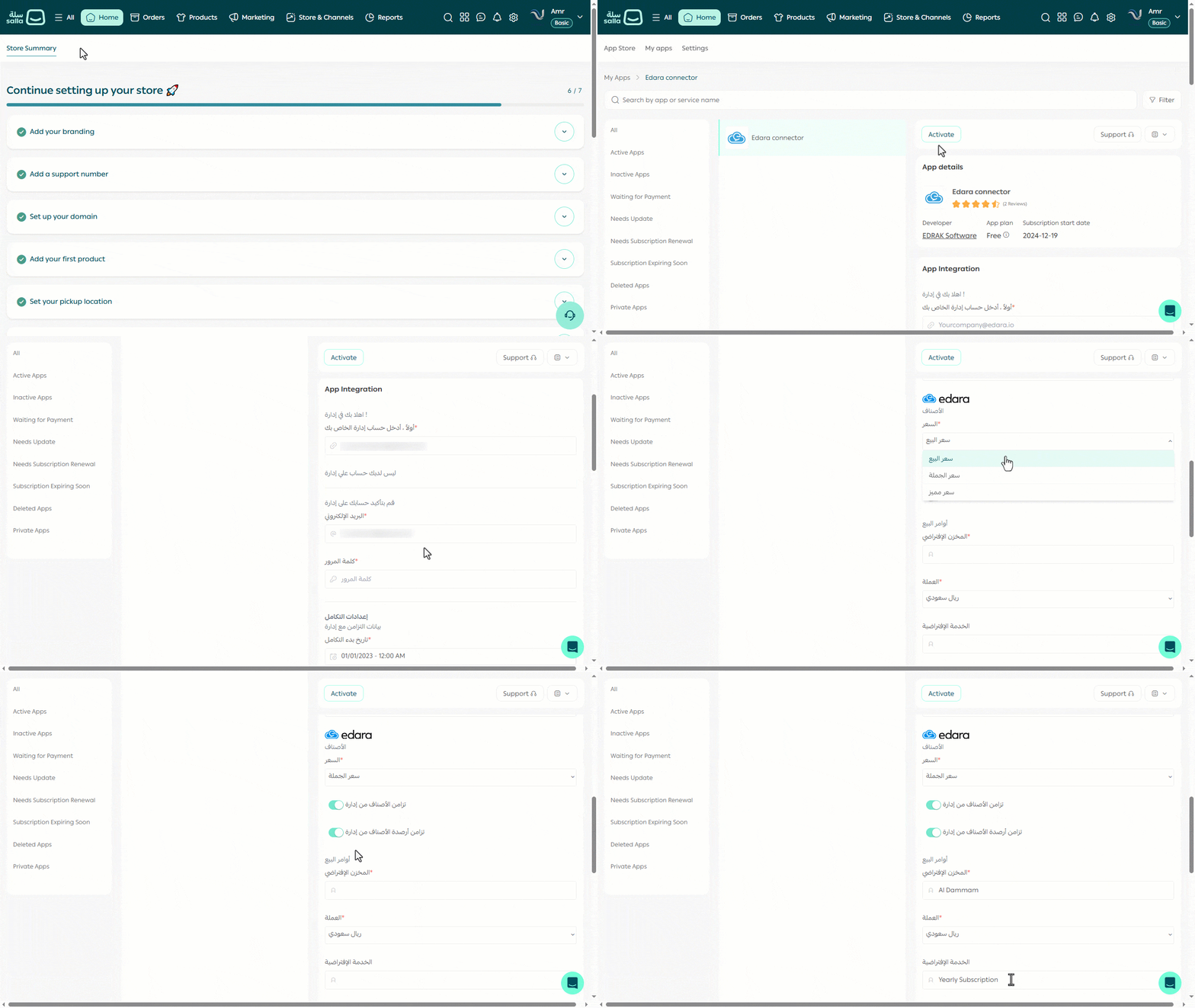
- Open your store on “Salla”.
- Click on "All".
- Open the “My Apps” page.
- Click on “Activate” on the “Edara App” card.
- Enter your “Edara” account details: Account URL - “Edara” user email - User password.
Note: The user must have permission to access the Integration page in “Edara.”
- Set the Integration Start Date: the date from which data will begin syncing to “Edara” (mandatory).
Note: The synchronization directions between “Edara” and “Salla” are as follows:
- Stock Items: From “Edara” to “Salla”.
- Stock Item Balances: From “Edara” to “Salla”.
- Customers: From “Salla” to “Edara”.
- Sales Orders: From “Salla” to “Edara”.
- Choose the stock item price type to sync from “Edara” to “Salla”:(Sales price سعر البيع, Dealer price سعر الجملة, or Super dealer price سعر مميز).
Notes:
- You can control whether to sync items from “Edara” to “Salla” by using the “Sync Item Balances from Edara” setting.
- When balance synchronization is enabled, product quantities in “Salla” will automatically update based on each item’s total balance across all warehouses in “Edara”.
- If you prefer to sync balances from specific warehouses only, you can specify them in the webhook filter for total and reserved balance updates in “Edara”.
- Select the Warehouse where sales orders from the “Salla” store will be created.
- Choose the Currency to be used when creating sales orders in “Edara”.
- Select the default service.
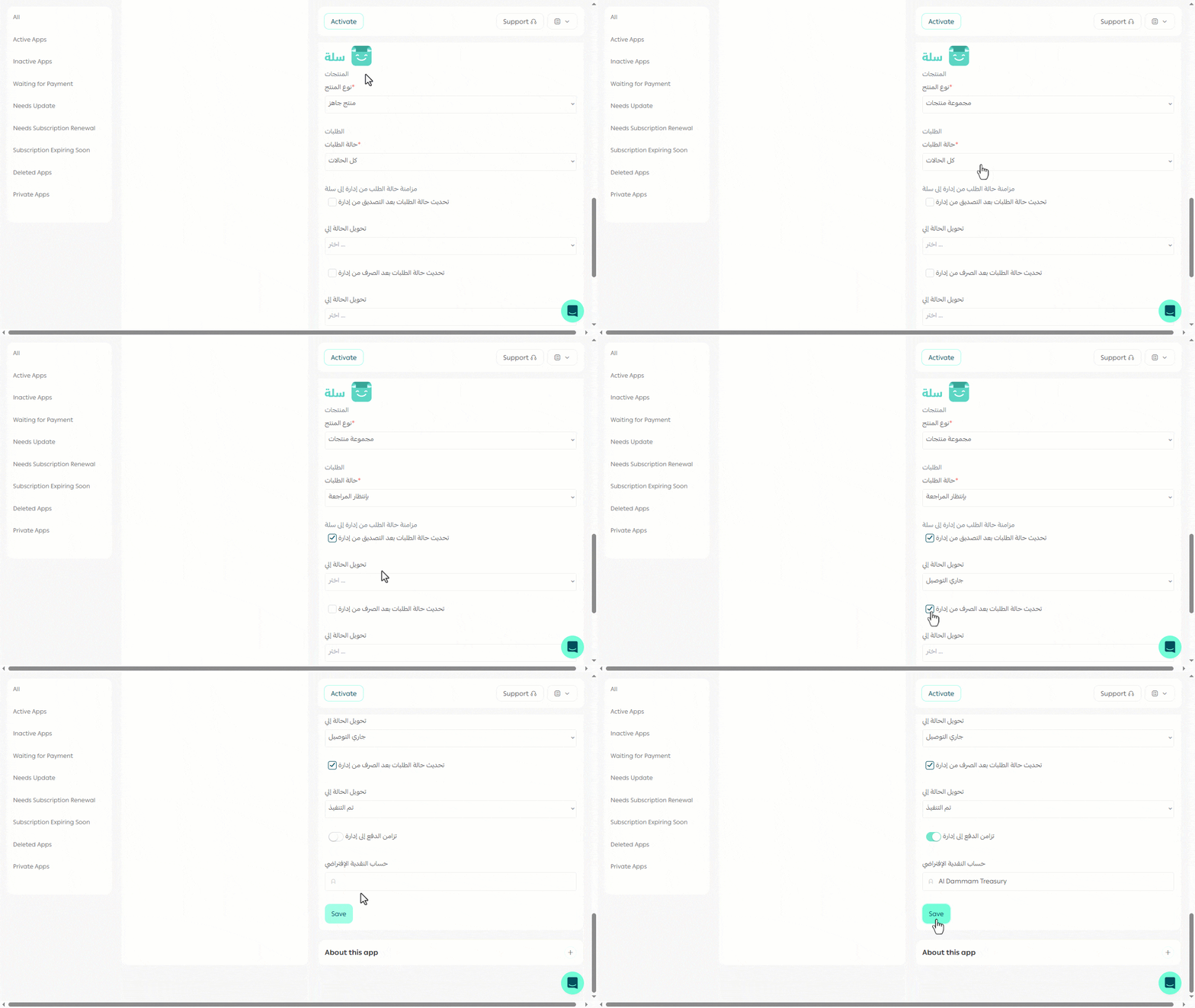
- Select the Product Type on “Salla” to be used when creating items from “Edara” in “Salla”.
Note: The product type is a mandatory field when creating a product on “Salla.”
- Choose the Order Status for syncing new orders to “Edara” (e.g., Pending Review بانتظار المراجعة). Once the sales order is approved in “Edara,” its status on “Salla” will automatically update according to the selected status in the app.
- Choose the Order Status to update after approving the order (e.g., Out for Delivery جاري التوصيل).
Note: When a stock issue document is saved in “Edara,” the order status on “Salla” will automatically update to the selected status in the app.
- Choose the Order Status to update after saving the stock issue document (e.g., Completed تم التنفيذ).
When Payment Sync (تزامن الدفع) is enabled, “Edara” will automatically create a “Cash In” for paid online orders.
- Select the Default Account where the Cash In will be created in “Edara,” and make sure to copy the exact account name.
Note: The token user must have permission on the selected account to save the app settings successfully.
Notes:
- The synchronized item data between “Edara” and “Salla” includes: Item Name, SKU, and Price.
- A grouping item in “Edara” will appear in “Salla” as a single product with multiple variations (e.g., colors or sizes).
- Customer payment status synced from “Salla” to “Edara” will be either Cash or Bank, depending on the account type set in the app.
- You must define the default customer account in the Sales Settings in “Edara” to ensure “Salla” customers are created under it.
- Make sure the “Price Includes VAT” option is enabled in the Sales Settings in “Edara” to match “Salla” order details with “Edara” sales orders.
- When syncing an order that includes items not created in “Edara,” “Salla” products will be linked to “Edara” items if they share the same SKU.
Frequently asked questions
What permission does the “Edara” user need for the integration?
The user must have permission to access the Integration page in “Edara.”
What are the sync directions between “Edara” and “Salla”?
The synchronization directions between “Edara” and “Salla” are as follows: Stock Items: From “Edara” to “Salla”, Stock Item Balances: From “Edara” to “Salla”, Customers: From “Salla” to “Edara”, Sales Orders: From “Salla” to “Edara”.
If you encounter any challenges or have questions during these processes, you can contact our technical support team, who are ready to assist you at any time.