

Linking Customers Between “Edara” and “Shopify”
Last updated:
After completing the customer synchronization setup, “Edara” allows you to link existing customers in both systems to ensure data consistency and prevent duplicate customer creation.
Linking Customers Between “Edara” and “Shopify”

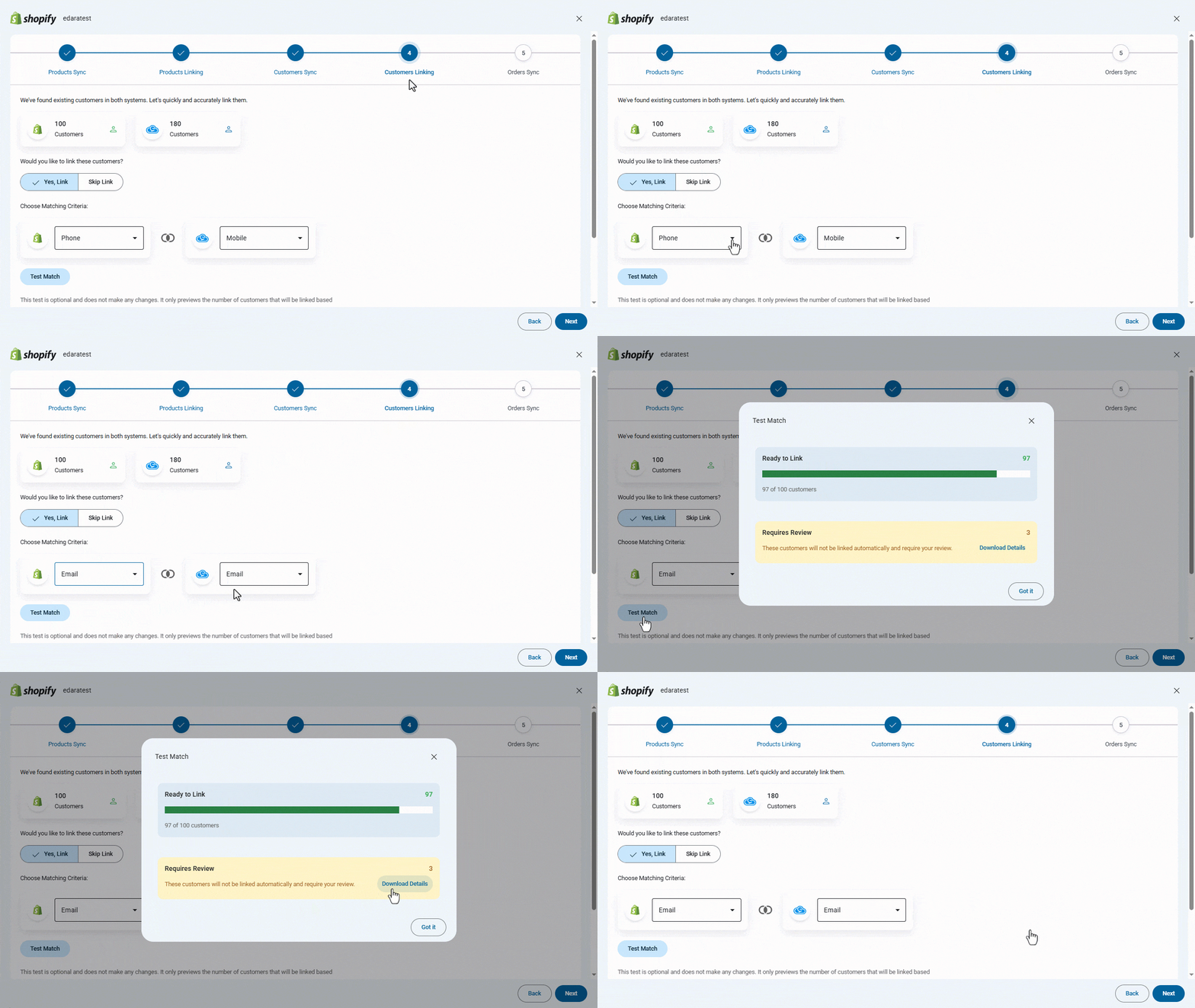
The system displays the total number of customers in “Edara” and the total number of customers in “Shopify”, and you must answer the question: Would you like to link these customers?
- Select "Skip Link" if you do not want to link customers at this stage.
- Select "Yes, Link" if you want to link customers.
- Choose the matching criteria.
Note: The available matching criteria in “Shopify” are Email and Phone, while in “Edara” they are Email and Mobile.
- Click on “Test Match”.
The system will check customers in both“Edara” and “Shopify”, then display the number of customers ready to be linked and the customers that require review due to mismatched data.
Note: This test is optional and does not make any changes. It only previews the number of customers that will be linked based on your current criteria.
After the test, two cases will appear:
- Ready to link customers: customers that can be linked automatically without any manual intervention.
- Customers Require Review: customers that cannot be linked automatically and need your review. You can download the details, review and correct the data, then run the test again.
- Click on “Done”.
Notes:
- Make sure the selected matching field is unique for each customer in both “Shopify” and “Edara”.
- Customers are automatically linked one by one.
- Non-matching or multiple-matching customers will not be linked automatically and can be linked manually later.
After finishing, click on "Next" to move to the next step: Sales Orders Synchronization.
If you encounter any challenges or have questions during these processes, you can contact our technical support team, who are ready to assist you at any time.