

Creating a Sales Order Layout in POS
Last updated:
Cashiers need an easy way to handle sales orders when recording customer purchases.
If you work with a small number of products, the table layout is more practical. For a large variety of products, the card layout (touch screen) allows for faster and easier navigation.
In “Edara”, you can choose the sales order layout that best fits your workflow directly from the Sales screen. Here’s how:
Creating a Sales Order Layout in POS
- Go to the POS module.
- Open the “Cash Registers” page.
- Find the cash register you want to update.
- Click on the “⋮” icon next to the cash register name.
- Click on “Edit”.
- Choose your preferred sales order layout.
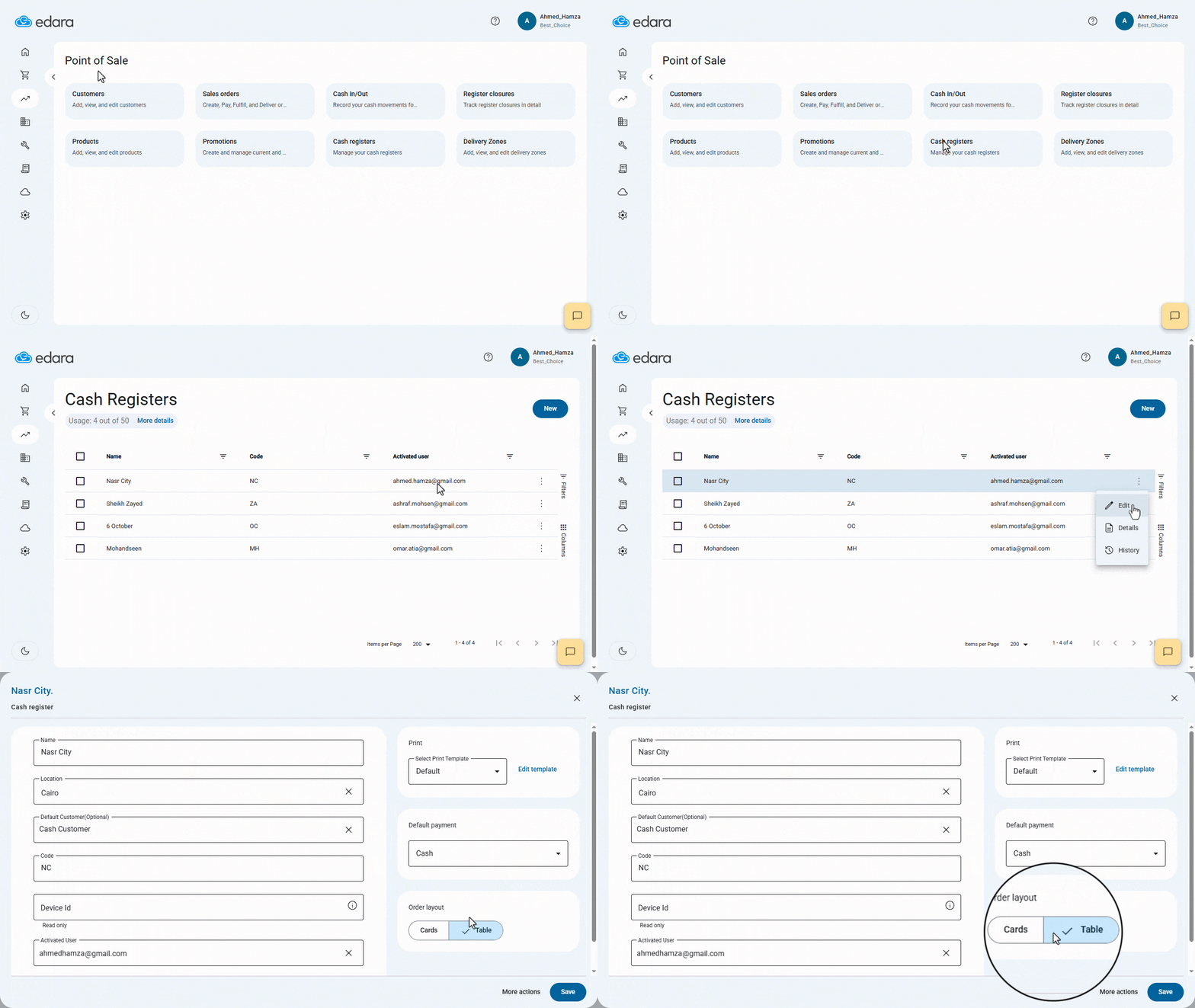
Here you have two options:
1: Cards Layout,
- Click on ▼ from the “Card Design” dropdown menu.
- Select “New Layout”.
- Enter a name for your design.
- Search for the products you want to include and add them to the cards.
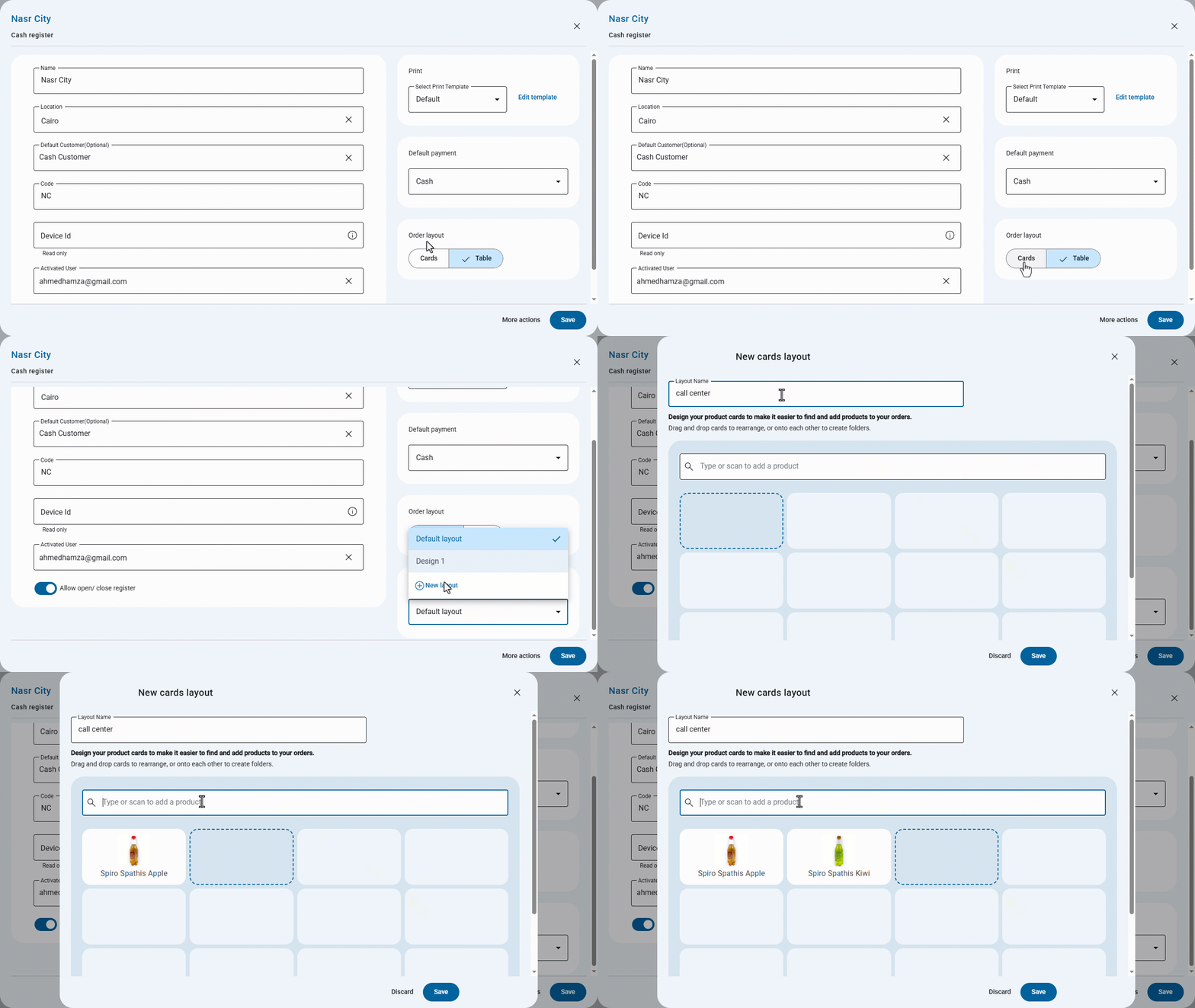
Note: If you’re managing only a few products, the table view is more convenient. But if you have a wide range of products, using the card view on a touch screen will make it quicker and easier to navigate.
- Click on “Save” to keep your new card design.
- Click on “Save” again to apply the changes to the cash register.
2: Table Layout
If you choose the table layout and save it to the cash register, products will appear in a list format in the Sales screen.
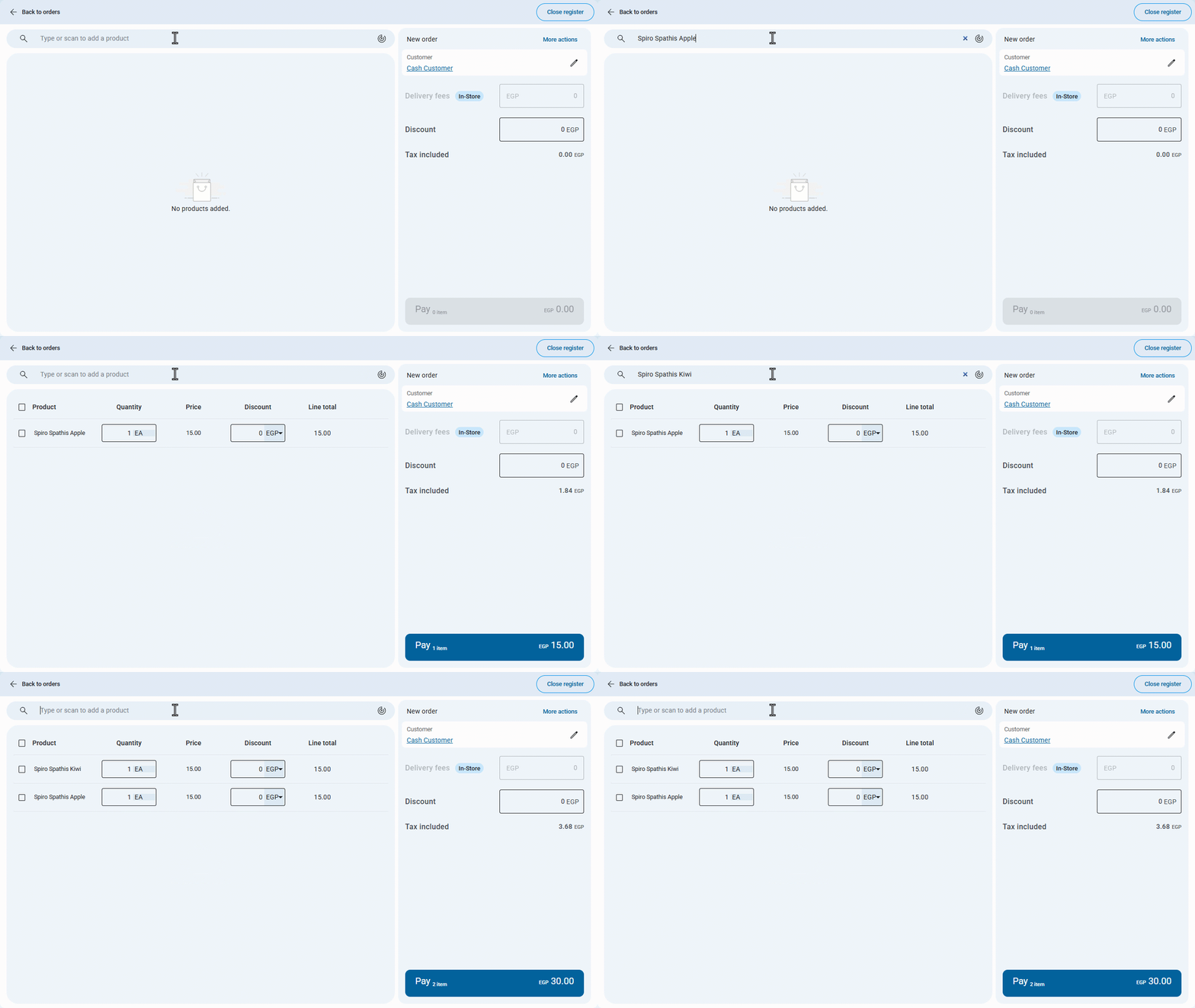
Editing or Deleting an Existing Design
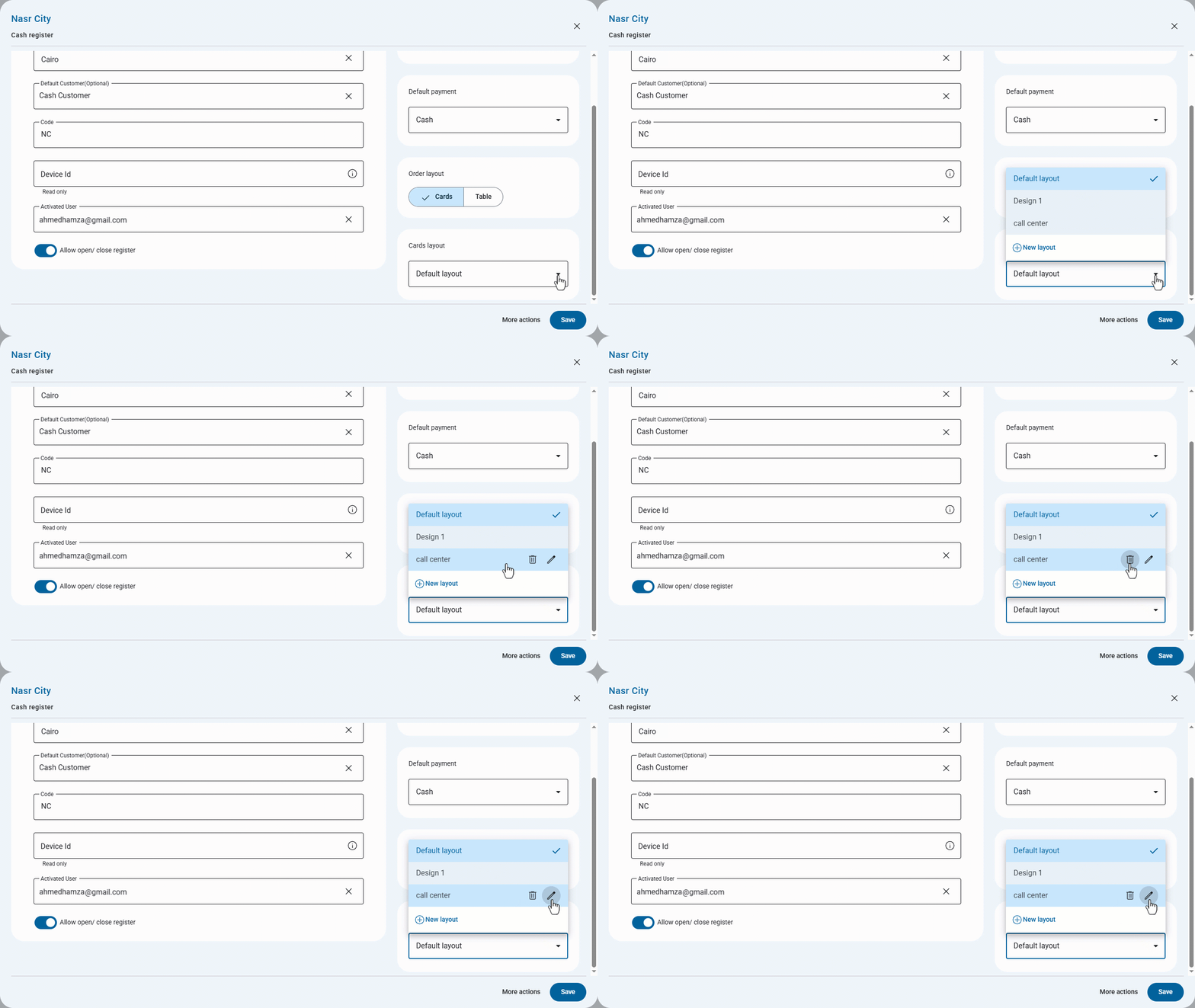
- Click on the design name from the “Card Design” dropdown menu ▼.
- Hover over the name of the design
You will see the following two icons:
- To edit: Click the edit icon ”
 ”, make your changes, and save again.
 - To delete: Click on the delete icon “
 ”, then select “Delete”.
Note: If you’re new to “Edara” and don’t have any cash registers yet, see the article "Creating a New Cash Register or Deactivating it" for setup instructions.
If you encounter any challenges or have questions during these processes, you can contact our technical support team, who are ready to assist you at any time.