

Creating a New Cash Register or Deactivating it
Last updated:
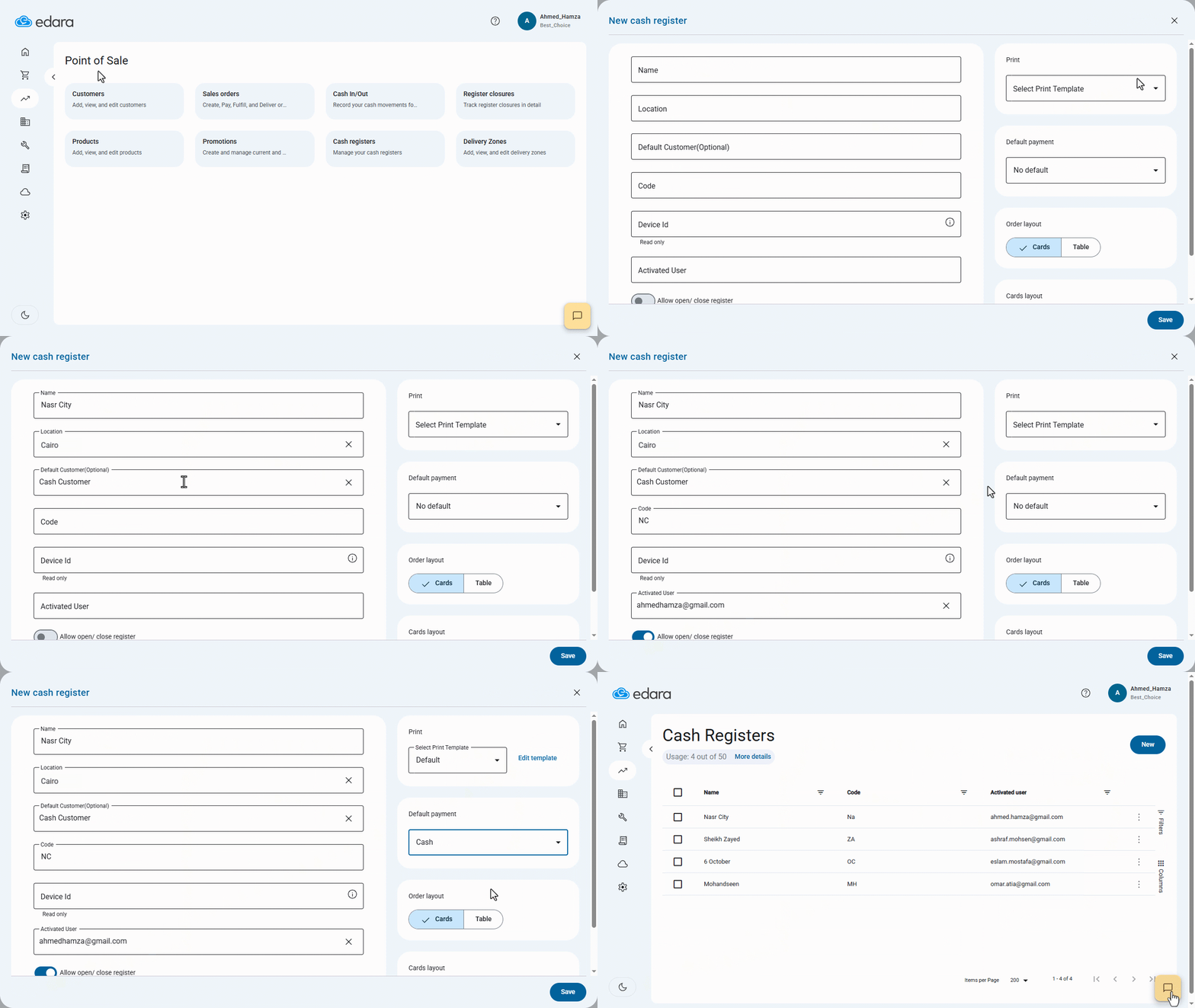
For a cashier to record sales orders in “Edara”, they must first create a new cash register for their point of sale (POS) terminal.
Creating a New Cash Register
- Go to Point of Sale.
- Open the “Cash Registers” page.
- Click on “New”.
- Enter a name for the POS terminal.
- Select the location for the POS.
You can either enter a new location name, click on “Create”, and fill in the required details, or Select a previously saved location.
- Choose a default customer.
Note: If this field is left blank, the system will prompt you to enter a customer name for every new sales order.
- Enter the POS code
This must be unique, as each register operates on a single device.
The system will automatically detect and record the device identifier in the corresponding field.
- Choose the active user (Only one user can be active per POS at any given time).
When the “Allow open/close register” feature is activated, the program asks the cashier to record the balance at the beginning of the shift, and record it at the end as well, then the program starts calculating the difference between the actual and book balance, to make sure there is no difference between them.
- Select a default print template, which you can later customize.
- Set the default payment method (Cash / Card / Unspecified).
Note: If the default payment method is “Unspecified”, the system will ask for it every time.
- Choose the sales order layout (Cards / Table).
Note 1: If you manage a large product list or rely on barcode, name, or code search, it’s better to select Table view. Note 2: If you choose Card view, you can either use the default design or create your own.
- Click on “Save”.
Deactivating a Cash Register
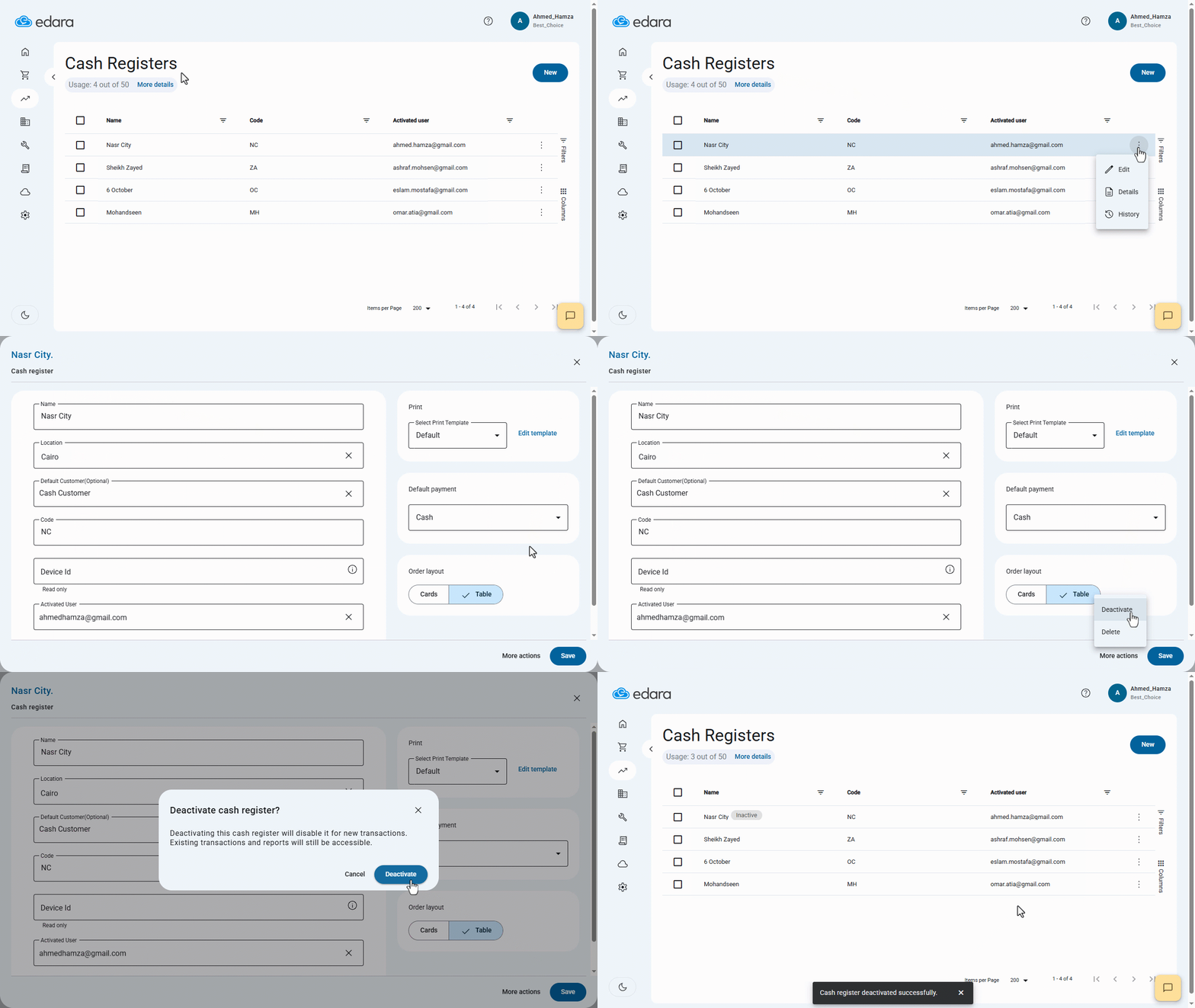
- Go to the “Cash Registers” page.
- Search for the register you want to deactivate.
- Click on the “⋮” next to its name.
- Click on “Edit”.
- Click on “More Actions” at the bottom right of the screen.
- Choose to either Deactivate or Delete the register.
Note:
- You cannot delete a register if it’s currently linked to other transactions. In this case, you can deactivate it.
- Registers with open shifts cannot be deactivated. Make sure all shifts are closed first.
Frequently asked questions
What happens if I leave the default customer empty?
If this field is left blank, the system will prompt you to enter a customer name for every new sales order.
Why can’t I delete a cash register?
You cannot delete a register if it’s currently linked to other transactions. In this case, you can deactivate it, Registers with open shifts cannot be deactivated. Make sure all shifts are closed first.
If you encounter any challenges or have questions during these processes, you can contact our technical support team, who are ready to assist you at any time.