

Creating a Purchase Return
Last updated:
If a company receives defective or incorrect products, such as when an item doesn't meet quality standards or when there’s a mistake in the order, "Edara" makes it easy to manage the return process.
“Edara” offers straightforward methods for creating purchase returns, helping businesses maintain accurate inventory and streamline their purchasing process.
Creating a Purchase Return
There are two ways to create a purchase return in "Edara":
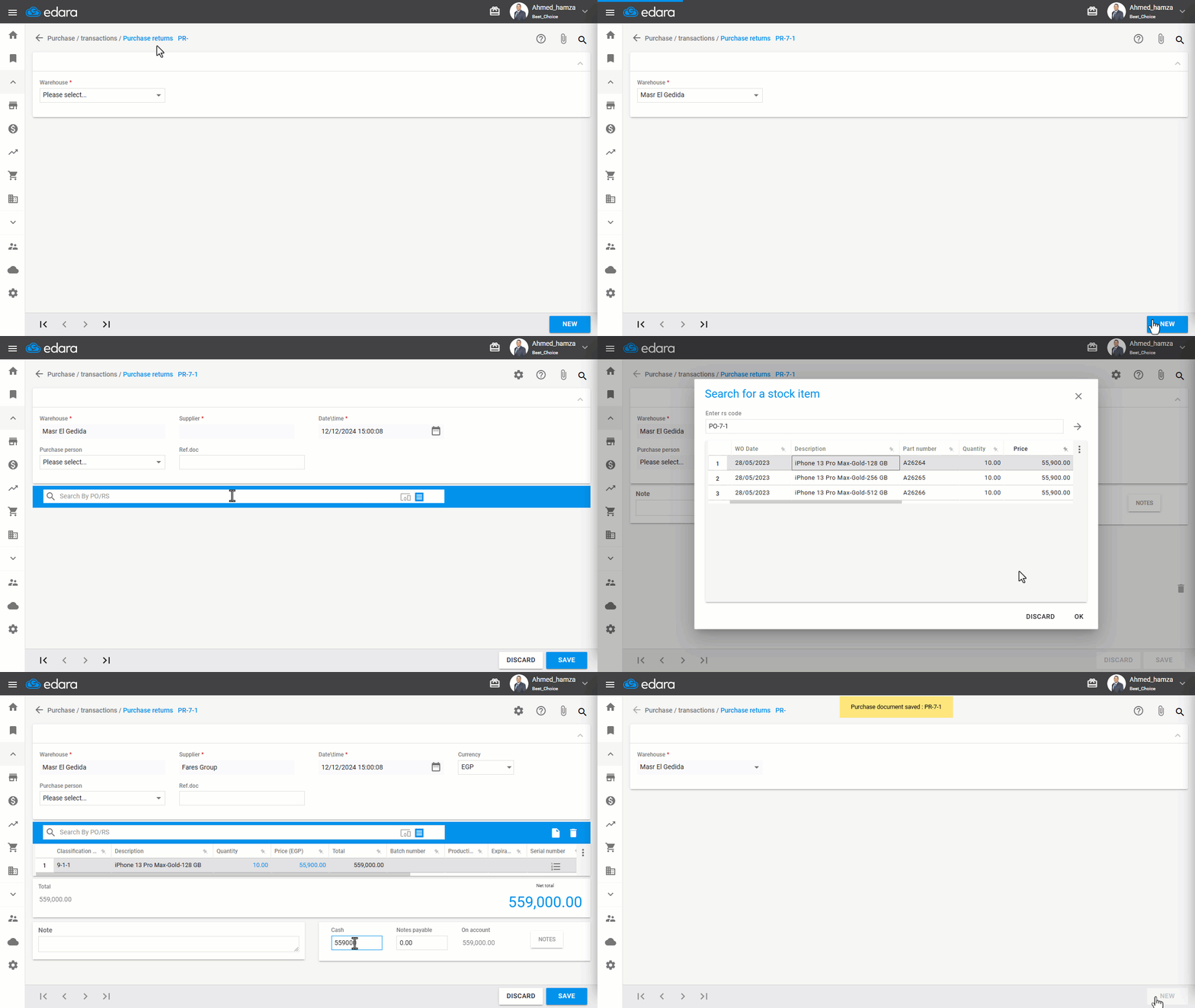
1. Creating a Return Using the Document code
- Go to the Purchases section.
- Click on Purchase Return.
- Select the Warehouse.
- Click on “New.”
- Click on the 📋 icon in the search bar.
- Enter the PO/RS code.
- Select the items to return and enter the quantities.
- Choose the Payment Method.
- Click “Save”.
2. Creating a Return Using the Serial Number
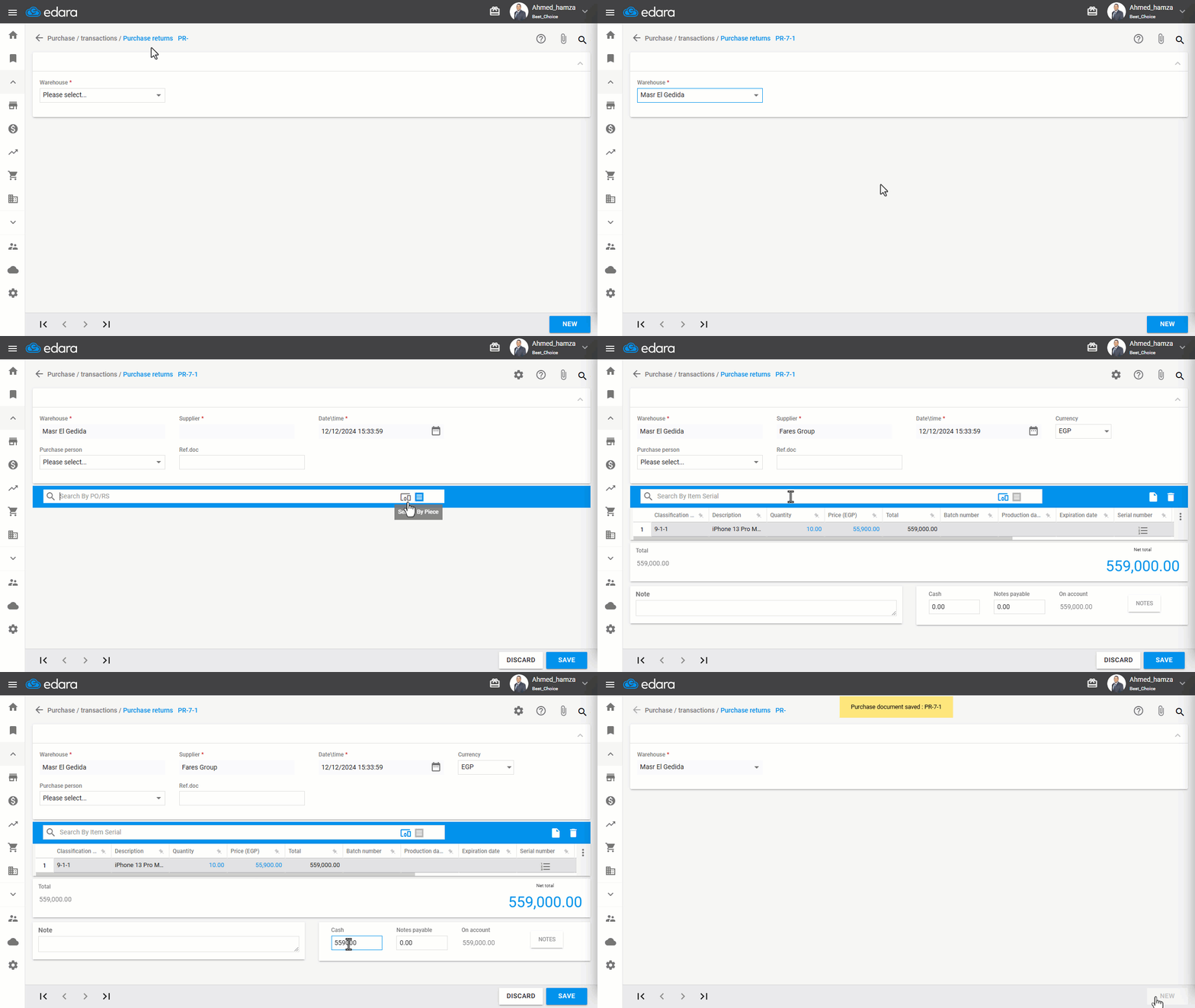
- Go to the Purchases section.
- Click on “Purchase Return”.
- Select the Warehouse.
- Click on “New.”
- Click on the Serial Number icon ”
 ”.
”. - Enter the Serial Number.
Note: When entering the serial number, the item will automatically appear with a quantity of 1, and the data associated with the purchase order (such as the supplier's name and currency) will be automatically retrieved in the return.
- Select the Payment Method.
- Click “Save”.
Frequently asked questions
What happens when I enter the serial number in the return?
When entering the serial number, the item will automatically appear with a quantity of 1, and the data associated with the purchase order (such as the supplier's name and currency) will be automatically retrieved in the return.
If you encounter any challenges or have questions during these processes, you can contact our technical support team, who are ready to assist you at any time.