

Linking a Stock Item to its own Supplier
Last updated:
Linking a stock item to a supplier helps to easily track the source of each item, making it easier for companies to identify the best suppliers in terms of quality and price, and negotiate better prices.
Linking a Stock Item to its own Supplier
This is done through two main steps:
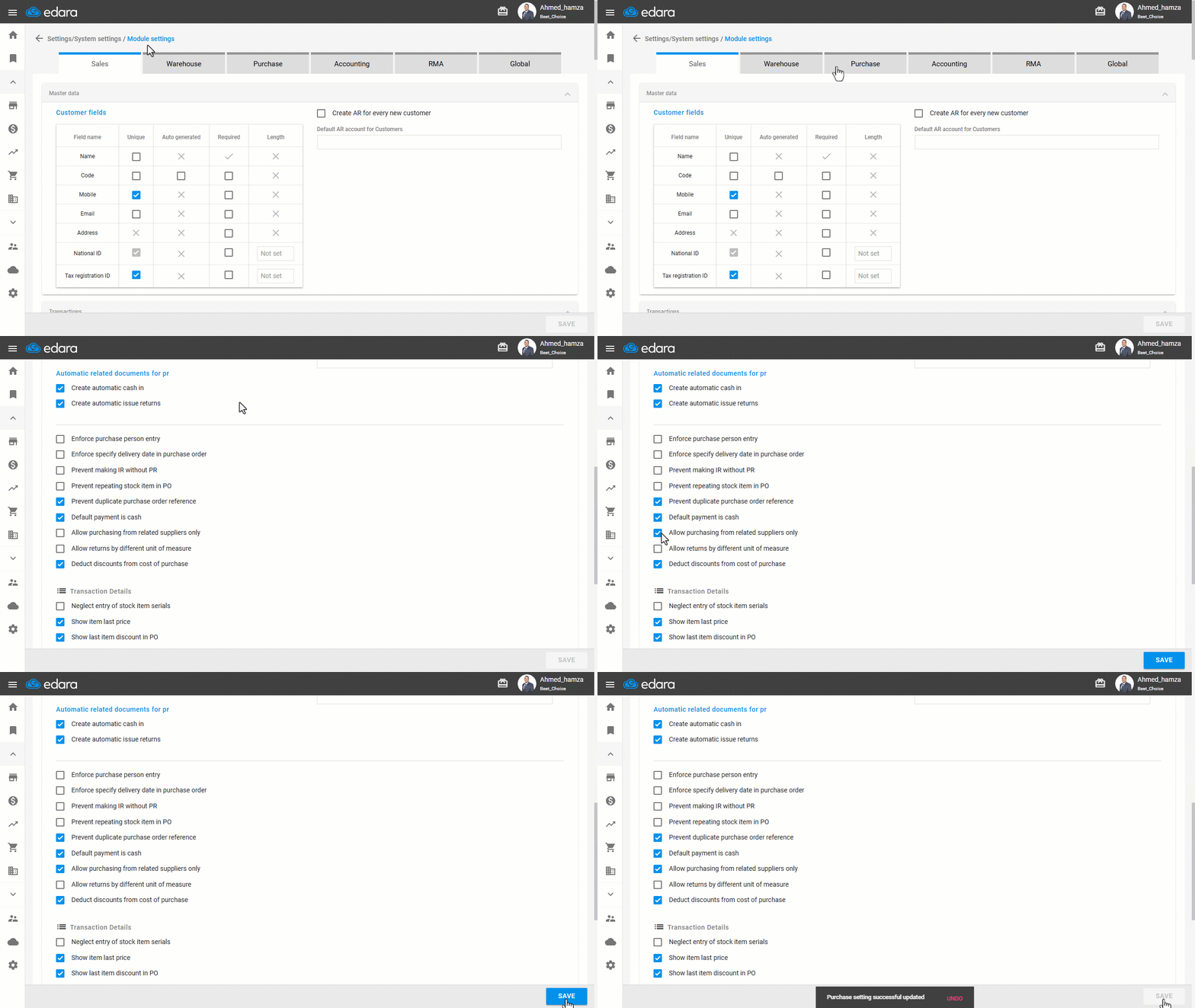
1- Allowing Purchases from Related Suppliers Only
- Go to Settings.
- Open the “Modules Settings” page.
- Select the “Purchase” module.
- Activate the “Allow purchasing from related suppliers only” setting.
- Click on “Save”.
2- Linking the Stock Item to one or more Suppliers
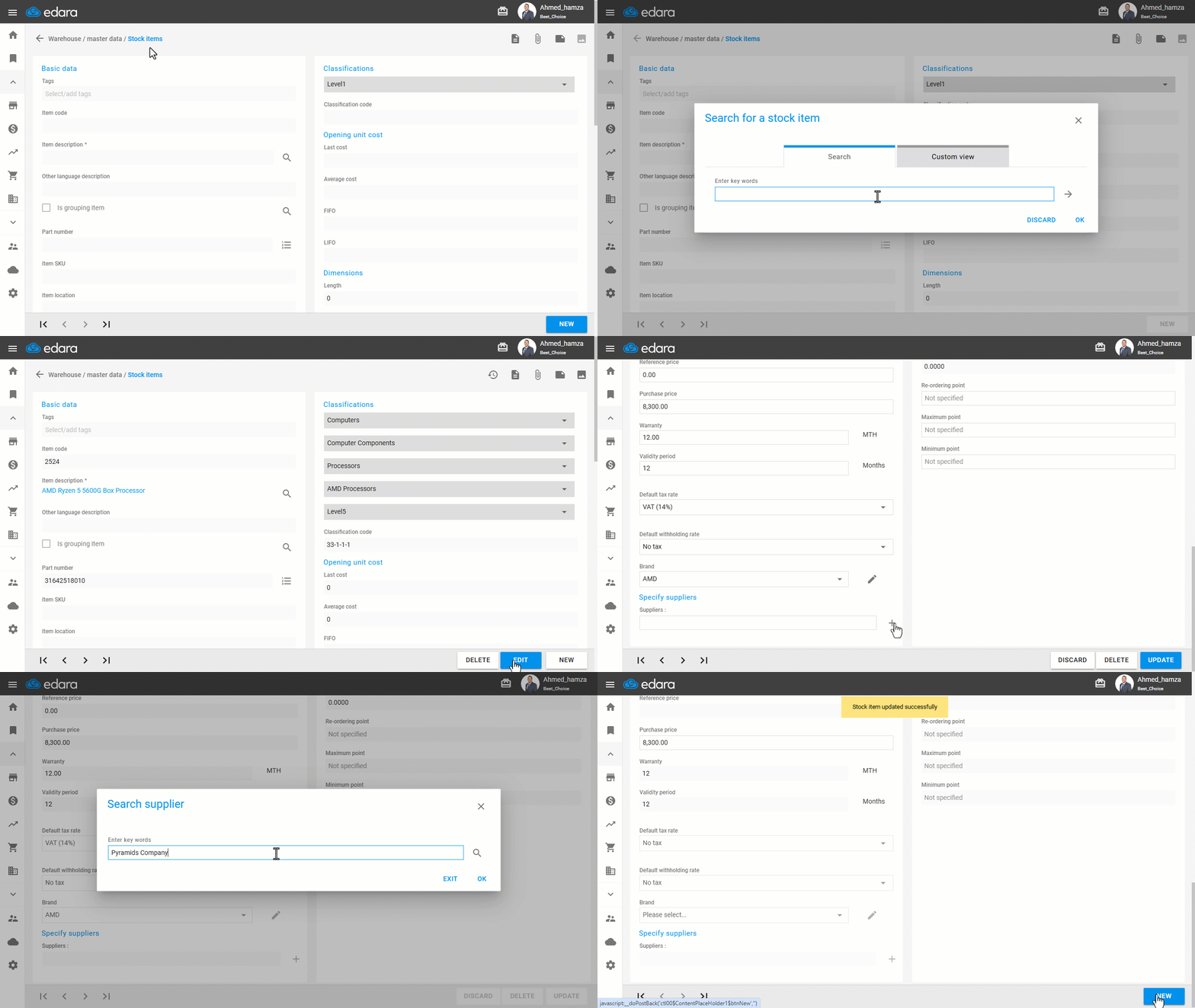
- Go to the Warehouses module.
- Open the “Stock Items” page.
- Click 🔎 to search for the stock item to be linked.
- Select the stock item from the search window and click “OK”.
- Click on “Edit”.
- Click “+” next to the “Specify Suppliers” box to add a supplier.
Note: You must select a supplier that has already been created in Purchasing.
- Search for the supplier and click “OK”.
- Click on “Update”.
Frequently asked questions
Which supplier can I link to a stock item?
You must select a supplier that has already been created in Purchasing.
If you encounter any challenges or have questions during these processes, you can contact our technical support team, who are ready to assist you at any time.
Did this answer your question?