

Viewing a Detailed Purchase Orders Report for a Supplier
Last updated:
The detailed purchase orders report helps you gain a clear view of your purchasing needs. This, in turn, enhances future purchasing decisions, improves order quantities, and enables you to negotiate better terms with suppliers.
In this context, we explain how to view this report using "Edara".
Viewing the Detailed Purchase Orders Report for a Supplier
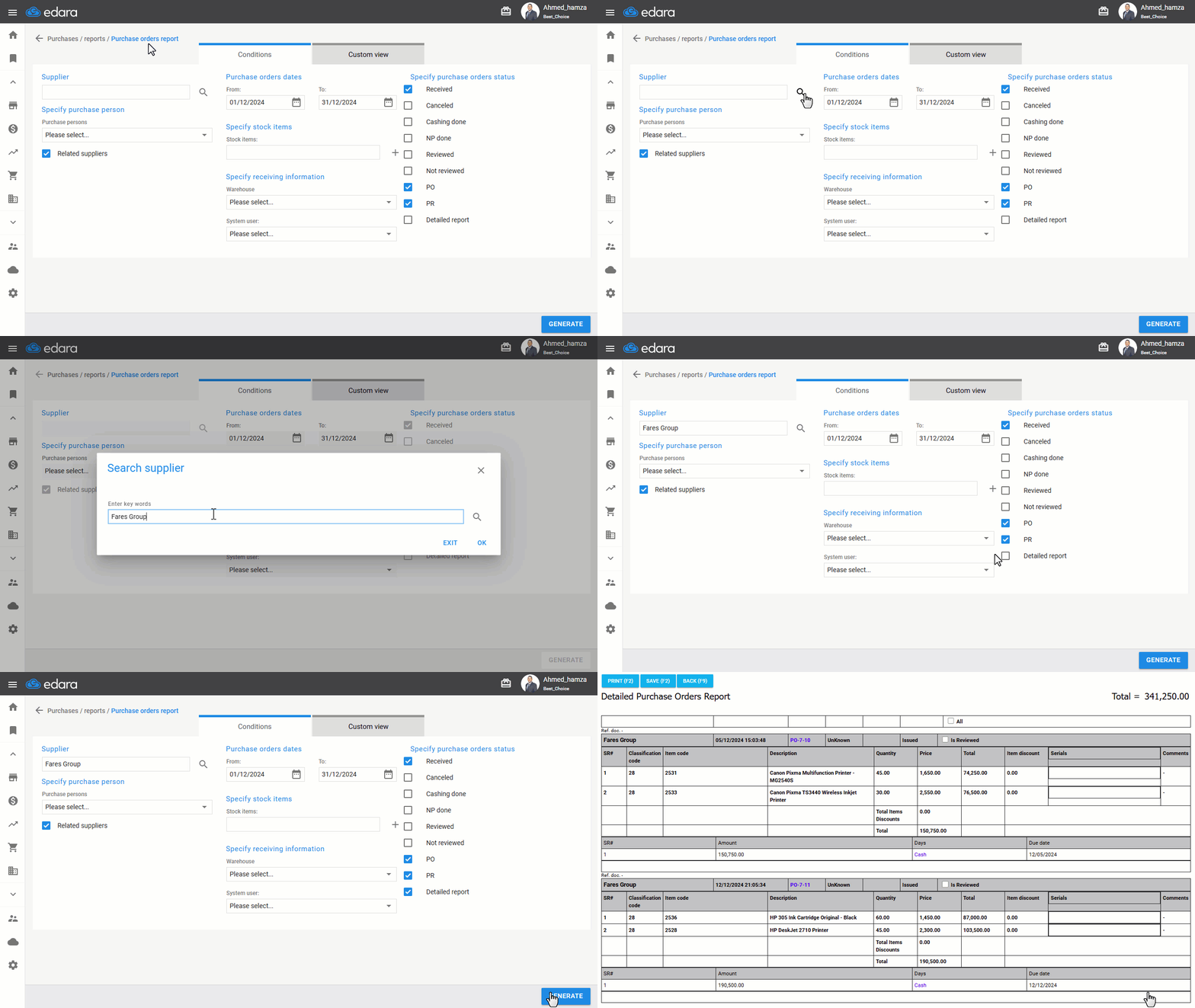
- Go to the Purchase module.
- Open the “Purchase Orders” Report.
- Click on 🔎 to search for the supplier.
- Choose the Purchasing Person from the dropdown list (if they’ve been pre-coded and selected in the purchase order).
- Click on ▢ to be ☑ if the Purchase persons are linked to suppliers.
- Specify the Purchase orders dates
- Click on the ▢ next to Detailed Report.
- Click on “Generate”.
Note: You can use search filters, such as Warehouse or Items, to get quicker results.
Frequently asked questions
Can I get the report results faster?
You can use search filters, such as Warehouse or Items, to get quicker results.
If you encounter any challenges or have questions during these processes, you can contact our technical support team, who are ready to assist you at any time.
Did this answer your question?