

Searching Using OR Match
Last updated:
When you need to perform an action on a specific group of sales orders — such as printing orders received from an online store — you often already have a list of document codes or reference numbers copied from an Excel file or a report.
Instead of searching for each order individually, the “OR Match” option allows you to paste all values at once and use them for filtering, so you can instantly display the required orders and apply the needed action.
Searching Using OR Match

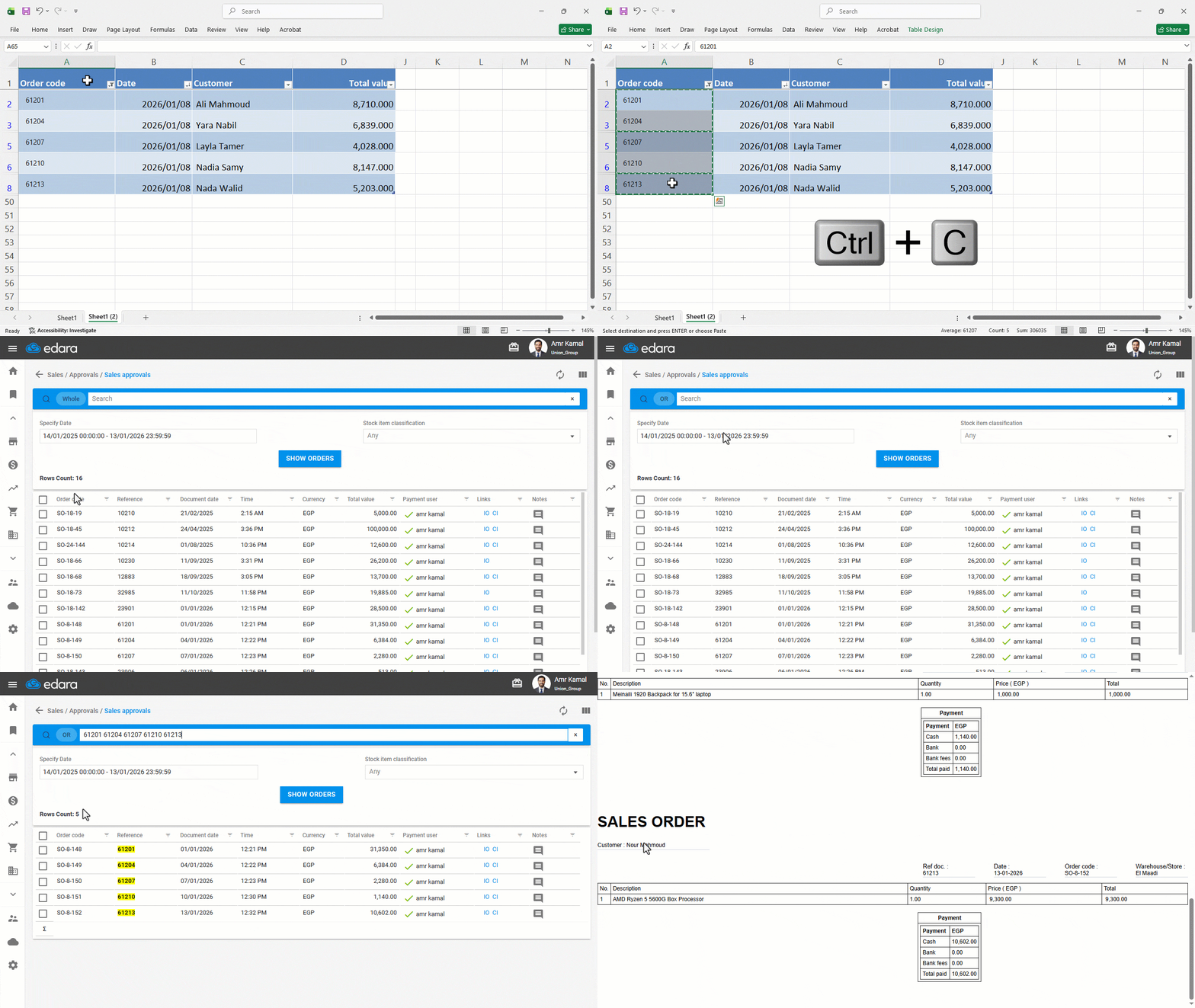
As a practical example, when preparing sales orders received from an online store, you can copy their reference codes from an Excel file generated through the store’s data export.
Since these codes are recorded in Edara under the Reference Number field, you can use them to filter orders in the “Approvals” page and print them easily by following the steps below.
- Copy the reference numbers you want to filter by.
- Go to the “Sales” module.
- Open the ”Sales Approvals” page.
- Click on “Whole” next to the search field and choose “OR Match”.
- Paste the reference numbers into the search bar.
All orders that match any part of the pasted reference numbers will appear.
- Select the sales orders.
- Click on ”
 “ to print the orders.
Notes:
- You can use the “OR Match” method to search within result pages in other reports and pages as well, such as “Sales orders report”, “Stock aging”, and “Receivables aging” pages.
- It is recommended to use the “OR Match” option when searching for values without spaces, such as document codes or reference numbers. For values that contain spaces, this method is not suitable, as the system treats each word as a separate search term.
Frequently asked questions
Where else can I use “OR Match”?
You can use the “OR Match” method to search within result pages in other reports and pages as well, such as “Sales orders report”, “Stock aging”, and “Receivables aging” pages.
If you encounter any challenges or have questions during these processes, you can contact our technical support team, who are ready to assist you at any time.