

Displaying Receive Returns Using the Work Orders Report
Last updated:
"Edara" makes it easy to review receive returns—whether processed directly from warehouses or created through sales return orders—by allowing you to view a detailed report and export it to an Excel file.
Displaying Receive Returns Using the Work Orders Report
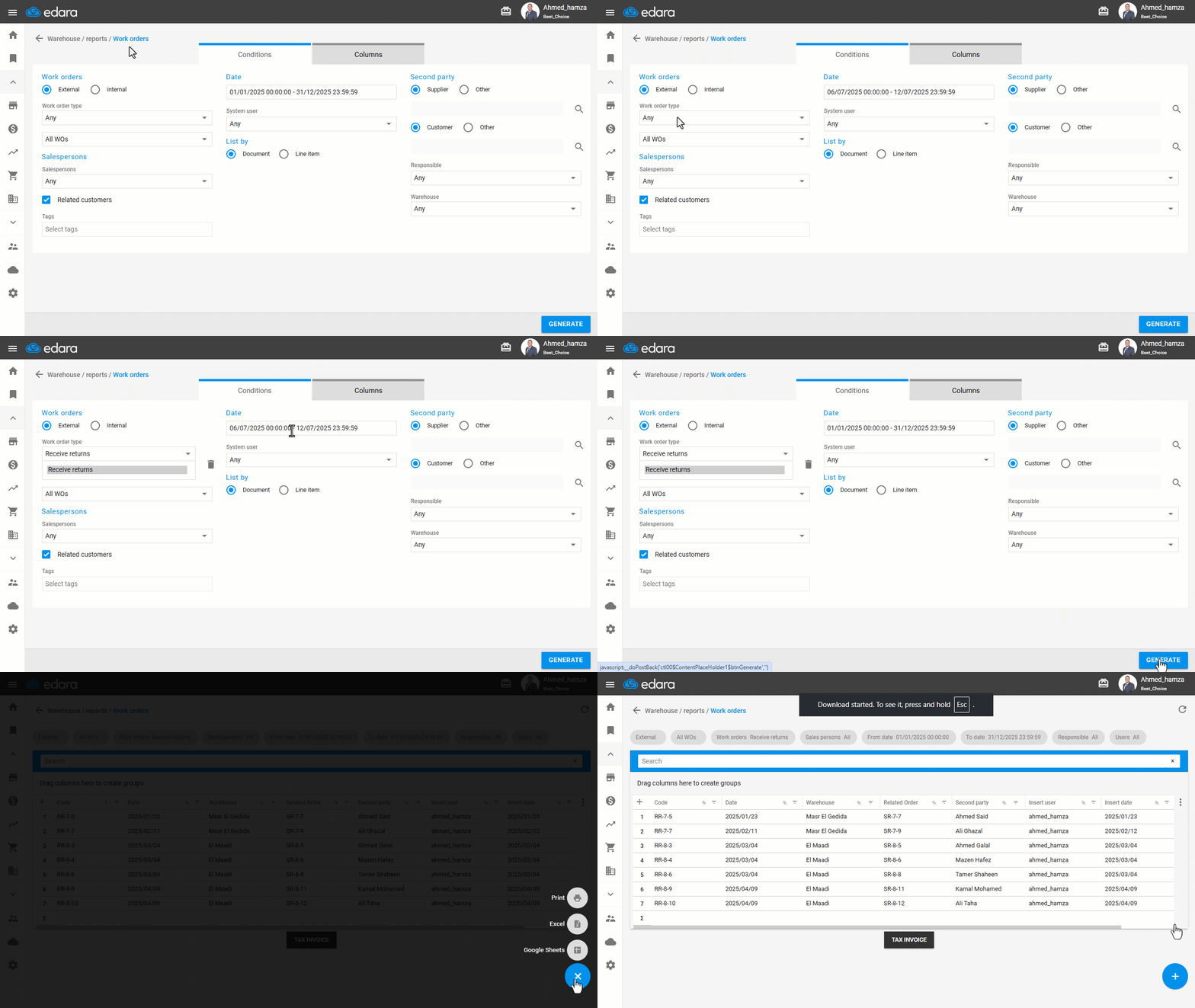
- Go to the Warehouse module.
- Open the “Work Orders” Report.
- Set Work Orders to: External.
- Set the Work Order Type to: Receive Returns.
- Specify the date range.
- Choose how to list the report.
Note: The default for "List By" is Document, which shows key data and totals for each document in a single row. You can choose Detailed by Document to view summarized totals grouped together, or Fully Detailed for item-level details within each job order.
- Select the required columns from the “Custom View” menu.
- Click on “Generate”.
Note: After running the report, you can filter or search for a specific document using the search bar or filters.
Note: To export the receive returns report to Excel, click the "+" icon at the bottom of the page, then choose “Excel”.
If you encounter any challenges or have questions during these processes, you can contact our technical support team, who are ready to assist you at any time.