

Viewing the Internal Work Orders Report
Last updated:
The Internal Work Orders Report is a crucial tool that provides a comprehensive overview of operations such as stock transfers, receiving stock transfers, and stock transfer requests. This report aids in performance analysis and strategic decision-making.
In this context, we explain how to view this report using "Edara."
Viewing the Internal Work Orders Report
- Go to the Warehouse Module
- Select Work Orders Report
- Choose Internal work orders
- Select the type of work order
- Set the date
- Choose the display format from "Display By"
Note: The default option for "Display By" is "By Document," which shows the basic data and total for each document in a single row. You can choose "Detailed by Document" if you want to view cumulative totals, or "Detailed Without" to see more detailed information within each work order.
- Select the columns you want to display from Columns.
- Click “Generate”
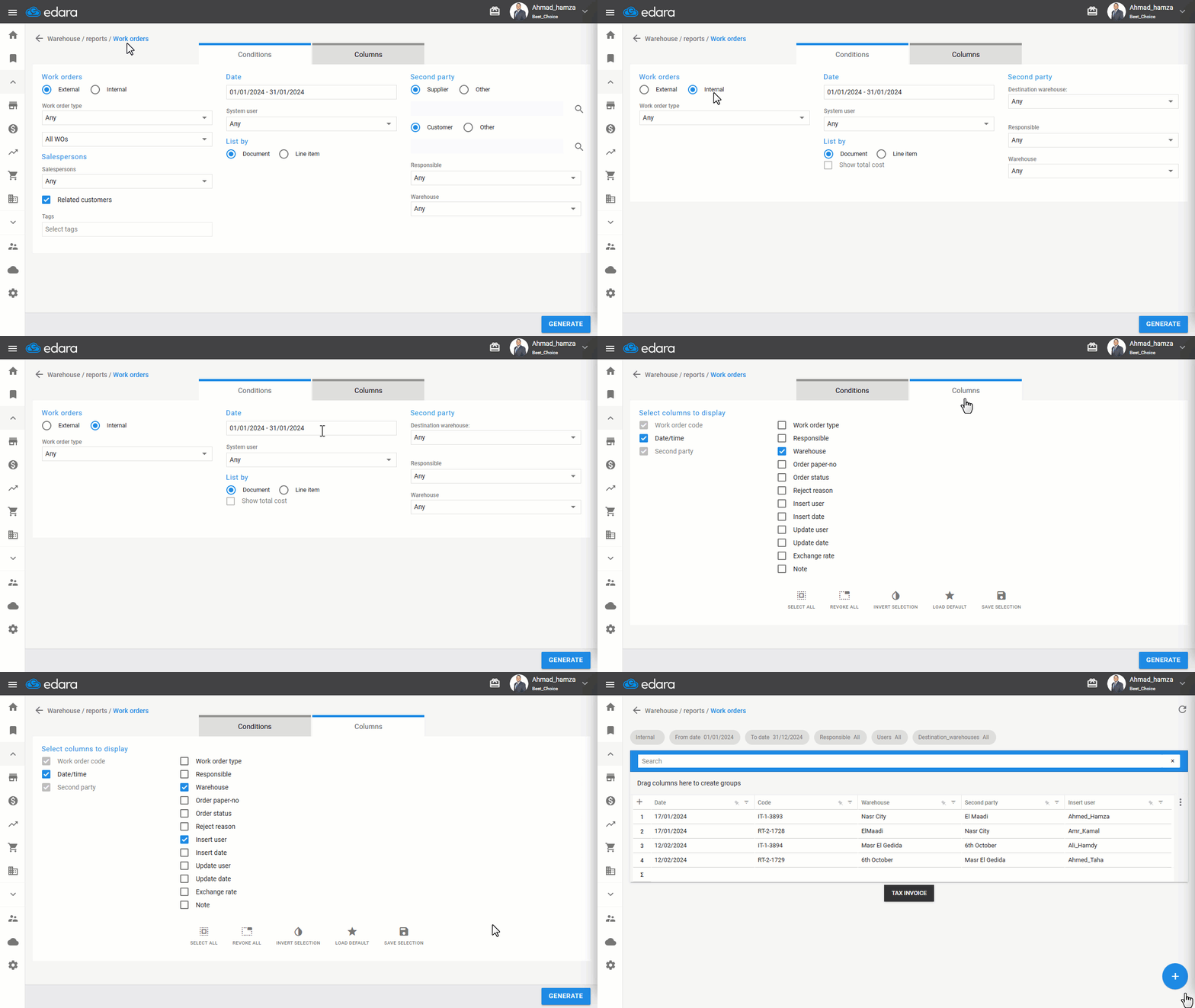
Note: You can export the report to Excel, or Google Sheets, or print it by clicking on the "+" button.
If you encounter any challenges or have questions during these processes, you can contact our technical support team, who are ready to assist you at any time.