

Automatic Actions for Locked Sales Orders
Last updated:
When processing a sales order through “Edara 2.5”, you do not need to wait for synchronization with “Edara 2.0” to complete approval or order issuing. You can automate these actions so they are executed immediately once the order is locked, whether the order is synced or unsynced.
Automatic Actions for Locked Sales Orders

- Go to “System”.
- Open the “Settings” page.
- Select Settings (V 2.5) — this page is accessible only to the system administrator (Admin).
- Ensure that “Lock Sales Orders” is activated, then click the Advanced Settings “⚙️” icon.
- In the section of ”Set Automatic Actions for Locked Orders”, choose the appropriate action from the following options:
- No automatic actions. In this case, no automatic actions will be applied after the order is locked.
- Automatically approve locked order.
- Automatically approve and issue locked order.
- Click on “Save”.
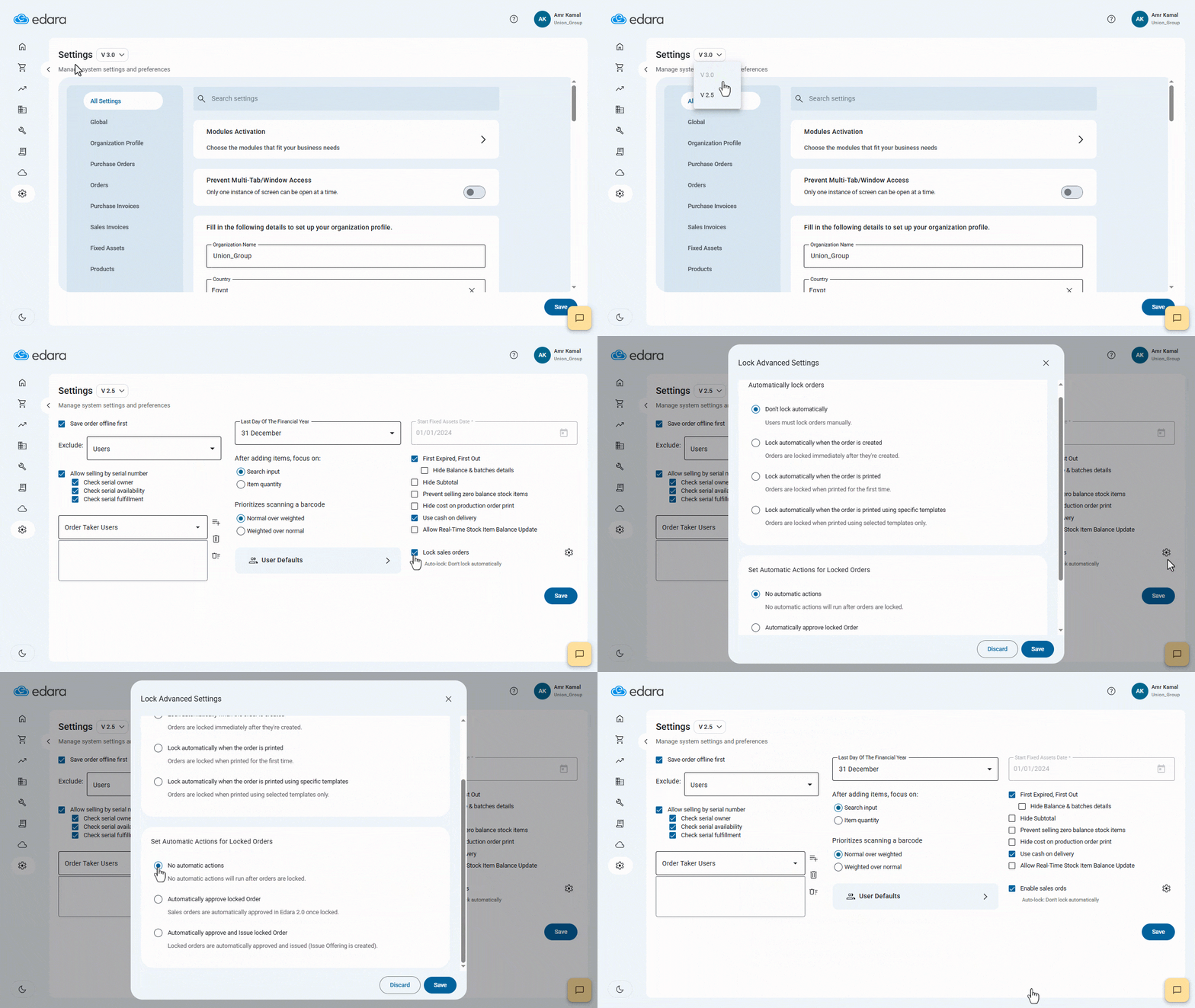
If the option “Automatically approve locked order” is selected, sales orders will be automatically approved in Edara 2.0 once they are locked.
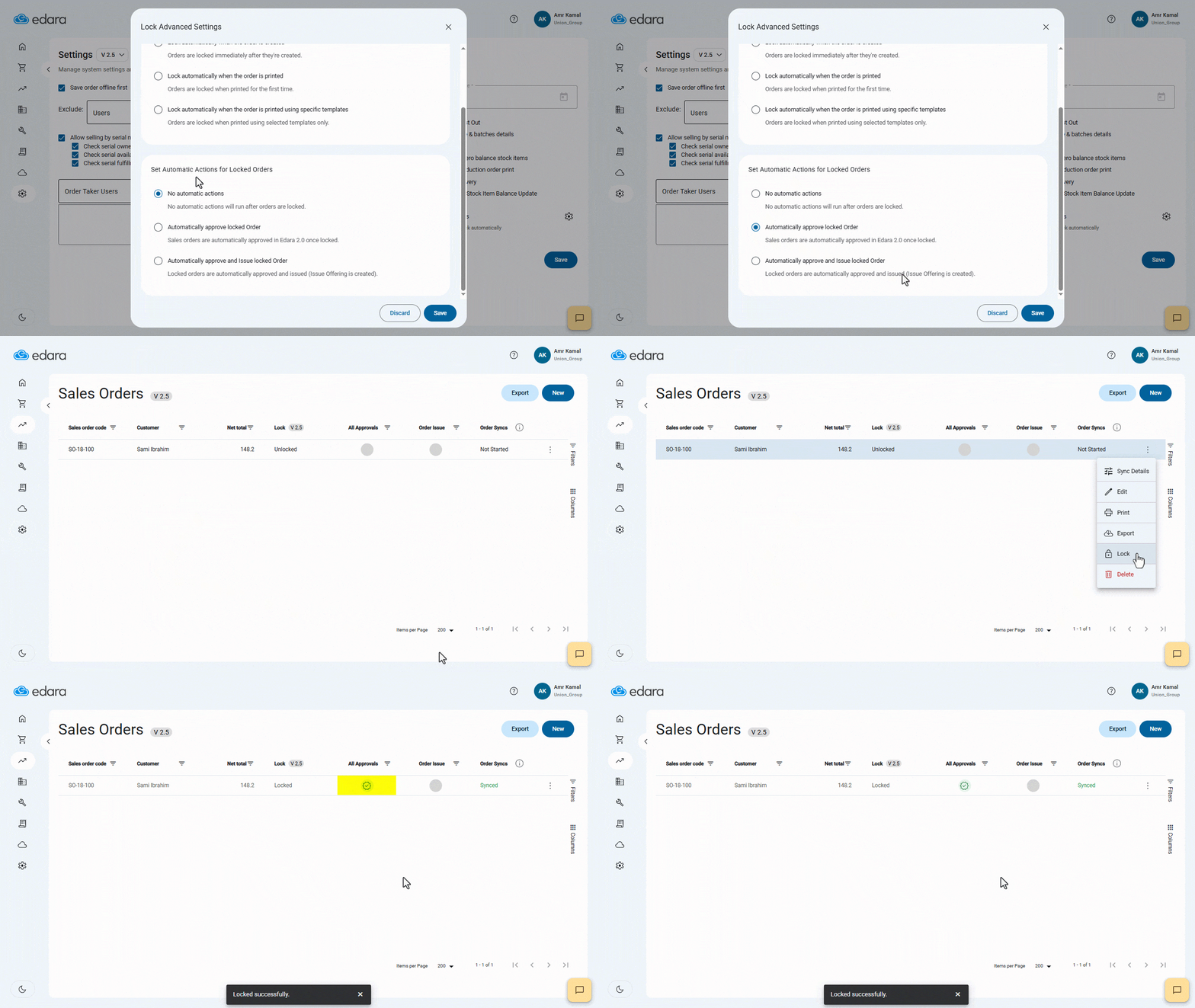
If the option “Automatically approve and issue locked order” is selected, the locked sales orders will be automatically approved and issued (an IO document will be created).
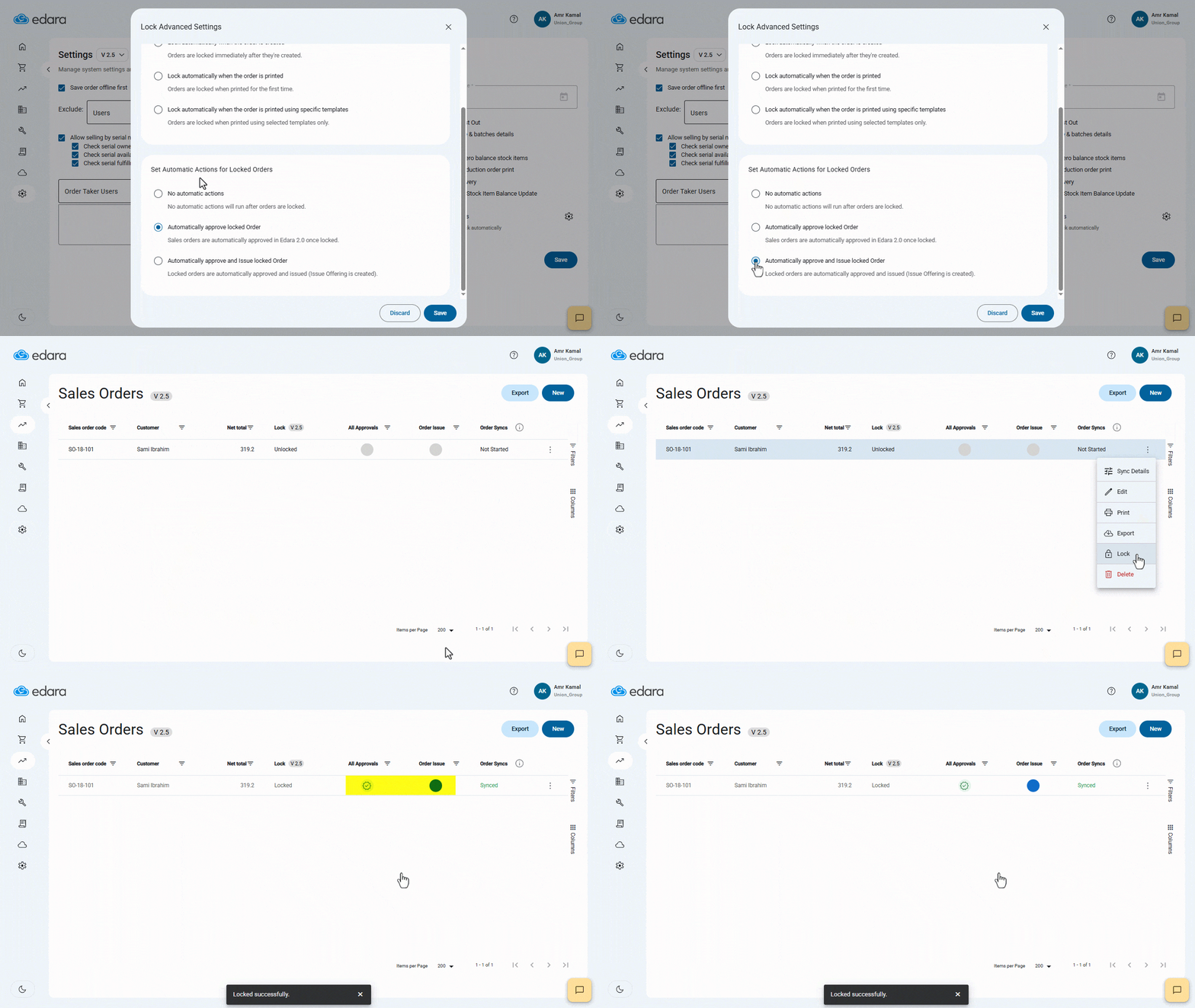
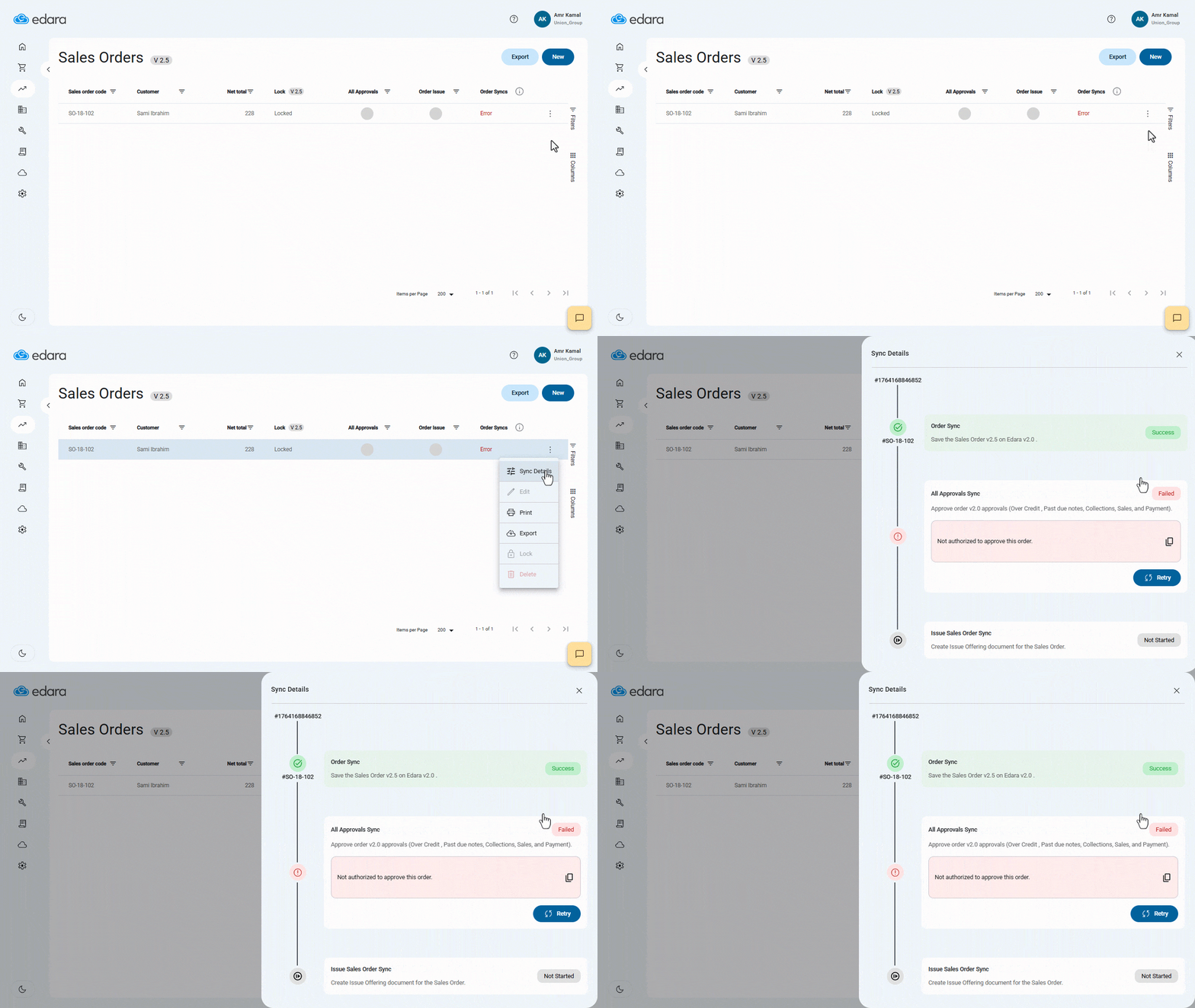
Note: If the automatic action fails to execute in Edara 2.0 — such as missing approval permissions or insufficient stock items for issuing — the error will appear in “Sync Details”. You can view it by clicking on the More Details icon “⁝” and selecting “Sync Details”.
Frequently asked questions
What happens if the automatic action fails in Edara 2.0?
If the automatic action fails to execute in Edara 2.0 — such as missing approval permissions or insufficient stock items for issuing — the error will appear in “Sync Details”. You can view it by clicking on the More Details icon “⁝” and selecting “Sync Details”.
If you encounter any challenges or have questions during these processes, you can contact our technical support team, who are ready to assist you at any time.