

Locking Sales Orders in POS
Last updated:
At certain stages of your workflow in POS — especially after issuing the final invoice — you may need to prevent any further edits to a sales order to maintain data accuracy and consistency.
The Lock Sales Orders feature allows you to define the right moment to close an order and protect it from modification or deletion, whether manually or automatically.
Locking Sales Orders in POS

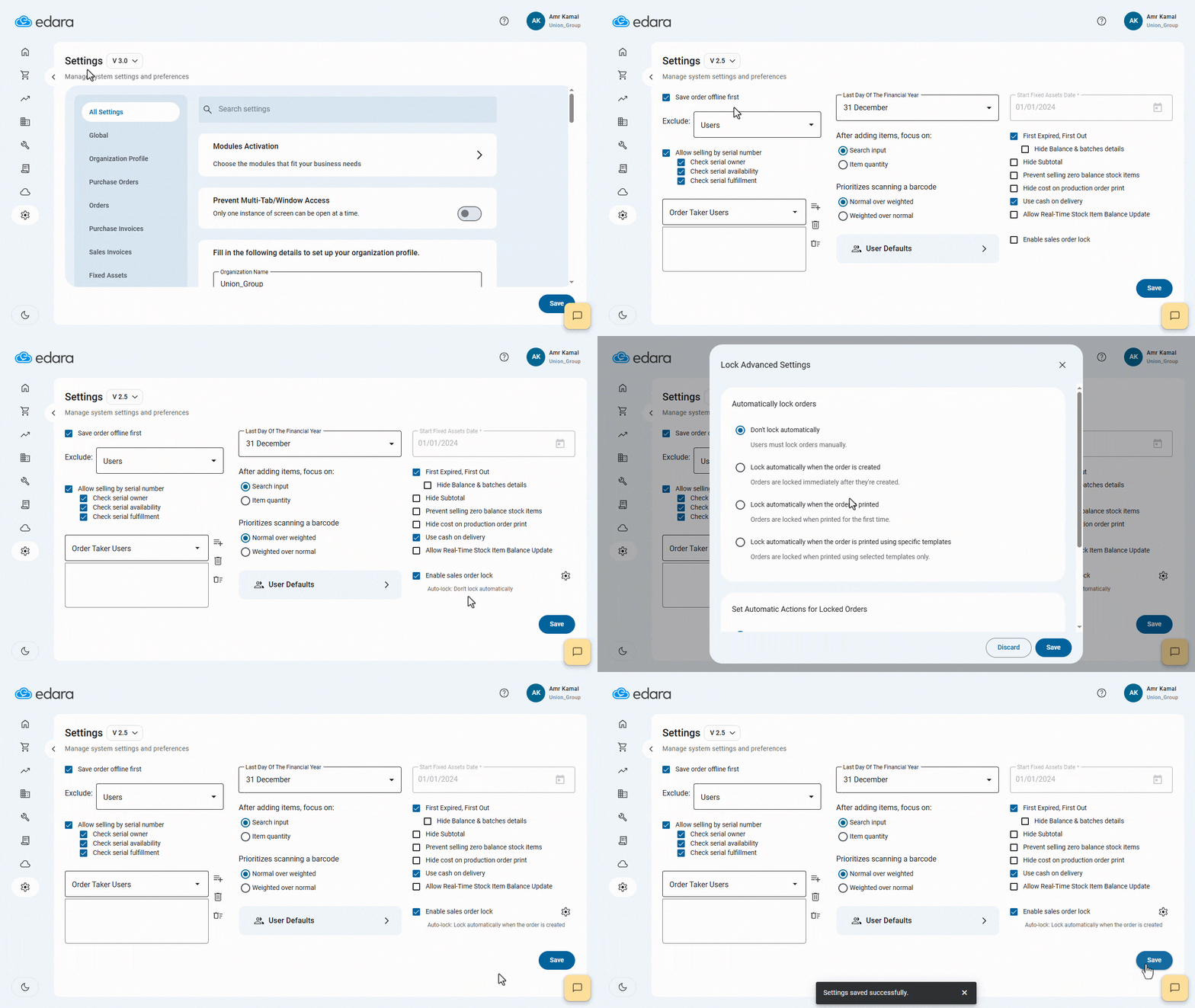
- Go to “System”.
- Open the “Settings” page.
- Select Settings (V 2.5) — this page is accessible only to the system administrator (Admin).
- Enable the option of “Enable Sales Order Lock”.
Note: The default setting after activating Sales Order Lock is “Don't lock automatically”.
- Click on the Advanced Settings icon “⚙️” to configure the locking behavior. You can choose one of the following options:
- Don't lock automatically: Users must lock orders manually.
- Lock automatically when the order is created: Orders are locked immediately after they're created.
- Lock automatically when the order is printed: Orders are locked when printed for the first time.
- Lock automatically when the order is printed using specific templates:Orders are locked when printed using selected templates only. (In this case, you must specify the templates to use).
- Click on “Save”.
Notes:
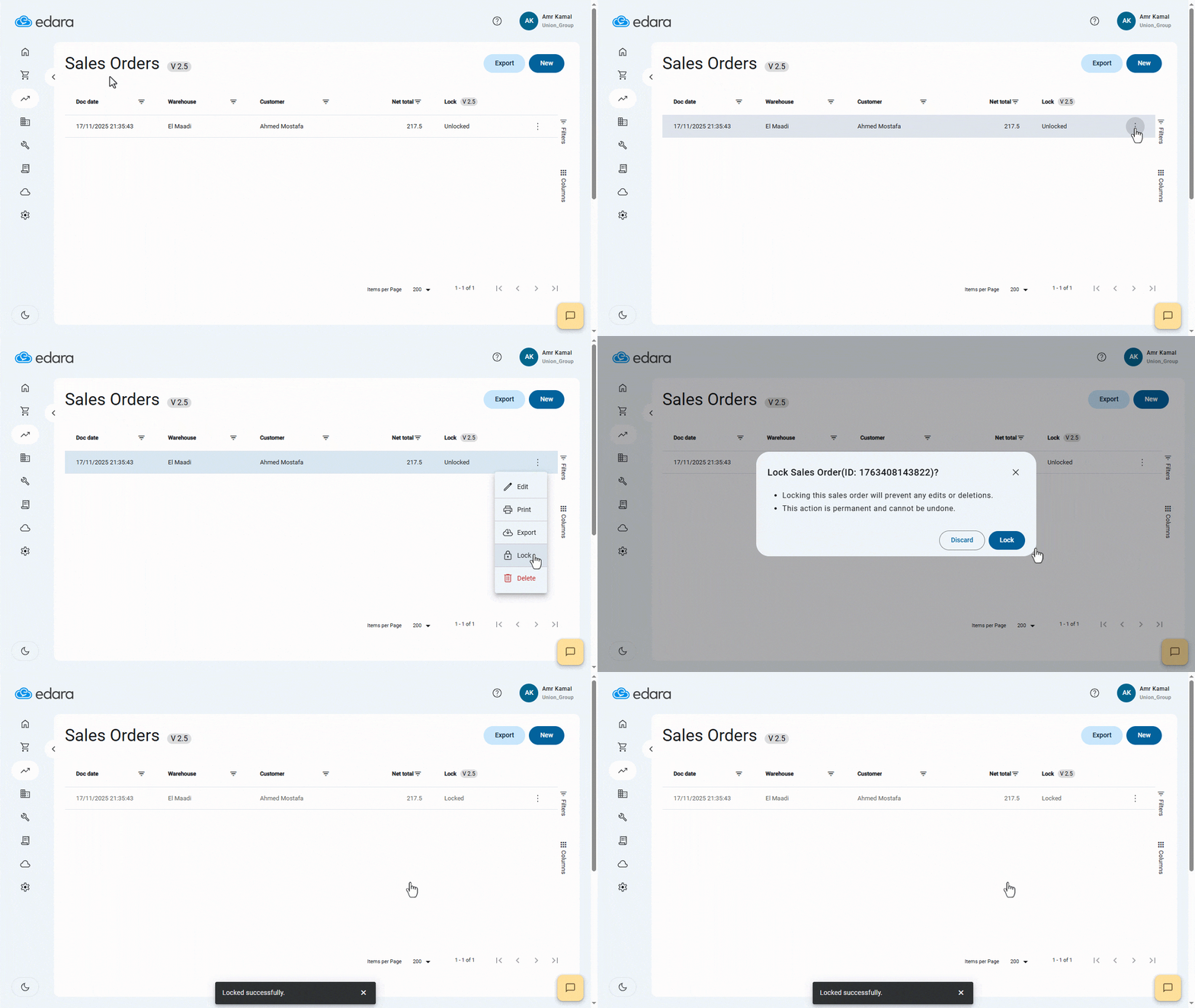
- Once the “Sales Order” is locked, it cannot be undone, and it can be applied to both synced and unsynced orders.
- If you choose “Don't lock automatically”, you can manually lock a sales order by clicking on the More Details (⁝) icon next to the order, then clicking on “Lock”.
Frequently asked questions
Can a sales order lock be undone?
Once the “Sales Order” is locked, it cannot be undone, and it can be applied to both synced and unsynced orders.
How do I lock a sales order manually?
If you choose “Don't lock automatically”, you can manually lock a sales order by clicking on the More Details (⁝) icon next to the order, then clicking on “Lock”.
If you encounter any challenges or have questions during these processes, you can contact our technical support team, who are ready to assist you at any time.