

Selecting the Balance Calculation Method After Sales Order in Print Templates
Last updated:
Sales Orders that are fully or partially paid automatically upon creation require a specific balance calculation method so that these payments are properly reflected when calculating the balance after the Sales Order.
That’s why "Edara" allows you to define how the balance after the Sales Order is calculated in print templates, based on your workflow, to ensure the correct balance appears in printed documents.
Selecting the Balance Calculation Method After Sales Order in Print Templates
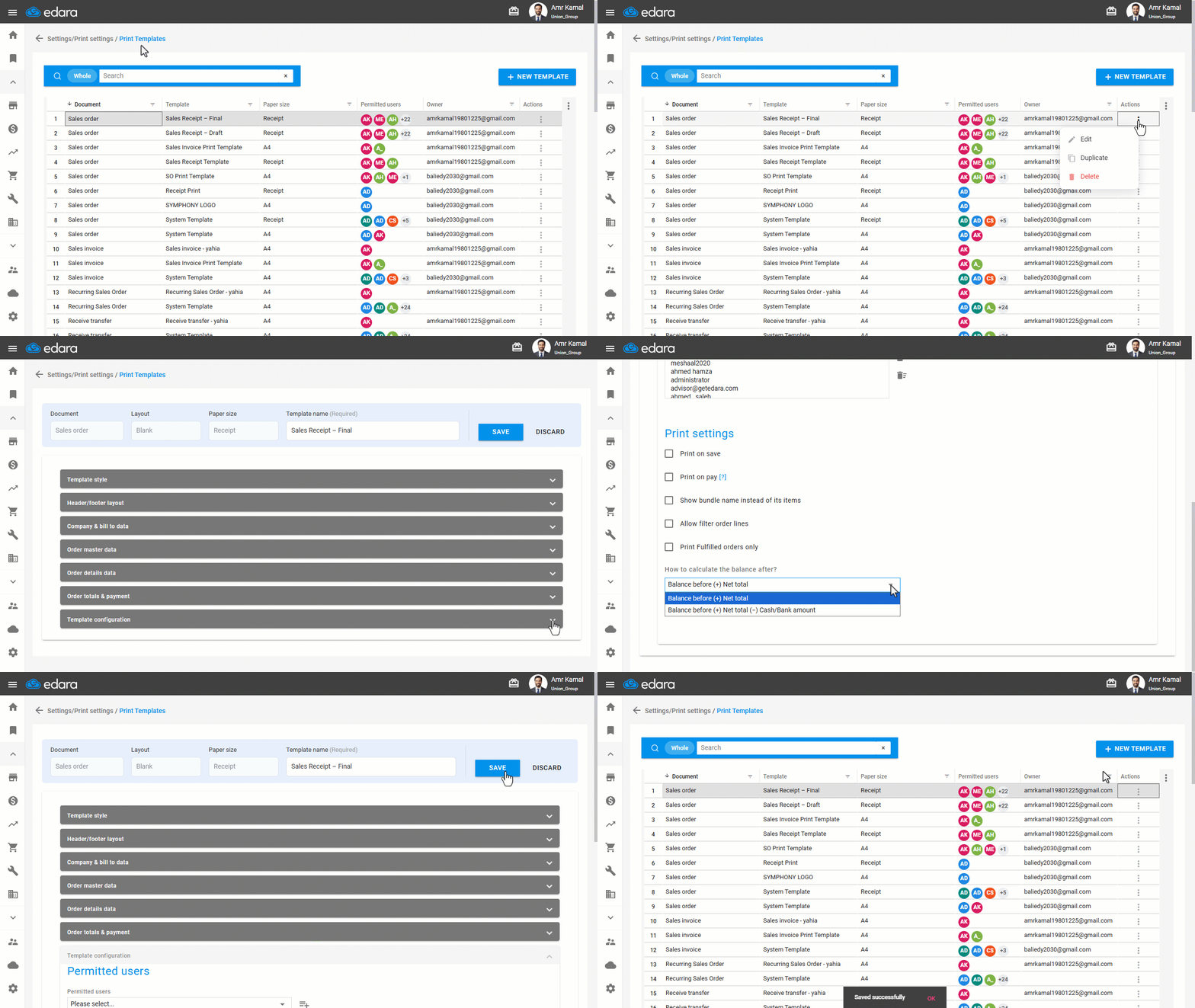
- Go to “Settings”.
- Open the “Print Templates” page.
- Click on “⋮” next to the required print template.
- Click on “Edit”.
- Go to the “Template Configuration” section.
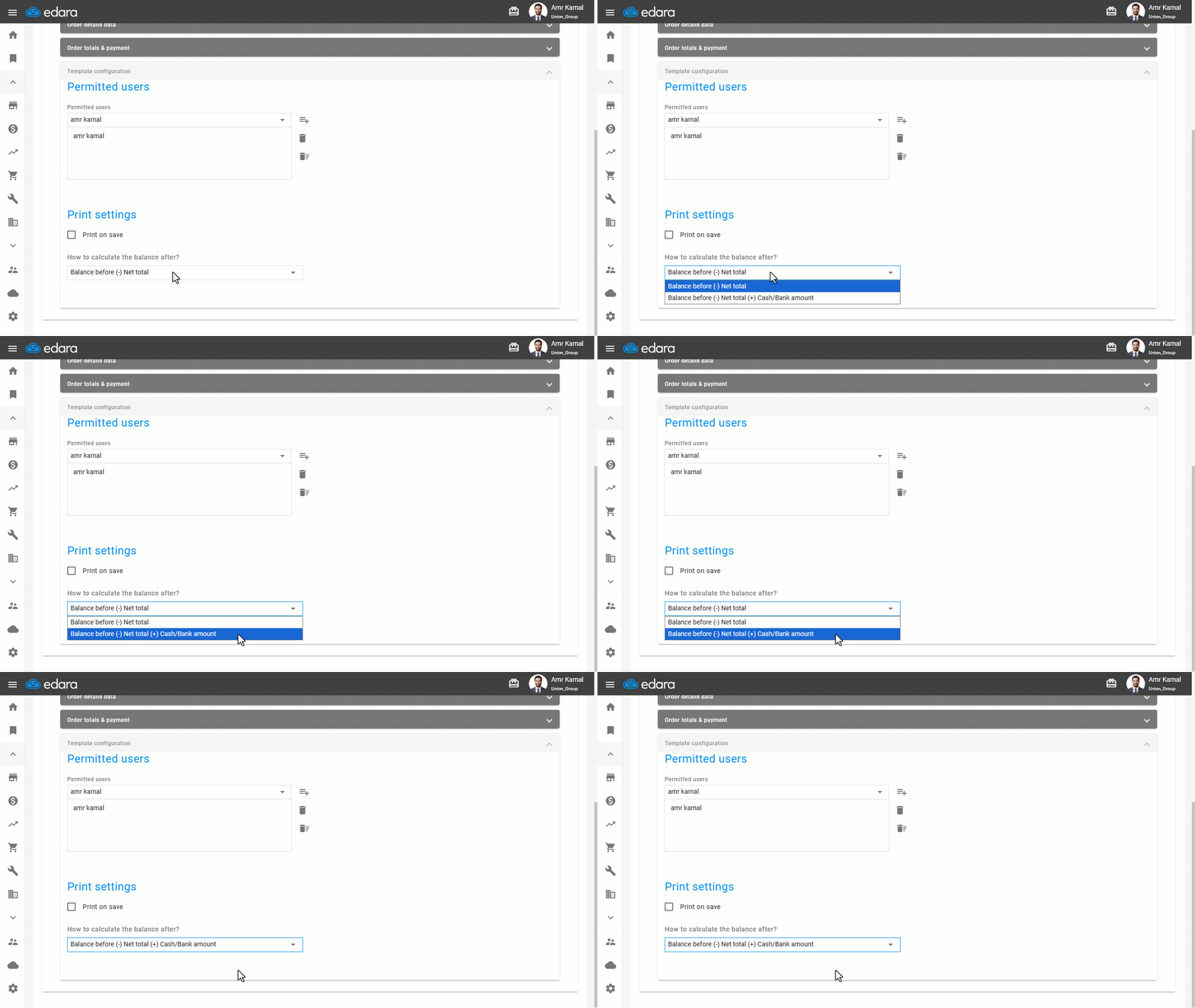
- Select how to calculate the balance after:
- Balance before (+) Net total: The balance after the sales order is calculated based on the balance before plus the total sales order value, without deducting any amounts paid during order creation.
- Balance before (+) Net total (−) Cash/Bank amount: The balance after the sales order is calculated based on the balance before plus the total sales order value, then minus the amounts proposed for payment in cash or by bank transfer when the order was created. This method is suitable for Sales Orders where cash or bank payments are automatically collected upon creation.
- Click on “Save”.
Notes:
- The balance calculation method after the sales order affects three print options: “Customer Balance After”, “Account Balance After”, and “Related Balances After”.
- These options are available in print templates for both “Sales Orders” and “Sales Returns”, with the accounting signs automatically reversed for returns.
Frequently asked questions
Are the balance options available in sales return print templates?
These options are available in print templates for both “Sales Orders” and “Sales Returns”, with the accounting signs automatically reversed for returns.
If you encounter any challenges or have questions during these processes, you can contact our technical support team, who are ready to assist you at any time.
Did this answer your question?