

Creating Print Templates
Last updated:
Print templates help you customize print layouts for different documents and control the data displayed within them to match various business requirements.
Creating Print Templates
- Go to “Settings”.
- Open the “Print Templates” page.
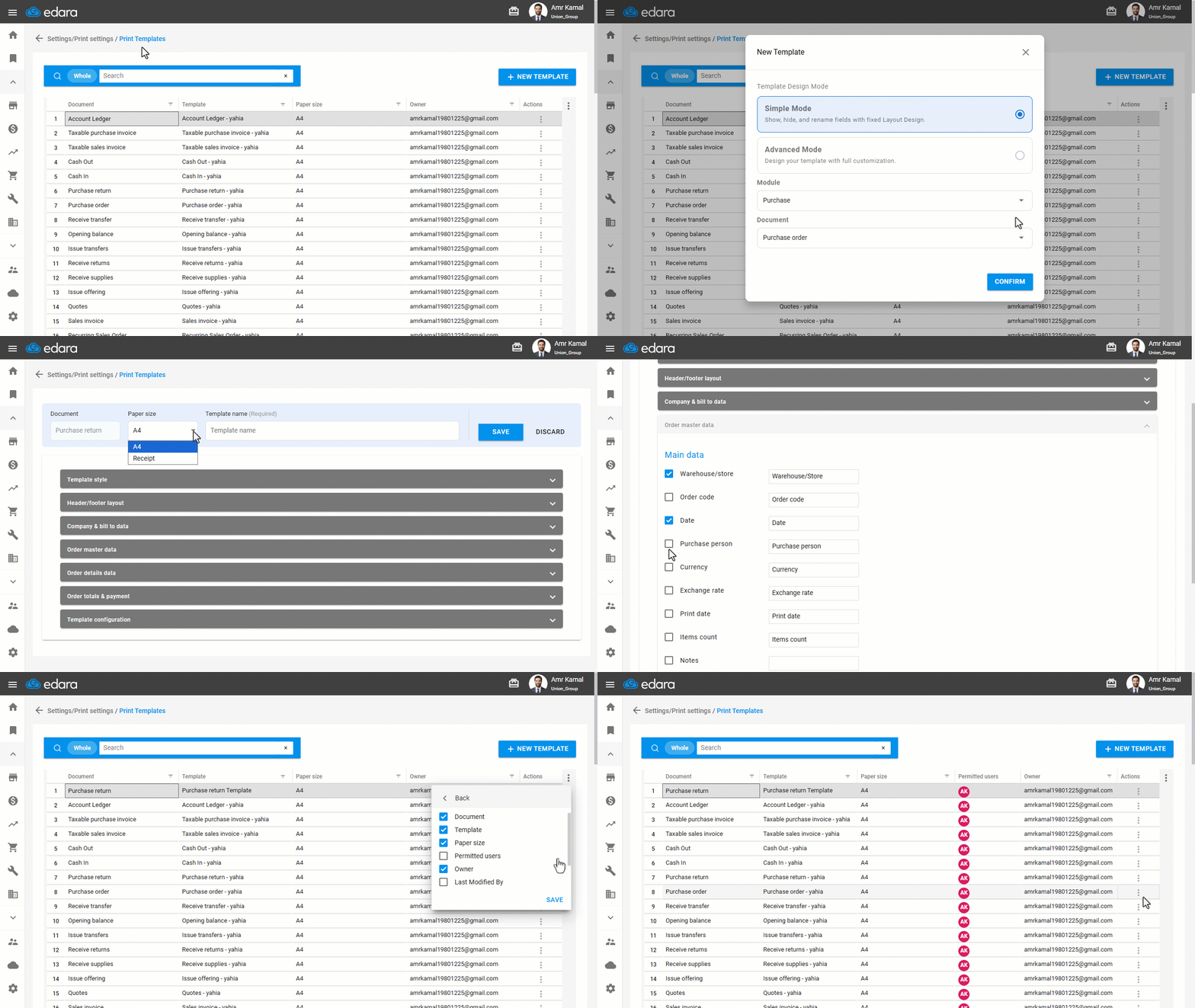
Print templates will be displayed in a list showing each template’s details such as document type, template name, paper size, permitted users, owner, and last modification date. You can control the visible columns in the list as needed by clicking on “⋮”.
- Click on “New Template”.
- Select the template design mode “Simple Mode”.
- Select the module.
- Choose the required document.
Notes:
- The document type cannot be changed after the print template is created.
- The option to select the layout either “Blank” or “Pre-Printed” appears only when creating print templates for the Sales module.
- Click on “Confirm”.
- Select the paper size: (A4 – Receipt – Custom).
- Enter the template name.
- Design the print template.
- Click on “Save”.
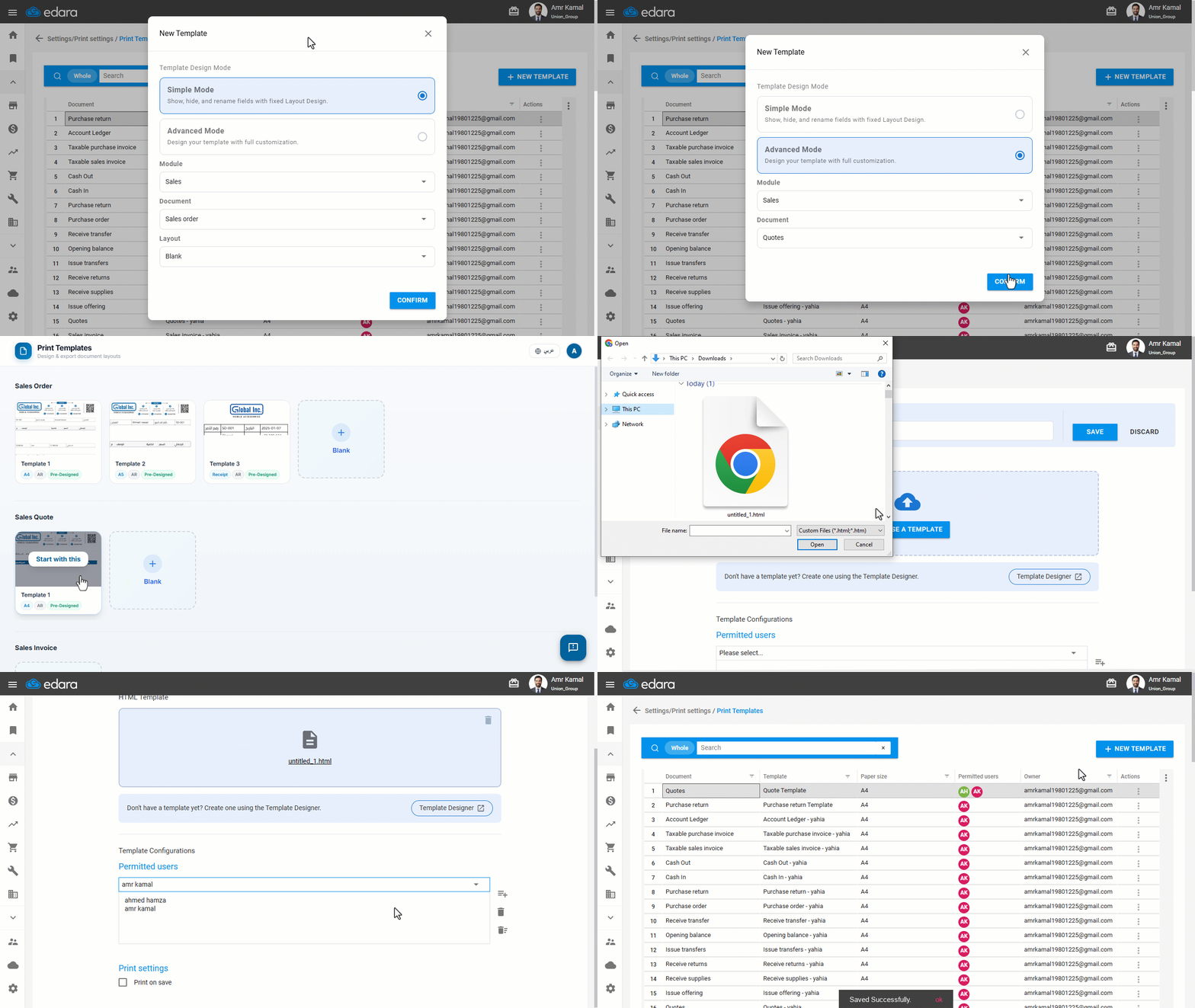
If you already have a print template designed using the “Template Designer” tool, you can import and apply it through “Advanced Mode” by following these steps:
- Select the template design mode “Advanced Mode”.
- Select the module.
Note: Advanced Mode is currently available for the “Sales” module only.
- Choose the required document: (Sales Order, Sales Invoice, Quotes).
- Click on “Confirm”.
- Enter the template name.
- Upload the print template file in HTML format.
If there is no template available, you can create a new one using the Template Designer tool and then return to upload the template file.
- Select the permitted users.
- Select the required print settings.
- Select the method for calculating the balance after the sales order.
- Click on “Save”.
Notes:
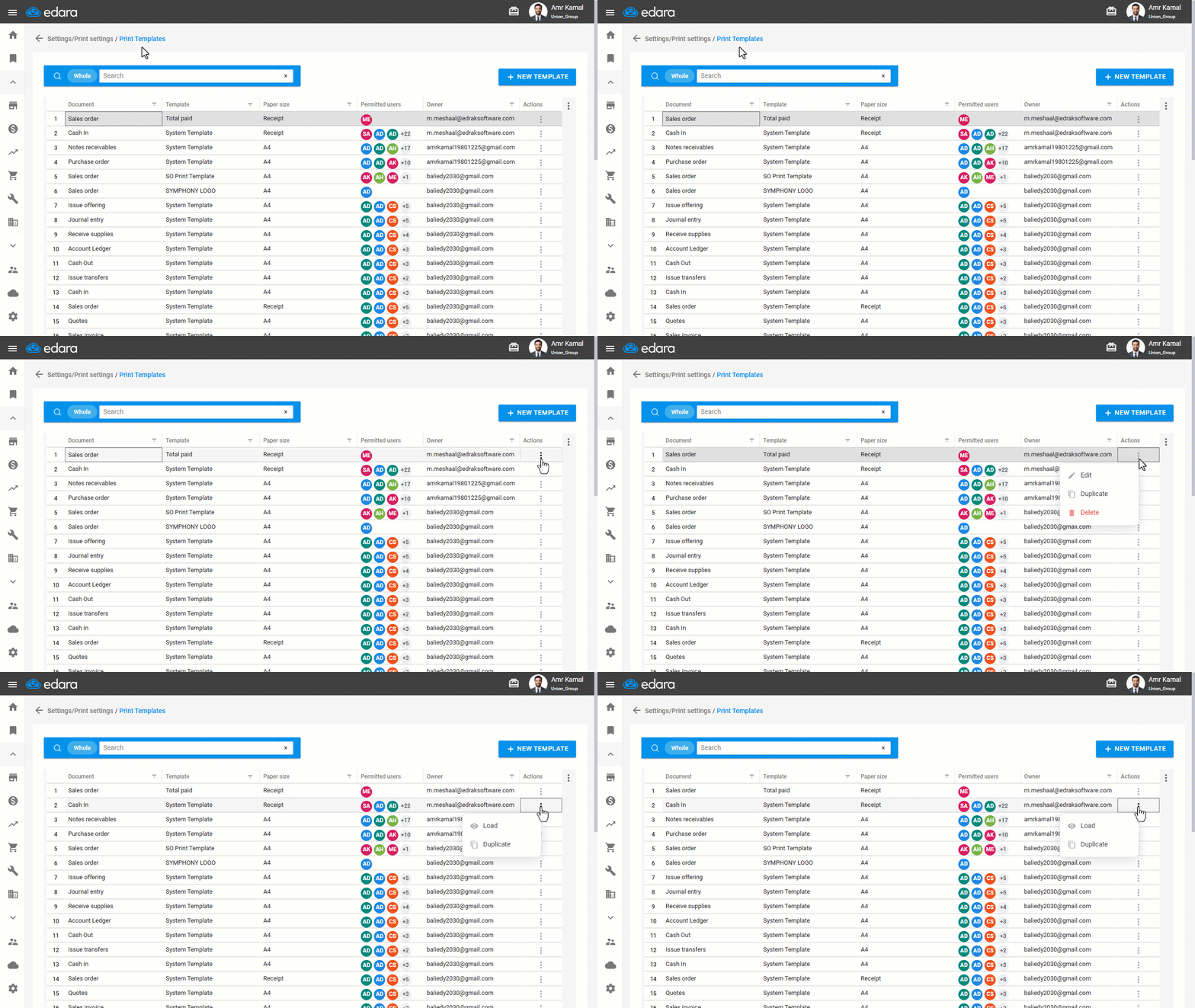
- You can edit, duplicate, or delete print templates by clicking on “⋮” next to the required template.
- System templates cannot be edited or deleted; they can only be loaded or duplicated to create an editable copy.
Frequently asked questions
Which modules support Advanced Mode?
Advanced Mode is currently available for the “Sales” module only.
Can I edit the system print templates?
System templates cannot be edited or deleted; they can only be loaded or duplicated to create an editable copy.
If you encounter any challenges or have questions during these processes, you can contact our technical support team, who are ready to assist you at any time.