

Designing a Print Template According to Pre-Printed Forms
Last updated:
You can design a print template that aligns with your pre-printed forms, making it easier to print sales orders in an organized and clear format.
Designing a Print Template According to Pre-Printed Forms
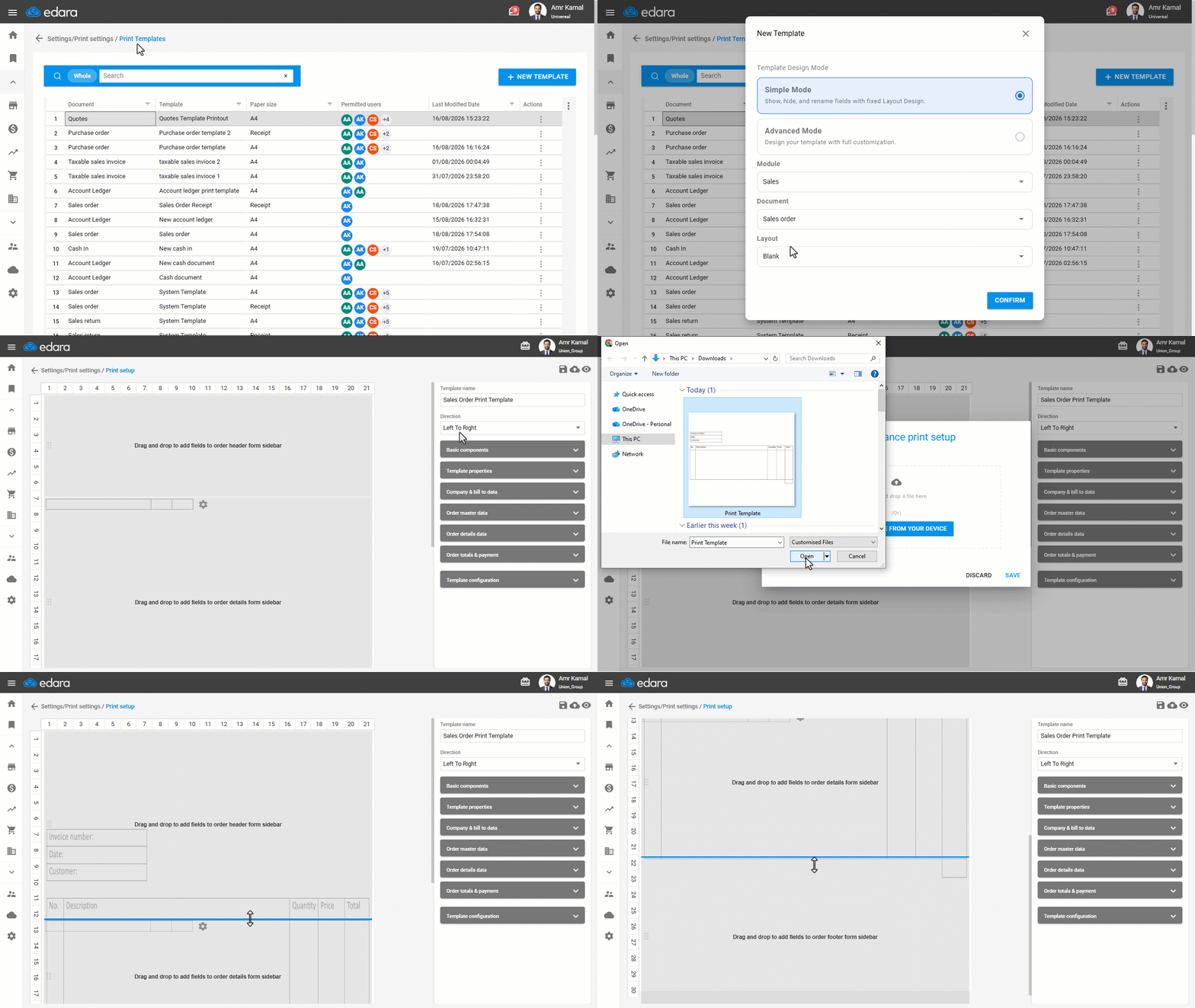
- Go to “Settings”.
- Open the “Print Templates” page.
- Click on “New Template”.
- Select “Simple Mode” as the Template Design Mode.
- Select the “Sales” Module.
- Choose the required document.
- Choose the Layout “Pre-Printed”.
- Click on “Confirm”.
- Enter the template name.
- Select the Direction.
- Click on "
 " to upload an image of the pre-printed form and align your design with it.
 - Select the file from your device or drag it into the designated area.
- Click on “Save”.
- Define the template sections: Header, Data Table, Footer.
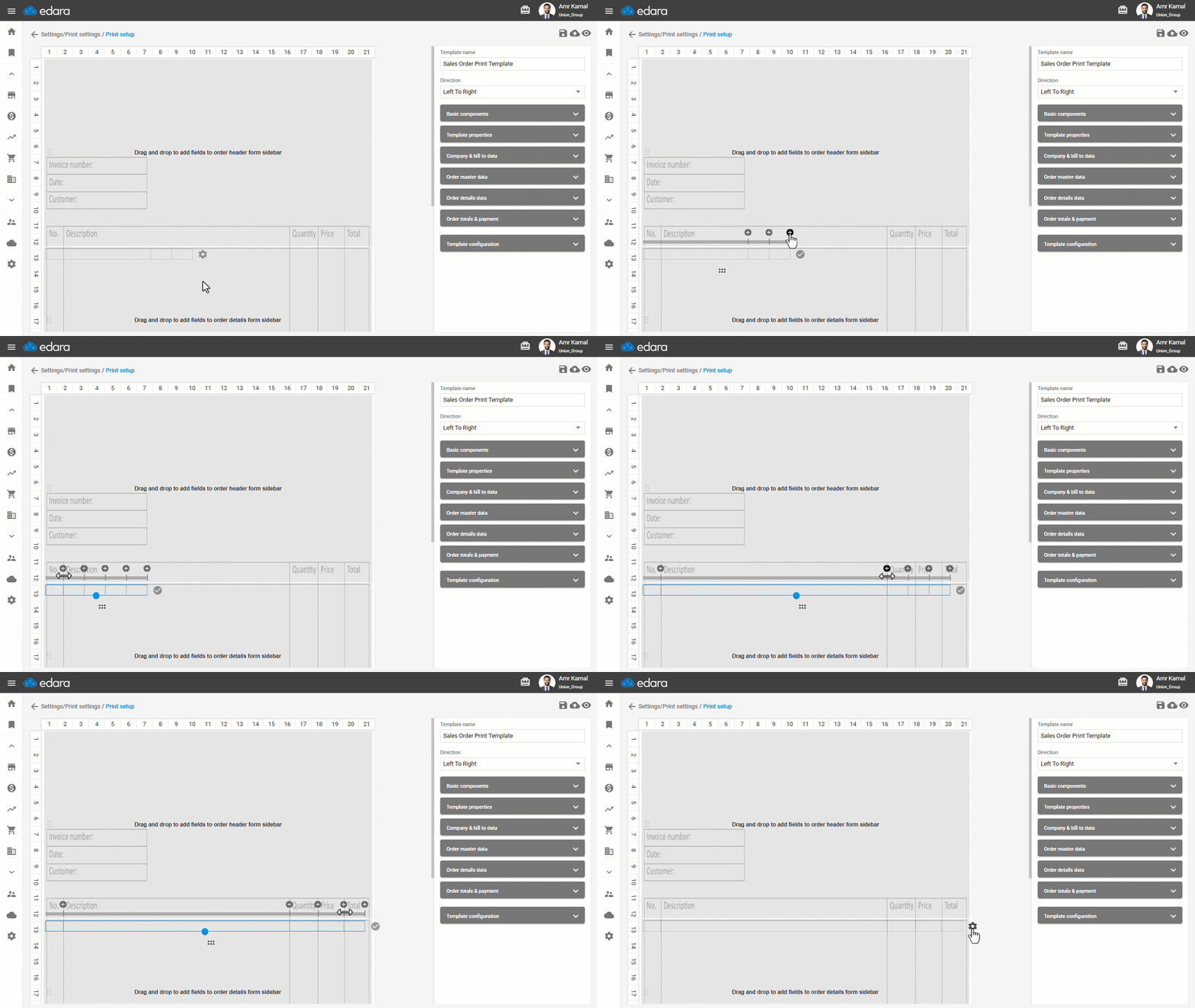
- Add the table columns and adjust their width to match the printed form design.
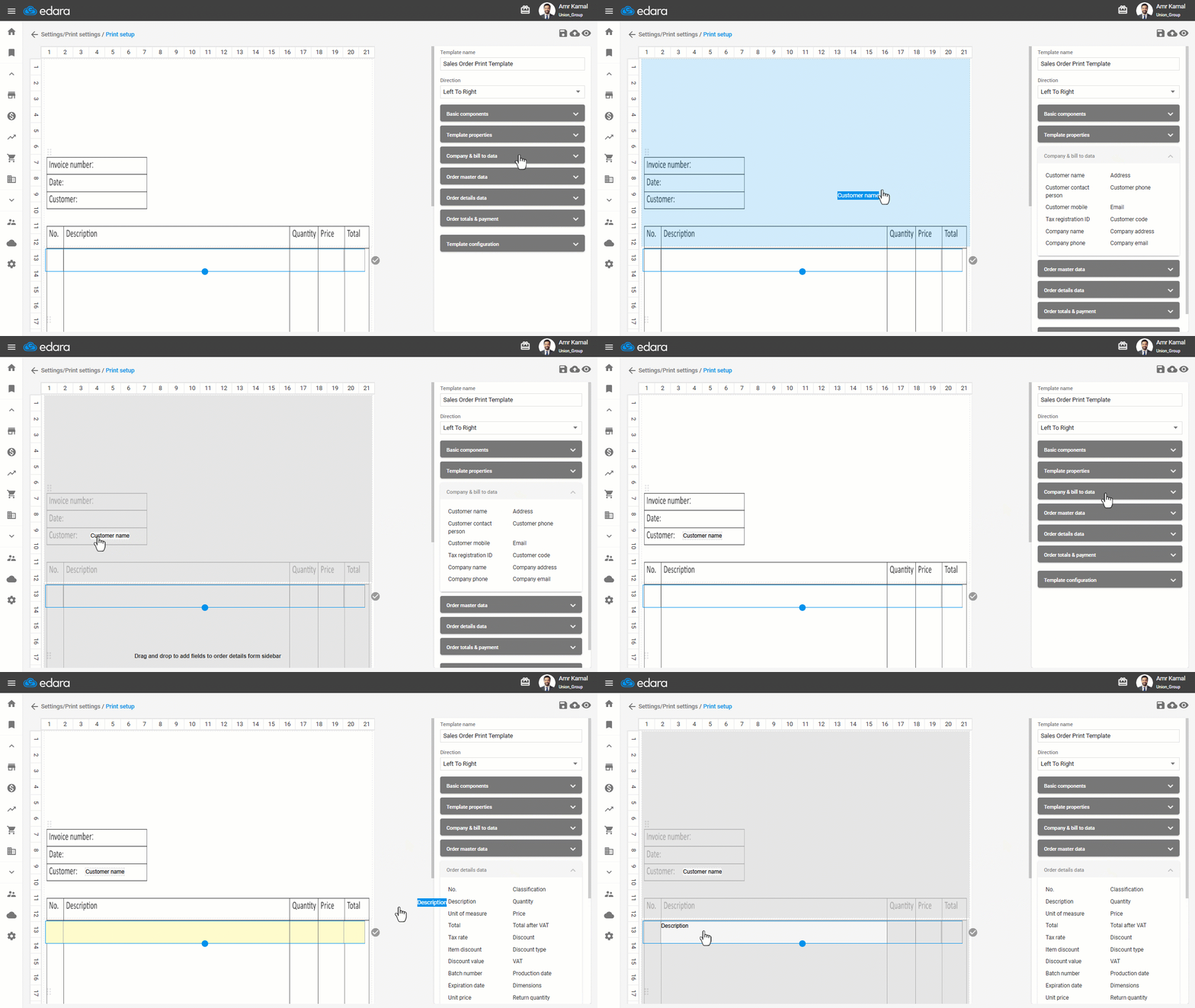
- Drag the data into each section according to the layout of the printed form.
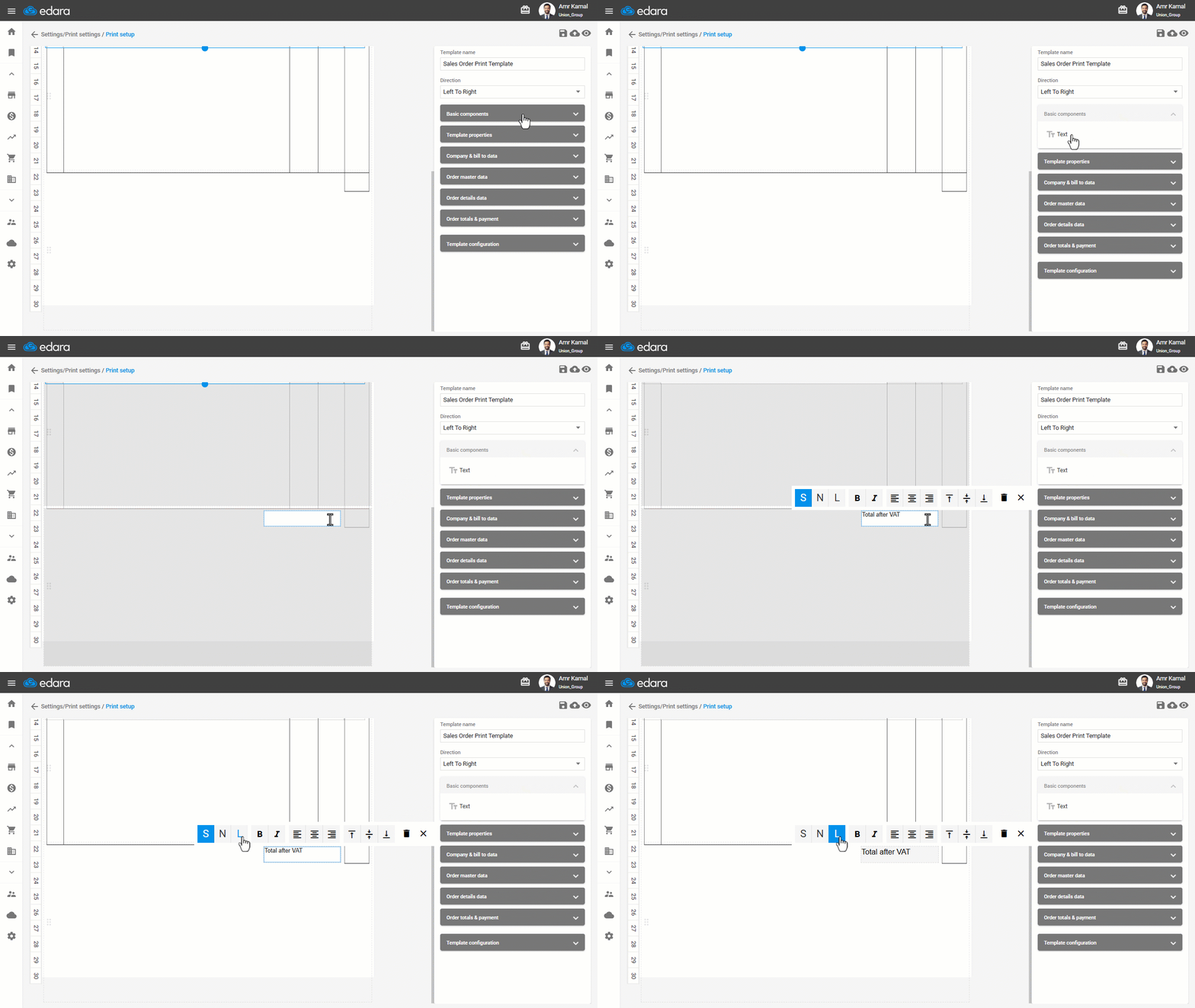
Note: From the “Basic Components” section, you can add custom text in the header or footer only, with control over font size and alignment by double-clicking on any element.
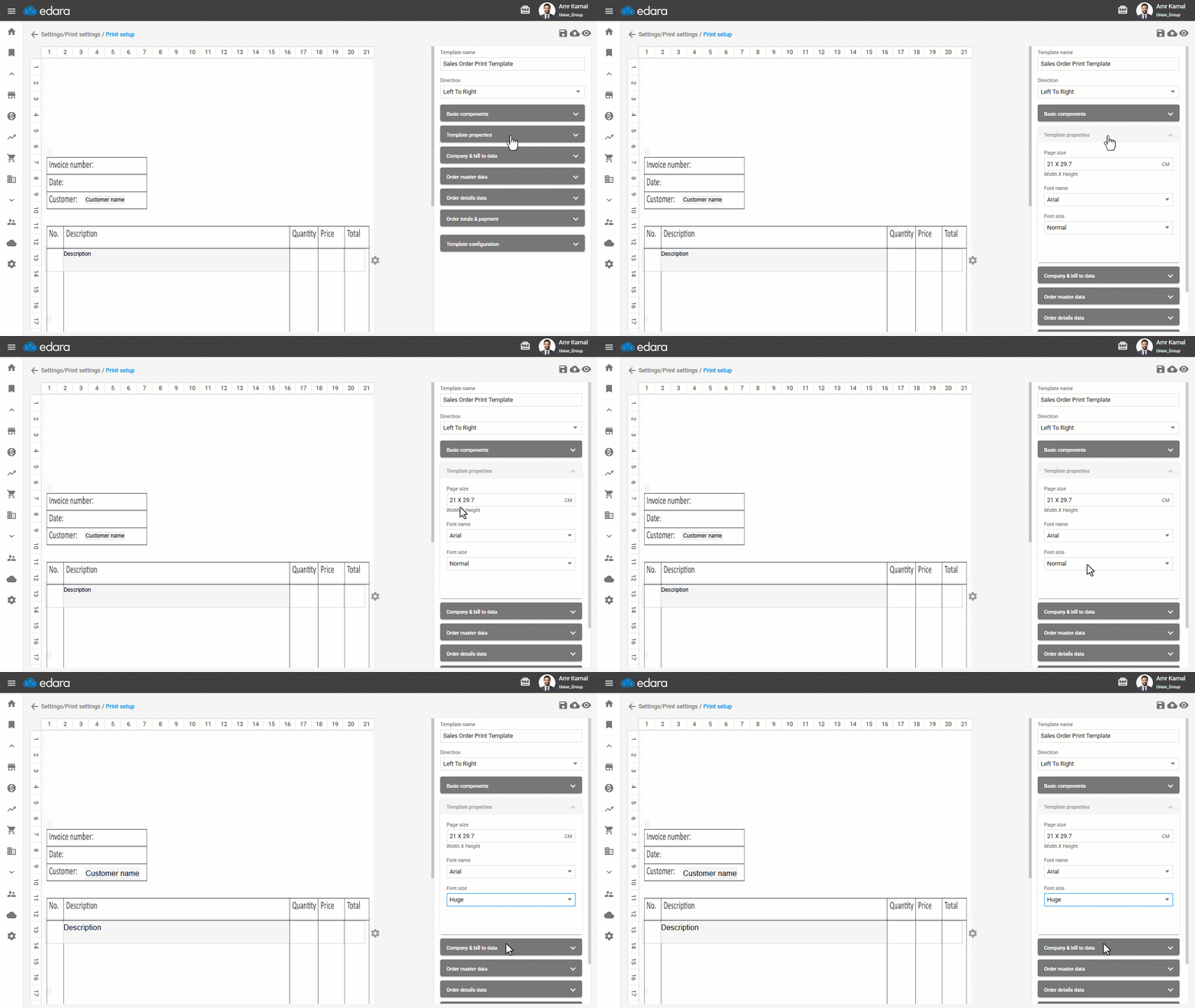
Note: You can adjust page dimensions, font type, and font size from the “Template style” section, with the option to modify the font size for each element independently.
If you encounter any challenges or have questions during these processes, you can contact our technical support team, who are ready to assist you at any time.
Did this answer your question?