

Displaying the Return Quantity and Date in the Sales Order Print Template in Simple Mode
Last updated:
Displaying the return quantity and date when printing a sales order helps ensure that all returns are accurate and consistent with the actual sales transactions.
Displaying the Return Quantity and Date in the Sales Order Print Template in Simple Mode
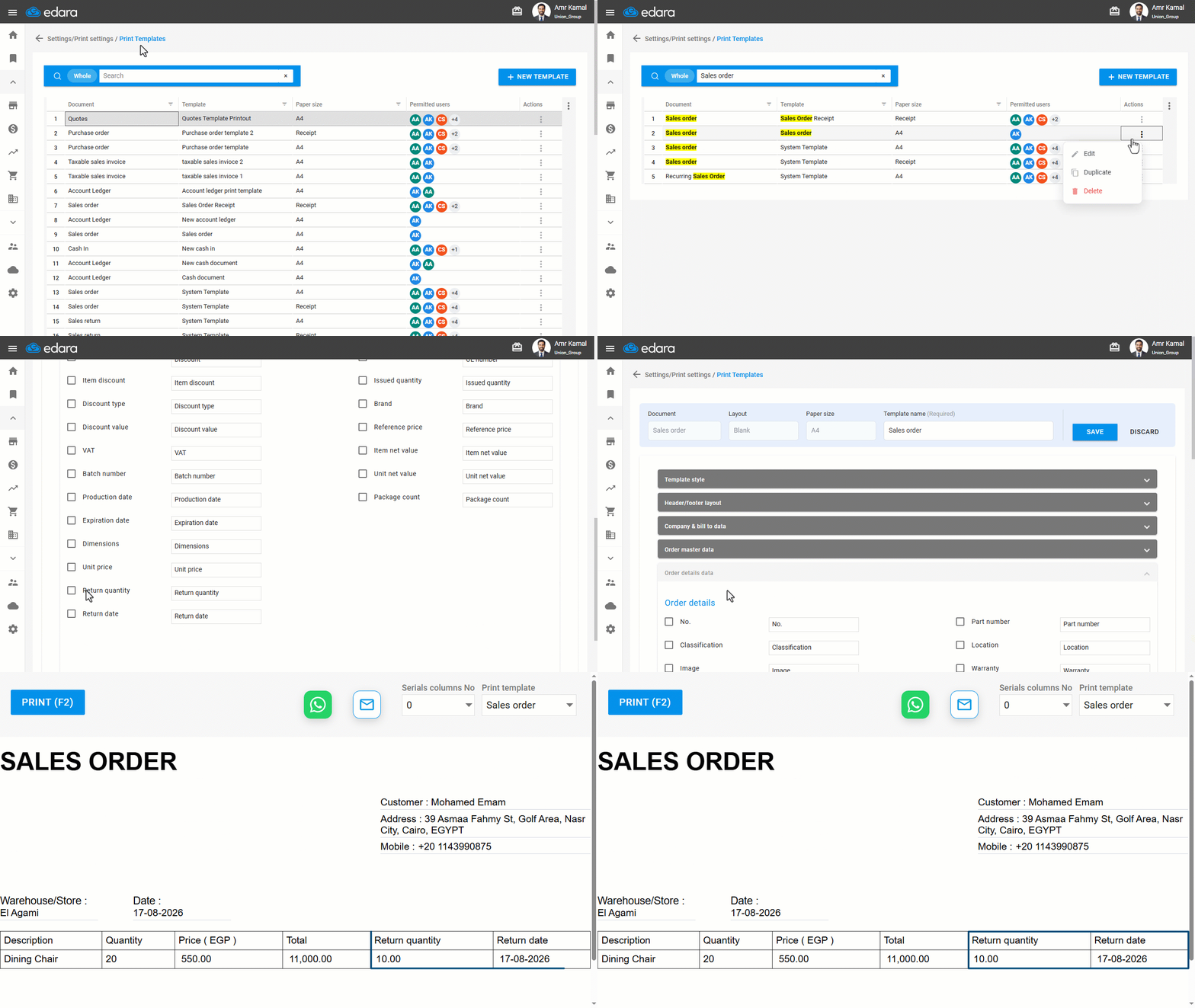
- Go to “Settings”.
- Open the “Print Templates” page.
- Search for the required print template using the search bar, or filter by any column as needed.
- Click on the “⋮” icon in the “Actions” column next to the required print template.
- Click on “Edit”.
Note: Select a print template other than the system template, as it cannot be modified, or create a new template.
- Go to the “Order details data” section.
- Enable the "Return Quantity" and "Return Date" options.
- Click on “Save”.
If there is more than one return, only the date of the latest document is displayed.
Frequently asked questions
Which date appears when there is more than one return?
If there is more than one return, only the date of the latest document is displayed.
If you encounter any challenges or have questions during these processes, you can contact our technical support team, who are ready to assist you at any time.
Did this answer your question?