

Creating a Print Template for The Account Ledger Report
Last updated:
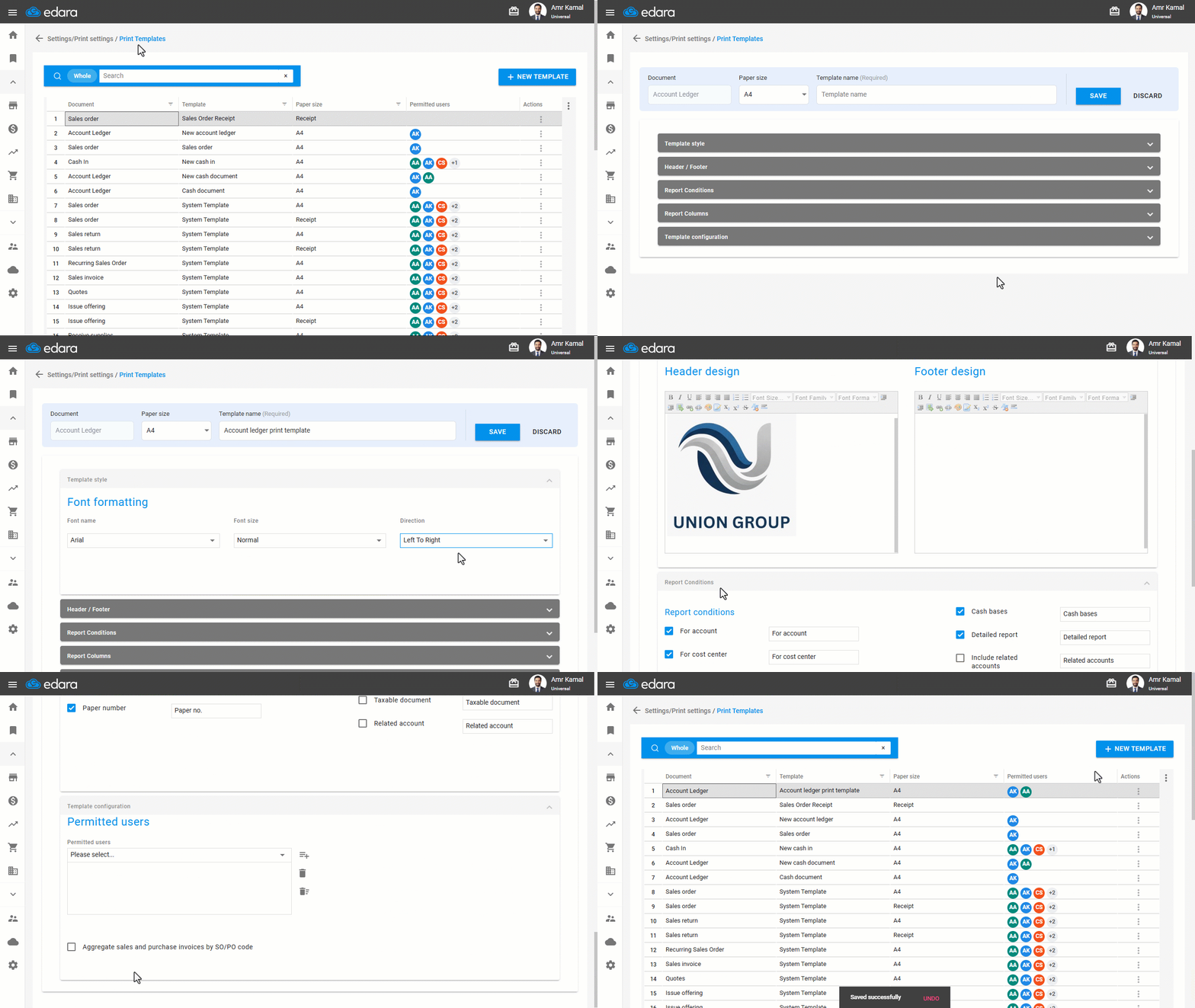
You can create a customized print template for the account ledger report and define the conditions and columns you want to display, helping you present customer account details in an organized and clear format.
Creating a Print Template for the Account Ledger Report
- Go to “Settings”.
- Open the “Print Templates” page.
- Click on “New Template”.
- Select “Simple Mode”.
- Select the “Accounting” module.
- Select the “Account ledger” document.
- Click on “Confirm”.
- Enter the template name.
- Specify the font name, font size, and text direction through “Template Style”.
- Add a page header or footer.
Note: You can add the company name and logo to the header, and add contact information to the footer.
- Select the conditions to be displayed in the printout through “Report Conditions”.
- Select the columns to be displayed through “Report Columns”.
- Select the users authorized to print the template through “Template Configuration”.
- Click on “Save”.
If you encounter any challenges or have questions during these processes, you can contact our technical support team, who are ready to assist you at any time.
Did this answer your question?