

Displaying Customer Code When Printing a Sales Order in Simple Mode
Last updated:
The customer code serves as a unique identifier for each client, making it easier to retrieve their data. This is especially useful when managing a large customer base or handling multiple orders simultaneously.
Displaying Customer Code When Printing a Sales Order in Simple Mode
- Go to “Settings”.
- Open the “Print Templates” page.
- Search for the required print template using the search bar, or filter by any column as needed.
- Click on the “⋮” icon in the “Actions” column next to the required print template.
- Click on “Edit”.
Note: Select a print template other than the system template, as it cannot be modified, or create a new template.
- Go to the "Company & Bill to Data" section.
- Enable the "Customer Code" option.
- Click on “Save”.
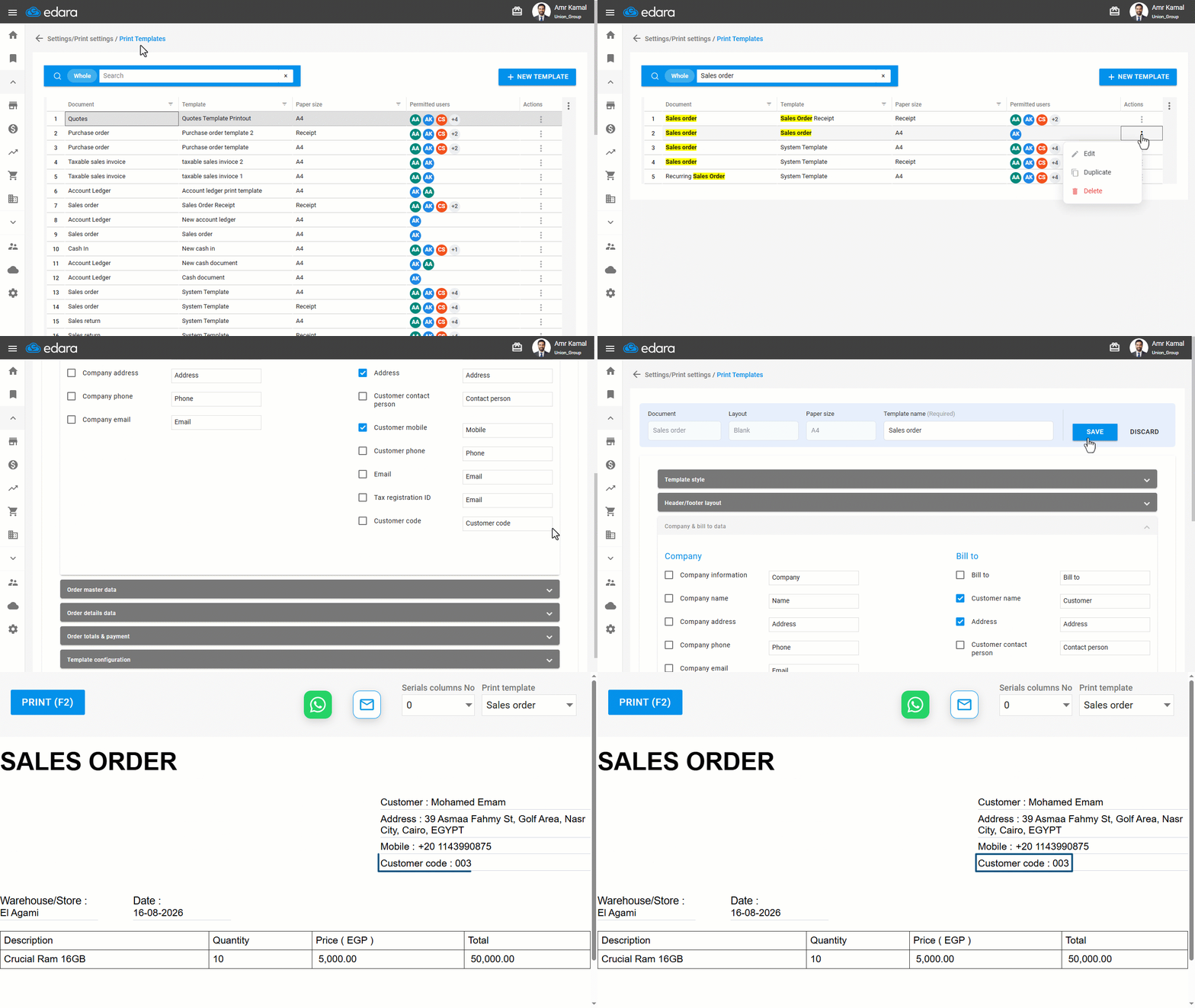
Note: You can control the “Customer Code” properties from the Sales Settings.
If you encounter any challenges or have questions during these processes, you can contact our technical support team, who are ready to assist you at any time.
Did this answer your question?