

Creating a New Print Template in Simple Mode
Last updated:
You may need to create a new print template to customize the layout of printed documents, control which data is displayed, and specify which users are allowed to use the template.
Creating a New Print Template in Simple Mode
The following steps use a Sales document as an example.
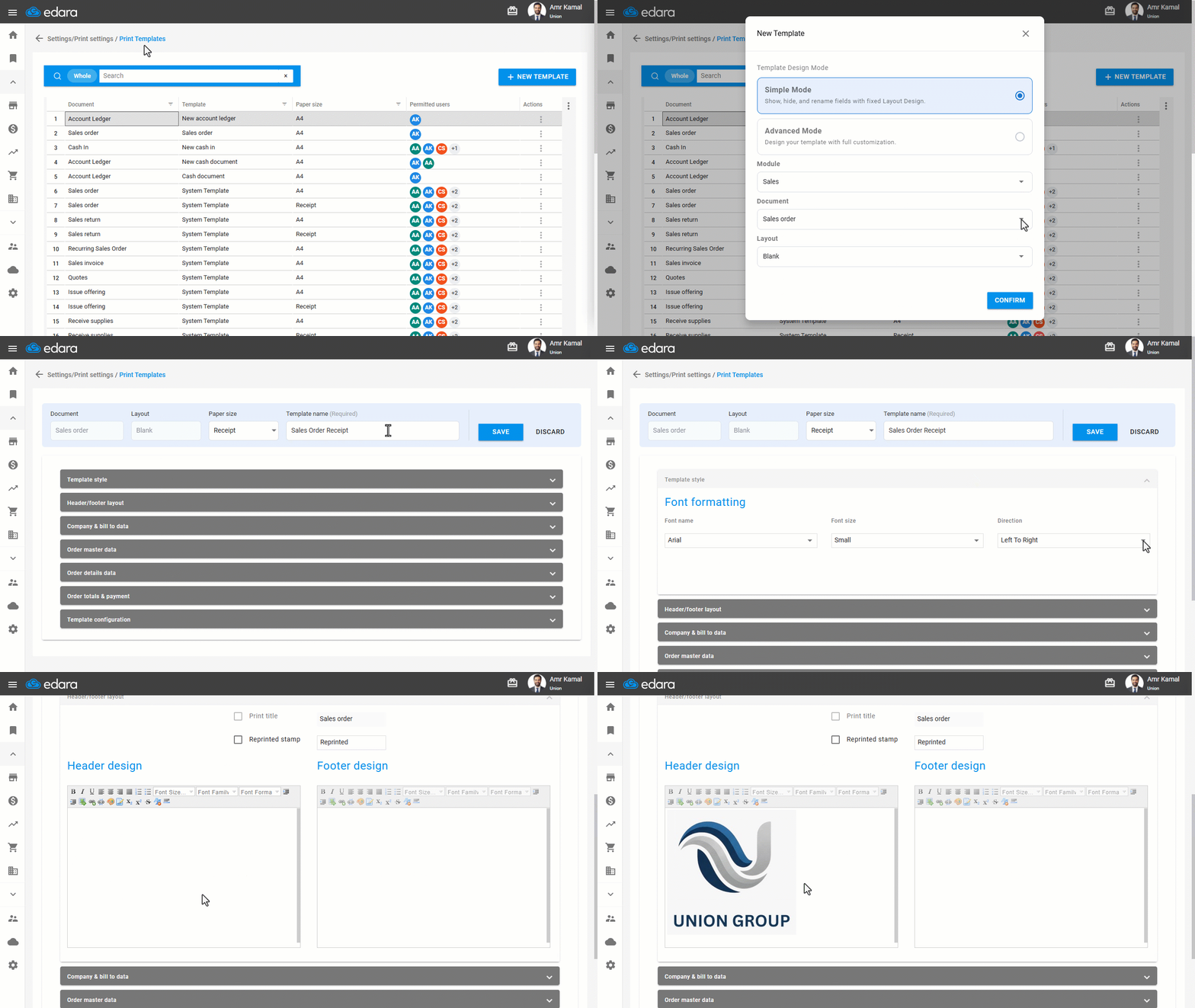
- Go to “Settings”.
- Open the “Print Templates” page.
- Click on “New Template”.
- Select “Simple Mode” as the Template Design Mode.
- Select the Module.
- Choose the required document.
Note: The “Layout” option (Blank or Pre-printed) is available only when creating print templates for Sales Orders.
- Click on “Confirm”.
- Select the paper size (A4, Receipt, or Custom).
- Enter the template name.
- Go to “Template Style”.
- Select the font name and size.
- Choose the print direction (Right-to-Left or Left-to-Right).
- Go to “Header/Footer layout” to add a logo, image, or text to the top or bottom of the template.
- Click on the Upload icon “
 ” to upload an image.
Note: You can also change the labels displayed in the printed document by editing the corresponding name for each field.
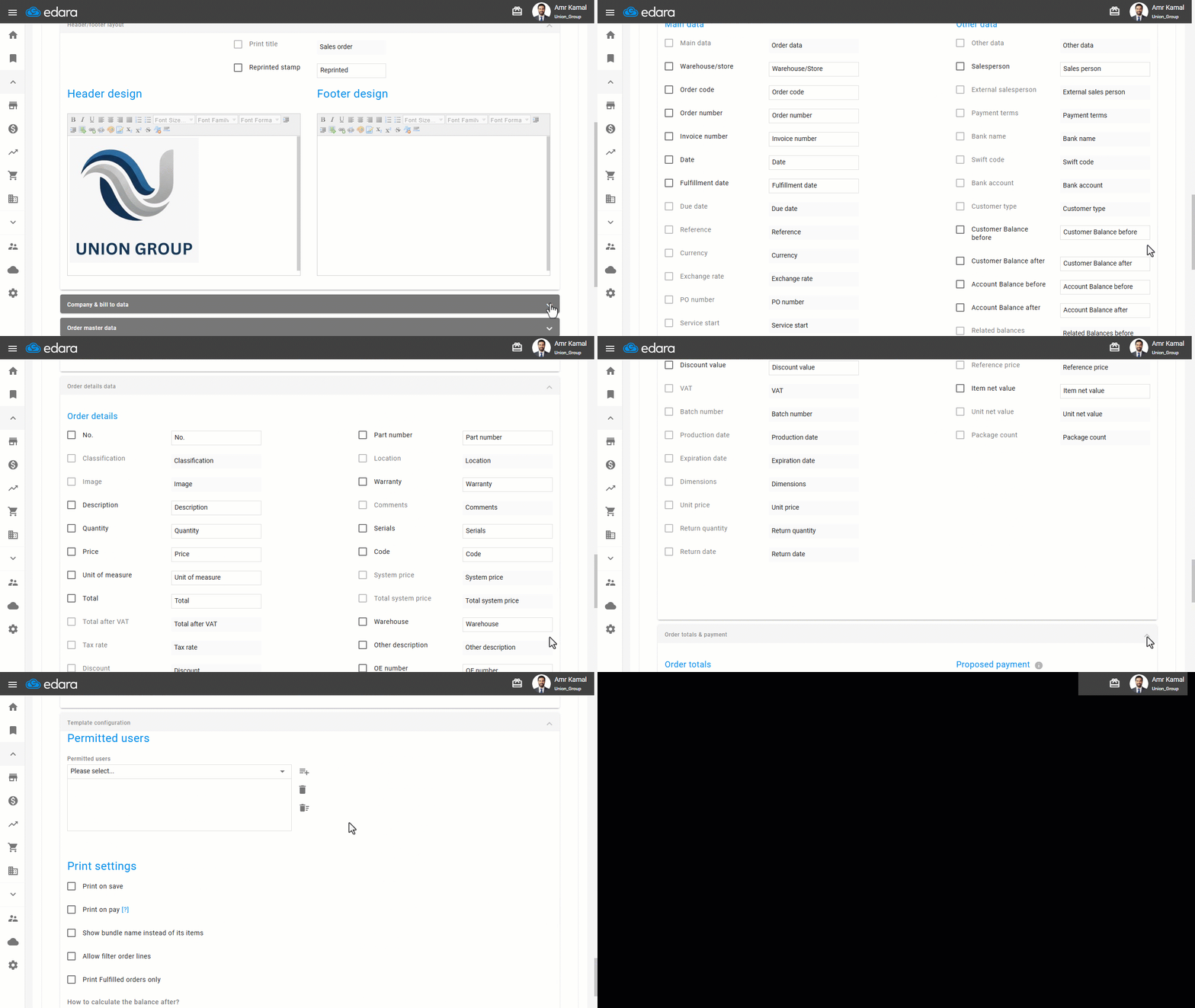
- Go to “Company & Bill to Data” to select the company and customer information you want to display.
- Go to “Order Master Data” to select the required fields.
- Go to “Order Details Data” to select the required columns.
- Go to “Order Totals & Payment” to display payment and tax details.
Note: You can choose to display either the Proposed Payment or the Actual Payment.
- Go to “Template Configuration”.
- Select the users who are allowed to print using the template.
- Enable the “Print on Save” option.
- Click on “Save”.
If you encounter any challenges or have questions during these processes, you can contact our technical support team, who are ready to assist you at any time.
Did this answer your question?