

Adding "Item Code" and "Model Code" to Tax Invoice Print Templates
Last updated:
To make it easier to identify stock items within tax invoices and review their data, you can add the stock Item Code and Model Code to the print template.
Adding "Item Code" and "Model Code" to Tax Invoice Print Templates
- Go to "Settings".
- Open the "Print Templates" page.
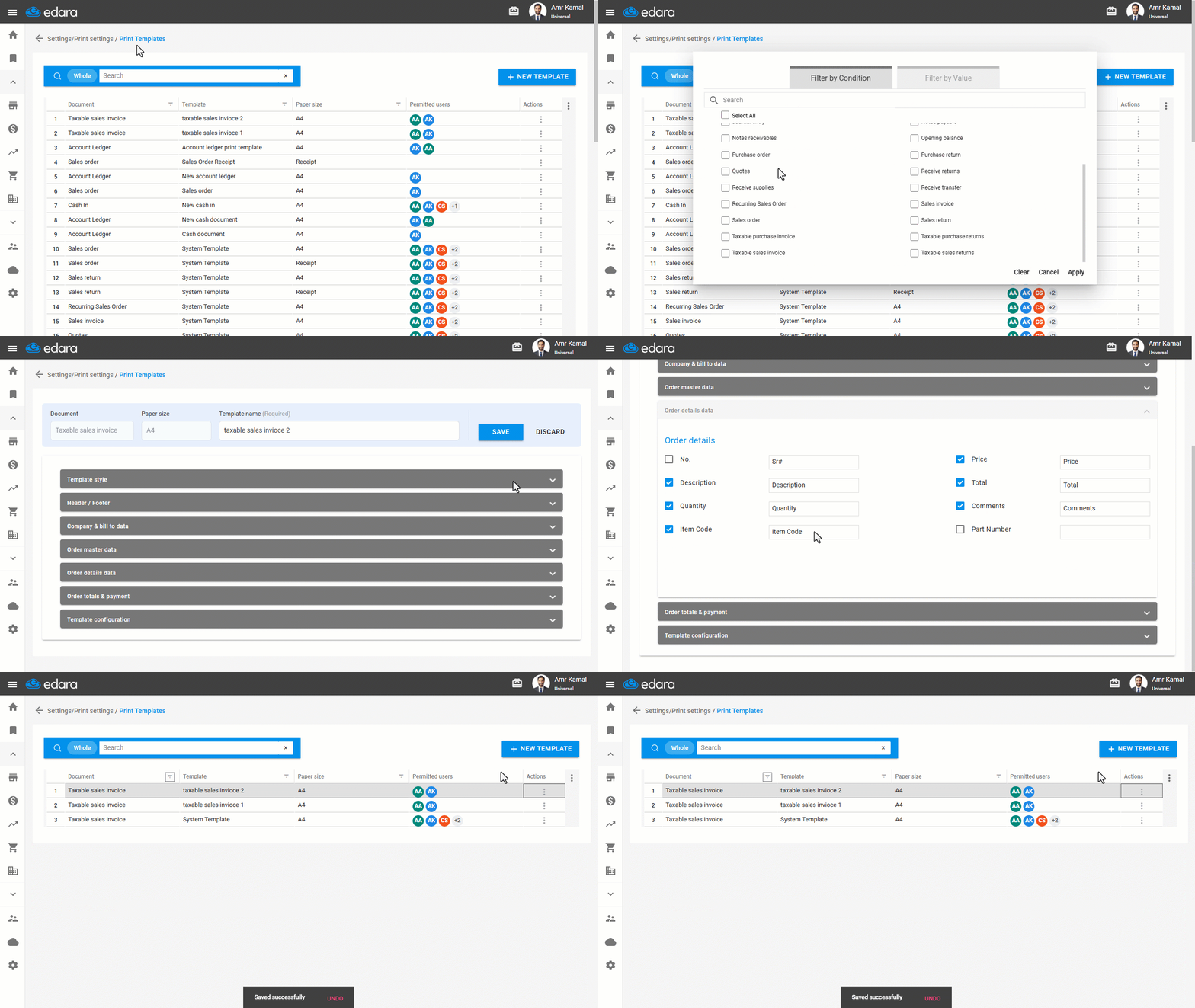
- Search for the required Tax Invoice document using the search bar, or filter the list by Tax Invoice.
- Click on "⋮" in the “Actions” column next to the tax invoice print template you want to modify.
- Click on "Edit".
Note: Select a print template other than the system template, as it cannot be modified, or create a new template.
- Go to "Order details data".
- Enable displaying "Item Code" and "Part Number".
- Enter the text you want to appear when printing.
- Click on "Save".
If you encounter any challenges or have questions during these processes, you can contact our technical support team, who are ready to assist you at any time.
Did this answer your question?