

Adding the company name to barcode printing
Last updated:
You may need to add the company name to the barcode to support your branding and give the barcode a more official look.
Adding the company name to barcode printing
This is done in two steps:
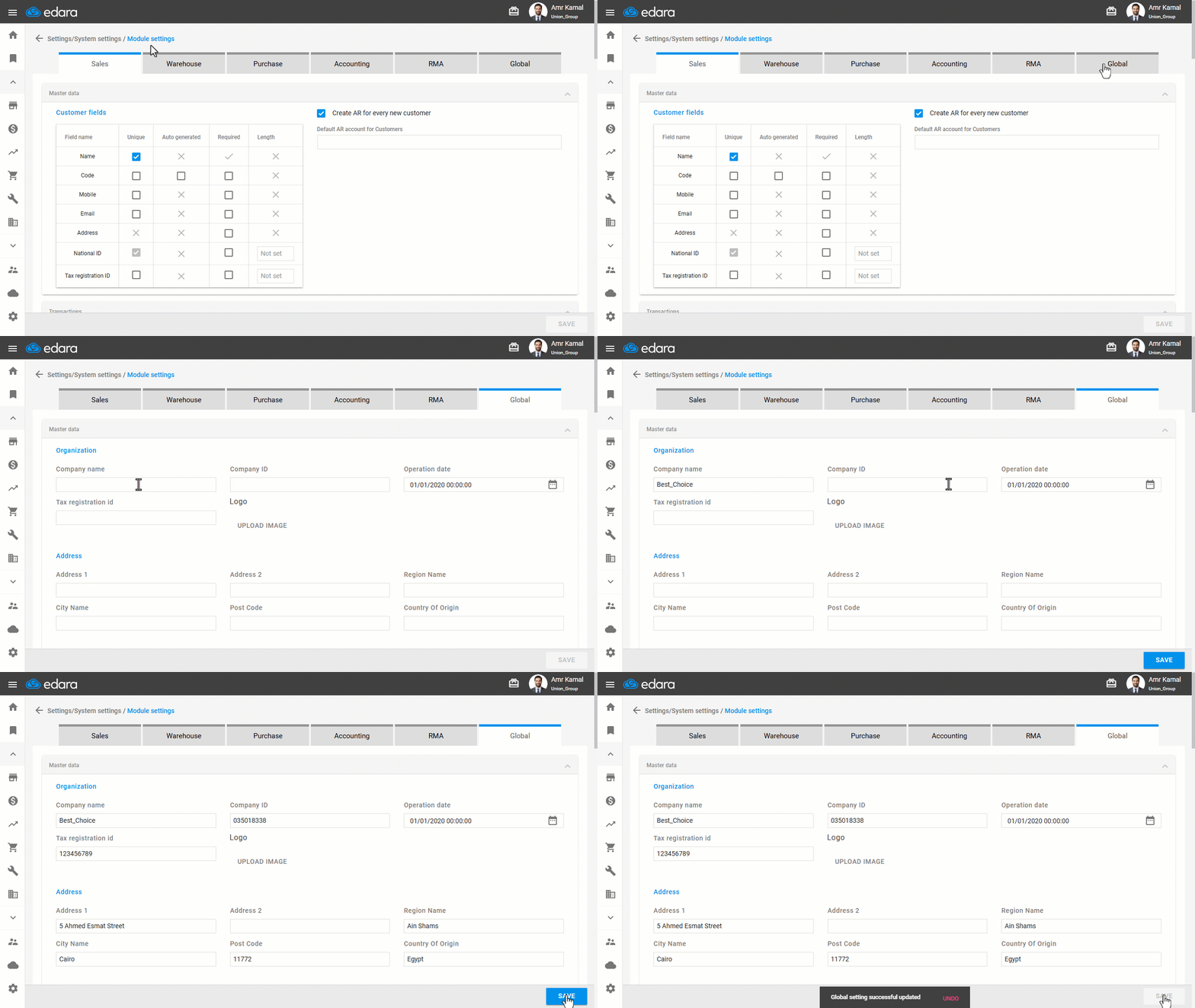
1- Adding the company
- Go to “Settings”.
- Open the “Modules Settings” page.
- Go to “Global”.
- Enter the company name and details.
- Click on “Save”.
2- Printing the barcode
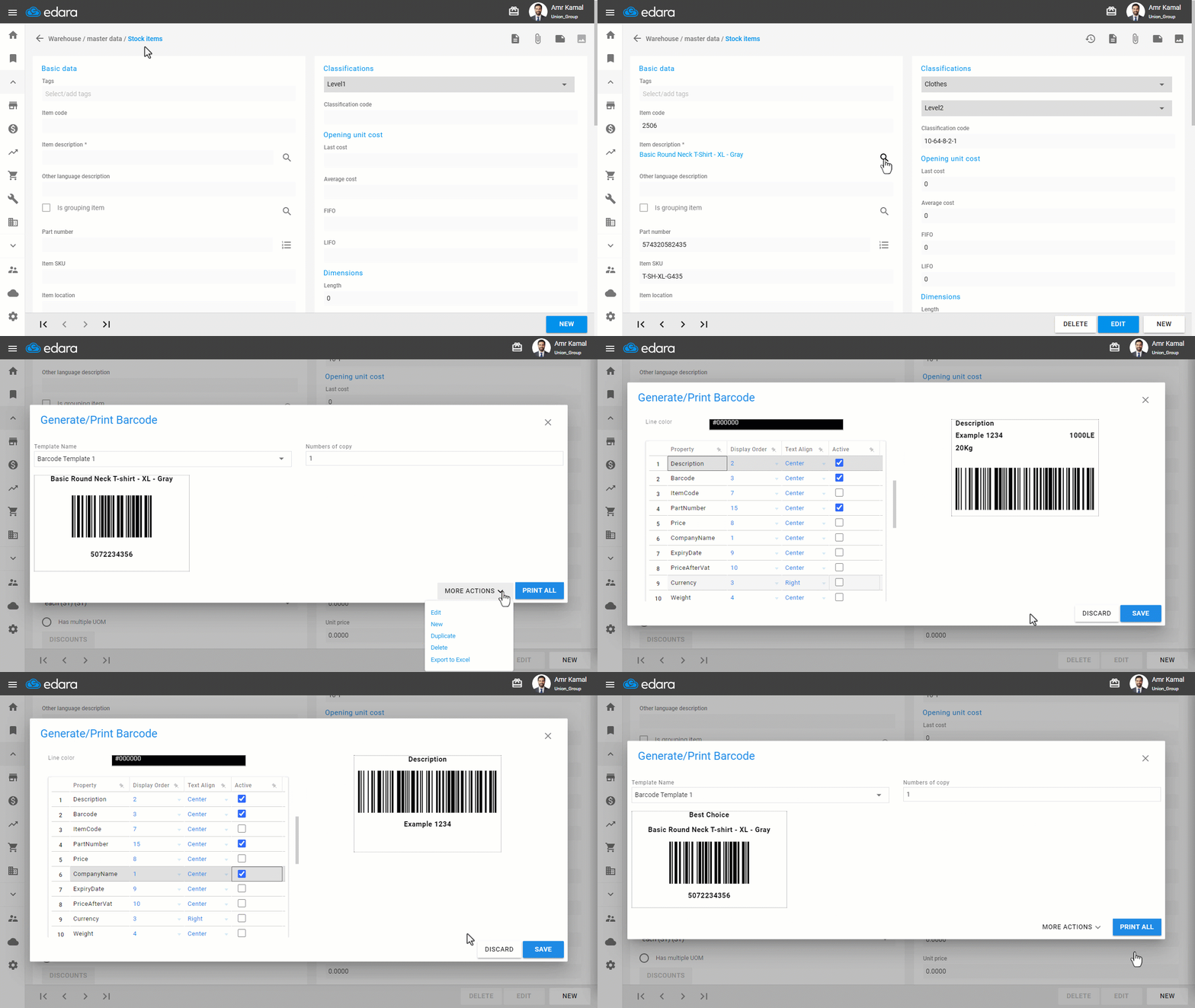
Before you start, make sure a barcode print template is already created, then follow these steps:
- Go to the “Warehouse” Module.
- Open the “Stock Items” page.
- Search for the required stock item using “🔍” or the arrows at the bottom of the page.
- Click on the print icon “
 ” next to Part number.
 - Select the “Template Name” you want to edit.
- Click on “More Actions”.
- Select “Edit”.
- Enable “CompanyName”.
- Set the “Display Order” and “Text Align”.
- Click on “Save”.
If you encounter any challenges or have questions during these processes, you can contact our technical support team, who are ready to assist you at any time.
Did this answer your question?