

Showing Supplier Name and Document Number in Barcode
Last updated:
We've enhanced "Edara" to include additional options when printing product barcodes, such as the supplier name and document number.
Showing Supplier Name and Document Number in Barcode
Before starting, you need to create a barcode template and choose to display the supplier name and document number. Then follow these steps:
- Click on the "Barcode" icon in the additional document (such as a purchase order or goods receipt)
- Click "Additional Options"
- Select "Edit"
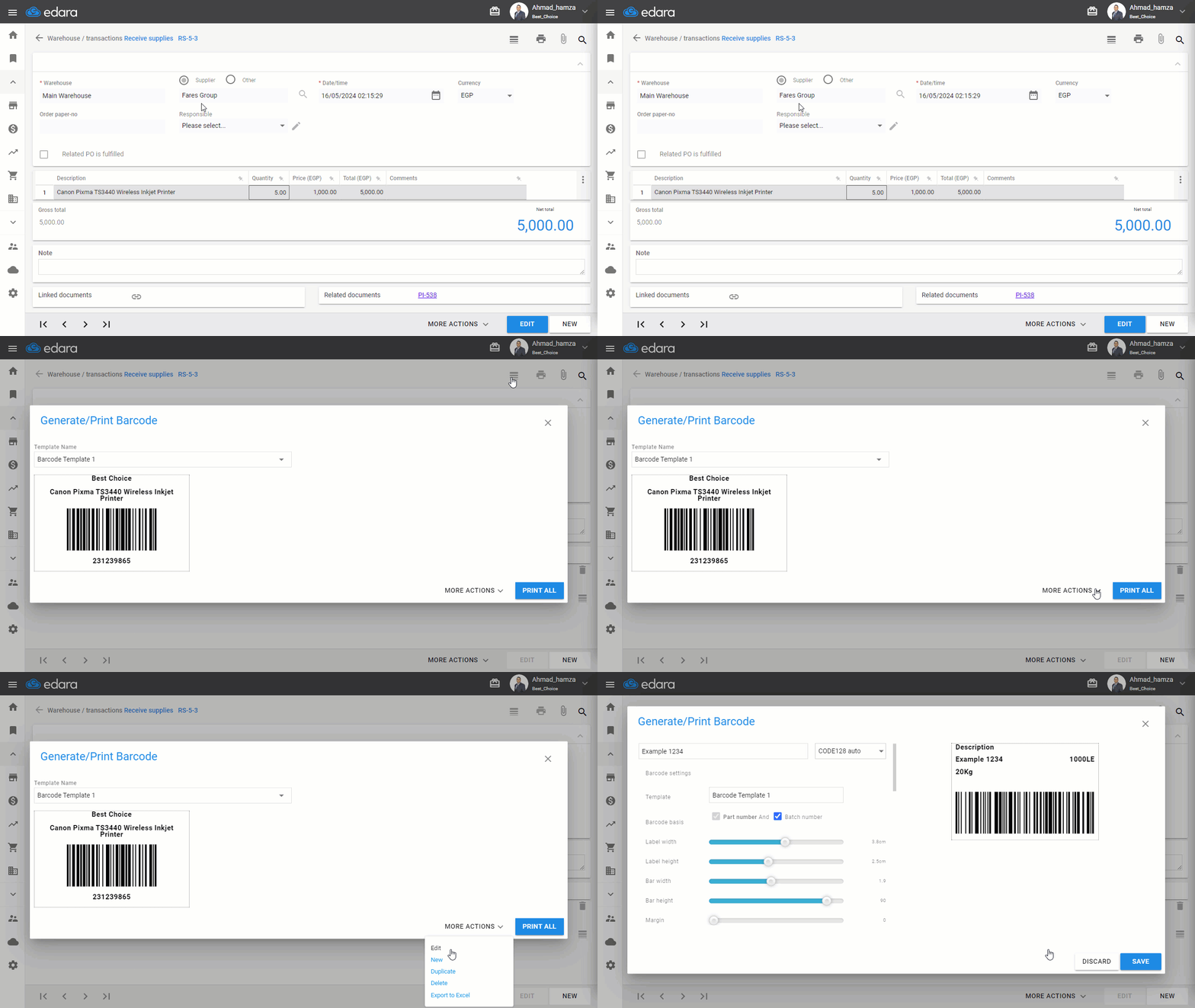
- Scroll down to choose the supplier name or any other options you want to display when printing the product barcode.
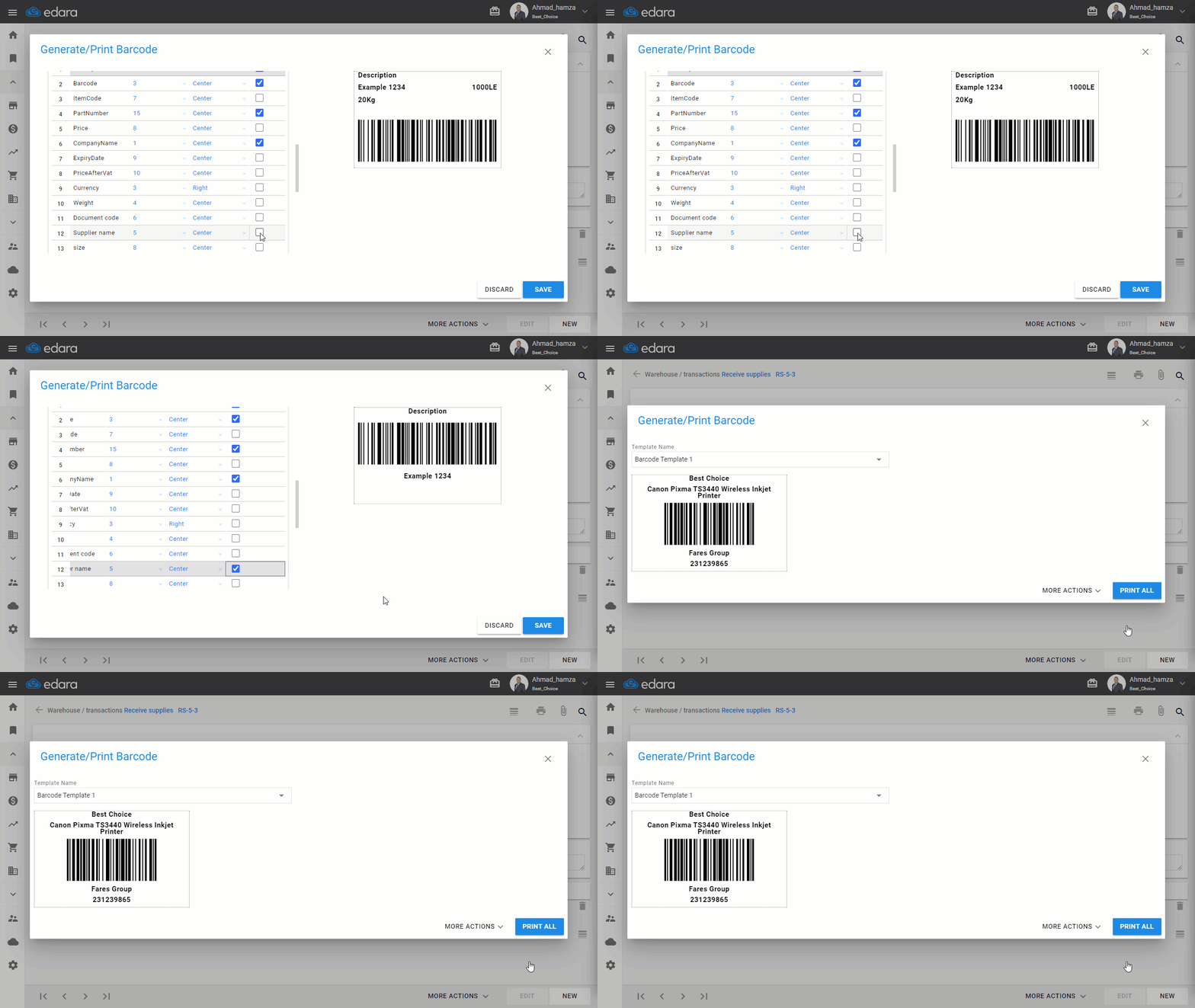
If you encounter any challenges or have questions during these processes, you can contact our technical support team, who are ready to assist you at any time.
Did this answer your question?