

Printing Stock Item Barcodes
Last updated:
When you need to print barcodes for one or multiple stock items, you can do so either individually or in bulk, depending on your needs.
Printing Stock Item Barcodes
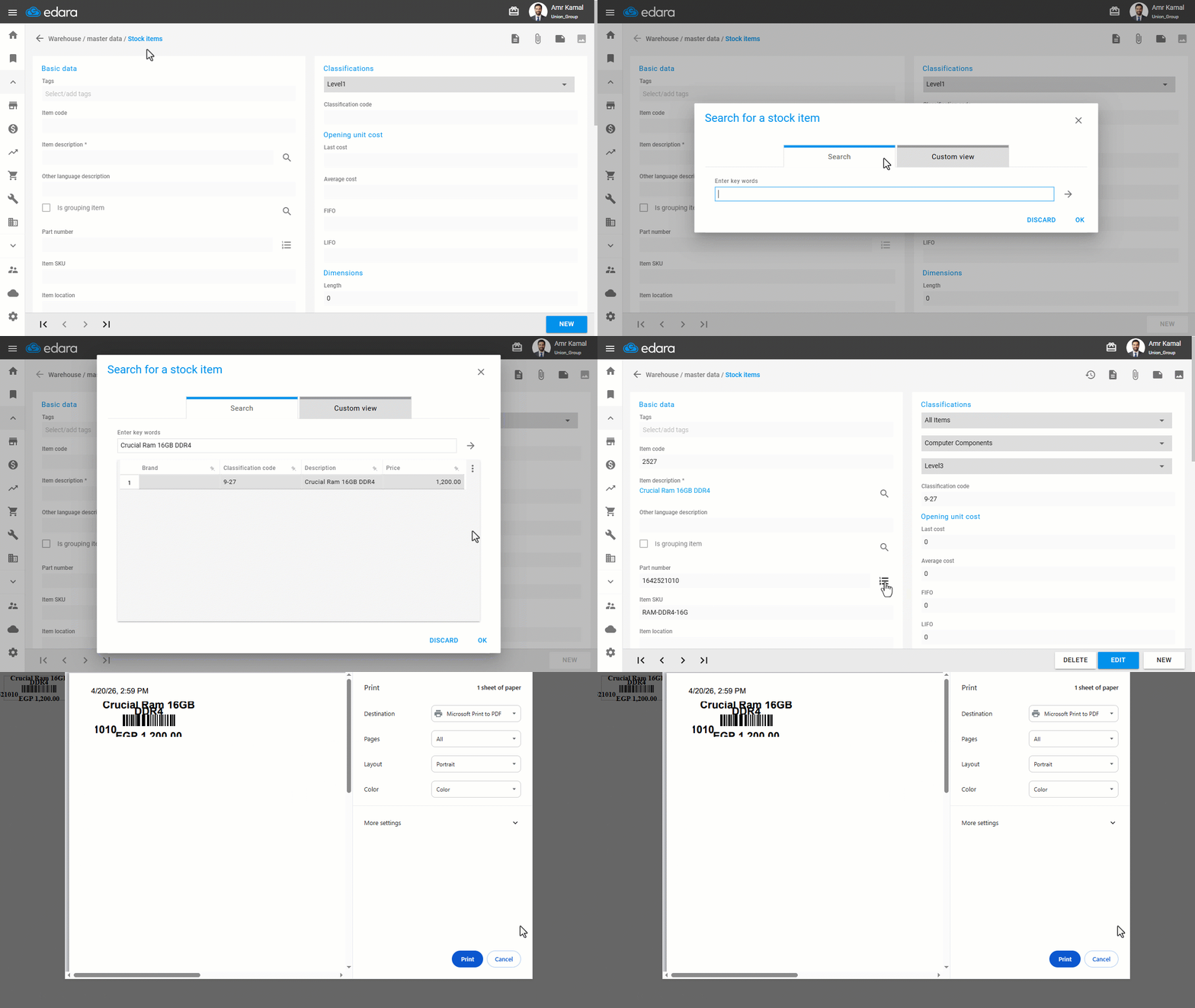
- Go to the "Warehouse" module.
- Open the "Stock Items" page.
- Search for the required item using the "🔍" icon or the navigation arrows at the bottom of the page.
- Click on the print icon "
 " next to the Part number.
Note: You can select the template and the number of copies to be printed.
- Click on "Print All".
Printing Stock Item Barcodes in Bulk
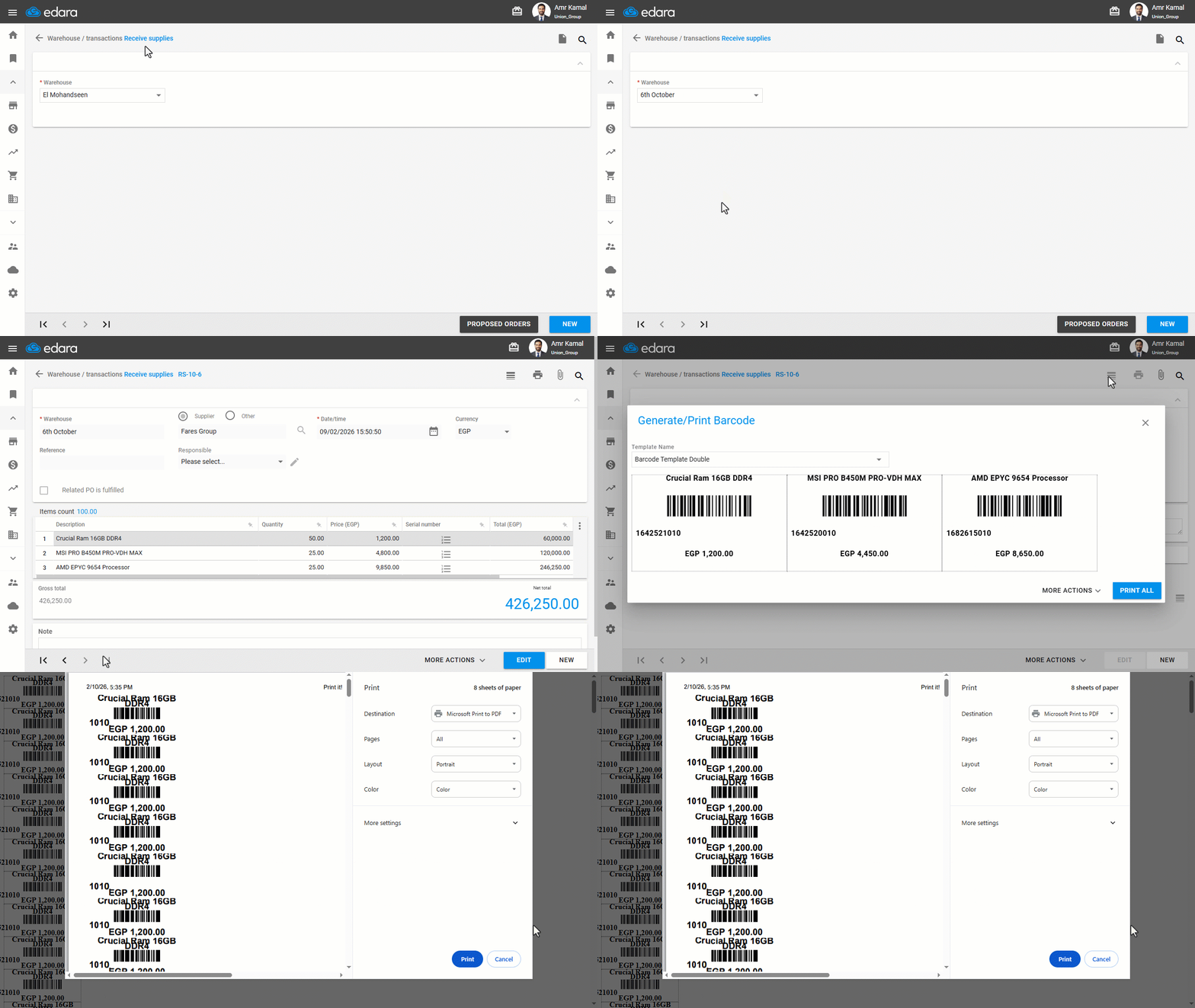
- Go to the "Warehouse" module.
- Open the "Receive supplies" page.
- Select the required warehouse.
- Search for the required document using the "🔍" icon or the navigation arrows at the bottom of the page.
- Click on the Print icon “
 ” at the top of the page.
 - Click on "Print All".
Notes:
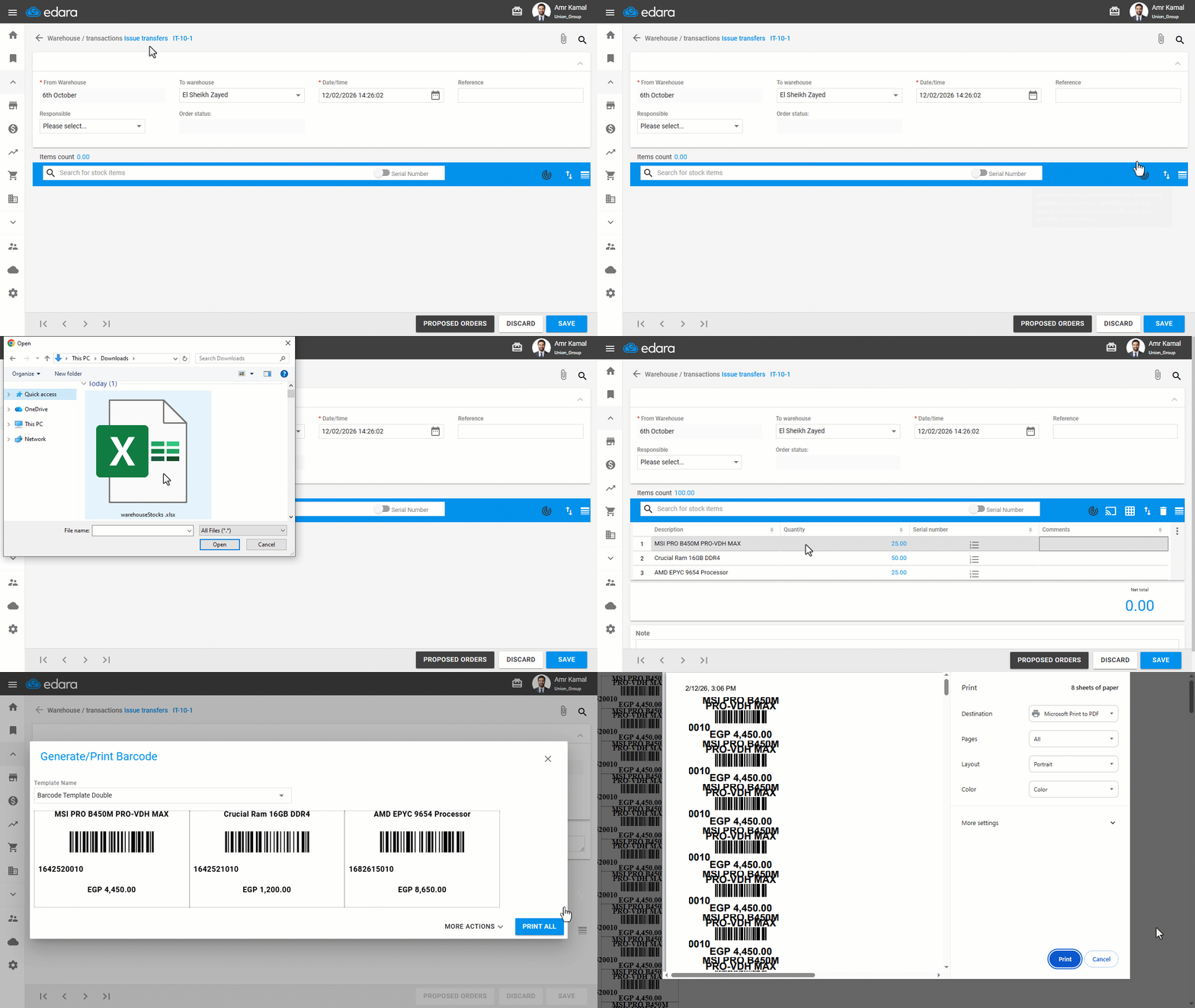
- You can also print barcodes from any work order document that contains stock items, such as "Supplies request", "Issue transfers", or “Purchase order”.
- When creating a new document, such as "Issue transfers", the Print icon appears in the middle of the page next to the search bar. In this case, you can import stock items from Excel, then print their barcodes in bulk by clicking on the “
 ” icon, and then clicking on "Print All".
Frequently asked questions
Where else can I print barcodes from?
You can also print barcodes from any work order document that contains stock items, such as "Supplies request", "Issue transfers", or “Purchase order”.
If you encounter any challenges or have questions during these processes, you can contact our technical support team, who are ready to assist you at any time.
Did this answer your question?