

Delete or Edit a Barcode Printing Template
Last updated:
You can easily create a barcode template, delete it, or edit it using "Edara".
Here are those steps in detail.
Steps to Delete or Edit a Barcode Printing Template
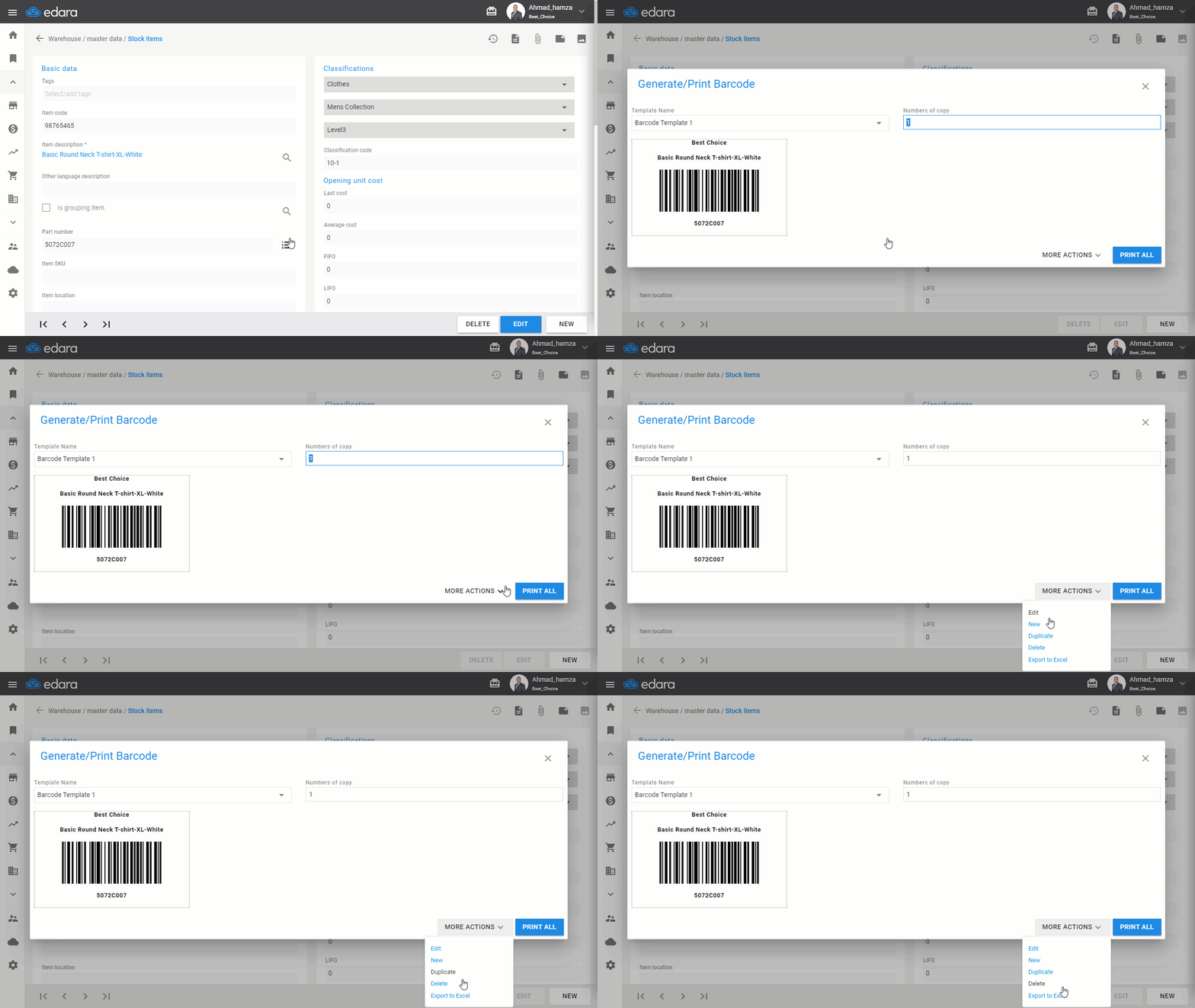
- Go to the warehouse module
- Select "Stock items"
- Search for the stock item by using the "🔎" icon or the arrows
- Click on next to the model code
Note: Make sure the model code is already added.
- Click "More Actions"
- Click "Delete" or "Edit" depending on the action you want to do
- Click "Save" if you've made any changes
If you encounter any challenges or have questions during these processes, you can contact our technical support team, who are ready to assist you at any time.
Did this answer your question?