

Adding the Company Logo to Print Templates
Last updated:
Including the company logo in print templates adds professionalism, enhances transparency, and helps distinguish your company from competitors.
Adding the Company Logo to Print Templates
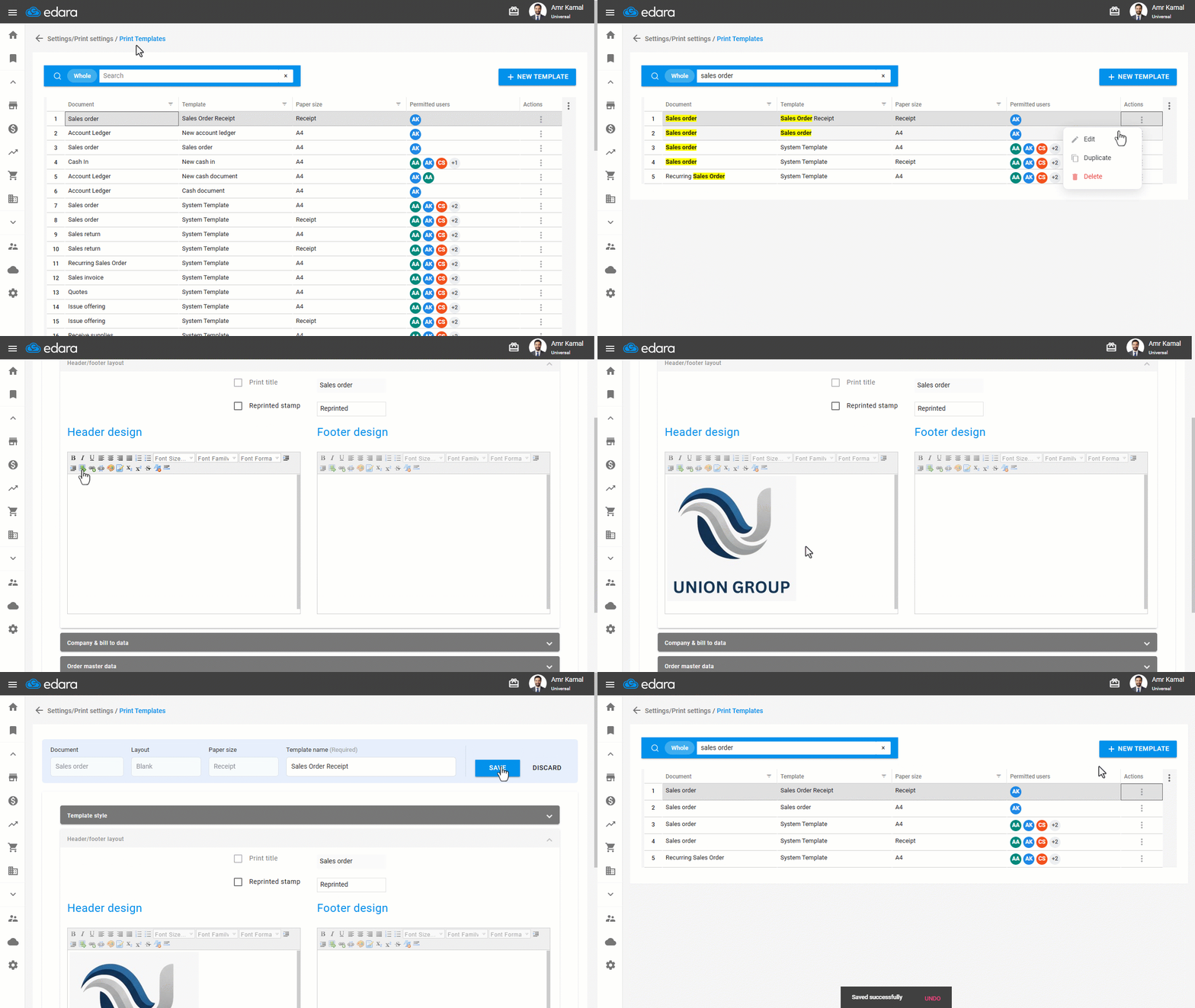
- Go to “Settings”.
- Open the “Print Templates” page.
- Search for the required template.
- Click on the More Details icon “⋮” in the “Actions” column next to the template you want to modify.
Note: Select a print template other than the system template, as it cannot be modified, or create a new template.
- Click on “Edit”.
- Go to “Header / Footer Layout”.
- Add the logo or upload it from your device in “Header Design”.
- Click on “Save”.
If you encounter any challenges or have questions during these processes, you can contact our technical support team, who are ready to assist you at any time.
Did this answer your question?