

Showing Item Description on a Separate Line in Receipts
Last updated:
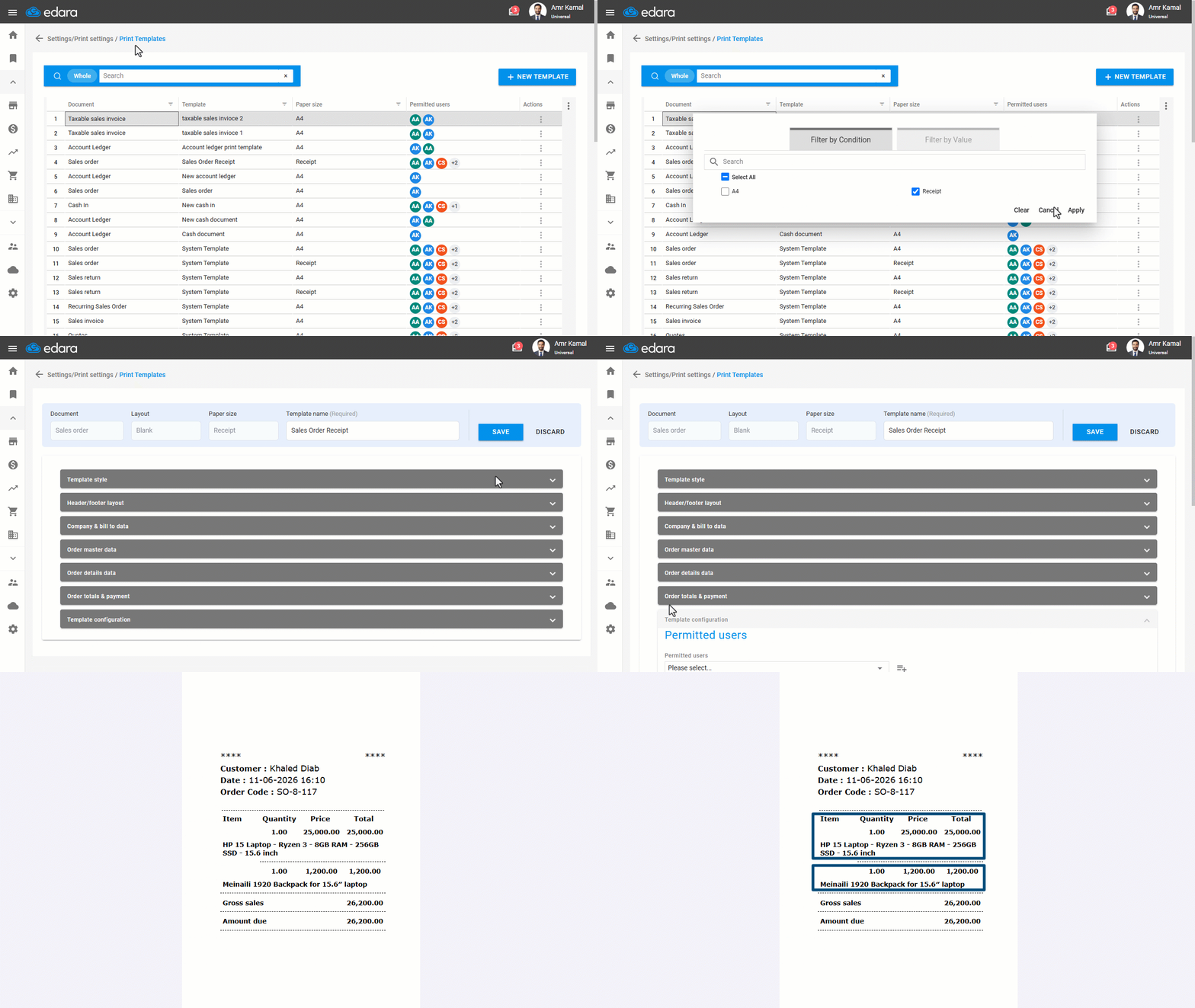
When printing receipts, long item names may extend across multiple lines within the same row, making them harder to read and consuming more paper. To address this, you can display the item description on a separate line, ensuring the receipt is clearer and more organized.
Showing Item Description on a Separate Line in Receipts

- Go to “Settings”.
- Open the “Print Templates” page.
- Search for the receipt print template, or use the "Paper Size" column to filter the results.
You can also create a new receipt print template.
- Click on the “⋮” icon in the “Actions” column next to the required receipt template.
- Click on “Edit”.
Note: If the print template is a system template, click on “Load”.
- Go to “Template configuration”.
- Enable the option “Show Item Description on a Separate Line”.
- Click on "Save".
Once enabled, the description appears on a separate line, and the system automatically adds a separator between items to keep the data clear and well-structured.
Notes:
- This option is only available in receipt templates, not in other templates such as A4.
- It is recommended to enable this option if your item names are relatively long.
Frequently asked questions
Is the separate-line item option available in A4 templates?
This option is only available in receipt templates, not in other templates such as A4.
If you encounter any challenges or have questions during these processes, you can contact our technical support team, who are ready to assist you at any time.