

Printing Receipts Based on Service Provider
Last updated:
In some cases, a single sales order may be handled by multiple individuals to provide the service. For example, in restaurants, a single order may include multiple food items, each prepared by a different person. To streamline the workflow, you may need to print individual receipts (slips) for each service provider, ensuring better organization within the restaurant.
Printing Receipts Based on Service Provider
This process involves two main steps:
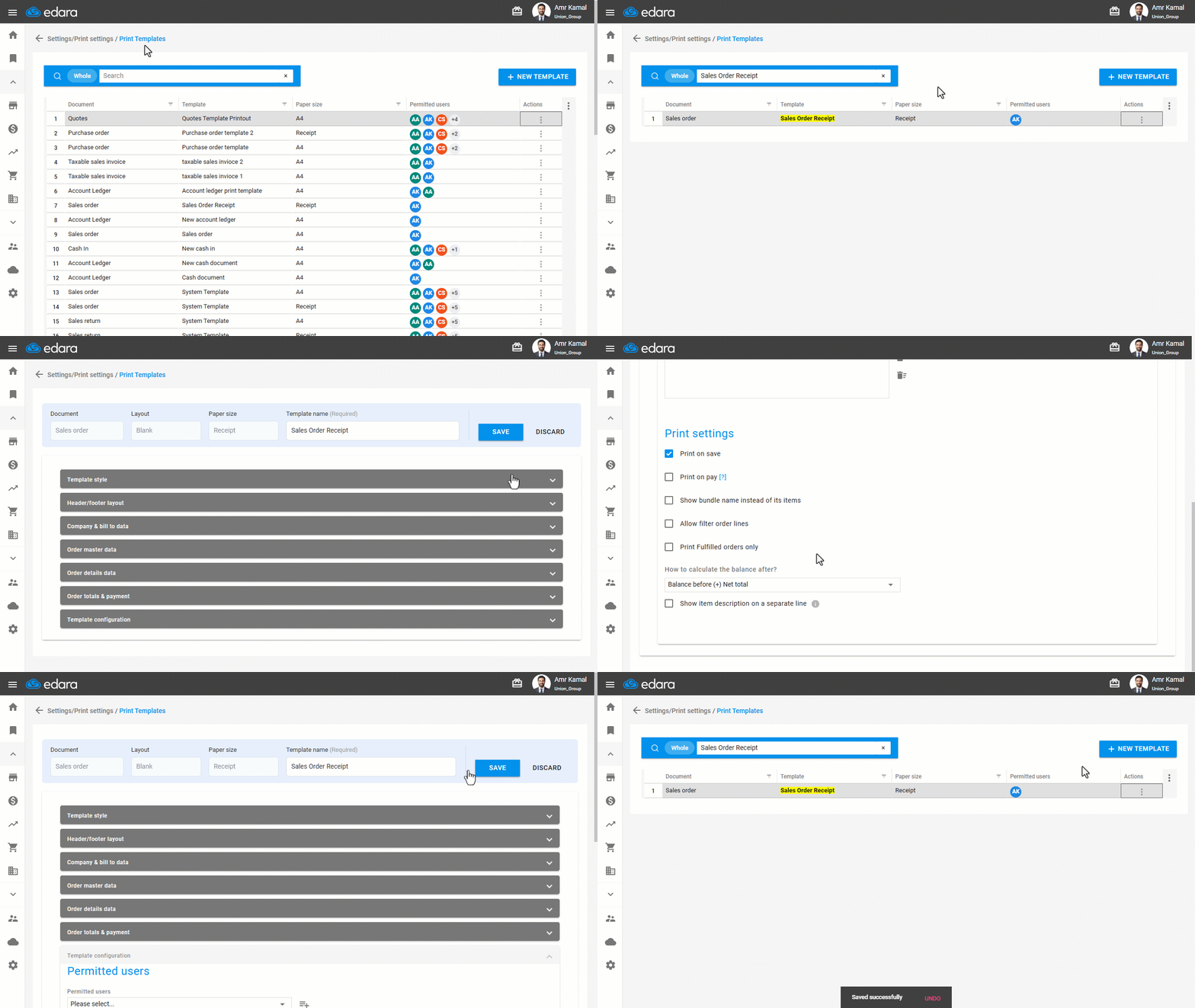
1- Enabling the "Allow Filtering Sales Order Lines" Setting
- Go to “Settings”.
- Open the “Print Templates” page.
- Search for the receipt print template using the search bar, or filter the results using the "Paper Size" column.
- Click on the “⋮” icon in the “Actions” column next to the required print template.
- Click on “Edit”.
Note: If the print template is a default template, click on "Load".
- Go to “Template Configuration”.
- Enable the “Allow filter order lines” option.
- Click on “Save”.
2- Printing Receipts from the "Sales Order" Page
First, ensure a custom field is created to store the names of service providers. Then follow these steps:
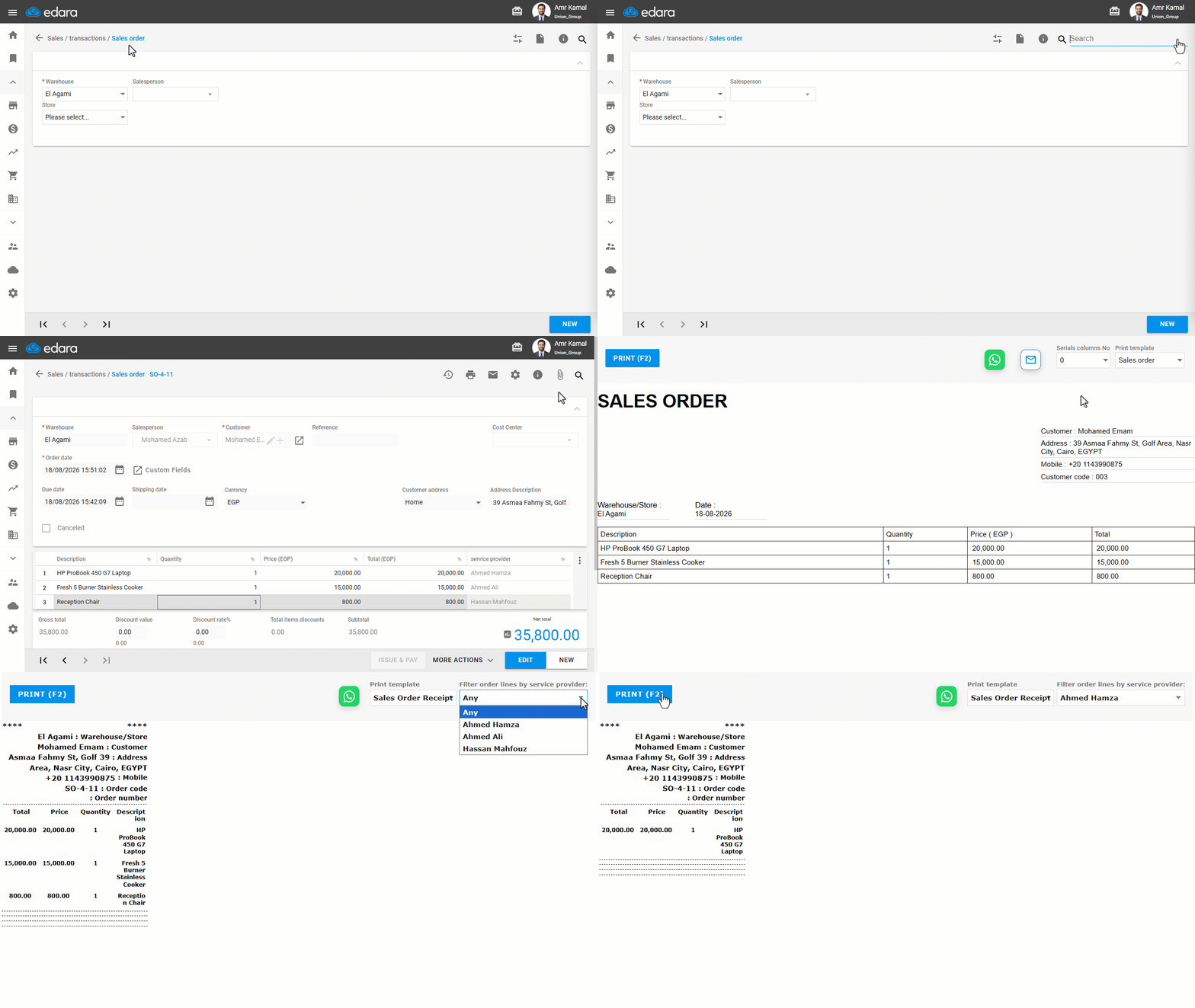
- Go to the “Sales” module.
- Open the “Sales Order” page.
- Search for the sales order you wish to split into receipts.
- Click on "
 " to print.
 - Select “Print Order”.
- Choose the receipt template.
- Filter the order lines to display only the lines assigned to a specific service provider.
- Click on “Print”.
Note: You can repeat the same steps, changing the selected service provider each time to print all required receipts.
Note: The custom field for "Service Provider" is just one example of how to use the "Allow Filtering Sales Order Lines" setting. You can follow the same steps with a different custom field to leverage this feature for printing receipts based on the data stored in the selected custom field.
Frequently asked questions
How do I print the receipts of all service providers?
You can repeat the same steps, changing the selected service provider each time to print all required receipts.
If you encounter any challenges or have questions during these processes, you can contact our technical support team, who are ready to assist you at any time.