

Displaying the QR Code on the E-Receipt
Last updated:
The Egyptian Tax Authority requires that a QR Code be displayed on E-Receipt
When scanned, the QR Code directs the customer to the e-receipt portal, where they can view and verify all receipt details.
Displaying the QR Code on the E-Receipt
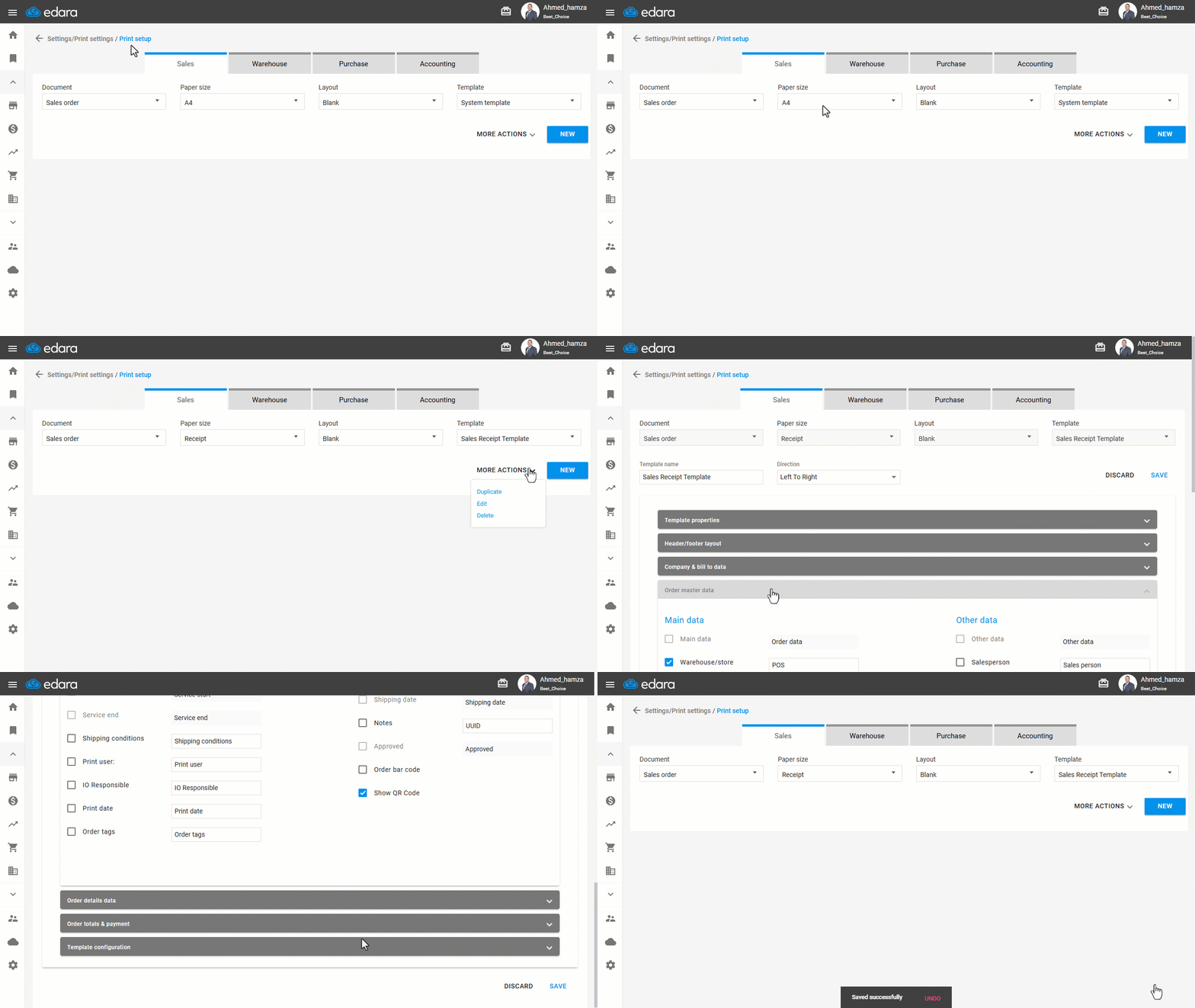
- Go to the “Settings”.
- Open the “Print Setup” page.
- Set the paper size to “Receipt”.
- Select the template used for printing.
- Click on “More Actions”.
- Click on “Edit”.
- Open the “Order master Data” section.
- Enable the “Show QR Code” field.
- Click on “Save”.
Verifying That the Receipt Data is Sent Correctly to the Portal
After completing the steps above, you must ensure that receipt data is sent correctly to the e-receipt portal:
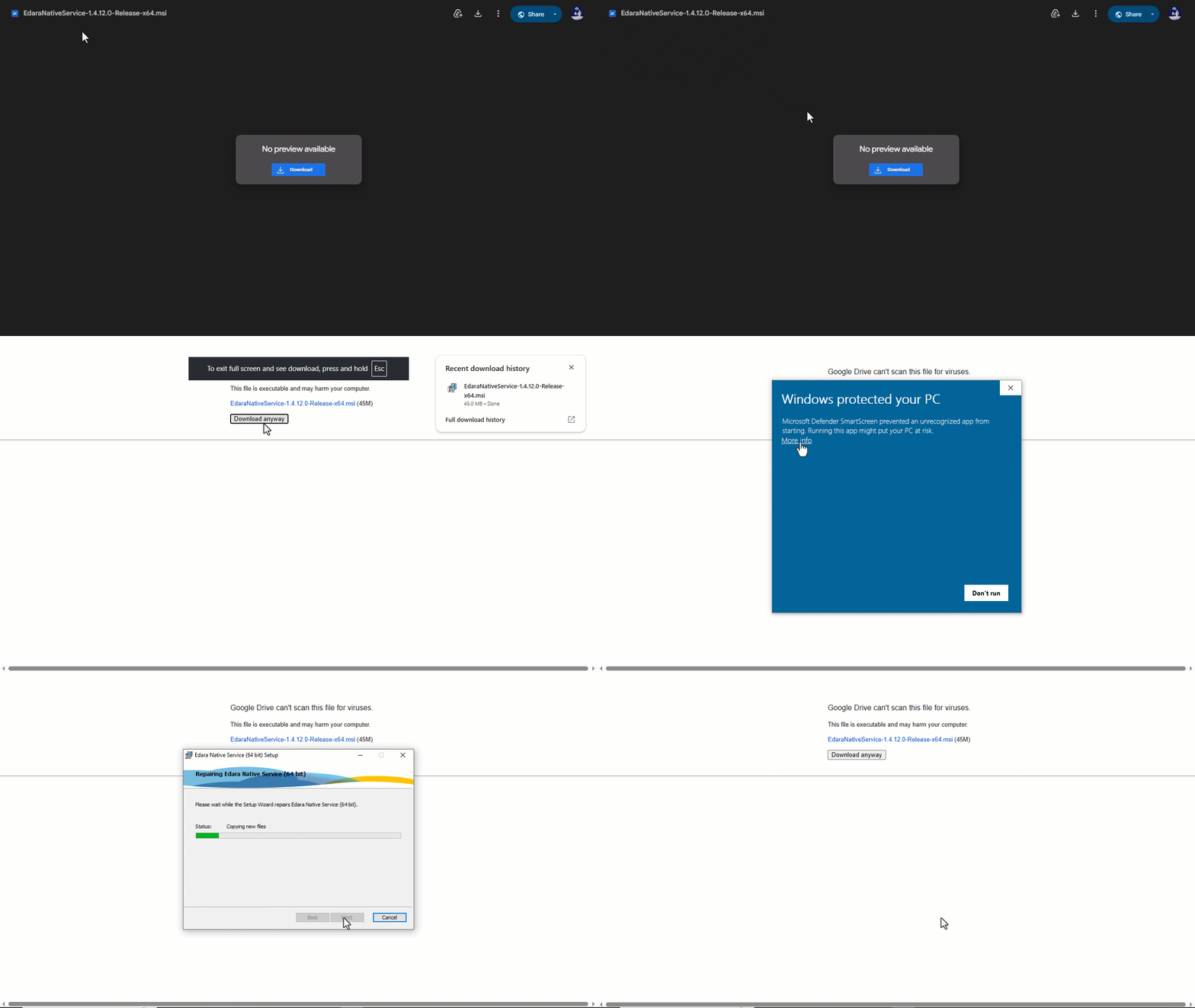
Install the Native Service on your device.
Verifying that the branch data are recorded correctly.
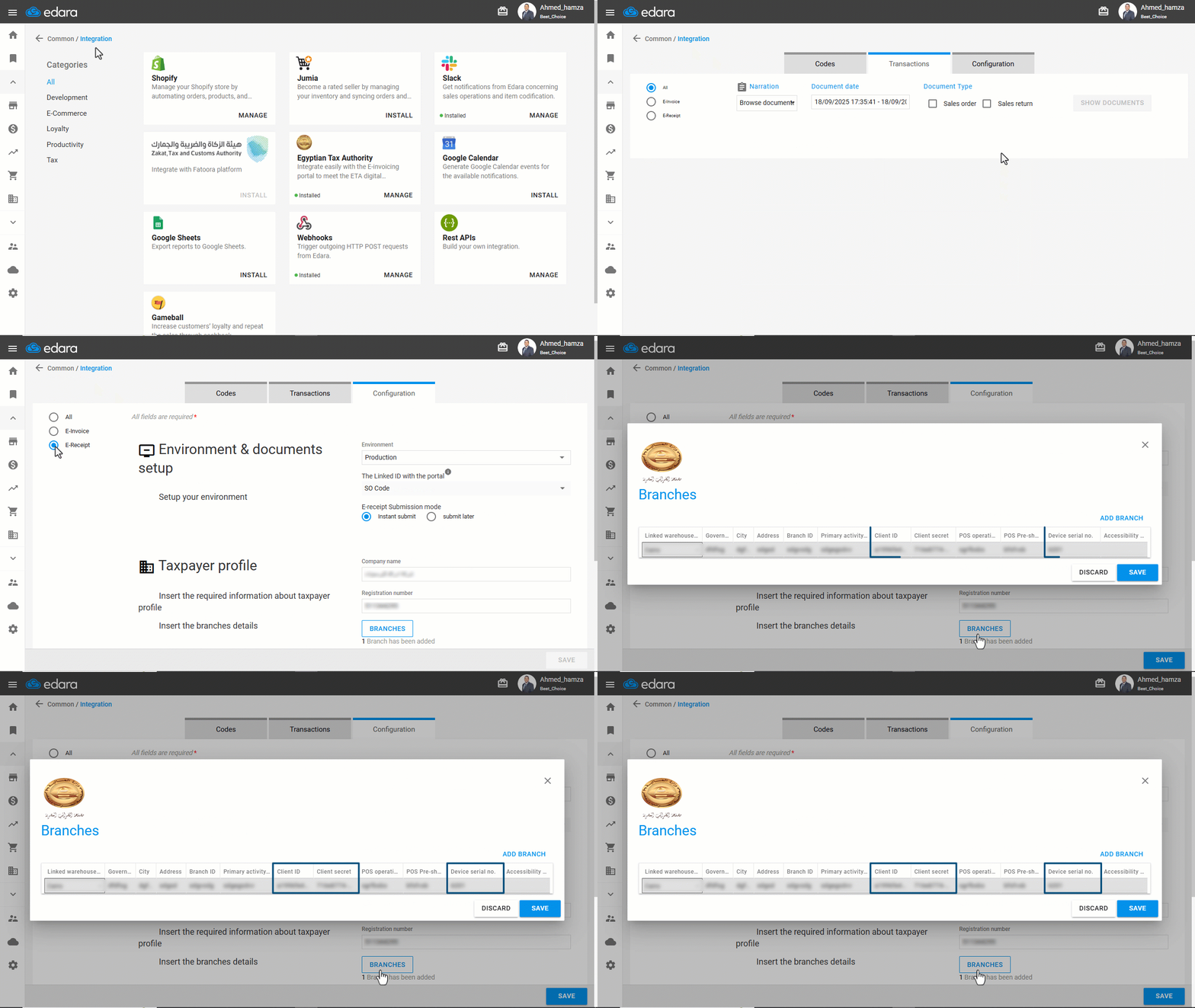
- Go to “Data”.
- Open the “Integration” page.
- Click on “Manage” in the “Egyptian Tax Authority”.
- Open the “Configuration” page.
- Select “E-Receipt”.
- Click on “Branches”.
- Confirm that the branch details are correct (Device Serial Number – Client ID – Client Secret).
For more details, see the article "Adding a POS in the E-Receipt System”.
Important Notes:
- For the QR Code to appear correctly, the sales order must be sent in a valid status and linked to the same device serial number registered in “Edara”.
- By default, receipts are sent instantly, but currently, the Egyptian Tax Authority allows receipts to be sent within 24 hours of the sale. Customers may need to wait for this period to pass before scanning the QR Code to review the data.
Frequently asked questions
Why doesn't the receipt data appear right after scanning the QR Code?
By default, receipts are sent instantly, but currently, the Egyptian Tax Authority allows receipts to be sent within 24 hours of the sale. Customers may need to wait for this period to pass before scanning the QR Code to review the data.
If you encounter any challenges or have questions during these processes, you can contact our technical support team, who are ready to assist you at any time.