

Printing an Account Ledger with Aggregated Invoices
Last updated:
When multiple sales or purchase invoices are linked to the same Sales Order or Purchase Order, displaying each invoice separately in the printed Account Ledger can make the data harder to review. Edara allows you to aggregate sales or purchase invoices linked to the same document into a single line when printing the Account Ledger, making the statement easier to review and presenting the total value of the Sales Order or Purchase Order more clearly.
Printing an Account Ledger with Aggregated Invoices
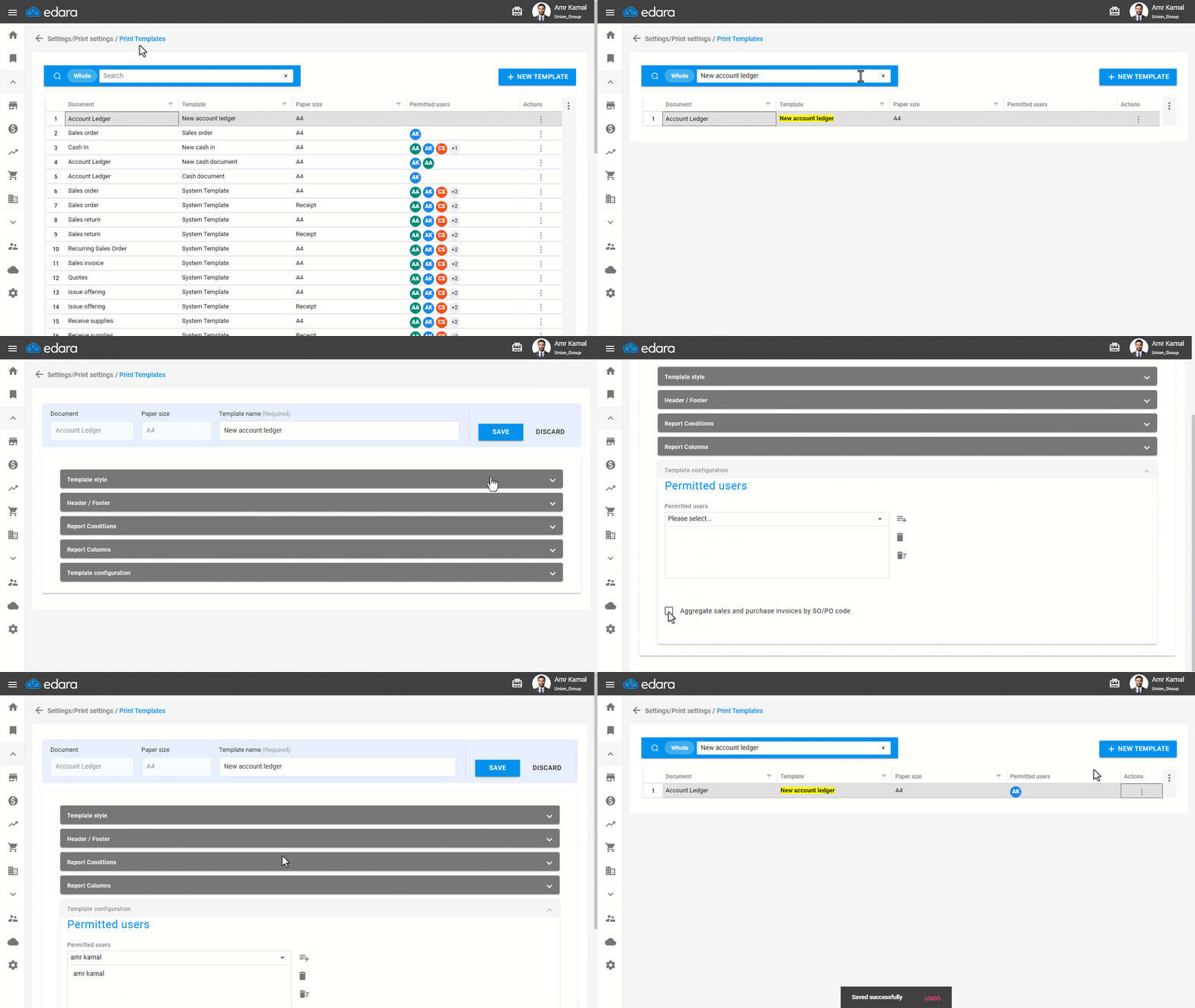
- Go to “Settings”.
- Open the “Print Templates” page.
- Search for the required Account Ledger print template.
- Click on the “⋮” icon in the Actions column next to the required Account Ledger.
- Click on “Edit”.
Note: If the print template is a default template, click on "Load".
- Click on “Template Configuration”.
- Enable the “Aggregate sales and purchase invoices by SO/PO code” option.
- Make sure the users who are allowed to use the print template are selected.
- Click on “Save”.
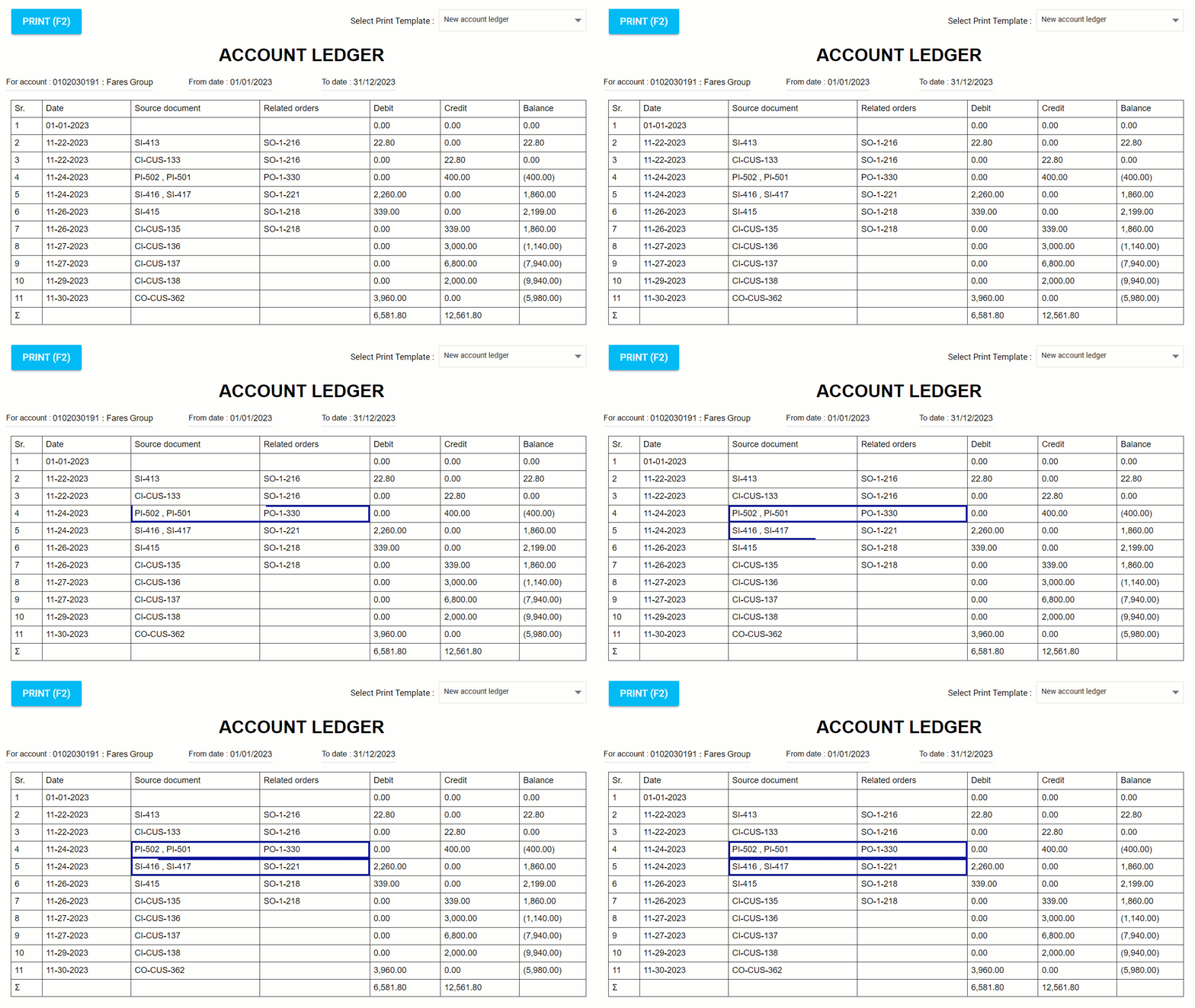
The following image shows an example of the printed output.
Notes:
- The following conditions must be met for the printed output to appear as expected:
- Run the report for only one account.
- Do not group columns on the results page before printing.
- Do not apply filters on the results page before printing.
- The aggregation is applied as follows:
- Debit and Credit columns: Values of rows linked to the same document are aggregated into a single line.
- Balance columns: Calculated based on the aggregated values.
If you encounter any challenges or have questions during these processes, you can contact our technical support team, who are ready to assist you at any time.