

Controlling the Customer Code
Last updated:
To ensure the accuracy of customer data, facilitate searches, and prevent duplicate codes, you can control the customer code settings within the system.
Controlling the Customer Code
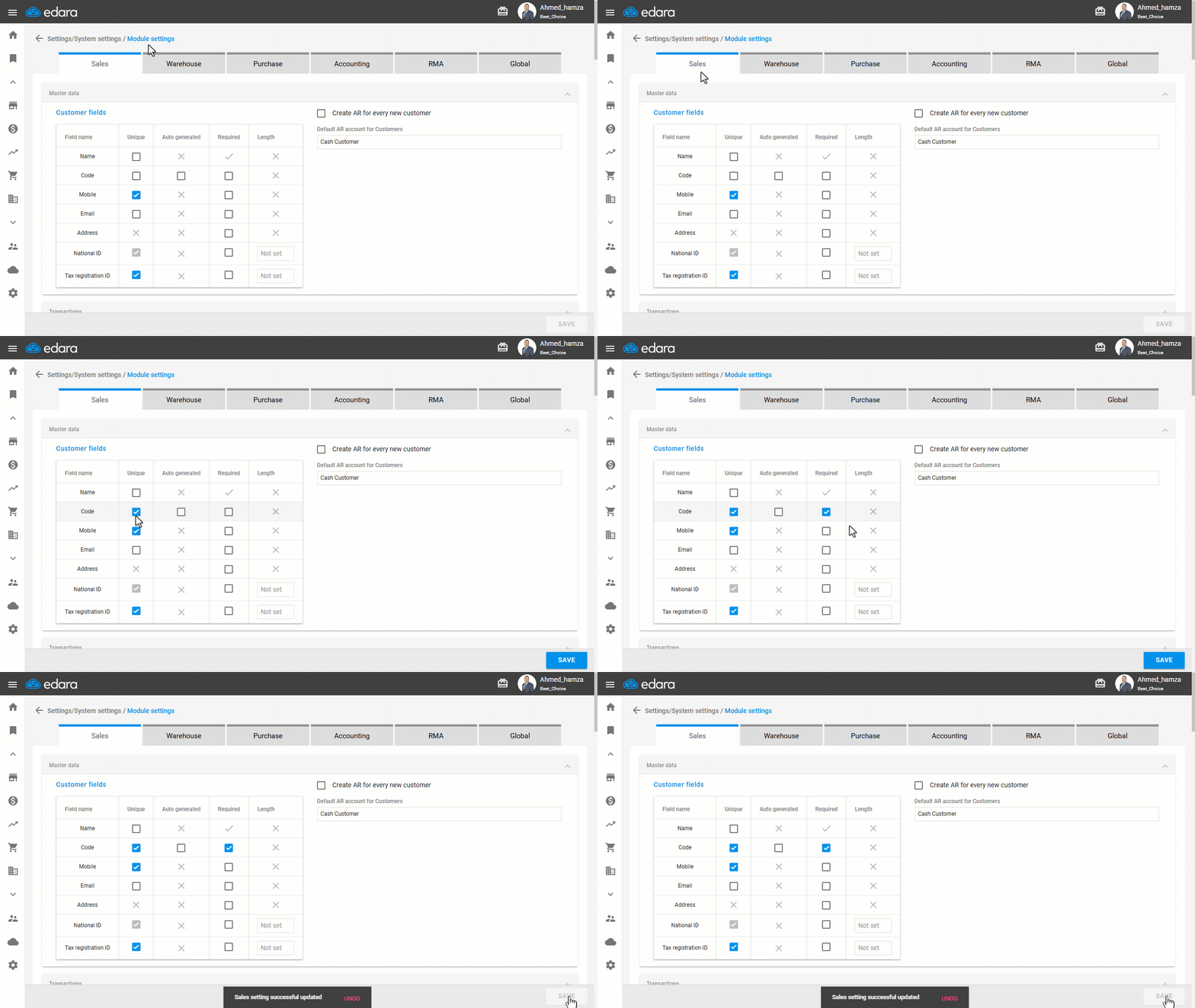
- Go to “Settings”.
- Open the “Module Settings” page.
The default tab displayed is the “Sales” tab.
- Go to the “Master Data” section.
- Enable the required setting by clicking on “🔲” to turn it into "☑️".
Note: You can control customer code properties using the following options:
- Unique: Prevents customer code duplication within the system.
- Required: Makes entering a customer code mandatory when adding a new customer (if Auto-generated is not enabled).
- Auto-generated: Automatically generates a customer code when a new customer is added.
- Click on “Save”.
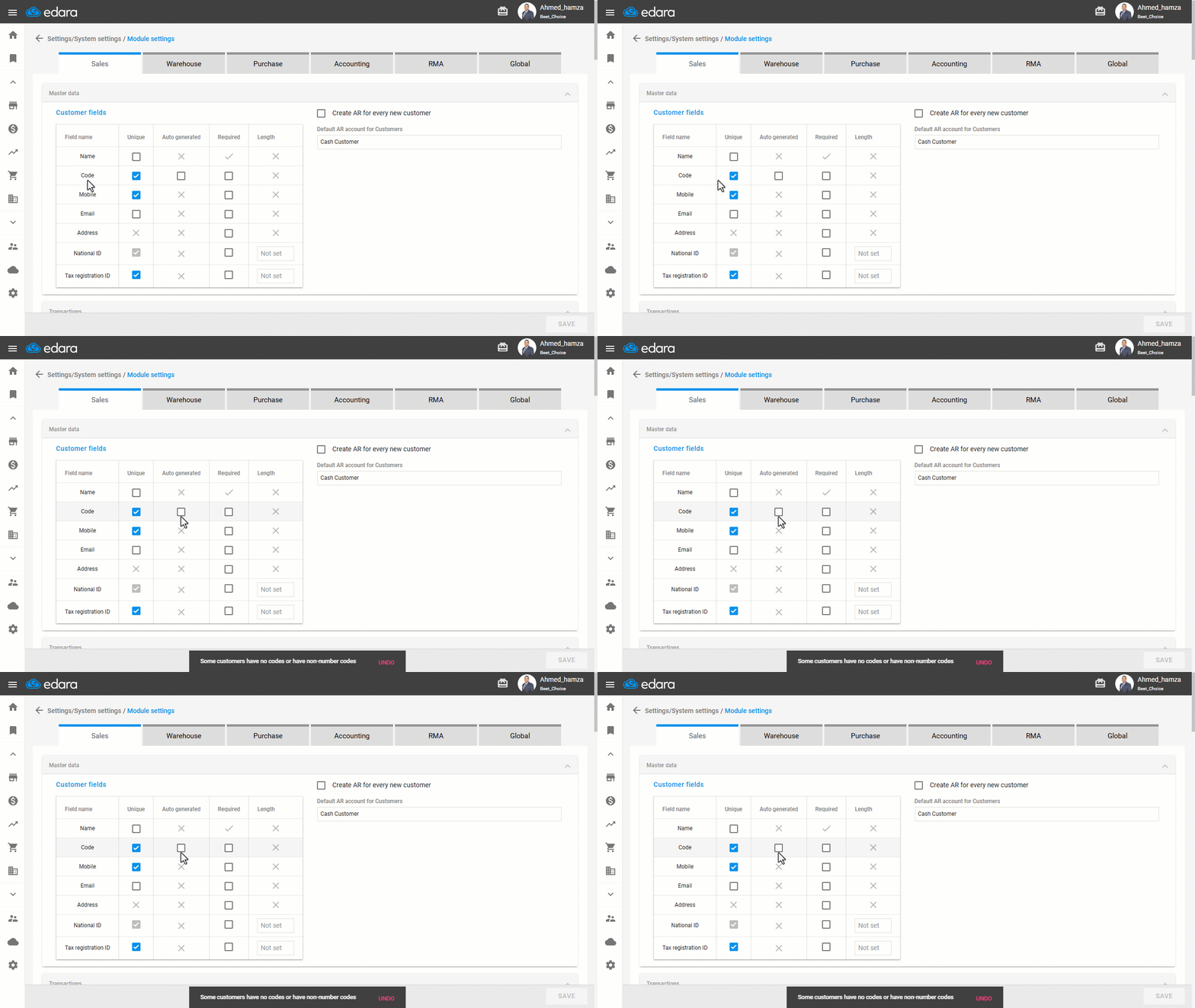
Note: Before enabling the Auto-generated setting, make sure that:
- All customers already have codes.
- Customer codes consist of “numbers” only and contain no letters.
Once the Auto-generate option is activated, the Customer Code field becomes non-editable. If either condition is not met, the system will display an alert message, as shown below.
Frequently asked questions
What are the conditions for enabling automatic customer codes?
Before enabling the Auto-generated setting, make sure that: All customers already have codes, Customer codes consist of “numbers” only and contain no letters.
If you encounter any challenges or have questions during these processes, you can contact our technical support team, who are ready to assist you at any time.