

Creating a New Customer
Last updated:
Creating customers allows you to track all financial transactions related to each customer, such as invoices, payments, and outstanding balances.
Creating a New Customer
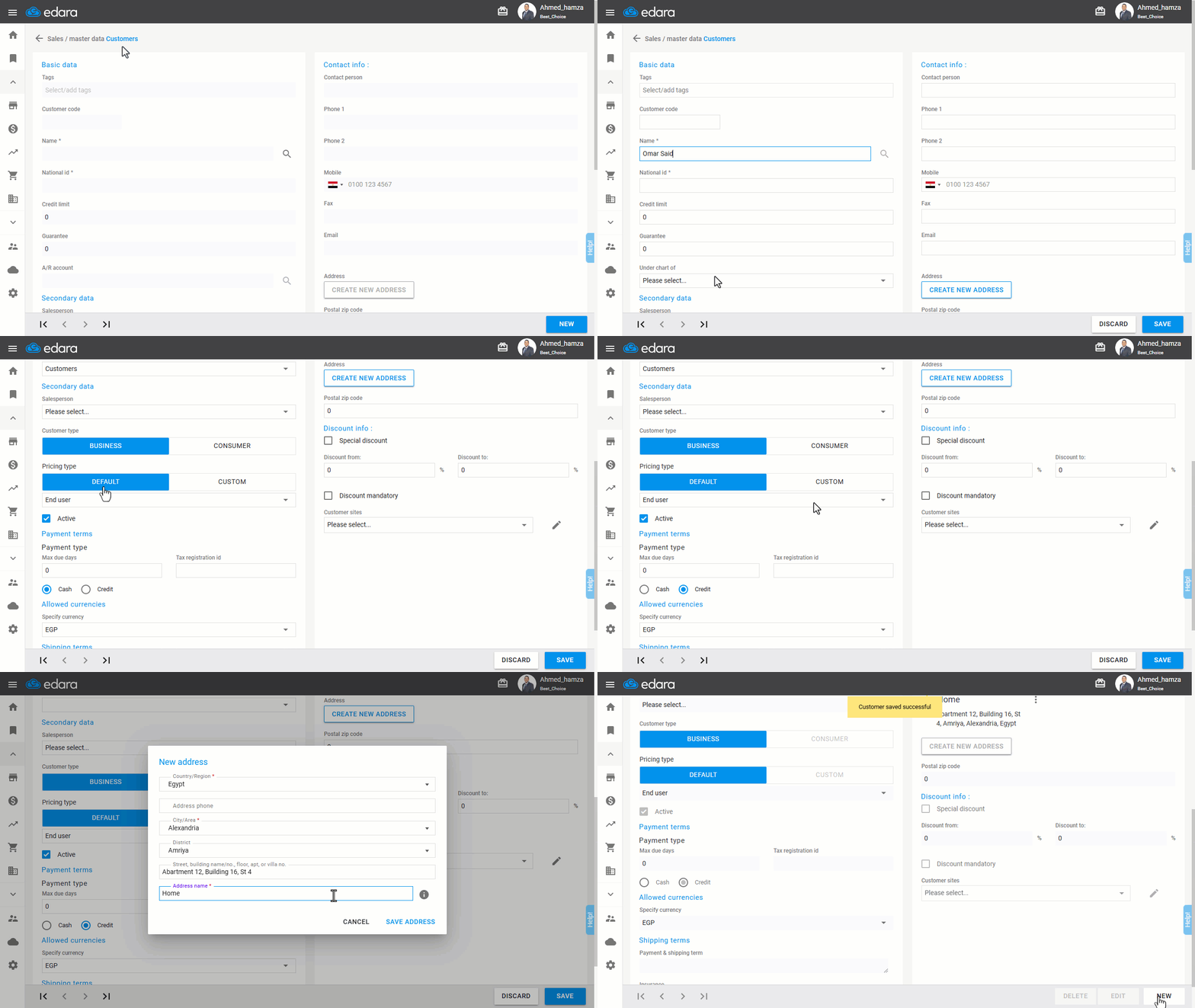
- Go to the Sales module.
- Open the “Customers” page.
- Click on “New”.
- Enter the customer’s name.
- Select the account node from the “Under chart of“ to create an account for the customer in the Chart of Accounts.
Note: If you need to add the customer under an existing customer account, deactivate the “Create AR for every new customer” setting from the Sales Settings in the Module Settings.
- Choose the customer type: Consumer or Business.
- Select the pricing type: Defaultor Custom.
Note: You can assign various pricing tiers based on the customer type, such as:
- End User: Buys products at the highest consumer price category.
- Dealer: Gets products at a lower price due to bulk purchases.
- Super dealer: Receives products at the lowest price among all categories (e.g., distributors or agents).
These pricing tiers do not have to be specified only when creating a new customer. You can also assign or adjust them for an existing customer by editing their profile.
- Choose the payment method: Cash or Credit.
Note: If Credit is selected and you want to create credit sales orders, activate the “Allow unpaid sales orders” Setting from the Sales Settings in the Module Settings.
- Specify the currency.
- Add contact information (if applicable).
- Add an address (if applicable).
- Click “Save”.
Frequently asked questions
How do I add the customer under an existing customer account?
If you need to add the customer under an existing customer account, deactivate the “Create AR for every new customer” setting from the Sales Settings in the Module Settings.
What do I need to create a credit sales order for a credit customer?
If Credit is selected and you want to create credit sales orders, activate the “Allow unpaid sales orders” Setting from the Sales Settings in the Module Settings.
If you encounter any challenges or have questions during these processes, you can contact our technical support team, who are ready to assist you at any time.