

Updating the Price List Linked to the Customer
Last updated:
"Edara" provides a flexible and simple way to modify the pricing type according to what suits the customer.
Updating the Price List Linked to the Customer
There are two ways to perform this update:
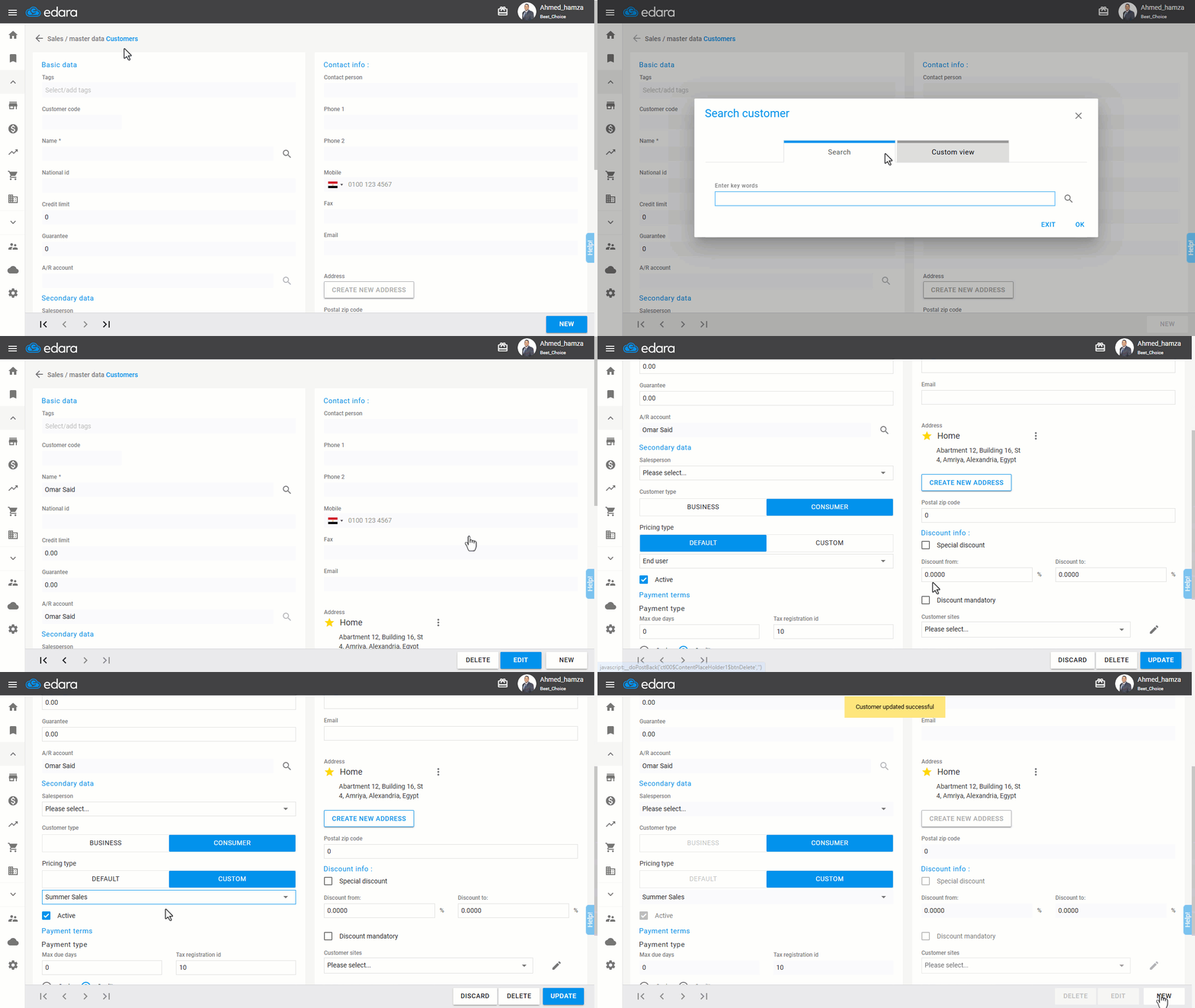
1- Updating from the Customers Page
- Go to the "Sales" module.
- Click on "Customers".
- Search for the customer using the 🔍 icon or the arrows.
- Click “Edit”.
- Select the required pricing type (Custom - Default).
Note: Default pricing is linked to item prices in the master data of each item, whereas custom pricing is associated with manually created price lists.
- Choose the "Price List" you want to link to the customer.
- Click “Update”.
2- Updating from the “Customers data” Page
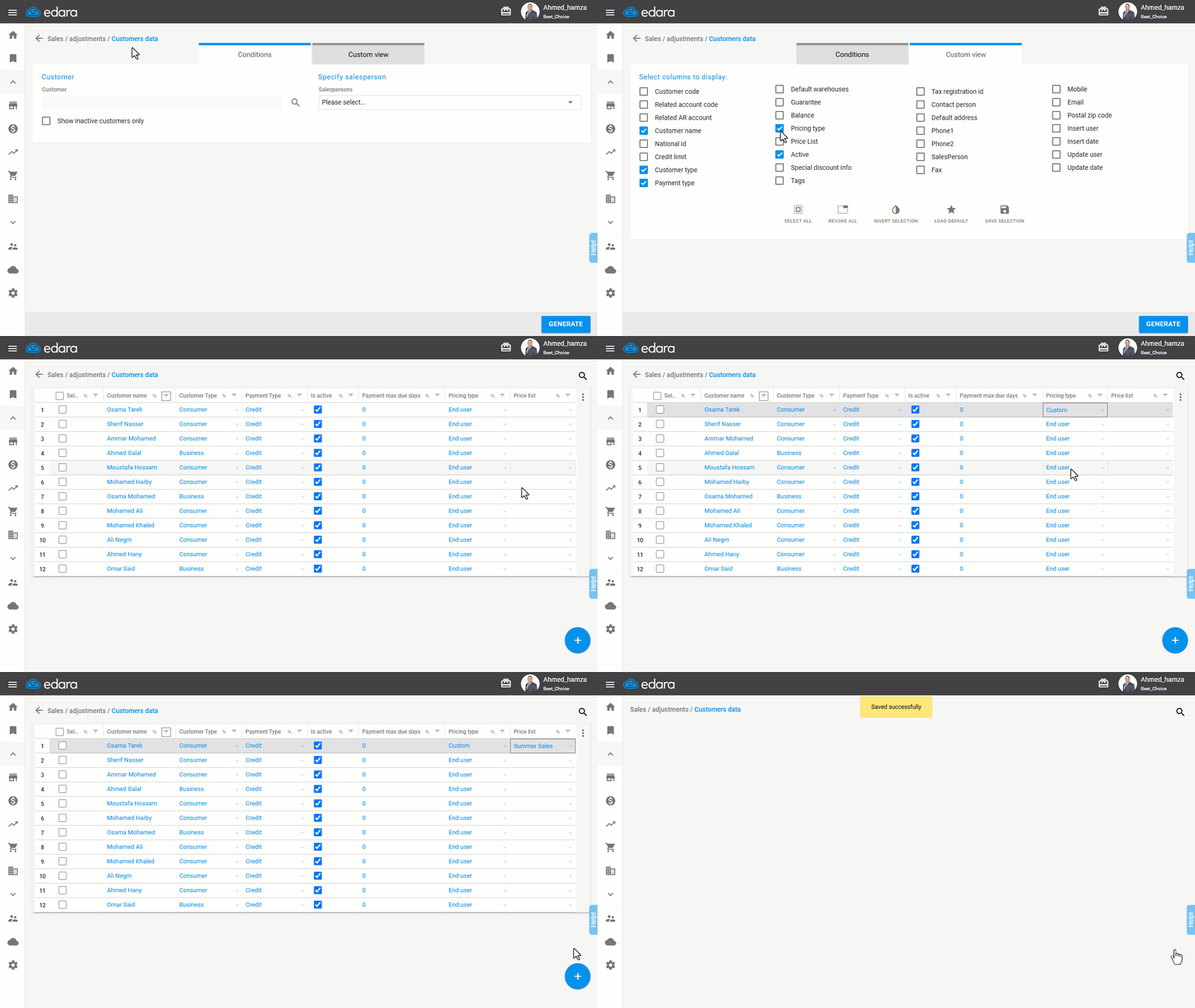
- Go to the "Sales" module.
- Open the "Customers data" page.
- Display the "Pricing Type" and "Price List" columns via “Custom View”.
- Click “Generate”.
- Select the required list type (Custom - Default) in the "Pricing Type" column.
- Choose the "Price List" you want to link to the customer.
- Click “+” and then “Save”.
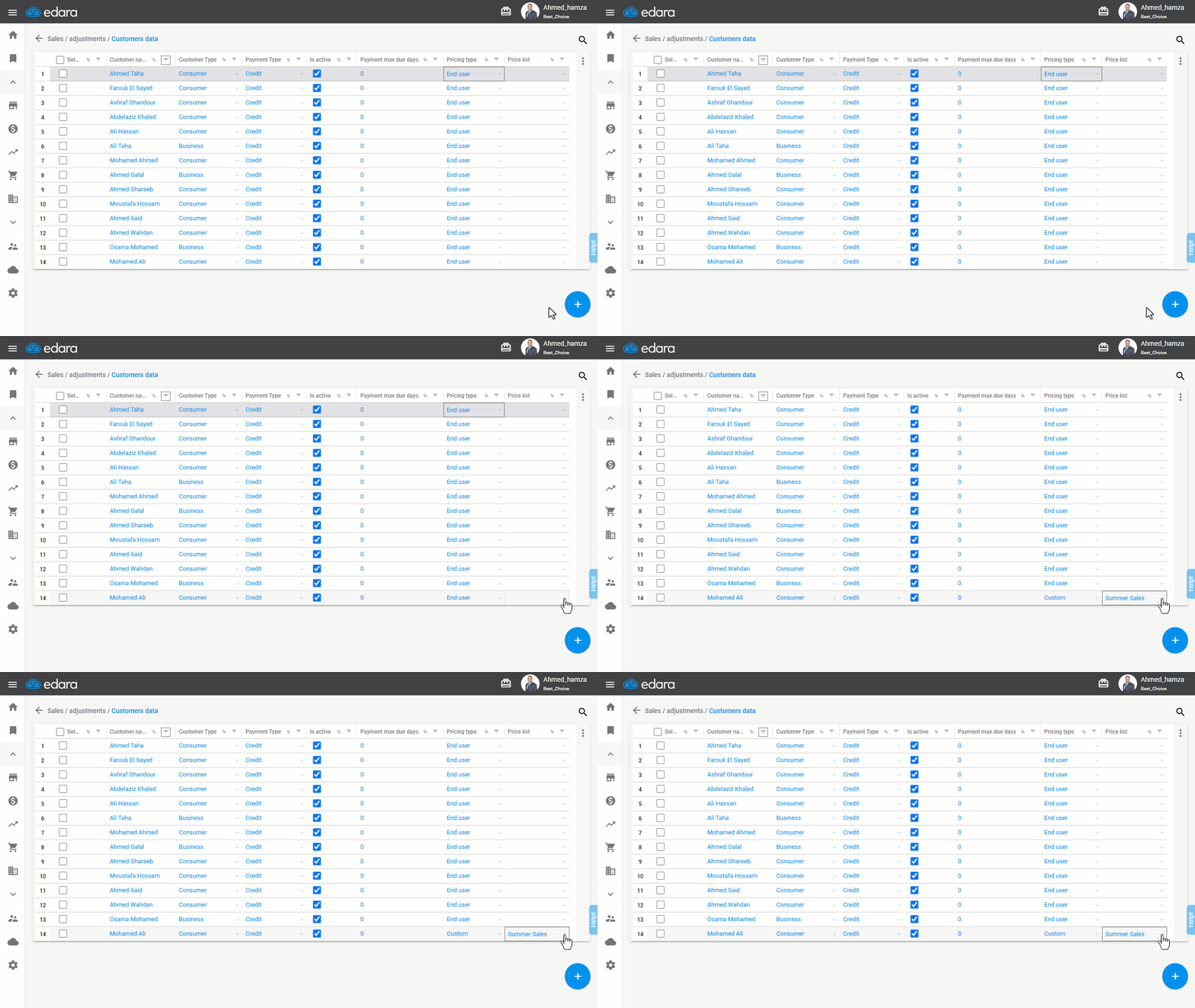
Note: If a custom price list is directly assigned to the customer, the pricing type will automatically change to "Custom" as shown in the following example. The same behavior will be applied when importing data.
Frequently asked questions
What is the difference between default and custom pricing?
Default pricing is linked to item prices in the master data of each item, whereas custom pricing is associated with manually created price lists.
What happens when a custom price list is assigned to the customer directly?
If a custom price list is directly assigned to the customer, the pricing type will automatically change to "Custom" as shown in the following example. The same behavior will be applied when importing data.
If you encounter any challenges or have questions during these processes, you can contact our technical support team, who are ready to assist you at any time.