

Creating Price Tiers for Stock Items and Using Them in POS
Last updated:
In some industries, cashiers deal with different customer segments, requiring them to set up various price tiers (such as consumer price, dealer price, or super dealer price) to accommodate these diverse customer types.
Creating Price Tiers for Stock Items and Using Them in POS
First: Creating Price Tiers
You can do this by following the steps outlined in the article: “Creating Price Tiers for Stock Items”.
Second: Assigning a Price Tier to a Customer
You can assign a specific price tier to a customer (e.g., dealer customer) by following the steps explained in the article: “Creating a New Customer”.
Third: Using Price Tiers in Points of Sale
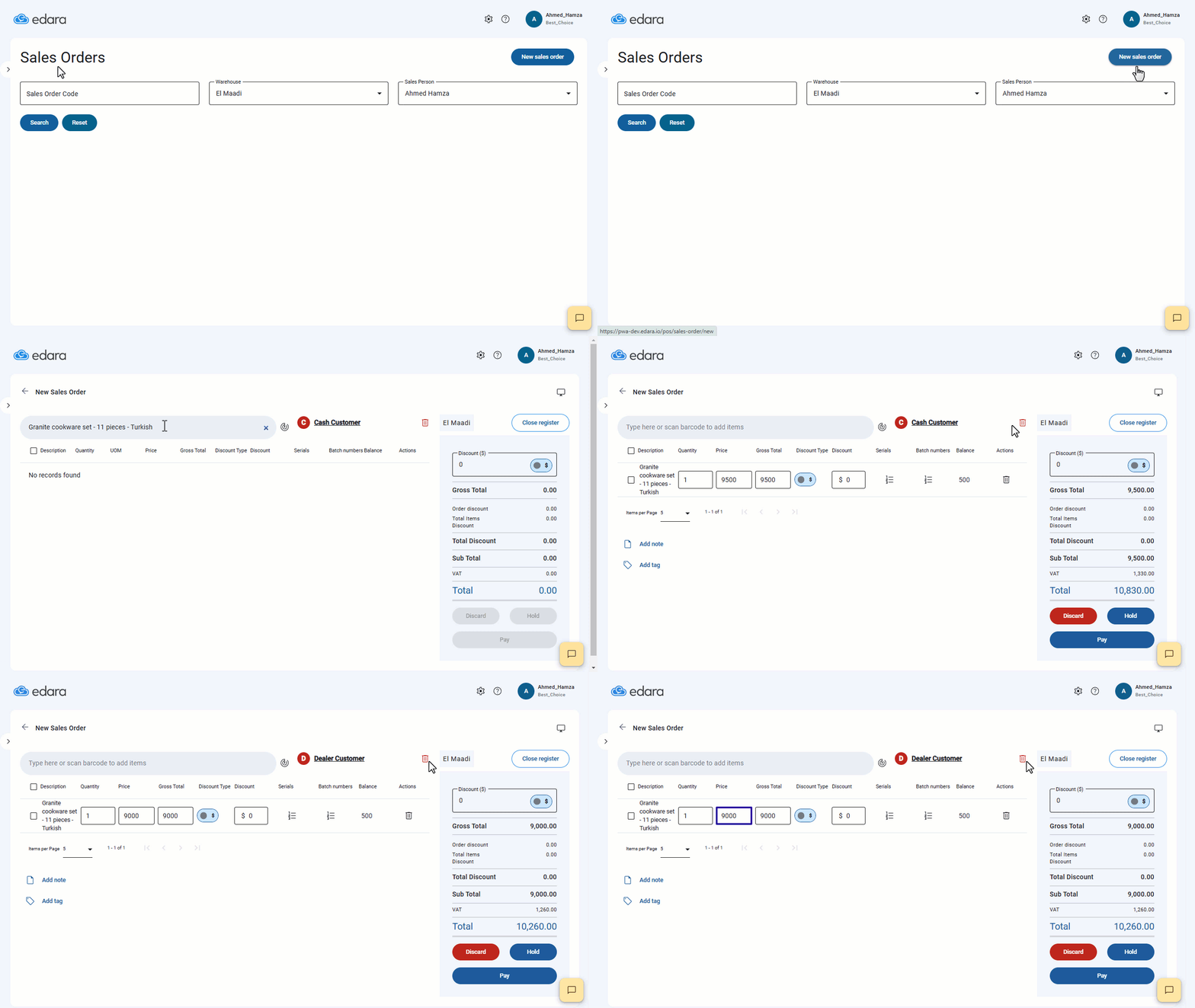
- Go to the Point of Sale module.
- Open the “Sales Orders” page.
- Click on “New Sales Order”.
- Add a product with multiple price tiers.
Note: When selecting a product with three different price tiers, the product will appear at the default price assigned to the customer in the system. This is illustrated in the following example:
If you encounter any challenges or have questions during these processes, you can contact our technical support team, who are ready to assist you at any time.