

Changing Sales Order Print Template
Last updated:
Print templates may vary depending on the stage of the sales order — for example, using a “Preparation” template during order handling, and a “Invoice” template after the order is finalized.
For this reason, you may need to choose the appropriate print template instead of relying on a single default template.
Changing Sales Order Print Template

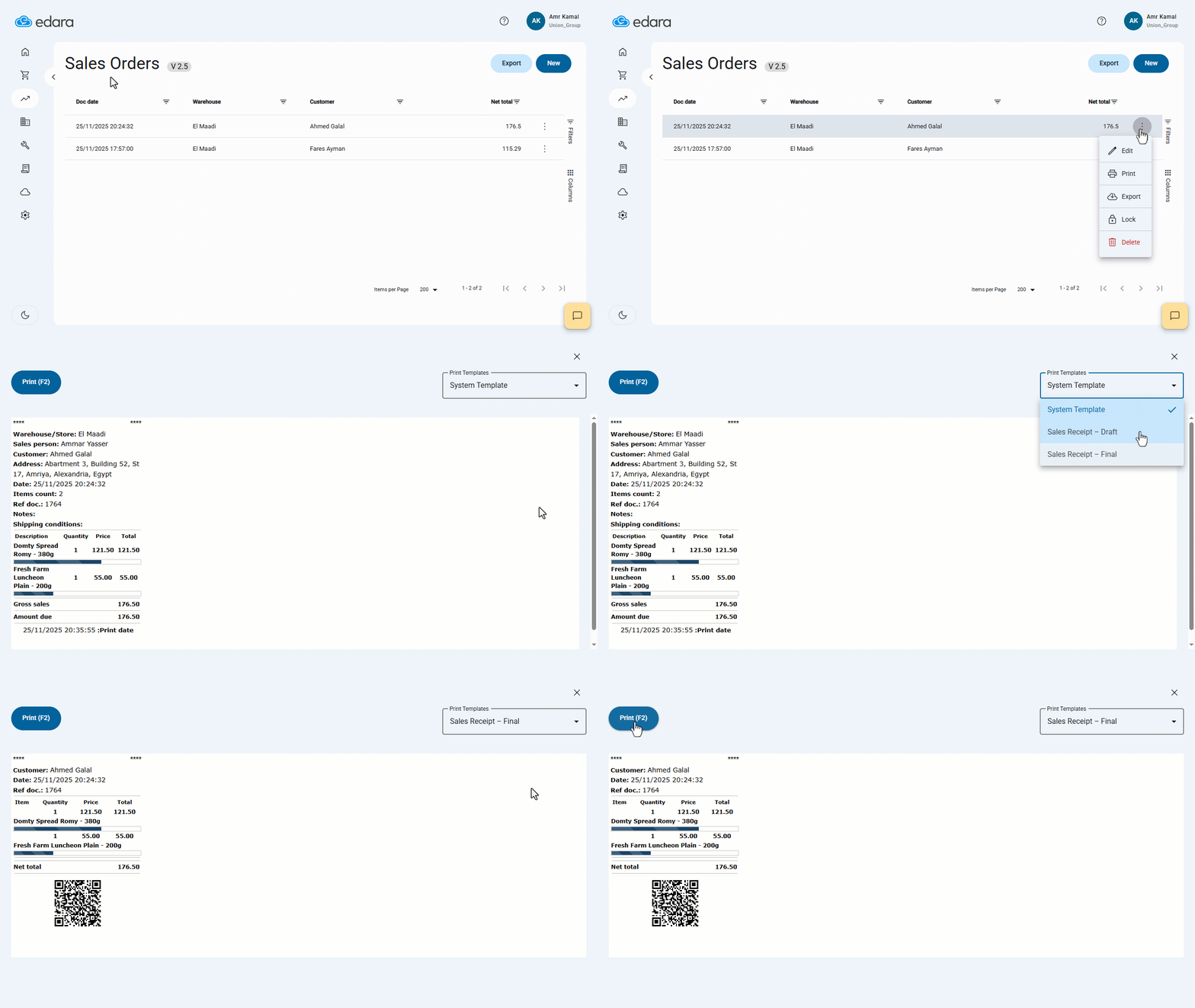
- Go to the “Point of Sale” module.
- Open the “Sales Orders” page.
- Click the More Actions icon “⁝” next to the sales order you want to print.
- Click on “Print”.
If you have access to more than one print template and you do not have a default template set in your “User Defaults”, a drop-down list of available templates will appear.
- Select the preferred print template.
- Click on “Print”.
Notes:
- The drop-down list of available templates will appear only when both of the following conditions are met:
- The user has permission to access more than one print template.
- No default print template is set in the “User Defaults” settings.
- The print template drop-down list also appears when saving the Sales Order.
- If a default print template is configured, the system will print directly using that template without showing the drop-down list, even if multiple templates are available to the user to use.
- If you frequently use a specific print template, it is recommended to set it as your default template to speed up the printing process.
Frequently asked questions
Why doesn’t the print template list appear?
If a default print template is configured, the system will print directly using that template without showing the drop-down list, even if multiple templates are available to the user to use.
If you encounter any challenges or have questions during these processes, you can contact our technical support team, who are ready to assist you at any time.