

Fulfilling a Pre-order in POS
Last updated:
After creating a pre-order in Point of Sale, preparing the order, delivering it to the customer, and receiving payment, you need to update the fulfillment status. This can be done either manually by the user or automatically by the system.
Fulfilling a Pre-order in POS
This requires two main steps:
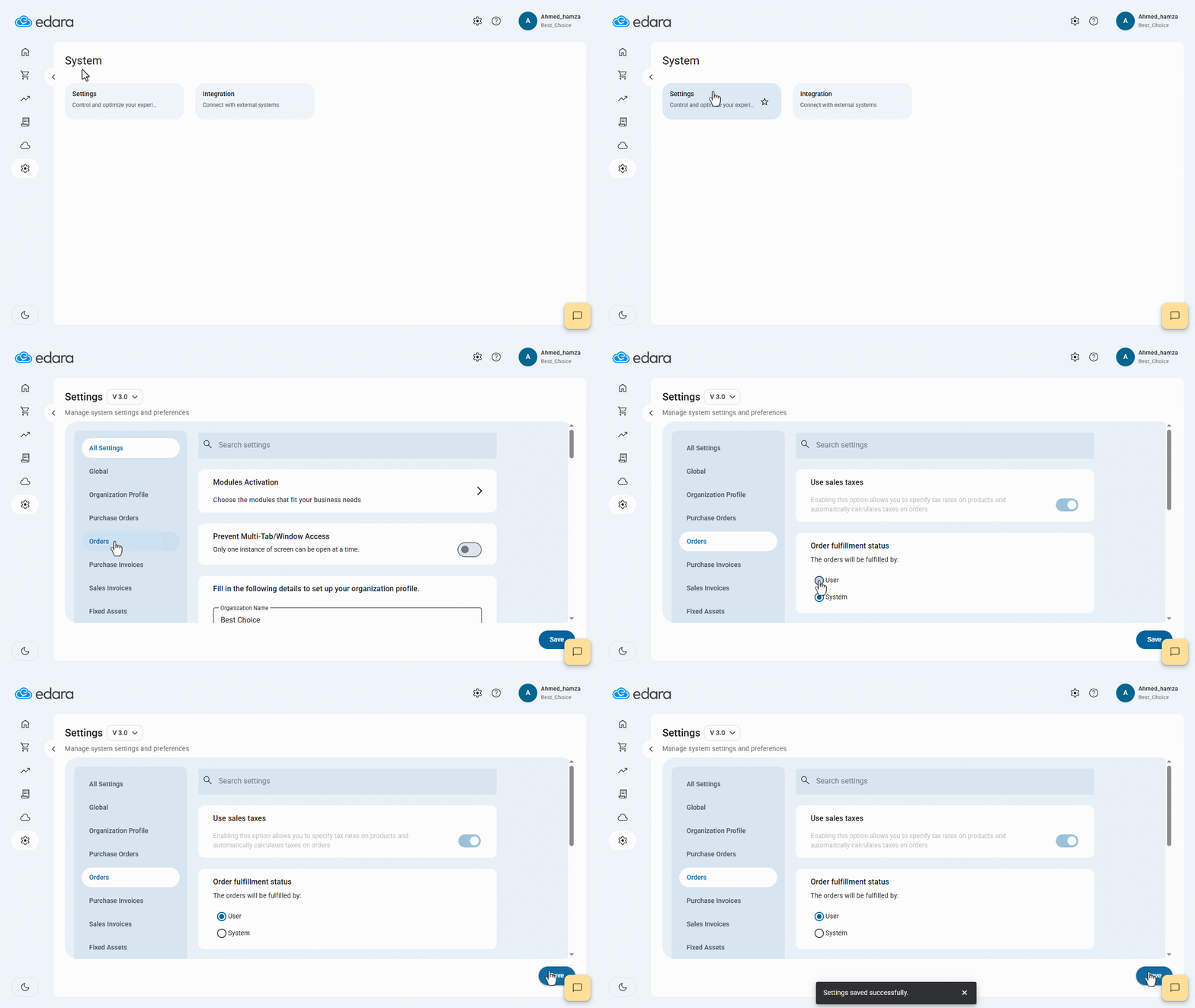
1- Configure the Fulfillment Status Settings
- Go to System.
- Open the “Settings” page.
- Select "Orders".
- Choose the pre-order fulfillment status (by User or System).
- Click on "Save".
Note: If you set the fulfillment status to be by "User", you will need to update the status manually each time. And if you set it to be by "System", the system will automatically mark orders as fulfilled based on one of these conditions:
- When the order is paid and delivered.
- When the order is delivered.
2- Manually Marking an Order as Fulfilled
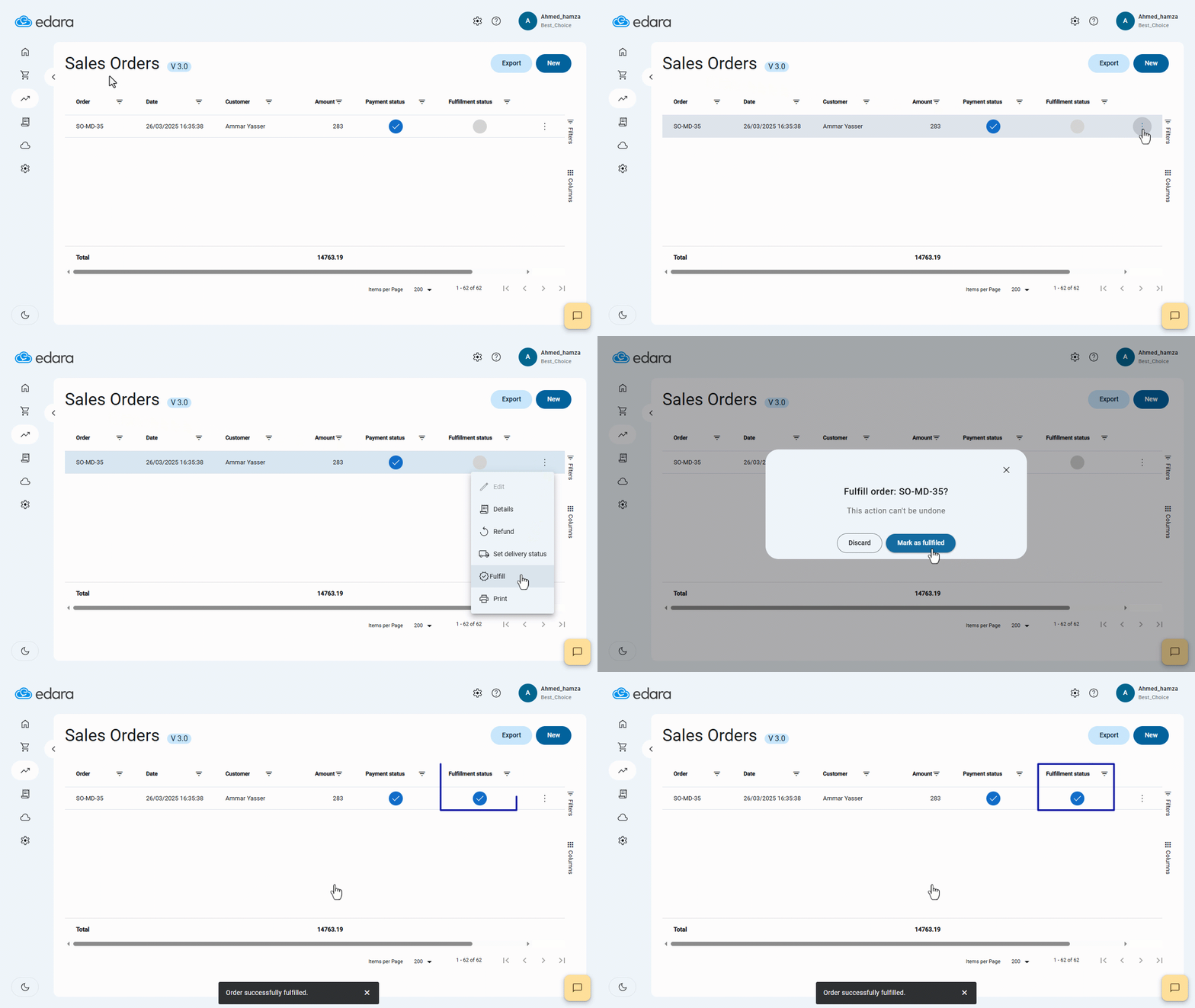
When setting the fulfillment status to be managed by the “User”, you need to follow these steps:
- Go to Point of Sale.
- Open the “Sales Orders” page.
- Click "⁝" next to the sales order.
- Select "Fulfill".
- Click on "Mark as fulfilled".
Important Notes:
- The order must pass through the cash register first before you can fulfill it.
- This action cannot be undone once executed.
Frequently asked questions
Can I undo fulfilling an order?
This action cannot be undone once executed.
If you encounter any challenges or have questions during these processes, you can contact our technical support team, who are ready to assist you at any time.